How to Prevent Account Sharing on WordPress
Six ways to stop members sharing one login on a WordPress membership site, from a one-session limit to team pricing, with the effect each has on honest members.


To prevent account sharing on WordPress, limit each account to one active session, so a new login ends the older one. Then add two-factor authentication, lock out repeated failed logins and write a clear no-sharing rule in your terms. Finally, give people who want to share a legal option, such as a team plan with seats.
Account sharing is when one paying member gives their username and password to friends, colleagues or a whole group. Everyone gets in, but only one person pays. On a membership site, that turns one subscription into many readers, and you lose revenue you can’t see.
This guide covers six ways to stop it, with what each one blocks and how it affects honest members. Most paid membership sites need at least the first and the last: one active session and a team plan.
Why does account sharing hurt a membership site?
Account sharing hurts because every shared login is a sale you didn’t make. It also skews your numbers and can expose member data.
The main problems:
- Lost revenue. Five people reading on one subscription means four people who never paid.
- Wrong data. Your member count, engagement stats and churn numbers describe accounts, not people. Shared accounts make them less accurate.
- Security risk. A password passed around a group chat can end up anywhere. The more people know it, the more likely it leaks.
- Unfair to paying members. People who pay full price notice when others get the same access for free.
Some sharing is harmless, like a member reading on a phone and a laptop. When you prevent account sharing, the goal is to stop several people using one account, without punishing one person with two devices.
What are the signs of password sharing?
The most common sign of password sharing is the same account being active in two places at once. Other signs show up in support tickets and login patterns.
Watch for these:
- One account logs in from different cities or countries within minutes.
- A member writes in because they keep getting logged out on their own device.
- Many password resets or failed logins on the same account.
- An account opens far more content than a typical member.
- A company buys one membership, and you hear from several people at that company.
With the Full Package plan, Ultimate Membership Pro shows which members are online now and when each one last logged in. That helps you spot accounts that are always active.

How can you prevent account sharing?
You can prevent account sharing with six methods. The first one stops most sharing on its own. The others add security, set expectations or turn sharers into paying customers.
1. Limit concurrent logins to one session
The most effective way to prevent account sharing is to limit concurrent logins to one per account. When the account logs in on a second device, the first session ends.
In Ultimate Membership Pro, this is the Cheat Off module, part of the login security features in every plan. The newest login wins, and the earlier device is logged out at its next page load. The logged-out person goes to a page you choose, such as a page that explains the one-device rule.
This does not block the second login. It makes sharing annoying, because two people can’t stay logged in at the same time. The step-by-step guide to blocking shared logins explains the setup.

Impact on honest members: someone who switches from a laptop to a phone has to log in again. Each browser counts as a device, so a second browser or a private window ends the first session too. Tell members about this before you switch it on.
Limits to know:
- It allows exactly one session. You can’t allow two or three devices per account.
- The earlier device is logged out only at its next page load. A page that is already open, or a video that is already playing, keeps running until that person clicks or refreshes.
- A browser that blocks cookies looks like a new device on every page. Administrators are never logged out.
If members need two or three devices, or a family wants shared access, sell a group Membership with that many seats instead (method 6).
2. Add two-factor authentication (2FA)
Two-factor authentication (2FA) asks for a one-time code after the password. A shared password alone is no longer enough, because the code goes to the owner’s email or phone.
With the Full Package plan, Ultimate Membership Pro sends the code by email, SMS or both. SMS providers include TeleSign, BulkSMS, Messente, InfoBip and ClickSend. Codes last between 10 minutes and 1 hour, and you can limit how many new codes a member can request.
Most site owners add WordPress 2FA to keep attackers out. The US Cybersecurity and Infrastructure Security Agency explains why a second step beyond the password protects accounts. As a sharing tool, it works best when codes go to the owner’s phone, since the owner then has to pass on each code.
Impact on honest members: one extra step at login. Most people are used to it from banking and email apps.
3. Lock out repeated failed logins
Blocking an IP address after too many failed attempts stops password guessing and bots. It also slows down people who try old or wrong shared passwords.
Ultimate Membership Pro includes Security Login in every plan. You set the number of failed tries, how long the lock lasts and how many locks lead to a longer block. You can also keep an IP blacklist that can’t log in at all.
Impact on honest members: a member who forgets their password may be locked out for a while. A clear message and a password reset link help.
4. Hide the default WordPress login page
Hiding the default login page sends visitors who open wp-login.php to your own login page. This cuts down on automated attacks on the standard address.
Ultimate Membership Pro offers Hidden WP Login with Full Package. Your own IP addresses can still use the WordPress login.
On its own, this method does little against sharing between people who already know the password. Treat it as part of your general security setup.
Impact on honest members: none. They use your branded login page.
5. Put a no-sharing rule in your terms
Clear terms tell members that one account is for one person. They give you a fair reason to act when you find sharing.
Your terms should say:
- An account is for one named person.
- Sharing login details is not allowed.
- You may log out sessions, reset passwords or close accounts that are shared.
- Teams should buy a team plan.
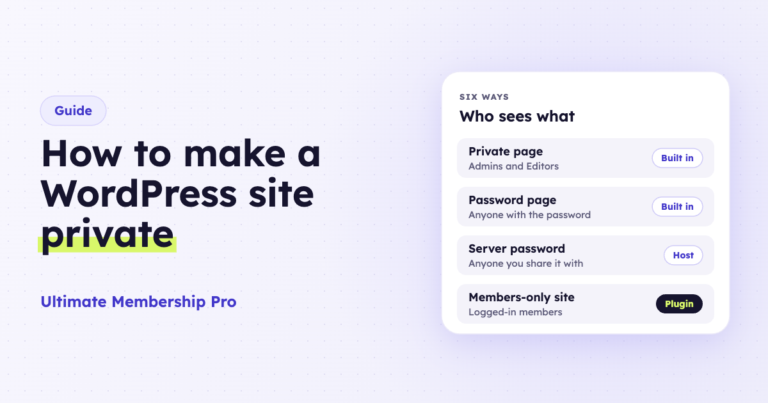
Show a short version of this rule at sign-up and on the page where logged-out members land. If you need help with private areas in general, see how to make a WordPress site private.
Impact on honest members: none, as long as the rule is short and easy to find.
6. Offer team pricing instead
Many people share because there is no legal way to give access to a team. A group membership gives them one, which makes it the friendliest way to prevent account sharing.
With group memberships, one person buys a Membership with a set number of seats and invites others by email from the member portal. Everyone gets the same access, and the buyer pays one price for the whole group.
Group accounts come with the Full Package and Agency plans of Ultimate Membership Pro. See how team memberships work.
Impact on honest members: positive. Companies and families get a clear way to pay for several people.
Which method should you use to prevent account sharing?
Start with one active session per account and a team plan. Add 2FA and login lockouts for security, and back everything with clear terms.
| Method | What it stops | Impact on honest members |
|---|---|---|
| One active session | Two people logged in at the same time | Log in again when switching devices |
| Two-factor authentication | Logins with only a shared password | One extra step at login |
| Failed login lockout | Password guessing and bots | Short lockout after many wrong tries |
| Hidden login page | Attacks on the default login address | None |
| No-sharing terms | Members who don’t know the rule, and disputes when you act | None |
| Team pricing | The reason to share at all | Positive, a legal way to add people |
You don’t need all six. A free community may get by with clear terms alone. Any paid membership should add one active session and a team plan, and a premium course or newsletter benefits from 2FA as well.
Two smaller settings also help. Social login lets members sign in with a linked Google, Facebook or LinkedIn account, in every plan. Few people hand over their Google account, so members who use it share less, though the account password still works. You also set how long a login lasts, so a shorter login means a borrowed device has to sign in again sooner.
You can also cap how many posts each Membership can view, in every plan, so one shared account can’t open your whole archive. For more on locking content by plan, see this guide to restricting content in WordPress.

How should you tell members before you switch it on?
Tell members before you switch on any setting to prevent account sharing, so honest members aren’t surprised. A short notice prevents most support tickets.
- Email all members a week before. Explain what changes, when and why, in three or four sentences.
- Explain the one-device rule. Say that a new login ends the older session, and that this is normal.
- Offer the team option. Link to your team plan for anyone who needs access for several people.
- Update your terms and FAQ. Add the no-sharing rule and a short answer about being logged out.
- Set up the landing page. Create the page logged-out members see, with a login button and a link to the team plan.
- Switch it on and watch support. Answer the first questions quickly and adjust the wording if people are confused.

If you are still choosing a platform, this overview of membership software explains what to look for. Compare the Ultimate Membership Pro plans to see which login security features each one includes.
Ready when you are
Turn visitors into paying members with Ultimate Membership Pro
Launch your membership website, protect exclusive content and automate subscription payments, all in one WordPress plugin.
- 14-day money-back guarantee
- Unlimited members
Frequently asked questions
Can I stop two people using one login?
Yes. Limit each account to one active session. When someone logs in on a second device, the first session ends. Two people can still know the password, but they can’t stay logged in at the same time, which makes sharing frustrating enough that most people stop.
Will limiting logins annoy honest members?
It can, if members switch devices often and don’t know the rule. Tell them before you switch it on, explain that a new login ends the older session and send logged-out members to a page that explains why. Most honest members accept a quick re-login.
Can I allow two or three devices per account?
Not with a one-session limit. In Ultimate Membership Pro, Cheat Off allows one active login per account. For families or teams, sell a group Membership instead: you set the number of seats, and the owner invites each person by email. Group accounts come with the Full Package and Agency plans.
Does two-factor authentication stop account sharing?
Partly. Two-factor authentication asks for a code sent to the owner’s email or phone after the password. A shared password is no longer enough, so the owner must pass on each code. It is mainly a security tool, so combine it with a one-session limit.
Can I see if an account is shared?
You can spot likely sharing from login patterns: the same account active in two places at once, logins from different countries within minutes and members complaining about being logged out. Some membership plugins show who is online now and when each member last logged in.
What should I offer members who want to share?
Offer a team or group membership. One person buys a set number of seats and invites others by email, and everyone gets the same access. It turns sharing into a sale and gives companies, schools and families a fair way to pay.