How to Start a Paid Newsletter on WordPress
Run a paid newsletter on your own WordPress site: WordPress holds the issues, accounts and payments, and your email tool sends each issue. Setup, pricing and moving from Substack.

To start a paid newsletter on WordPress, you publish each issue as a post, lock premium issues to paying subscribers with a membership plugin, and send the emails with an email marketing tool. WordPress keeps the archive, the accounts and the payments on a site you own, and the email tool handles delivery. This guide shows how the pieces fit and how to set them up step by step.
A paid newsletter is a newsletter that readers pay for, usually monthly or yearly, in return for premium issues and full archive access. Many writers start on Substack because it bundles writing, sending and payments. A WordPress setup splits those jobs between tools, which gives you more control and more setup work.
Is WordPress a good Substack alternative for a paid newsletter?
Yes, if you want to own the site, the subscriber accounts and the payment relationship. Substack is faster to launch and takes a share of paid subscriptions, while WordPress takes more setup. Fees below were checked on Substack’s own help pages as of October 2026.
| Substack | WordPress + membership plugin + email tool | |
|---|---|---|
| Cost to start | Free for free newsletters | Hosting, domain, plugin plan and email tool plan |
| Fees on paid subscriptions | 10% platform fee, plus Stripe fees (2.9% + 30¢ per transaction and 0.5% on recurring subscriptions) | No platform percentage; you pay your payment processor |
| Domain | Substack publication address; custom domains supported | Your own domain from day one |
| Design | Substack templates | Any WordPress theme or page builder |
| Subscriber export | Settings, then Exports, gives a zip with posts, subscriber list and stats | Accounts live in your WordPress database; your email tool holds the list |
| Sending emails | Built in | Your email marketing tool (Mailchimp, ConvertKit, MailPoet and others) |
| SEO | Posts live on Substack’s platform | Posts build your own domain; you control previews and structured data |
If you only want to write and send, Substack is simpler. If you want your paid newsletter to sit next to a blog, a shop or a course on your own domain, WordPress fits better.
Which three tools do you need?
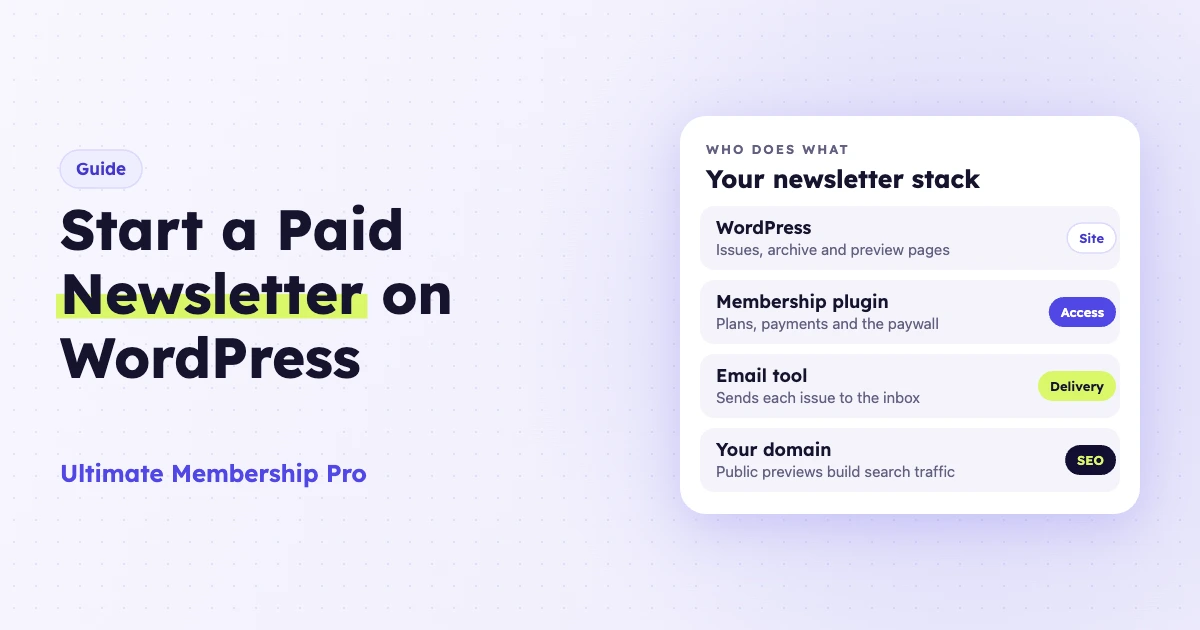
A paid newsletter on WordPress needs three pieces. Each one does a different job, and none of them does everything on its own.
- A WordPress site. Hosting, a domain and a theme with a clean reading layout. Each issue is a post in a category such as “Newsletter”.
- A membership plugin. It creates free and paid plans, takes recurring payments, locks premium issues and gives subscribers an account.
- An email marketing tool. It stores your list, sends each issue and handles unsubscribes and deliverability.
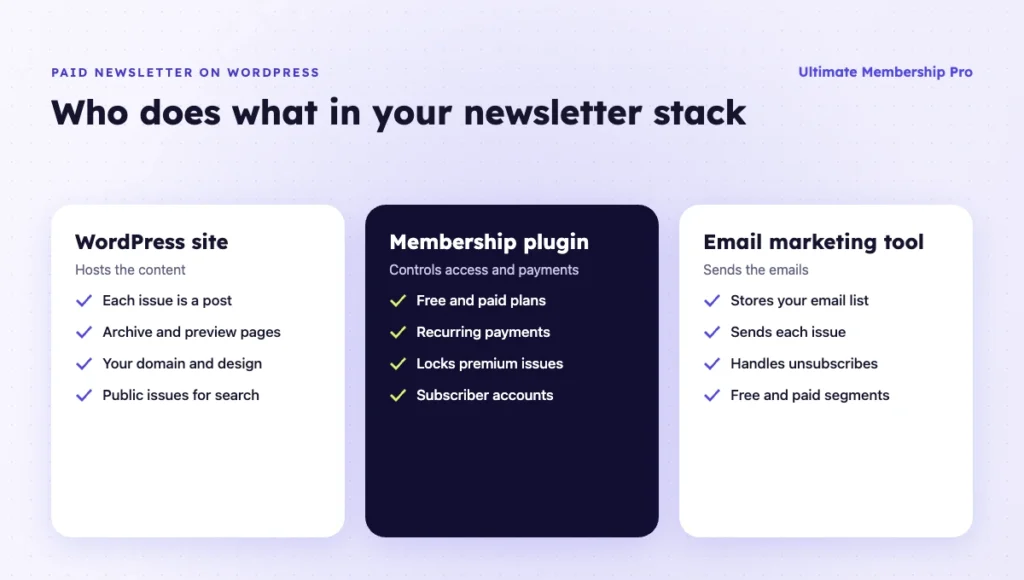
The key point: the membership plugin controls who can read on the site. The email tool controls who gets the email. You connect the two so new subscribers land on the right list.
How do you set up a paid newsletter on WordPress, step by step?
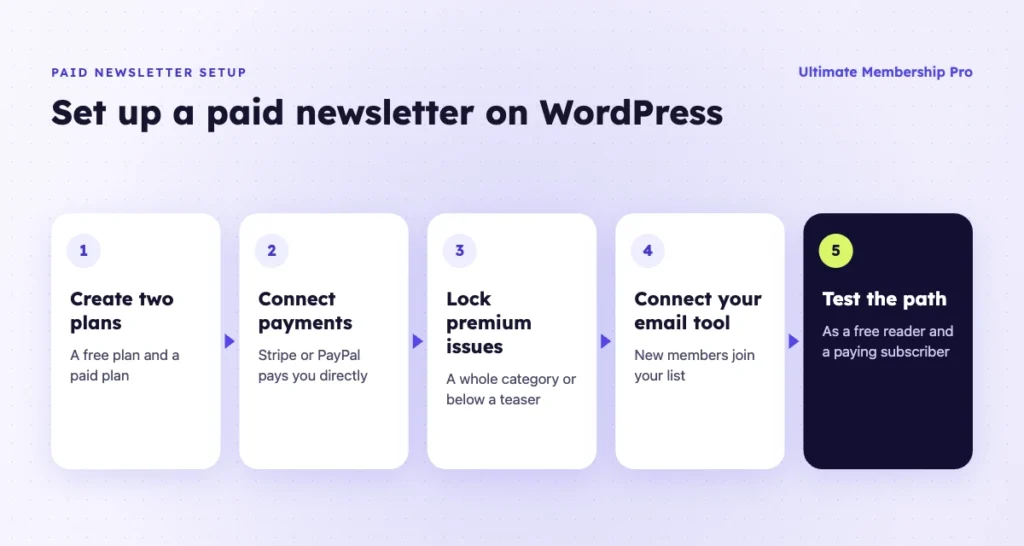
Set up your paid newsletter plans first, then the content rules, then the email connection. Test the whole path before you announce it.
- Create a free plan and a paid plan. The free plan gets the public issues and occasional previews. The paid plan gets every issue and the full archive. Offer monthly and yearly billing.
- Connect a payment gateway. Connect Stripe or PayPal so subscribers pay you directly.
- Create a Newsletter category. Publish every issue as a post in that category, so one rule can cover all future issues.
- Lock premium issues. Restrict the category to the paid plan, or lock only the part of each issue below the introduction.
- Write a preview for each issue. Keep the first few paragraphs public. Visitors see what they are missing, and search engines have something to index.
- Build an archive page. List every issue a subscriber can read in one place, sorted by date.
- Add a sign-up form. Put a short registration form on your homepage and at the end of each public issue.
- Connect your email tool. Send new members to your list at sign-up, ideally to a separate list or group for paying subscribers.
- Test the path. Sign up as a free reader and as a paying subscriber. Check what each one sees on the site and in the inbox.
With Ultimate Membership Pro for paid newsletters, you can lock everything below a teaser, lock a whole category so future issues are covered, and give subscribers one page that lists every post their Memberships give them access to. The archive shortcode documentation explains which locked posts appear on that page. Recurring monthly and yearly plans run through Stripe Connect, PayPal and other gateways, and payments go to your own account.
Full Package adds a private Member RSS feed for each subscriber, single-issue sales with Pay Per Post, and a release option that makes an issue public on a set date.
Ultimate Membership Pro does not send your newsletter. You write and send issues in your email tool and link each email to the post on your site. Ultimate Membership Pro is sold as annual plans (Pro, Full Package and Agency); compare them on the pricing page.
How do you connect your email tool?
Connect the email tool so every new member lands on a list, then send each issue from that tool. How much is automated depends on the integration.
- Basic opt-in. On every plan, new members can tick a consent box and join one list in Mailchimp, ActiveCampaign, AWeber, GetResponse and similar tools.
- Lists by Membership. With Full Package or Agency, MailChimp Pro, ConvertKit, MailPoet Pro and Mailster Pro can place members on a list or group that matches their Membership, so paying and free subscribers get different emails.
- Removal on expiry. Mailster Pro removes members from a list when their Membership expires. For other tools, check the integration page and test it before you rely on automatic removal.
See the full list of email marketing integrations to check which tool fits your setup. For tips on writing the invite and welcome emails themselves, read this guide to membership email invites that convert.
Free vs paid issues: what should you lock?
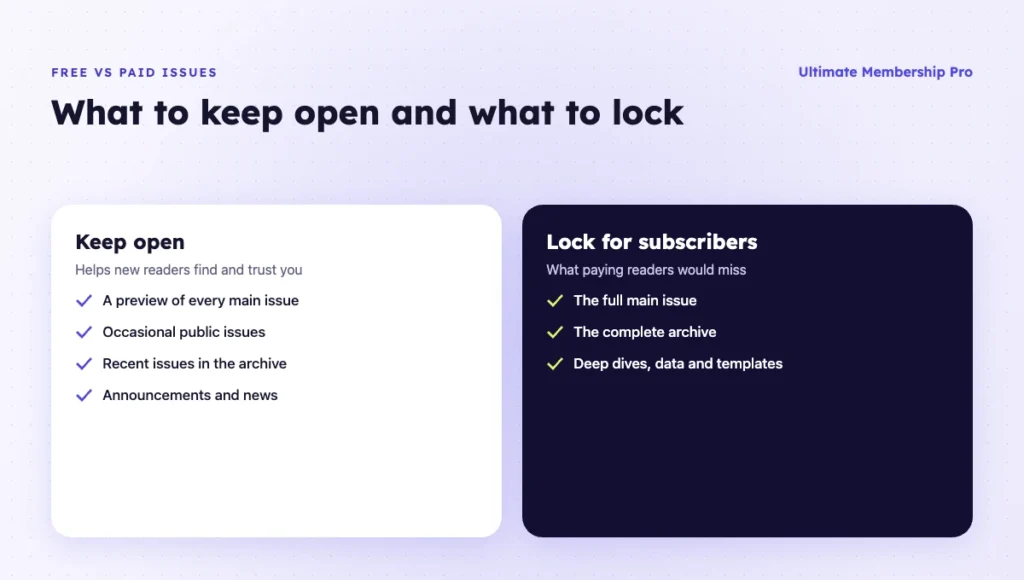
Lock what readers would miss. Keep open what helps new readers find you and trust you. Most paid newsletters mix both.
| Content | Free | Paid | Why |
|---|---|---|---|
| Weekly or monthly main issue | Preview only | Full issue | The main product; the preview sells it |
| Occasional public issue | Yes | Yes | Shows quality and brings in search traffic |
| Full archive | Recent public issues only | Everything | Depth is a strong reason to pay |
| Deep dives, data, templates | No | Yes | High value, hard to find elsewhere |
| Announcements and news | Yes | Yes | Keeps free readers engaged |
A third option is a metered newsletter paywall: free readers can open a set number of issues, then need to subscribe. The paywall options cover hard locks and teasers on every plan, and Full Package adds post view limits per Membership. You can test which model fits your audience.
One warning: if you email the full text of a paid issue, it can be forwarded. A safer approach is to send a summary and a link to the locked post. The post stays behind the paywall, and only paying subscribers can open it.
How often should you send a paid newsletter?
Send on a schedule you can keep for a year. Weekly and every two weeks are common rhythms for a paid newsletter, and research-heavy letters often go out monthly. Readers pay for reliability as much as for any single issue, so a steady rhythm matters more than a high count.
Pick the rhythm from the work each issue takes:
- Weekly: news, curation, short analysis and tips.
- Every two weeks: essays, interviews and how-to guides.
- Monthly: research reports, data sets and long case studies.
Show the schedule on your sign-up page and mention the next send date in each issue. If you need a break, announce it early, so paying readers know what to expect and nobody feels they paid for issues that never arrived.
How should you price a paid newsletter?
Start your paid newsletter with one plan, billed monthly and yearly, with a discount for paying yearly. One clear price is easier to sell than several tiers when your list is small.
A simple anchor is to set the yearly price at ten times the monthly price, so yearly subscribers get two months free, about 17% off. For example, $8 a month or $80 a year. Then check the price against what readers in your niche already pay for similar newsletters.
- Compare similar newsletters. Note what writers in your niche charge per month and per year, and what each price includes.
- Offer a yearly plan. Yearly subscribers pay up front, which gives you steadier income to plan with.
- Use a launch offer. A founding-member coupon rewards your first subscribers and creates a reason to join now.
- Add a second tier later. Once you know what readers value, add extras such as a community, office hours or a resource library.
For more ideas on what people will pay for every month, browse these subscription website ideas.
How do you get your first paid subscribers?
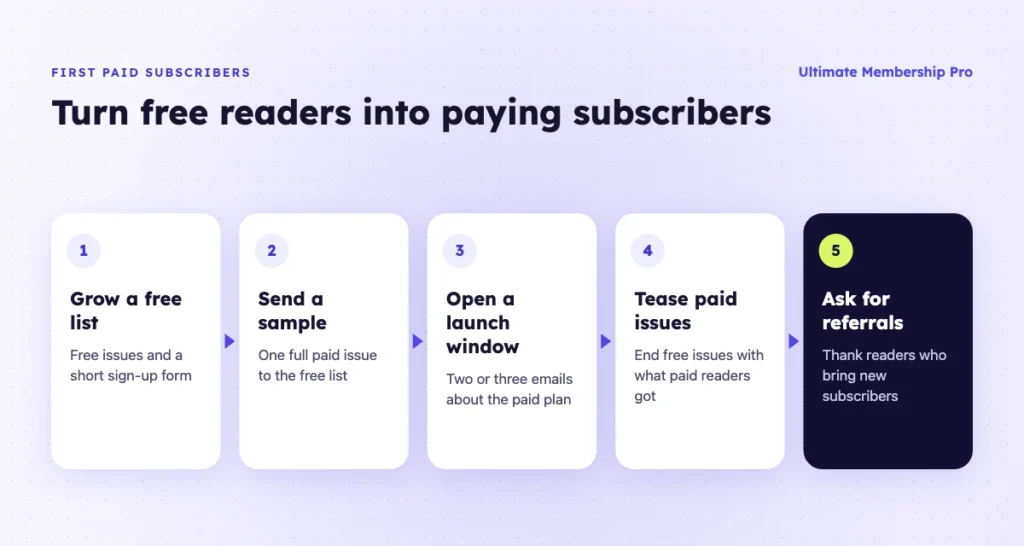
Your first paid subscribers almost always come from your free list. Build a free audience first, show them what the paid issues contain, then give them a reason and a date to upgrade.
- Grow a free list. Publish free issues for a while and add a short sign-up form to every public post.
- Send a sample paid issue. Share one full premium issue with the free list, so readers see exactly what they would pay for.
- Announce a launch window. Email the free list about the paid plan two or three times over a week, with a founding-member price that ends on a set date.
- Tease paid issues in free ones. End each free issue with a short summary of what paying subscribers got that week and a link to the locked post.
- Ask for referrals. Invite readers to forward free issues to a colleague or friend, and thank the ones who bring new subscribers.
Track a few numbers from the start, so you know what to fix:
- Free-to-paid conversion: paying subscribers divided by free subscribers.
- Monthly churn: paying subscribers who cancel in a month divided by paying subscribers at the start of that month.
- Open rate and click rate: how many readers open each issue, and how many click through to the locked post.
- Monthly recurring revenue: what your paying subscribers bring in each month, with yearly plans counted as one twelfth per month.
A worked example with made-up numbers: 2,000 free subscribers and 60 paying ones at $8 a month gives a 3% conversion rate and $480 in monthly revenue. If 3 of the 60 cancel in a month, churn is 5%. Improve conversion with better previews and launch emails. Reduce churn with a steady publishing schedule.
How do you move from Substack to WordPress?
Move your paid newsletter in three stages: the content first, then the list, then the paying subscribers. Plan a short overlap so nobody misses an issue.
- Export your publication from Substack under Settings, then Exports. The zip includes your posts and subscriber list.
- Import past issues into WordPress as posts in your newsletter category, and lock the ones that were paid.
- Import the subscriber emails into your email tool, keeping free and paid subscribers in separate lists.
- Email paid subscribers with a date, a link to subscribe on your site and a reason to switch, such as a founding-member price.
- Stop billing on Substack only after paying subscribers have moved.
How do locked issues stay visible in search?
Search engines can only rank what they can read, so a paid newsletter needs some open text. Keep a real preview public on every issue and publish some issues in full. Google explains how to mark locked sections in its paywalled content markup guide, which helps it tell a paywall apart from cloaking.
Public issues also help with AI assistants, which cite pages they can access. A short summary at the top of each issue gives them something to quote and gives readers a reason to subscribe.
Ready when you are
Turn visitors into paying members with Ultimate Membership Pro
Launch your membership website, protect exclusive content and automate subscription payments, all in one WordPress plugin.
- 14-day money-back guarantee
- Unlimited members
Frequently asked questions
Can WordPress send a paid newsletter?
WordPress can host the issues, the paywall and the subscriber accounts, but most setups use a separate email marketing tool to send the emails. Some email plugins, such as MailPoet, send from inside WordPress. The membership plugin takes payments and locks premium posts, and the email tool delivers each issue and handles unsubscribes.
Is Substack free?
As of October 2026, Substack’s help pages say publishing is free if your content is free. Paid subscriptions carry a 10% platform fee, plus Stripe card fees of 2.9% + 30¢ per transaction and a 0.5% fee on recurring subscriptions. Check Substack’s help pages for current numbers before you compare.
How do I lock newsletter issues to paying subscribers?
Publish each issue as a WordPress post in a newsletter category. Then use a membership plugin to restrict that category to your paid plan, or lock only the part of each post below the introduction. Readers without a paid plan see the preview and a sign-up prompt, while subscribers read the full issue.
Can I move my Substack subscribers to WordPress?
You can export your subscriber list from Substack under Settings, then Exports, and import the emails into your email tool. Paying subscribers will need to subscribe again on your site, because an exported list does not carry their existing subscriptions into a membership plugin. Give them a clear date and a reason to switch before you stop billing on Substack.
Which email tool works with WordPress memberships?
Check which tools your membership plugin supports. Common choices include Mailchimp, ConvertKit, MailPoet, Mailster, ActiveCampaign, AWeber and GetResponse. Pick one that can keep paying and free subscribers in separate lists or groups, so you can send premium issues only to people who pay.