
On an Ultimate Membership Pro site, members pay for restricted content, so show them what they get. The List Access Posts module builds a library list of every post and page the member’s active Memberships unlock, and you place it anywhere with one shortcode.
This guide switches the module on, sets up the list and adds it to a My Library page.
Before you start
- Your license is active. Modules only switch on with an active license; see Find and activate your license key.
- Your members-only posts are locked with their Locker box. See Restrict your first page.
Switch on the module
- Go to Ultimate Membership Pro›Modules and open List Access Posts (in the Content Protection group).
- Switch on Activate/Hold List Access Posts.
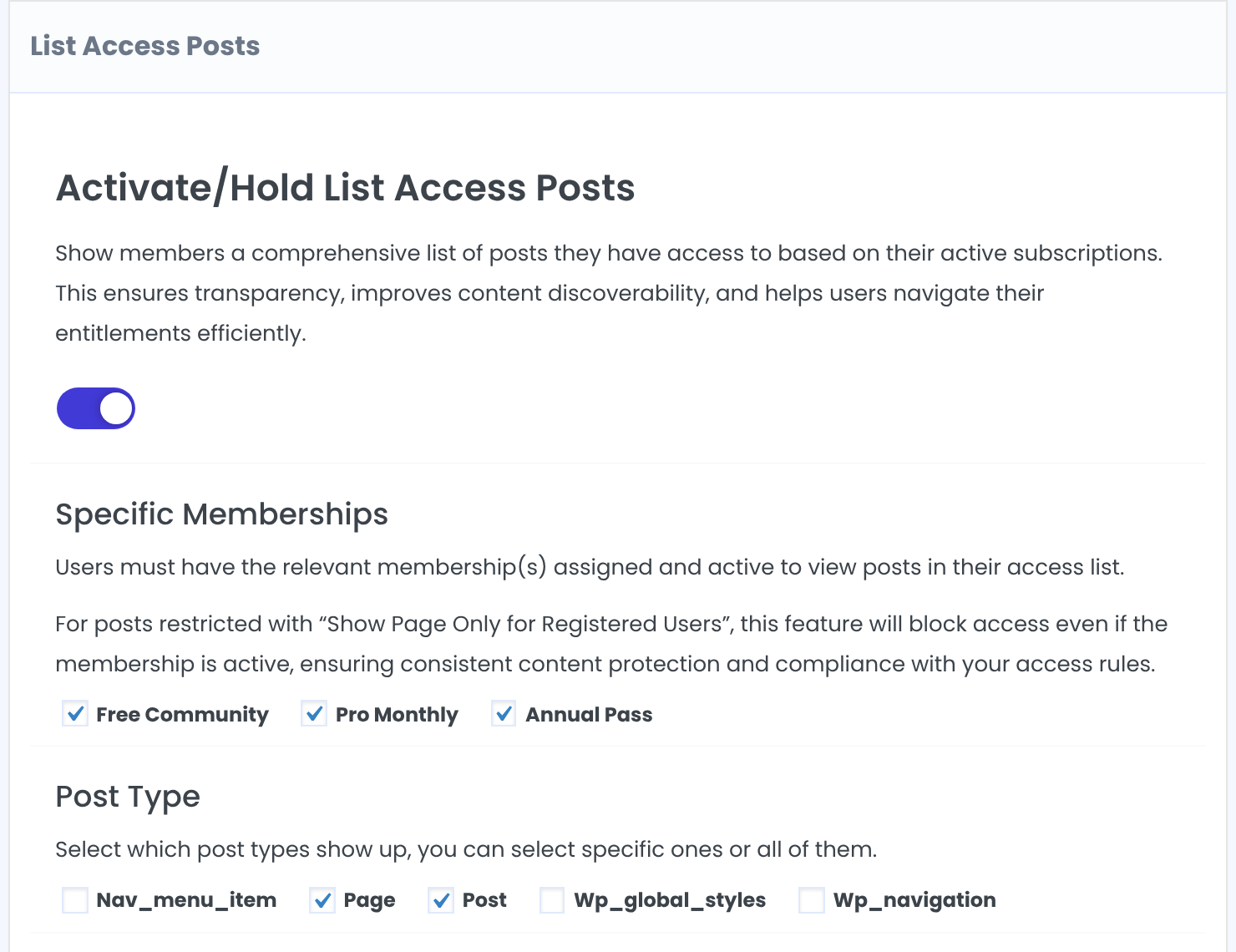
Members of a ticked Membership get a list. Untick a Membership to leave its posts out of the list.
Default: All ticked
Which post types the list includes.
Default: Page and Post
Set up how the list looks
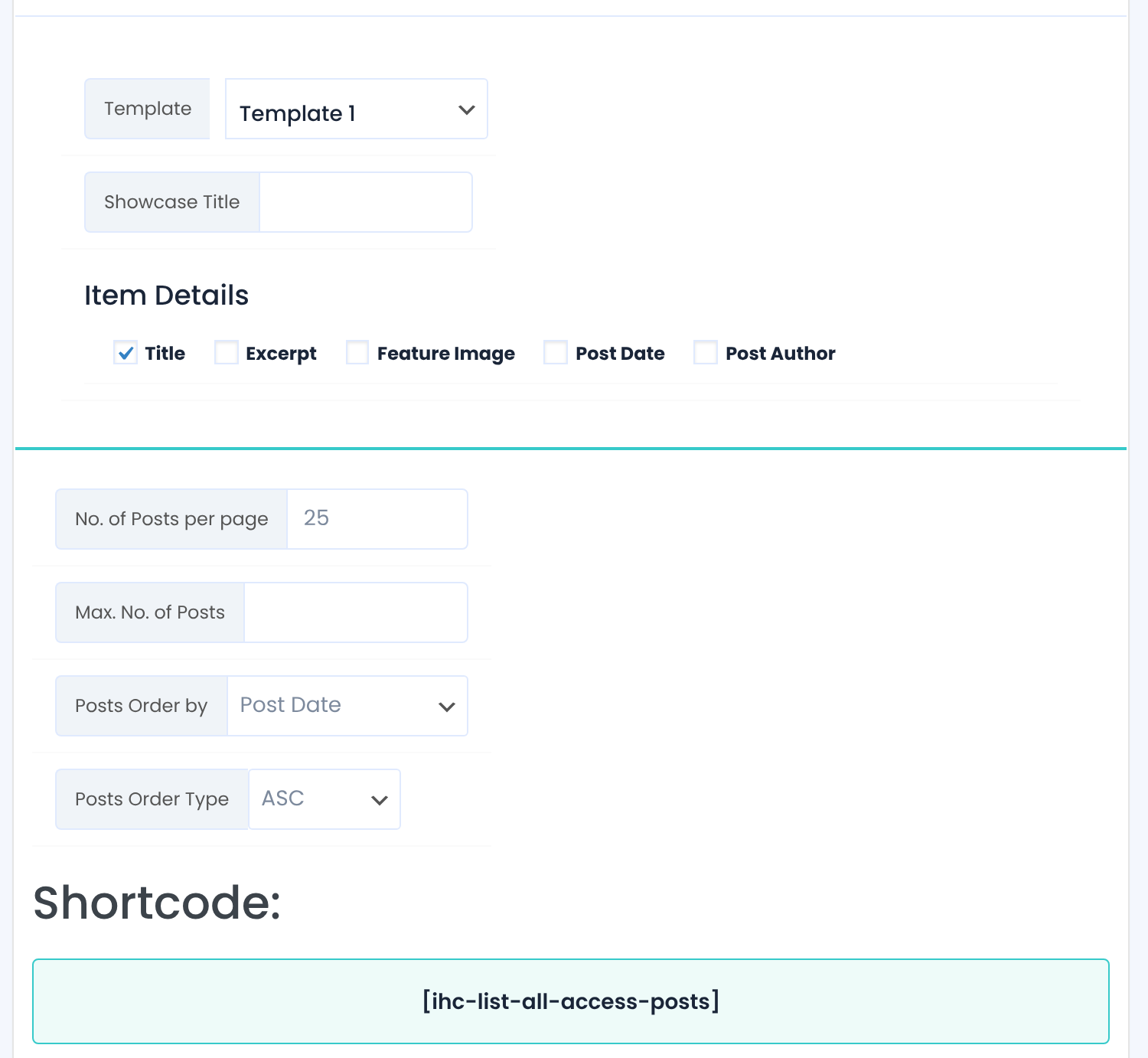
Template 1 or Template 2.
Optional heading above the list.
What each item shows: Title, Excerpt, Feature Image, Post Date, Post Author.
Default: Title
Longer lists get page links.
Default: 25
Optional cap on the whole list.
Post Title or Post Date.
Default: Post Date
ASC or DESC.
Optional styles for the list.
Click Save Changes.
Add the list to a page
Create a page, for example My Library, and add the shortcode:
The member’s list, with the settings above
[ihc-list-all-access-posts]You can override some settings for one list with attributes:
Only posts, 10 items, newest first
[ihc-list-all-access-posts post_types="post" limit="10" order_by="post_date" order="desc"]Post types separated by commas, for example post,page.
Maximum number of posts.
post_title or post_date.
asc or desc.
iump-list-posts-template-1 or iump-list-posts-template-2.
Visitors who aren’t logged in, and members without an active ticked Membership, see nothing where the shortcode is.
What goes in the list
Posts whose Locker is set to Show Page Only for one of the member’s Memberships, and posts set to Block Page Only for other member types.
Dripped posts are taken into account, so a lesson that isn’t open yet doesn’t appear.
Content locked only with Access Rules or an Inside Locker; the list reads each post’s Locker box.
Good to know
- The list matches Memberships, not general member types: posts shown to All or to Registered Users aren’t listed, even for members with an active Membership.
- Only active Memberships count. When a Membership expires, its posts leave the list.
Example: a My Library page
- Specific Memberships
- Pro Monthly, Annual Pass ticked
- Post Type
- Page, Post
- Item Details
- Title, Excerpt, Feature Image
- No. of Posts per page
- 12
- Posts Order by
- Post Date, DESC
- Page content
- [ihc-list-all-access-posts]
Troubleshooting
The shortcode shows nothing
Check that the module is on, you’re logged in as a member (not admin) with an active Membership, and that Membership is ticked.
A post is missing from the list
Check the post’s Locker: it needs a member type that includes the member’s Membership. Posts locked only by Access Rules aren’t listed.
The shortcode shows as text
The module is off, or the shortcode sits in a block that doesn’t run shortcodes. Use a Shortcode block.


