
An Ultimate Membership Pro redirect loop is two pages that keep sending the visitor to each other, until the browser stops with “ERR_TOO_MANY_REDIRECTS” or “redirected you too many times”. The same settings cause milder problems too: a Member Portal that opens the checkout, a Register page that jumps to the plans page, or a reset link that ends on your home page. Each cause below has a quick check and a fix.
This guide lists the symptoms, then the causes in the order to check them. It ends with the setup that avoids all of them: a public homepage and one page for each job.
Before you start
- A private browser window. Lockers and Access Rules never redirect an administrator, so a loop can stay hidden while you are logged in as admin.
- A test member with one Membership, for example Free Community. Some loops only happen to logged-in members who lack a certain Membership.
- The page names from Set up the membership pages: Register, Subscription Plan, Member Login, My Account, Checkout Page and Default Redirect Page.
Symptoms of an Ultimate Membership Pro redirect loop
Find your symptom, then open the cause it points to.
Two pages send visitors to each other. Check Two settings use the same page, A restricted Member Portal or Register page, A restricted homepage and A redirect page that is restricted too.
Check Two settings use the same page.
Often this is how the Register page is set to work. See the Register page FAQ at the end, and check Two settings use the same page.
Check Reset or verification links end on the home page and A restricted homepage.
Find the pages in the loop
- Open the page in a private window. When the browser gives up, note the two addresses it kept switching between. The Network tab of your browser’s developer tools lists every redirect in order.
- Go to Pages›All Pages. Each membership page has a label next to its title, such as Register Page or Account Page. A Restricted label means the page has a Locker.
- Edit each page in the loop and read the Ultimate Membership Pro – Locker box: For these members and, under If access is not allowed, Redirect to.
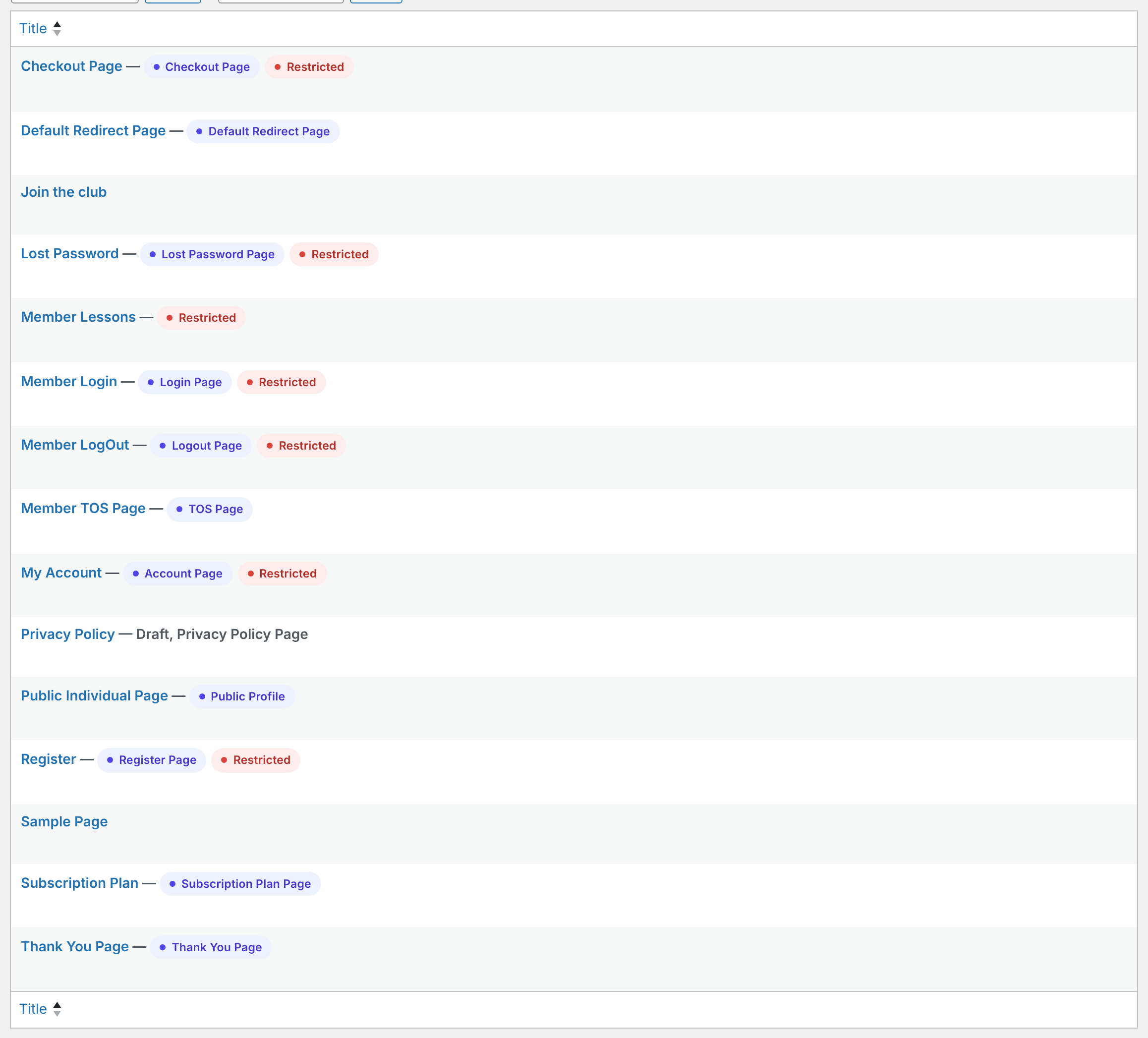
For the Locker itself, see Restrict your first page.
Two settings use the same page
My Account sends members to another page instead of opening. Or the Register, Checkout or Subscription Plan page redirects to itself until the browser stops.
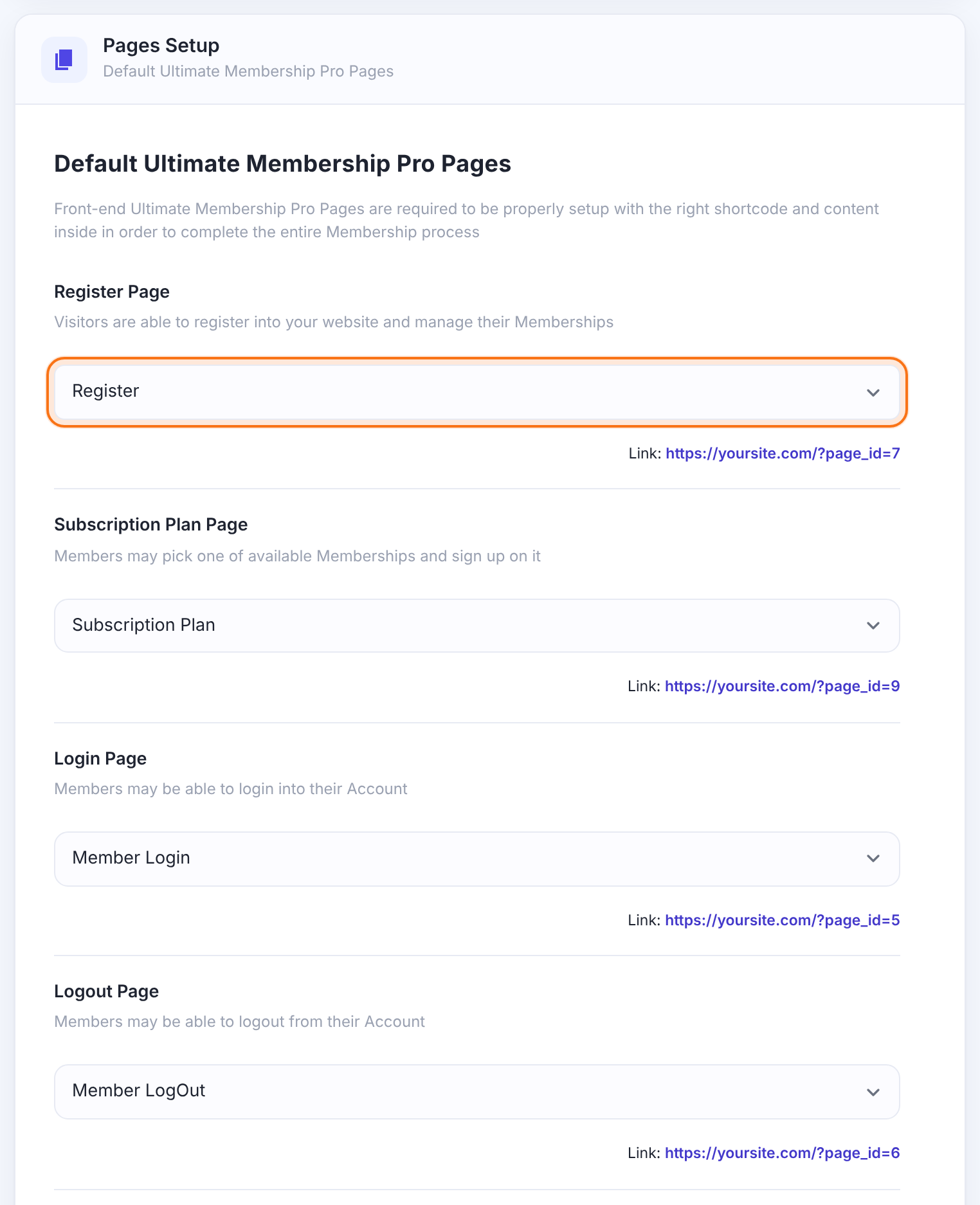
The plugin knows which page does what from the pages you pick in Pages Setup, not from the shortcode inside a page. When one page is picked for two settings, it does both jobs, including their redirects:
- The Register Page is for visitors who aren’t logged in, so logged-in members are sent away from it. If your Member Portal and Register Page are the same page, members are sent away from My Account too.
- A visitor who opens the Checkout Page is sent to the Register Page. If both are the same page, it loops for visitors and members alike.
- With Choose Subscription Type set to Subscription Plan, a Register page opened without a Membership in the address is sent to the Subscription Plan Page. If both are the same page, it loops.
- Each time you click Save Changes in Pages Setup, the plugin sets the default Locker on the Member Login, My Account, Register, Member LogOut, Lost Password and Checkout pages you picked. A page used twice ends up with only one of them.
Give every setting its own page. If a setting has no page of its own, create one and add its shortcode from the list below.
- Go to Ultimate Membership Pro›Settings›Pages Setup.
- In Register Page, Subscription Plan Page, Login Page, Logout Page, Member Portal, Lost Password Page and Checkout Page, pick a different page each time.
- Click Save Changes.
- Check Pages›All Pages: every membership page now shows one label.
Shortcode: [ihc-register]
Shortcode: [ihc-select-level]
Shortcode: [ihc-user-page]
Shortcode: [ihc-checkout-page]
All the shortcodes are listed in Set up the membership pages and Shortcodes reference.
A restricted Member Portal or Register page
Members without the right Membership go back and forth between My Account and Member Login. Or new visitors never reach the registration form.
By default, My Account is for logged-in users and redirects visitors to Member Login. Member Login is for visitors and redirects logged-in members to My Account. If you restrict My Account to a Membership and send everyone else to Member Login, a member without that Membership bounces between the two pages. A Register page restricted to a Membership can’t be opened by new visitors at all, because a visitor holds no Membership.
Keep My Account for Registered Users and the Register page for Unregistered Users, as the plugin sets them. Restrict your content pages to Memberships instead. To limit who can buy a Membership, see Control who can buy a Membership. If you must restrict one of these pages, set If access is not allowed to Replace the Content, or pick a Redirect to page that doesn’t send the member back.
Saving Pages Setup sets the default Lockers again
If you changed the Locker of My Account, Member Login, Register, Lost Password, Member LogOut or the Checkout Page and then saved Pages Setup, the default Locker is back. Check the Ultimate Membership Pro – Locker box again.
A restricted homepage
Visitors or members who open your homepage end up on another page, or the browser shows ERR_TOO_MANY_REDIRECTS. Payment notifications, password reset links or email verification links don’t finish.
The page you chose as your homepage under Settings›Reading is checked like any other page. If its Locker (or an Access Rule) doesn’t allow the visitor, the visitor is redirected to the Locker’s Redirect to page, or else to the Default Redirect Page. If neither is set, the redirect points to the homepage itself, so the page redirects to itself and loops.
Payment notifications, password reset links and email verification links all use your site address with ?ihc_action= at the end, for example https://yoursite.com/?ihc_action=stripe_connect. The plugin checks the restriction of the page first and handles the request after that. When the homepage Locker is set to Redirect the Page and doesn’t allow visitors, these requests are redirected like any other visitor, and the notification, reset or verification doesn’t complete. See Paid, but the Membership is still on hold.
Keep the homepage public. Edit it, remove every member type under For these members in the Locker box, and click Update. Then check Ultimate Membership Pro›Access Rules for a rule that matches your homepage address. A Locker with no member type doesn’t restrict the page.
Want a members-only site?
Don’t restrict the homepage. Under Ultimate Membership Pro›Settings›Security, switch on Restrict access over entire Website. All pages except the homepage and the plugin’s pages (Login, Register and so on) are restricted, and visitors are sent to the Login page. Pages that must stay open go in Exclude other pages from current Restriction, as IDs separated by commas. See Restrict content with Access Rules.
A redirect page that is restricted too
Page A sends visitors to page B, and page B sends them back, or a rule keeps redirecting to a page that it covers itself.
The page a visitor is sent to is checked too. The plugin protects one page only: the Default Redirect Page is never redirected, and its Locker offers only Replace the Content. Any other page can start a ring: A redirects to B and B redirects to A. Access Rules check every address that matches them, so keep your redirect pages out of their scope:
- An All Posts rule for the page post type covers every page, including Member Login and Register. A visitor redirected to one of them is blocked again.
- An All Pages (based on Keywords) rule covers every address that contains the keyword. If your Login page address contains it, the redirect target is covered too.
- If Redirect After is empty, blocked visitors go to your homepage, which a rule can cover as well.
Send people to pages that everyone can open. In Lockers, pick a Redirect to page that doesn’t redirect back. As Default Redirect Page, use a page with a short message and a link to your plans. In Access Rules, add the IDs of the Login, Register, Subscription Plan and Lost Password pages to Excluding (All Posts and category tabs), choose a Redirect After page the rule doesn’t cover, and use a keyword that isn’t part of those addresses. The ID of a page is in the address of its editor, after post=.
Reset or verification links end on the home page
A member clicks the link in a password reset email or an email verification email and lands on your home page.
No page is chosen for what happens after the link, so the plugin falls back as follows:
- Password reset: After Password Reset, then the Default Redirect Page, then your home page.
- Email verification: Success Redirect after Email Verification when the link works, Error Redirect when it has expired or doesn’t match, then your home page.
Pick a page for each setting. Choose a page that visitors who aren’t logged in can open, such as Member Login, or the link sends them away again (see A redirect page that is restricted too). After Password Reset is in Ultimate Membership Pro›Settings›Pages Setup, card Redirects Setup. The two verification settings are in Ultimate Membership Pro›Settings›Email Verification.
More about both flows: How password reset works and Verify members’ email addresses.
Another restriction plugin
Two plugins that both decide who may see a page work against each other, and pages can redirect in a loop.
Use one of them to restrict each page, and remove the other plugin’s rules from it. To find the plugin, follow Find plugin conflicts with Safe Mode. Other plugin types that cause trouble are listed in Known compatibility issues.
A cache serves an old copy
Page caching (a caching plugin, your host or a CDN) can deliver a saved copy of a page without running the plugin’s check. Members then see the logged-out version of a page, or a page you already fixed.
Exclude the Register, Login, Checkout, Thank You and Member Portal pages and your members-only pages from page caching, and don’t cache pages for logged-in users. Clear the cache after every change, then test again in a private window. See Known compatibility issues.
Permalinks need a refresh
A membership page shows a 404 error or the wrong content, often after a page slug or your permalink structure changed. Slugs such as login, register or lost-password can also clash with other plugins or your theme.
Go to Settings›Permalinks and click Save Changes without changing anything. If it still happens, give the page a less common slug, such as member-login.
Keep the homepage public: the recommended setup
A setup without redirect loops
- The homepage has no Locker and no Access Rule that matches it.
- Every setting in Ultimate Membership Pro›Settings›Pages Setup has its own page.
- My Account is for Registered Users and Register is for Unregistered Users, as the plugin sets them.
- The Default Redirect Page is a page everyone can open, with a message and a link to your plans.
- After Password Reset and the two email verification redirects point to pages that visitors can open.
- Members-only content sits on other pages, restricted with Show Page Only for the Memberships that may see it.
Example: Coaching Club without loops
- Homepage
- Home, no Locker
- Register Page
- Register
- Subscription Plan Page
- Subscription Plan
- Login Page
- Member Login
- Member Portal
- My Account
- Checkout Page
- Checkout Page
- Default Redirect Page
- Default Redirect Page, with a message and a link to the plans
- After Password Reset
- Member Login
- Success Redirect after Email Verification
- Member Login
- Member Lessons page
- Show Page Only for Pro Monthly and Annual Pass, Replace the Content
Learn more about redirects and restrictions
- Content restriction in Ultimate Membership Pro
- Registration and login features
- How Ultimate Membership Pro works
- Set up the Member Portal
- HTTP redirections (MDN Web Docs)
- Settings Permalinks screen (WordPress.org)
Troubleshooting
Why does my membership site show ERR_TOO_MANY_REDIRECTS?
The browser followed more redirects than it allows because two pages keep sending the visitor to each other. Open the page in a private window and find the pages in the loop. Then check, in this order: two settings using one page in Pages Setup, a restricted Member Portal, Register page or homepage, a redirect page that is restricted too, another restriction plugin, and page caching.
Why does My Account send members to another page?
Your Member Portal is probably picked for a second setting too, such as the Register Page. The Register Page sends logged-in members away, so My Account does the same. Create a separate page for each in Ultimate Membership Pro›Settings›Pages Setup. Members who click Renew or Finish Payment in the Member Portal also go to the checkout, on purpose. See Configure the checkout page.
Why does the Register page send visitors to the Subscription Plan page?
When Choose Subscription Type is Subscription Plan, a visitor must pick a plan first, so the Register page sends visitors without a plan to your Subscription Plan page. The same happens when the link has a plan that doesn’t exist or isn’t available to the visitor. Set Predifined Subscription to let people register without a plan, or link to the Register page with a valid ?lid=. See Set up the registration form.
Can I restrict my homepage to members?
It’s not recommended. Visitors who aren’t allowed are redirected away, and with no redirect page set the homepage redirects to itself. Payment notifications, password reset links and email verification links use your homepage address too, so a restricted homepage can stop them. To lock the rest of the site, use Restrict access over entire Website in Ultimate Membership Pro›Settings›Security: it leaves the homepage open.
Why can’t I see the loop when I’m logged in as an administrator?
Lockers and Access Rules never redirect administrators. Test in a private window as a visitor, and log in with a test member to test as a member. The redirects between the Register Page, Checkout Page and Subscription Plan Page apply to administrators too.
Does the Default Redirect Page protect me from every loop?
It protects that one page: the plugin never redirects visitors away from the Default Redirect Page. Other pages you redirect to can still send visitors on, through their Locker or an Access Rule that matches them. Check where each one sends people. See Restrict your first page.
A restricted page is still open to visitors. Is that a loop too?
No, that is a different problem. See Restricted content is visible to everyone.


