
Ultimate Membership Pro Safe Mode pauses every other plugin on your site for a short time, so you can see whether a problem comes from Ultimate Membership Pro or from a conflict with another plugin. Nothing is deactivated or uninstalled, and your plugin list comes back exactly as it was when you turn it off.
This guide runs a conflict test, finds the plugin that causes the problem, and switches everything back.
Before you start
- An administrator account.
- A clear way to reproduce the problem: which page, which button, which member.
- A quiet moment, or a staging copy of the site. Safe Mode affects the whole site, visitors included, for as long as it’s on.
What Safe Mode does
Every active plugin except Ultimate Membership Pro and the ones you choose to keep stops loading, on the front end and in the dashboard.
Plugins are paused, not deactivated: their settings and data stay as they are, and no activation or deactivation step runs.
WordPress and your theme keep running. Must-use plugins, and on a multisite network the network-activated plugins, aren’t paused.
After 30 minutes Safe Mode turns off on the next page load and restores every plugin. Deactivating Ultimate Membership Pro restores them too.
Open Safe Mode
Go to Ultimate Membership Pro›Settings›Developers. The Safe Mode card is at the top.
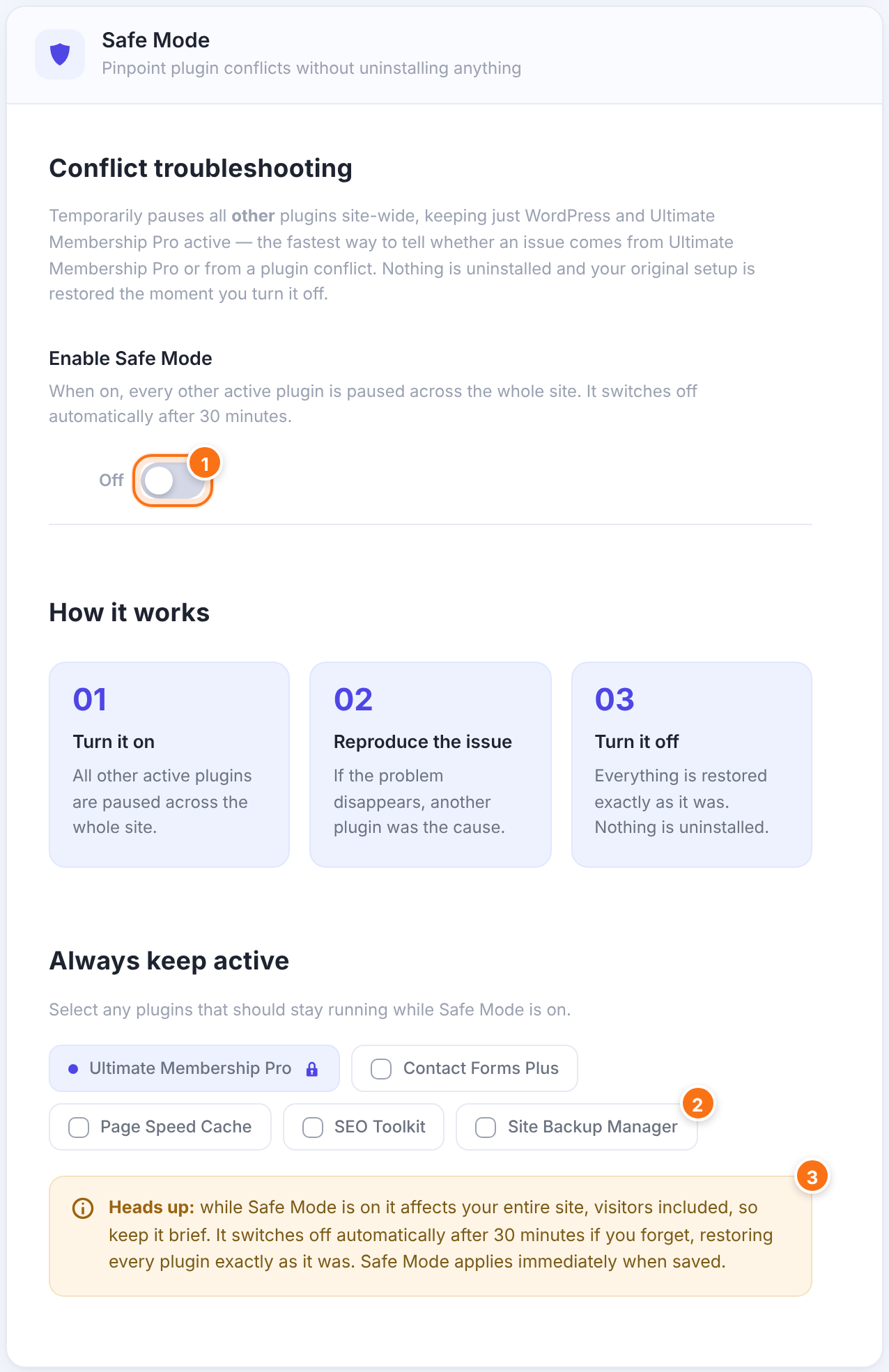
On: every other active plugin is paused across the whole site. It switches off automatically after 30 minutes.
Default: Off
One checkbox per active plugin. Checked plugins keep running while Safe Mode is on. Ultimate Membership Pro is always kept and can’t be unchecked. Ultimate Membership Pro add-ons are separate plugins, so check the add-on too if the problem is in one of its features.
Default: None selected
A reminder that Safe Mode affects your entire site and applies as soon as you save.
Turn it on and reproduce the problem
- Switch on Enable Safe Mode and click Save Changes. The page reloads with the other plugins paused.
- Open the page where the problem happens in a private browser window and repeat the steps, as a visitor or as your test member.
The problem is gone: another plugin causes it. Go to the next step to find which one. The problem is still there: it isn’t a plugin conflict. See If the problem is still there below.
Find the plugin that causes it
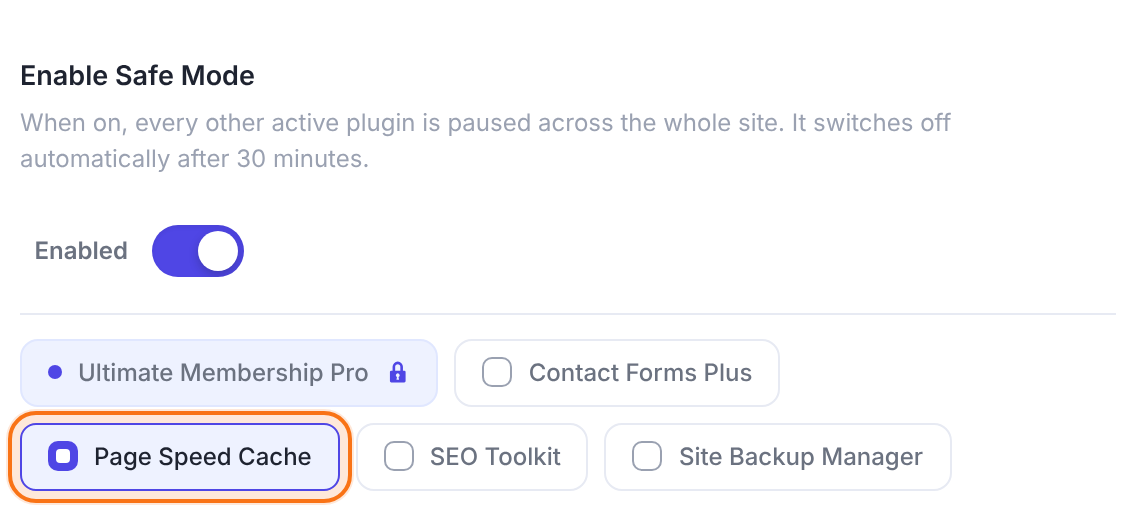
Leave Safe Mode on. Under Always keep active, check one of the paused plugins, click Save Changes and try again. Repeat one plugin at a time. When the problem comes back, the plugin you checked last is the cause.
Many plugins?
Check half of them at once. If the problem comes back, the cause is in that half; if it doesn’t, it’s in the other half. Keep halving until one plugin is left.
Turn Safe Mode off
Switch off Enable Safe Mode and click Save Changes. Every plugin is active again, exactly as before. If you forget, Safe Mode switches itself off after 30 minutes.
While Safe Mode is on
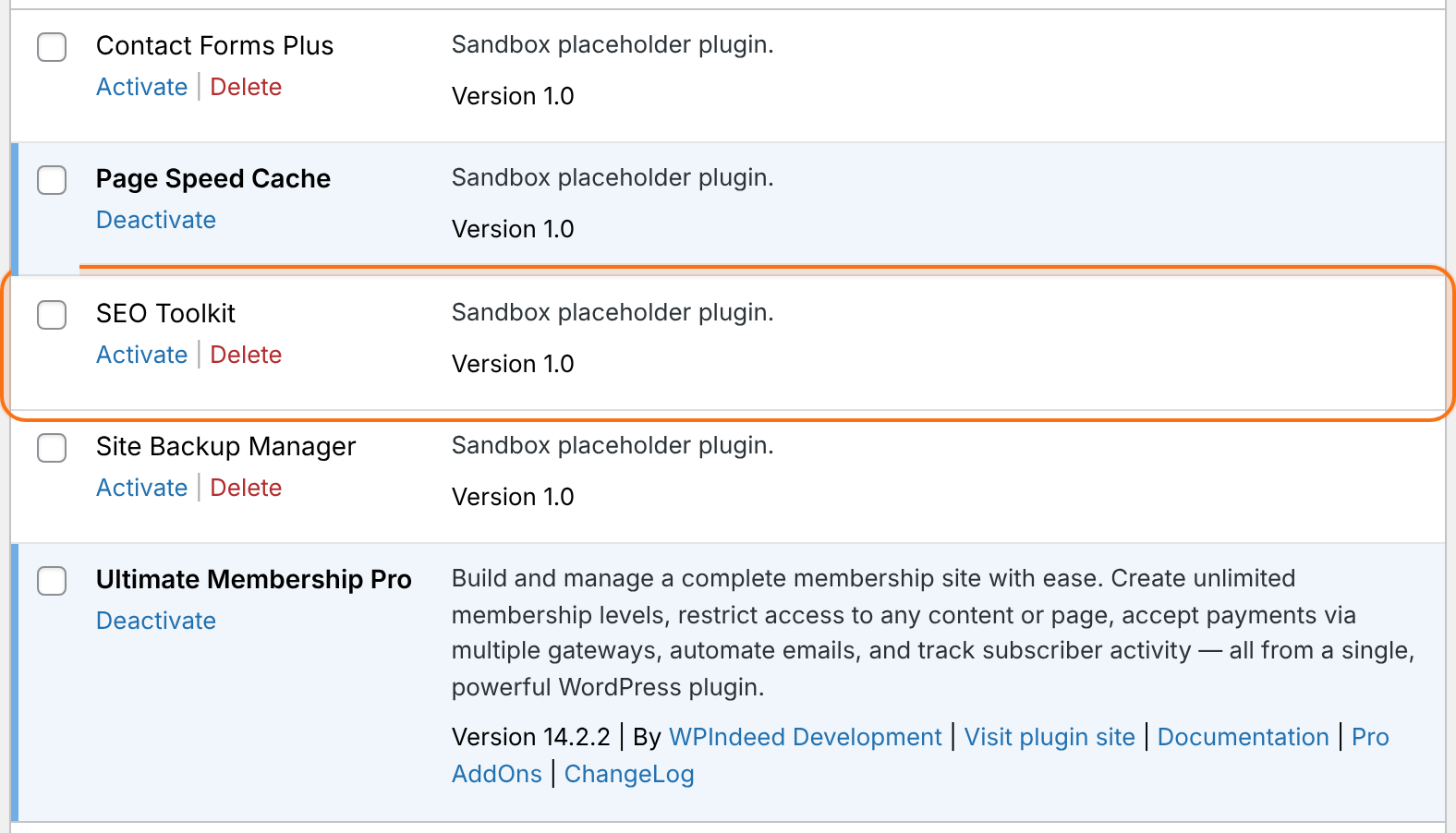
- Paused plugins look inactive on the Plugins screen and show an Activate link. Don’t activate, deactivate or delete plugins there: when Safe Mode ends, the plugin list goes back to exactly what it was before, so those changes are undone.
- Visitors get the site without the paused plugins: their forms, shop, SEO tags or cache don’t run. Keep the test short.
- No reminder banner appears in the dashboard. Check the Developers screen if you’re not sure whether Safe Mode is still on.
When you’ve found the plugin
Check the plugin’s settings for an option that touches the same thing (scripts, forms, login, cache), update it to its latest version, and look at Known compatibility issues for the usual fixes. If you still need both plugins, contact support and tell us which plugin it is and what you did to reproduce the problem.
If the problem is still there
With every other plugin paused, the cause is your theme, the server, or Ultimate Membership Pro itself.
- Theme: on a staging copy, switch to a default WordPress theme in Appearance›Themes and try again. If the problem disappears, the theme causes it.
- Server: if you see an error message or a blank page, see Server errors after install or update.
- Otherwise, contact support with the steps to reproduce it, the exact message you see, and your WordPress and PHP versions from Tools›Site Health › Info.
Example: the avatar button does nothing
- Safe Mode on, nothing kept
- The upload button works
- Kept Contact Forms Plus
- Still works
- Kept Page Speed Cache
- The button does nothing again
- Cause
- Page Speed Cache combines and delays scripts
- Fix
- Exclude Ultimate Membership Pro’s scripts from that option, then turn Safe Mode off
Troubleshooting
I get “Fatal error: Cannot redeclare …() (previously declared in …)”. What does it mean?
Two pieces of code define the same function. The path after “previously declared in” names the plugin or theme folder that defined it first. It often means two copies of the same plugin are installed, such as an old Ultimate Membership Pro folder left from a manual update, or two plugins that bundle the same library. Keep only one copy of Ultimate Membership Pro in wp-content/plugins, then use Safe Mode to test the other plugin.
The registration form says “Please fill out all mandatory fields” but every field is filled in. Why?
That is the default message for empty required fields. When the fields are really filled in, a script from another plugin or the theme usually stops some of them from being sent. Turn on Safe Mode and try again; if the form works, find the plugin as described above. More causes are in Login and registration problems.
The upload or avatar button on the registration form doesn’t work. What can I do?
The upload buttons rely on jQuery. A plugin or theme that replaces jQuery, or that combines and delays scripts, can stop them. Test with Safe Mode, then exclude Ultimate Membership Pro’s scripts from that plugin’s optimization.
Does Safe Mode deactivate my plugins or delete their settings?
No. Plugins are only paused. Their settings and data stay, and they come back exactly as they were when Safe Mode is turned off.
What happens if I forget to turn Safe Mode off?
Safe Mode switches off by itself 30 minutes after you turned it on, on the next page load, and restores every plugin.
Does Safe Mode change my theme?
No. Your theme stays active. To test the theme, switch to a default WordPress theme on a staging copy of the site.


