
New versions of Ultimate Membership Pro bring features, fixes and compatibility with the latest WordPress. With an active license, WordPress tells you about each new version and installs it with one click, like any other plugin. Without one, you can still update Ultimate Membership Pro by uploading the new .zip file.
Your settings, Memberships and members are kept when you update. Only the plugin files are replaced.
Before you start
- You have a recent backup of your site files and database. Your host or a backup plugin can make one.
- For automatic updates, your license is active. See Find and activate your license key.
Choose how to update
Automatic
- Needs
- An active license
- Where
- Dashboard›Updates
Manual upload
- Needs
- The new .zip from your account
- Where
- Plugins›Add New Plugin
Back up your site
Always take a backup before updating, especially if you’re several versions behind. If something goes wrong, you can roll back.
If you are updating from a version that is several years old, try the update on a staging copy of your site first. Back up your files and database, restore them on the staging copy (see Move your membership site to a new domain or host), update there, and check your Memberships, a test checkout and the Member Portal. When everything works, repeat the update on your live site.
Update automatically
- Go to Dashboard›Updates, or to Plugins›Installed Plugins.
- Find Ultimate Membership Pro and click update now (on the Plugins screen) or select it and click Update Plugins (on the Updates screen).
- Wait for WordPress to confirm the update.
The plugin asks the update server about new versions at most once every 24 hours, so a new release can take up to a day to appear on your site.
Or update manually
- Download the latest .zip file from your account on ultimatemembershippro.com.
- Go to Plugins›Add New Plugin, click Upload Plugin, choose the file and click Install Now.
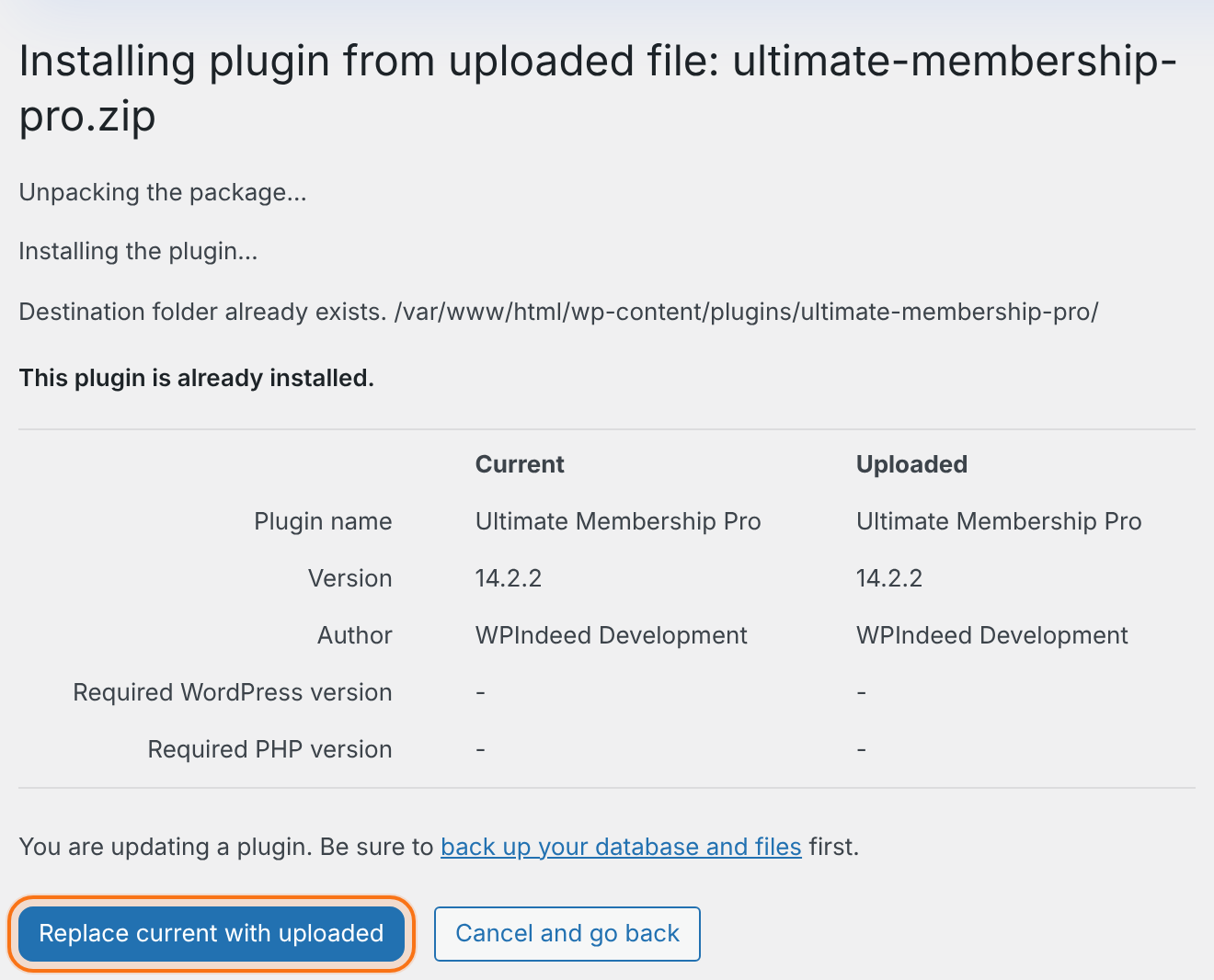
- WordPress sees that the plugin is already installed and shows the current and uploaded versions side by side. Click Replace current with uploaded.
With FTP instead: unzip the file and upload the ultimate-membership-pro folder to wp-content/plugins/, replacing the old folder. You can also rename the old folder first, for example to ultimate-membership-pro-old, and upload the new one under the original name. Your Memberships, members, orders and settings live in the database, not in the plugin folder, so both ways keep them. If you renamed the folder, WordPress deactivates the plugin. Go to Plugins›Installed Plugins and activate Ultimate Membership Pro again. When the site works, remove the renamed folder over FTP. Don’t activate both copies.
Keep the folder name
The plugin folder must stay ultimate-membership-pro. Otherwise WordPress treats it as a different plugin and automatic updates stop.
Don’t use Delete to update
Don’t click Delete on the Plugins screen to “reinstall” Ultimate Membership Pro. Delete is not the same as Deactivate: it runs the plugin’s uninstall routine, which can remove plugin data from your database. To update, always replace the files, as described above. Deactivating the plugin and replacing its files never runs the uninstall routine. If you do need to delete the plugin, take a full backup of your files and database first.
Example
- License status
- License active
- Notice
- A new version shows in Dashboard › Updates
- Action
- update now
- Backup
- Taken by the host the same day
Troubleshooting
No update shows up
Check that the license is active under Licensing. Updates can take up to 24 hours to appear after a release.
“Destination folder already exists.”
You clicked Install Now on an older WordPress version. Update WordPress, or update with FTP.
The site shows an error after the update
Restore your backup, then see Error 500 Internal Server Error is showing up and Requirements.
My upload stopped halfway. What should I do?
Don’t try to run the site with half of the files. Remove the partly uploaded ultimate-membership-pro folder from wp-content/plugins/ with FTP or your file manager, then upload the complete folder again and wait until your FTP program reports that every file was transferred. Use FTP or the file manager to remove the folder, not Delete in WordPress (see “Don’t use Delete to update” above). Your data stays in the database. If WordPress deactivated the plugin in the meantime, activate it again under Plugins › Installed Plugins. If the site still shows an error, see Server errors and blocked plugin files (500, 403).
What happens to my data when I update from a much older version?
The first time an admin page loads after the update, the plugin compares the version saved in your database with the version of the files. If the saved one is older, it runs its update steps for every version in between, and then saves the new version number. You don’t start this yourself. The steps cover database tables and indexes, the default pages, the scheduled tasks and the registration fields. They run once, not on every page load. Your Memberships, members and settings are kept. Because the steps run in the admin, open the dashboard once after updating, then check your Memberships and a recent order. To be safe, take a backup first and try big jumps on a staging copy.


