
Ultimate Membership Pro shows its forms and screens on regular WordPress pages: the registration form on a Register page, plans on a Subscription Plan page, the member’s account on a My Account page, and so on. The plugin creates these pages when you activate it and remembers which page does what.
This guide shows where the pages are assigned, how to use your own pages instead, and where members go after they log in, log out or register.
Before you start
- Ultimate Membership Pro is installed and active. See Install Ultimate Membership Pro.
The pages and their shortcodes
Each page needs the right shortcode in its content. You can add your own text, images or blocks around it.
The registration form. Shortcode: [ihc-register].
Default: the Register page
Lists your Memberships so visitors can pick one. Shortcode: [ihc-select-level].
Default: the Subscription Plan page
The login form. Shortcode: [ihc-login-form].
Default: the Member Login page
Logs the member out. Shortcode: [ihc-logout-link].
Default: the Member LogOut page
Where members edit their profile and manage Memberships and payments. Shortcode: [ihc-user-page].
Default: the My Account page
Your terms of service, linked from the registration form when members must accept them. Holds your own text, no shortcode needed.
Default: the Member TOS Page page
Lets visitors reset a forgotten password. Shortcode: [ihc-pass-reset].
Default: the Lost Password page
A member’s public profile, opened from the Members Directory. Shortcode: [ihc-visitor-inside-user-page].
Default: the Public Individual Page page
Where members pay for a Membership. Shortcode: [ihc-checkout-page].
Default: the Checkout Page page
Shown after a payment is completed. Shortcode: [ihc-thank-you-page].
Default: the Thank You Page page
Open Pages Setup
- Go to Ultimate Membership Pro›Settings.
- Open Pages Setup. It’s the first section of the Settings screen.
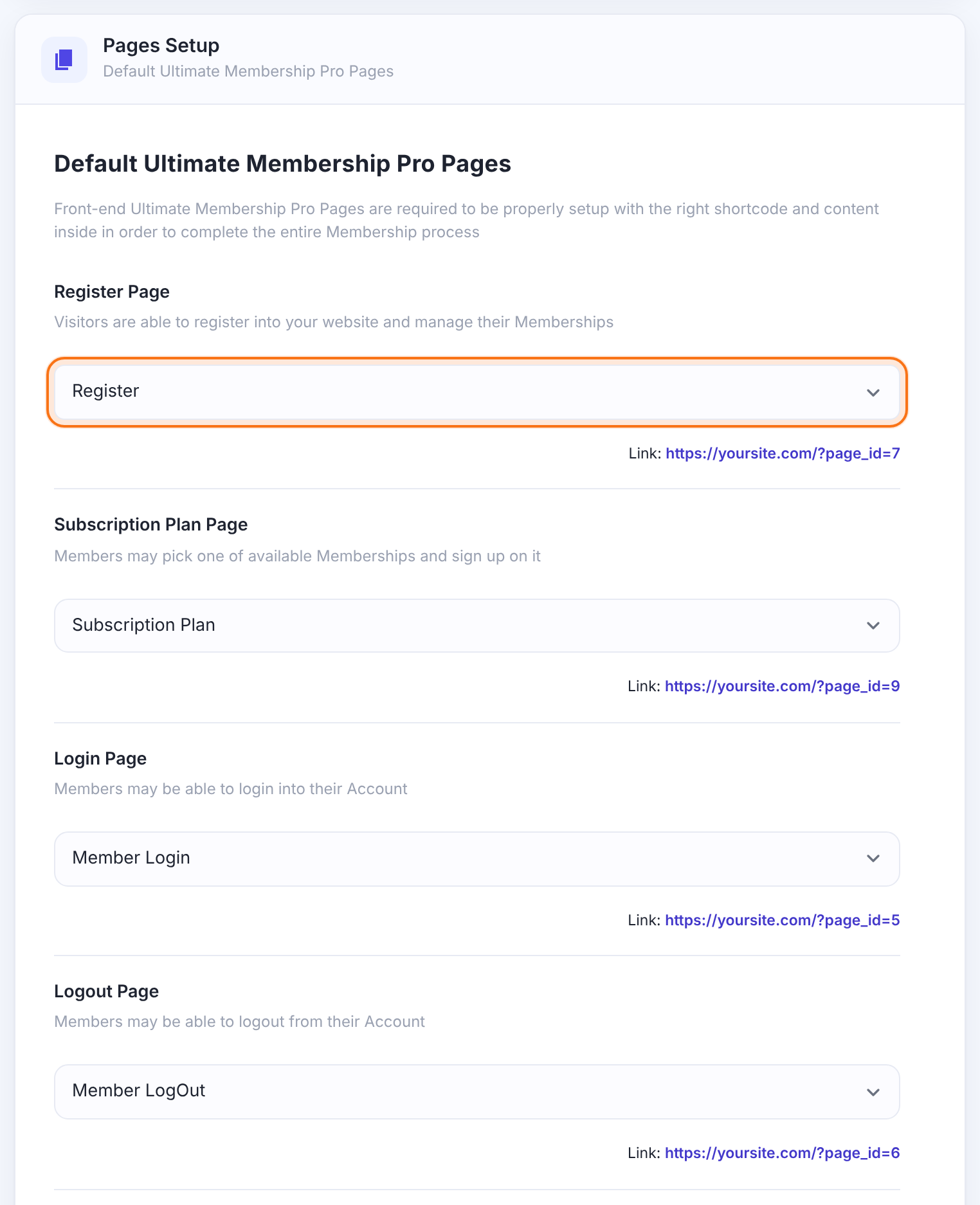
Check that every drop-down shows a page. The link under each one opens that page so you can check it on the front end.
Use your own page
To show a form on a page you designed, for example a branded login page:
- Create or edit the page and add the shortcode from the list above.
- In Pages Setup, pick that page in the matching drop-down.
- Click Save Changes.
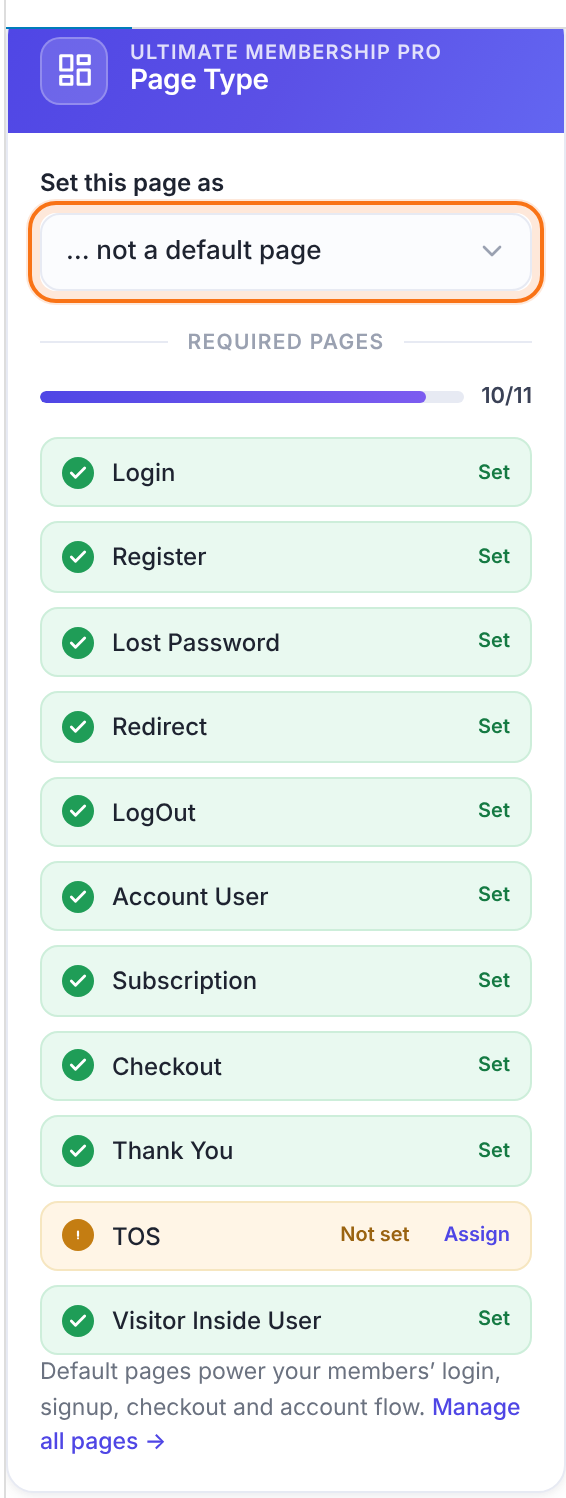
You can also assign it from the page editor. The Page Type box in the editor sidebar has a Set this page as drop-down and a checklist of the required pages. Pick the page type, then save the page. A page type that’s already assigned to another page isn’t offered in the drop-down.
Choose the redirects
Scroll down to Redirects Setup to decide where members land after key actions.
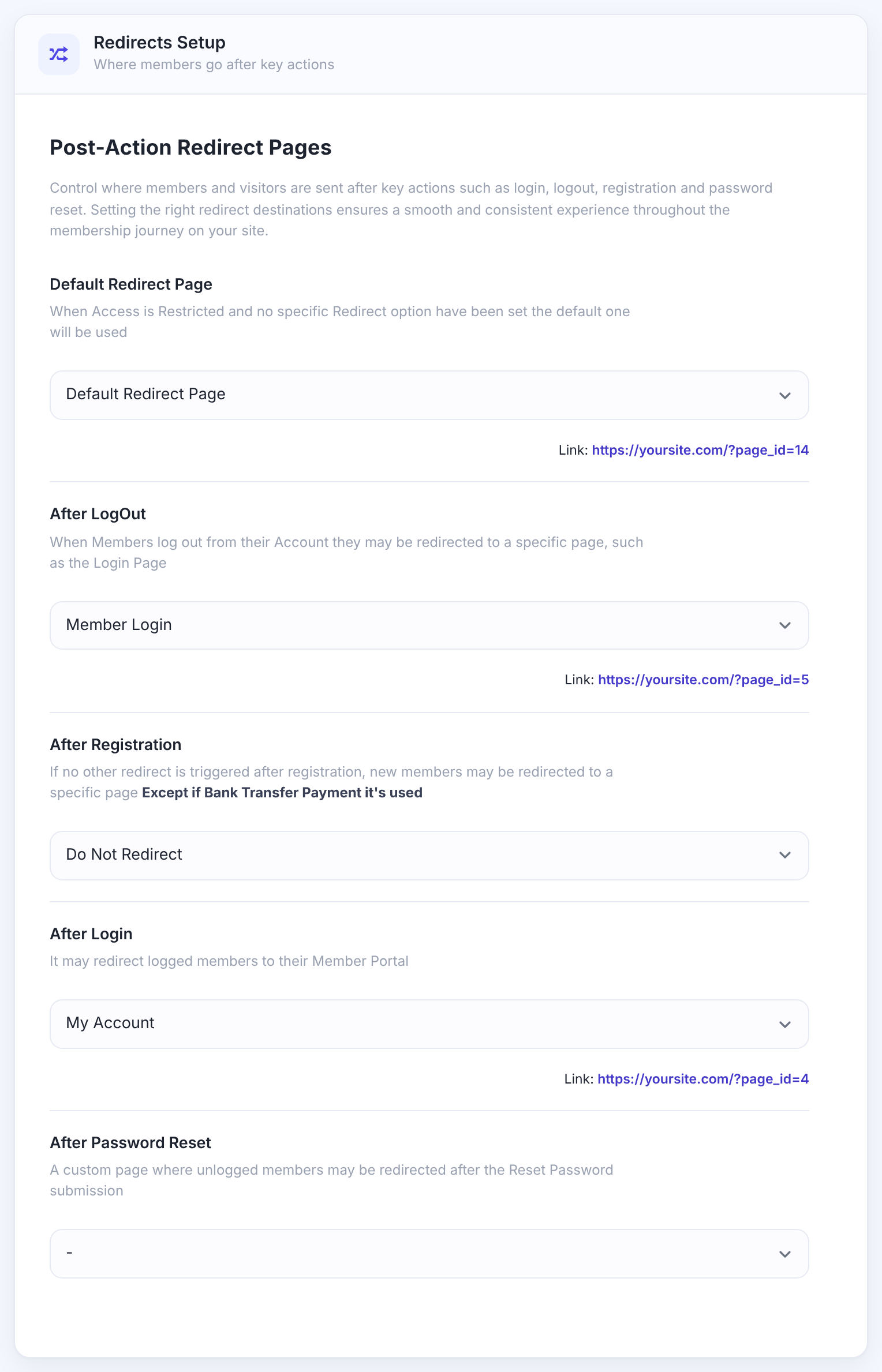
Where visitors go when they open restricted content and the page’s Locker doesn’t name another redirect.
Default: the Default Redirect Page page
Where members go after they log out.
Default: Member Login
Where new members go after they register, if nothing else redirects them. It doesn’t apply when the member pays by Bank Transfer.
Default: Do Not Redirect
Where visitors go after they submit the Reset Password form.
Default: –
Click Save Changes when you’re done.
Check the pages list
In Pages›All Pages, each membership page has a label next to its title, such as Register Page or Account Page. A Restricted label means the page has a Locker.
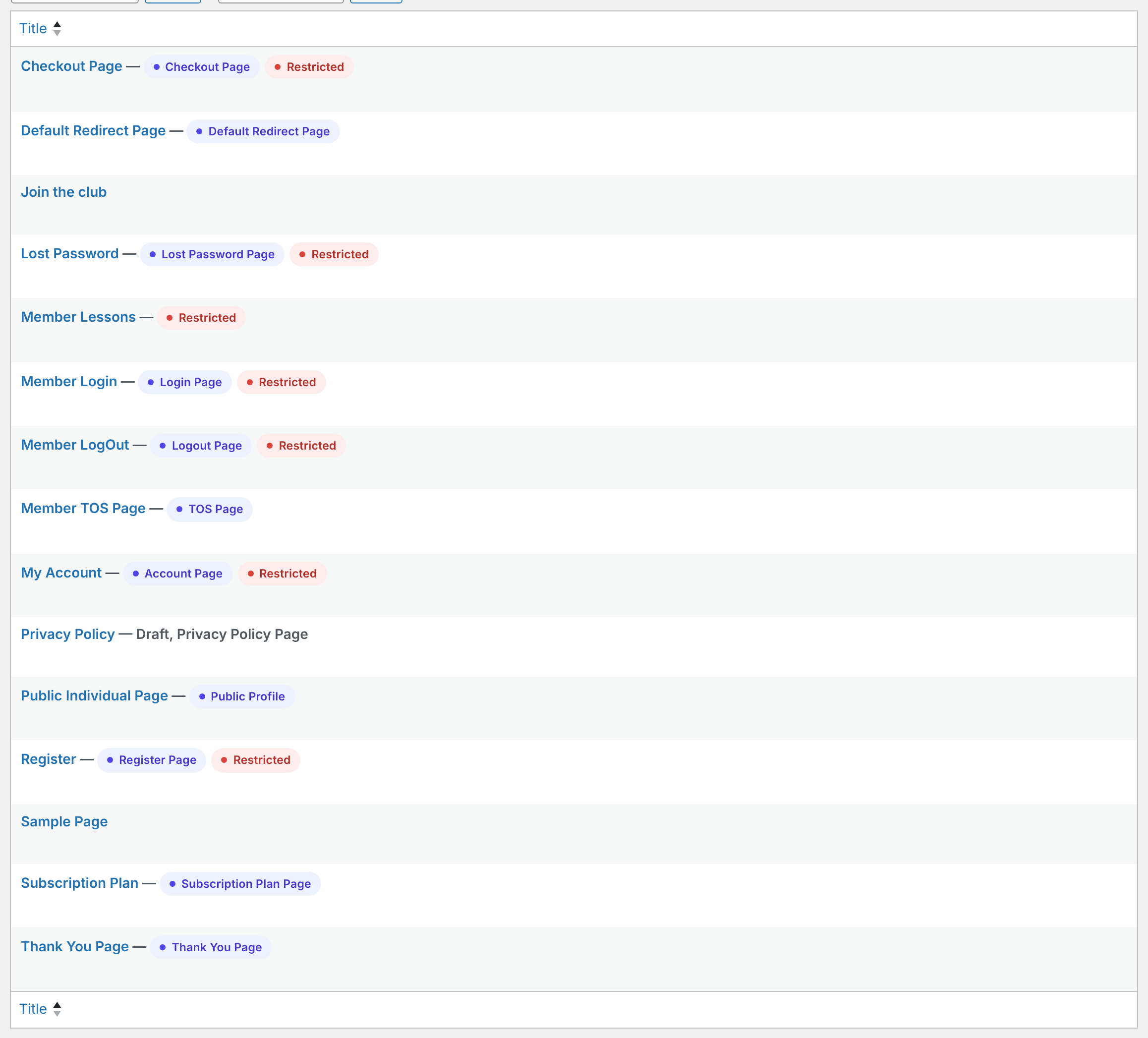
Lockers already set on these pages
On activation the plugin also adds a Locker to some pages, so each page is only shown to the right people:
Only for visitors who aren’t logged in. Logged-in members are sent to My Account.
Only for logged-in users. Visitors are sent to Member Login.
Only for logged-in users. Visitors are sent to Register.
Keep these Lockers when you assign your own pages. You can copy the same settings in the page’s Locker box. See Restrict your first page.
Avoid common slugs
Slugs such as login, register or lost-password can clash with other plugins or your theme, and the page then shows something else or nothing. Use your own slugs, such as member-login. After changing slugs, go to Settings›Permalinks and click Save Changes once.
Example: the default setup
- Register Page
- Register
- Subscription Plan Page
- Subscription Plan
- Login Page
- Member Login
- Logout Page
- Member LogOut
- Member Portal
- My Account
- TOS Page
- Member TOS Page
- Lost Password Page
- Lost Password
- Public Individual user Page
- Public Individual Page
- Checkout Page
- Checkout Page
- Thank You Page
- Thank You Page
- Default Redirect Page
- Default Redirect Page
- After Login
- My Account
- After LogOut
- Member Login
Troubleshooting
“Default Login Page is missing!”
No page is assigned for that page type, or the page was deleted. Pick a page in Pages Setup and save. The same message appears for the other page types.
A membership page shows a 404 error or the wrong content
Go to Settings›Permalinks and click Save Changes. If it still happens, give the page a less common slug.
The form doesn’t show on the page
The page content doesn’t have the shortcode. Add it from the list above.
I’m sent away from the Login or Register page
You’re logged in. These pages are only for visitors who aren’t logged in. Test in a private window.


