
You install Ultimate Membership Pro like any other WordPress plugin: upload its .zip file and activate it. On the first activation it also creates the pages your members need, so the site is ready for the next steps.
This guide covers the upload, the activation and what the plugin sets up for you.
Before you start
- Your server meets the requirements (WordPress 6.0+, PHP 7.4+).
- You downloaded the plugin’s .zip file from your account on ultimatemembershippro.com. Don’t unzip it.
- You’re logged in to WordPress as an administrator.
Upload the plugin
- In your WordPress dashboard, go to Plugins›Add New Plugin.
- Click Upload Plugin at the top of the screen.
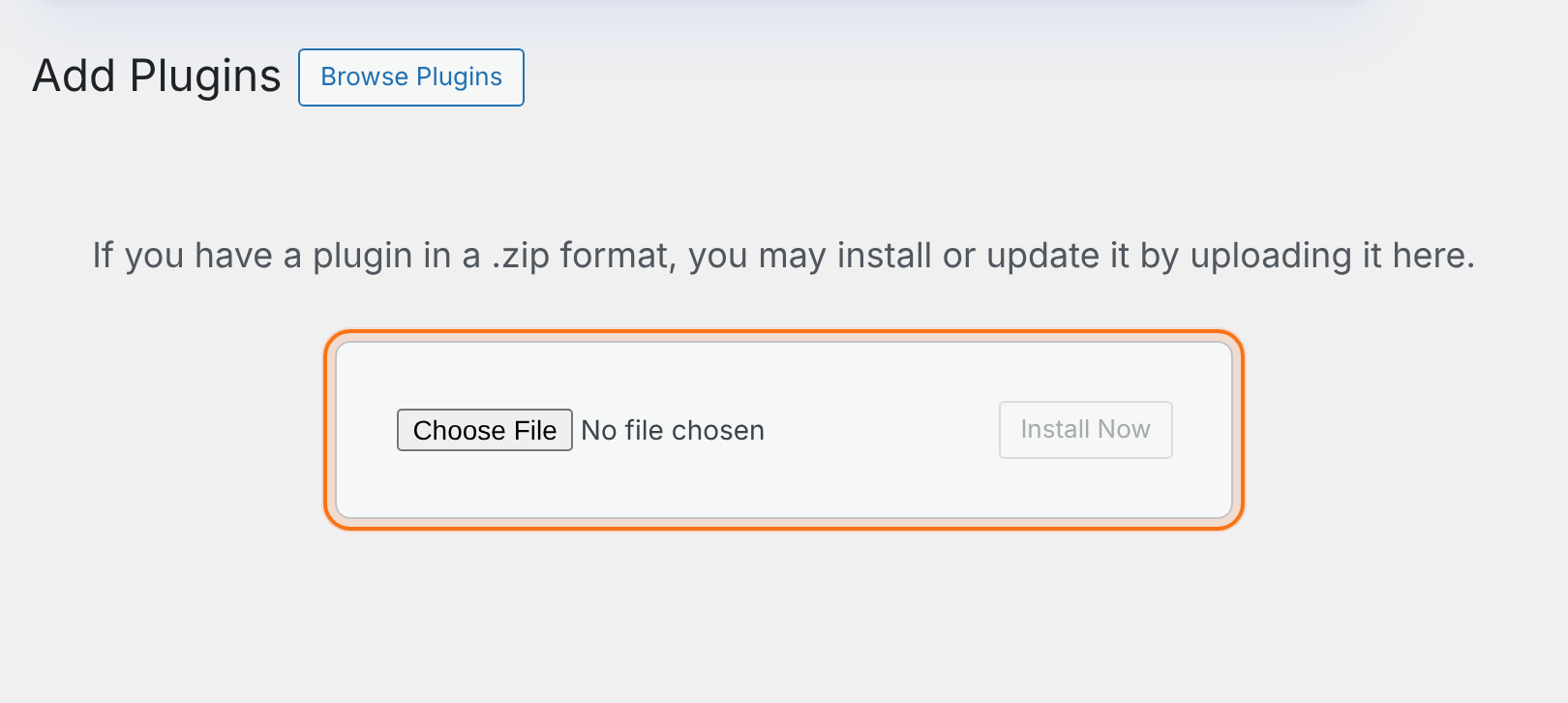
- Click Choose File, select
ultimate-membership-pro.zip, then click Install Now.
Activate it
When WordPress has installed the plugin, click Activate Plugin. A new Ultimate Membership Pro item appears in your dashboard menu.
Check what the plugin set up
On the first activation the plugin prepares your site:
Published pages with the right shortcode inside: Register, Member Login, Member LogOut, My Account, Lost Password, Subscription Plan, Checkout Page, Thank You Page, Member TOS Page, Public Individual Page and Default Redirect Page. Pages you already assigned are kept.
After login, members go to My Account. After logout, they go to Member Login.
Login, Register and Lost Password are only for visitors who aren’t logged in. My Account, Member LogOut and Checkout are only for logged-in users.
Daily and weekly jobs for expiry, renewals and notifications.
On a new install, the wizard opens the first time you open any Ultimate Membership Pro screen.
Activate your license key
Go to Ultimate Membership Pro›Licensing and enter your key, or do it in the first step of the wizard. See Find and activate your license key.
Install with FTP instead
If uploads are blocked on your server, install the plugin by hand:
- Unzip the file on your computer.
- Upload the
ultimate-membership-profolder towp-content/plugins/on your server. - Go to Plugins›Installed Plugins and click Activate under Ultimate Membership Pro.
Keep the folder name
The folder must be named ultimate-membership-pro. Automatic updates look for the plugin in that folder, so a renamed folder (for example with a version number added) won’t receive updates.
Upgrading from an older edition?
If an older edition is active, in the indeed-membership-pro or ultimate-membership folder, activating Ultimate Membership Pro deactivates it for you. When the plugin finds Memberships that already exist, it skips the setup wizard.
Example: what you have after activation
- Register
[ihc-register]- Member Login
[ihc-login-form]- Member LogOut
[ihc-logout-link]- My Account
[ihc-user-page]- Lost Password
[ihc-pass-reset]- Subscription Plan
[ihc-select-level]- Checkout Page
[ihc-checkout-page]- Thank You Page
[ihc-thank-you-page]- Public Individual Page
[ihc-visitor-inside-user-page]
Troubleshooting
“The uploaded file exceeds the upload_max_filesize directive in php.ini.”
Your server limits upload size. Ask your host to raise the limit, or install with FTP as described above.
“Destination folder already exists.”
The plugin is already installed. To replace it with a newer version, see Update the plugin.
A blank page or a 500 error after activation
Check the requirements, then see Error 500 Internal Server Error is showing up.
The setup wizard didn’t open
It only opens on new installs. If the plugin found existing Memberships, set things up from the Settings screens instead.


