
In Ultimate Membership Pro, a Membership is the plan people sign up for on your site. It decides what members can access, for how long, and what they pay. Content restrictions, the register form, checkout and the Member Portal all work with Memberships, so this is the first thing to set up after your plugin pages.
This guide walks through the Add Membership screen one card at a time, using a real example: a monthly plan with a 7-day free trial.
Before you start
- Your License Key is activated under Ultimate Membership Pro›Licensing. Without it you can create up to 3 Memberships. Need your key? See Find and activate your license key.
- Your plugin pages are set up. See Set up the membership pages.
- For paid plans, a payment gateway is enabled. See Connect a payment gateway. You can create the Membership first and connect the gateway later.
Choose the right Access Type
The Access Type is the one decision that shapes everything else: how long access lasts and, for paid plans, whether members pay once or on every renewal.
LifeTime
- Access
- No expiration
- Paid plans
- One payment
- Good for
- A course or library bought once
Limited Time
- Access
- A set period from sign-up, e.g. 3 months
- Paid plans
- One payment
- Good for
- Time-boxed programs
Date Range
- Access
- Between two fixed calendar dates
- Paid plans
- One payment
- Good for
- Seasonal passes, cohorts
Recurring Subscription
- Access
- Renews every cycle until cancelled
- Paid plans
- Every cycle
- Good for
- Monthly or yearly plans
One Membership per price
Each Membership has one price. To sell the same access at two prices, for example $19 a month and $190 a year, create one Membership for each price, such as Pro Monthly and Pro Yearly. Then pick both Memberships when you restrict your content: the Locker, the Inside Locker and Access Rules all accept several Memberships at once.
Open the Add Membership screen
- In your WordPress dashboard, go to Ultimate Membership Pro›Memberships.
- Click + Add New Membership.
The form is split into cards. Use the bar at the top (Basic, Access, Expiration, Settings, Billing, Showcase) to jump between them.
Name your Membership
Fill in the Main Membership details card. The numbers match the screenshot.
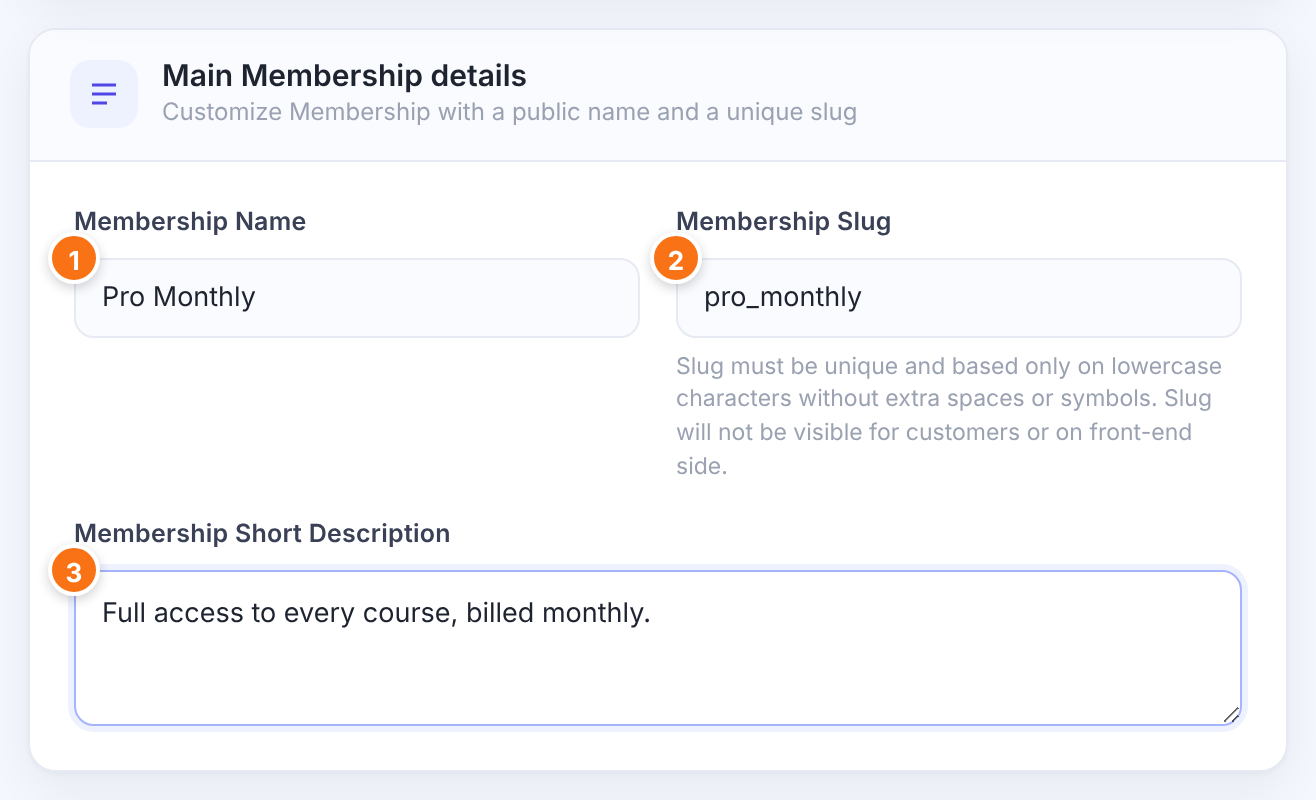
The plan name your members see, for example on the Subscription Plan page and at checkout.
A unique internal name, such as pro_monthly. Use lowercase letters, numbers and underscores. When you save, spaces become underscores and symbols such as – or . are removed. Members never see the slug.
An optional one-line summary of the plan.
Set how long access lasts
In the Membership Access card, pick the Access Type. Extra fields appear for the type you choose.
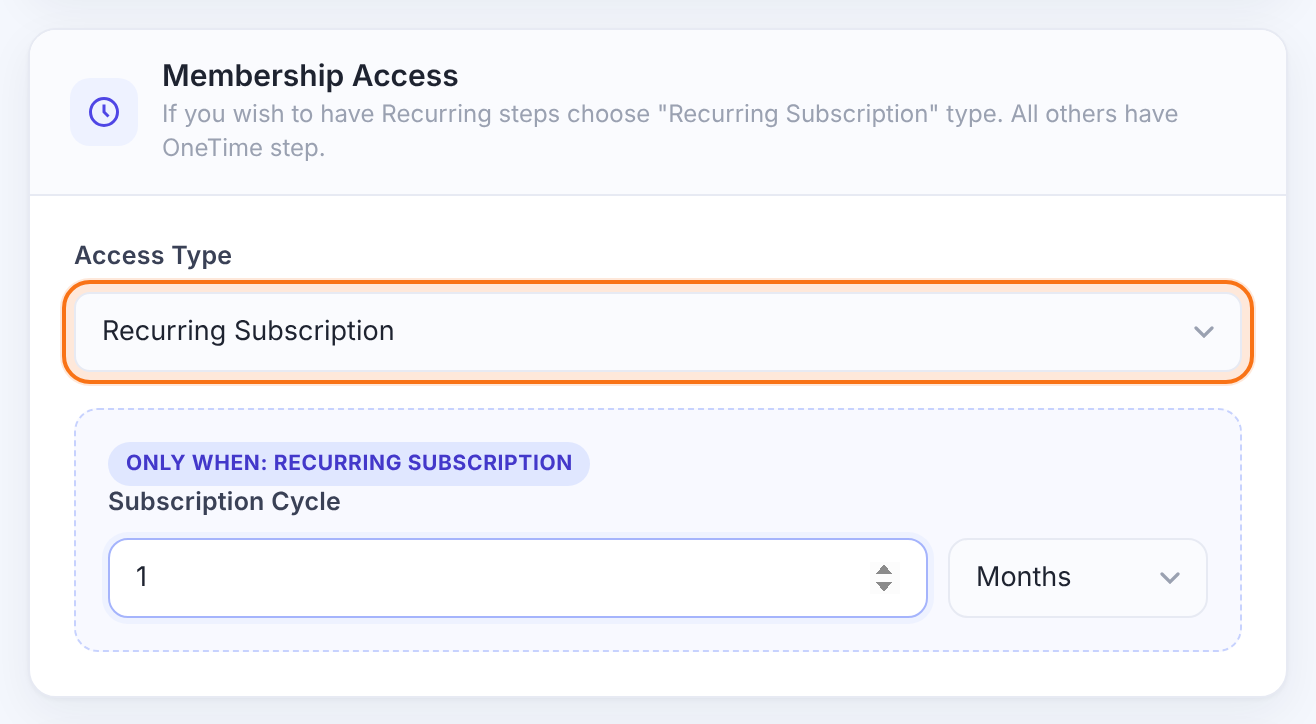
LifeTime, Limited Time, Date Range or Recurring Subscription. See the comparison above.
Default: LifeTime
A number from 1 to 31 and a unit: Days, Weeks, Months or Years. Example: 3 Months.
The first and last day of access, in YYYY-MM-DD format.
How often the plan renews and bills. Example: 1 Months for monthly, 1 Years for yearly.
Payment gateway limits for recurring plans
- PayPal: the cycle can be 12 months at most.
- Authorize.net: the cycle must be at least 7 days.
- Braintree: only Months is supported, and you need a Plan in your Braintree account whose Plan ID matches the Membership Slug.
Decide what happens when access ends
The Expiration & Lifecycle card controls what happens when a Membership expires or a member cancels. LifeTime Memberships never expire, so the card has nothing to set for them.
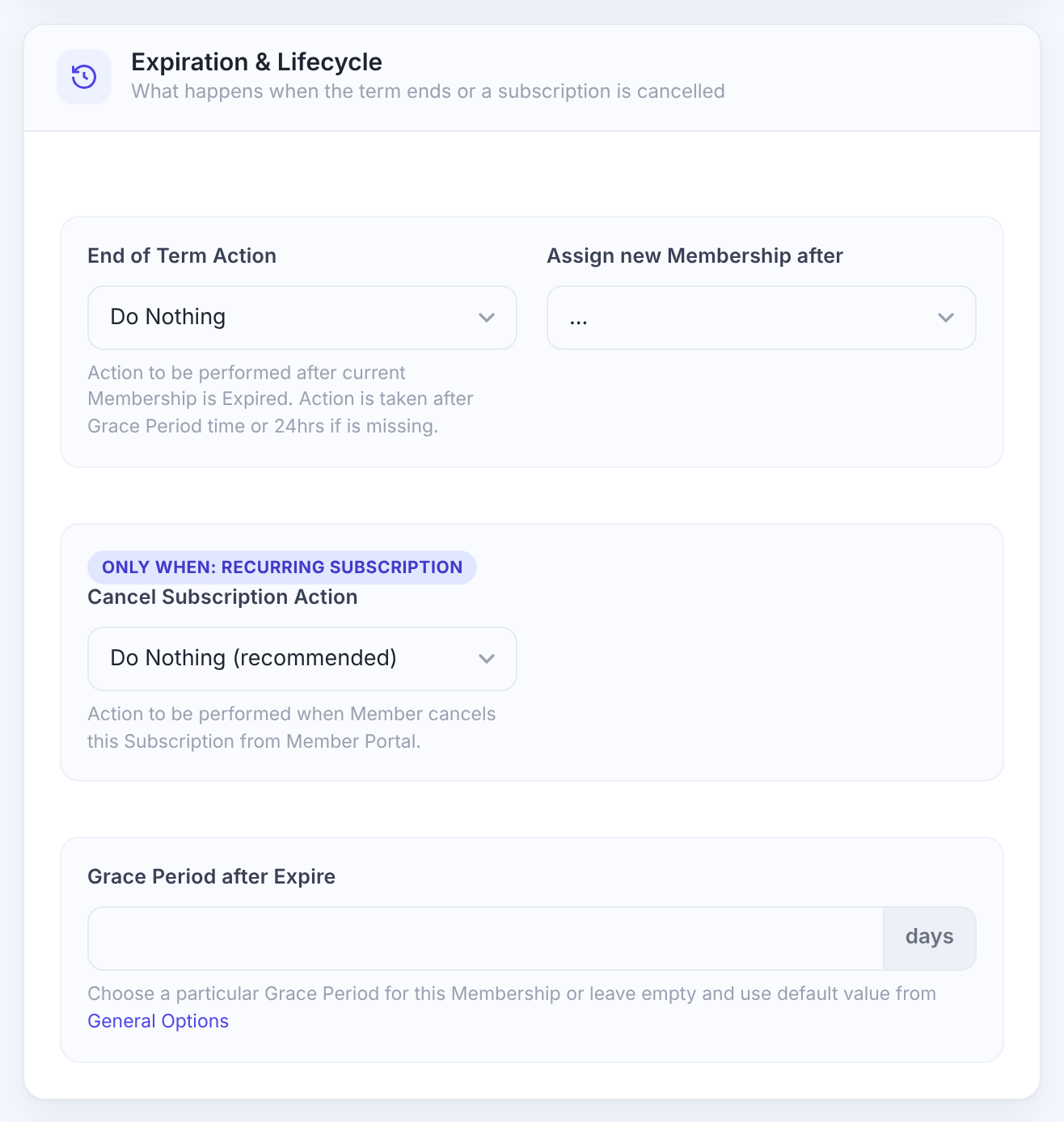
What happens to the Membership on the member’s account once it expires. It runs after the Grace Period, or 24 hours after expiry if there’s no Grace Period.
- Do Nothing: the expired Membership stays on the account.
- Remove this Membership from Member: it’s taken off the account.
Default: Do Nothing
Gives the member another Membership when this one expires, for example a free plan so they keep basic access. The new Membership is added without a payment and runs for its own access period. The expired Membership stays on the account or is removed, depending on End of Term Action. A member who already holds the new Membership keeps it as it is.
Default: None
What happens when a member cancels from the Member Portal.
- Do Nothing (recommended)
- Remove this Subscription from Member
- Replace this Subscription: then pick the replacement in Assign new Membership after Cancel.
Default: Do Nothing (recommended)
Extra days of access after the Membership expires, for example while a renewal payment goes through. Leave it empty to use the default from Ultimate Membership Pro›Settings›Public Workflow.
Default: Empty
Fine-tune access
Most sites can skip the Additional Access Settings card.
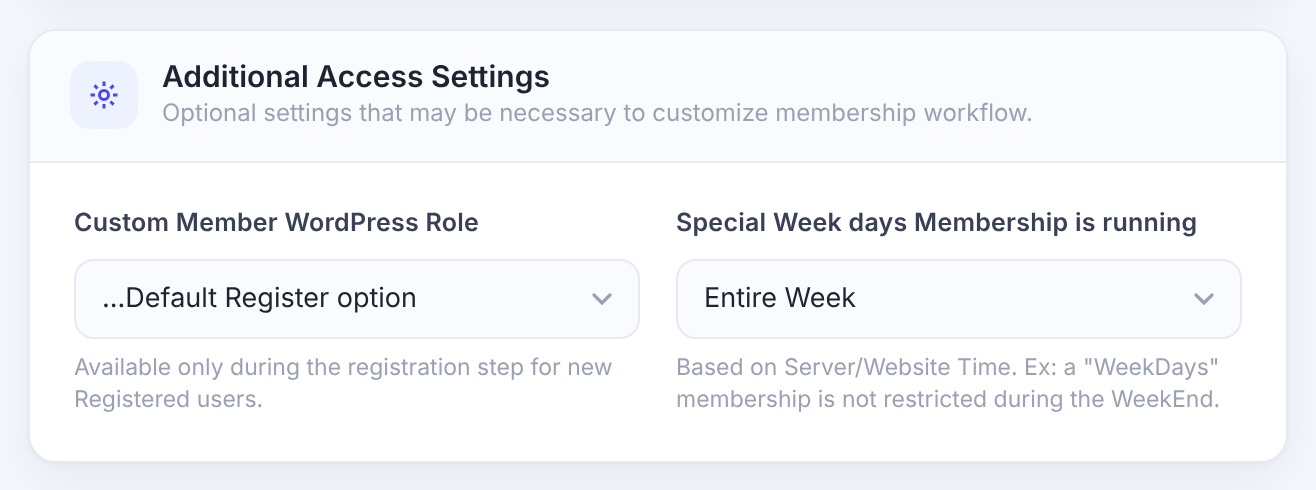
The WordPress role given to people who register with this Membership. It applies to new registrations only.
Default: …Default Register option
Entire Week, WeekDays (Monday to Friday) or WeekEnd (Saturday and Sunday). On the other days this Membership gives no access. Uses your site’s time zone.
Default: Entire Week
Set the price
In the Membership Billing card, choose whether the plan is free or paid.
Free or Payment. Free Memberships skip the payment step.
Default: Free
The amount members pay, in the currency set under Ultimate Membership Pro›Settings›Payment Settings. Stripe needs at least 0.50.
Fixed to One Time for LifeTime, Limited Time and Date Range. For a Recurring Subscription:
- On Going: charge every cycle until the member cancels.
- Limited: stop after a set number of payments, entered in Max no of Periods (2 to 52).
Default: On Going
Add a free trial (optional)
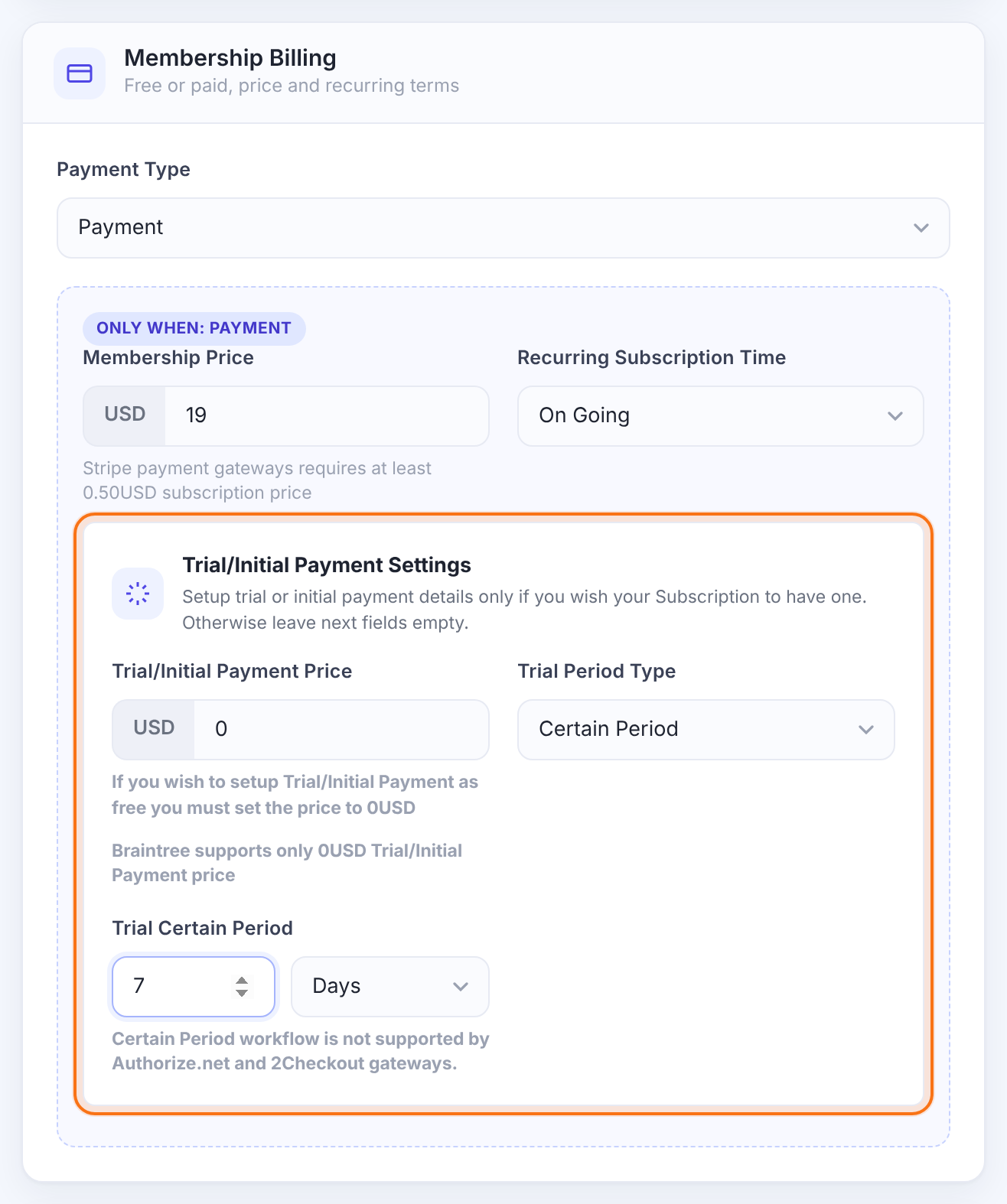
The Trial/Initial Payment Settings box appears when the Access Type is Recurring Subscription and the Payment Type is Payment. Leave it empty if you don’t want a trial.
What the member pays at the start. Enter 0 for a free trial.
How long the trial price applies:
- Certain Period: a set time, set in Trial Certain Period, for example 7 Days.
- Couple cycles subscription payments: the first few billing cycles, set in Trial Couple Cycles.
Payment gateway limits for trials
- Authorize.net and 2Checkout don’t support Certain Period trials.
- 2Checkout allows at most 1 trial cycle.
- Braintree only supports free (0) trials, and the trial must also be set in your Braintree Plan.
Test before you charge
Want to try the whole sign-up flow before connecting a payment gateway? Create a Free Membership first, sign up with a test account, then switch to Payment.
Choose how the plan looks to visitors
Visitors pick a plan on your Subscription Plan page. This is how the example plan appears there with the default showcase:
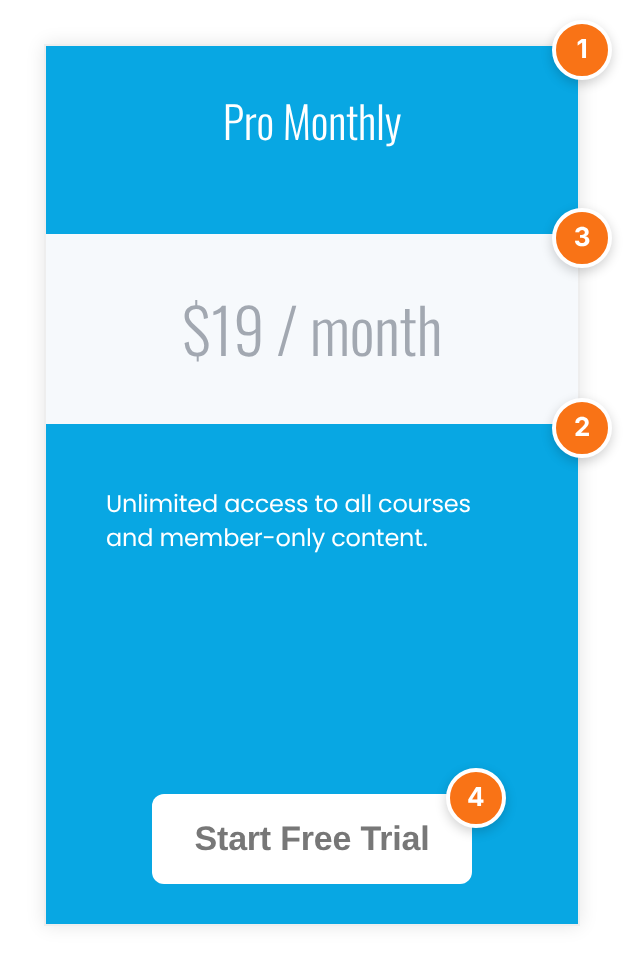
You set these in the Subscriptions Plan Page details card:
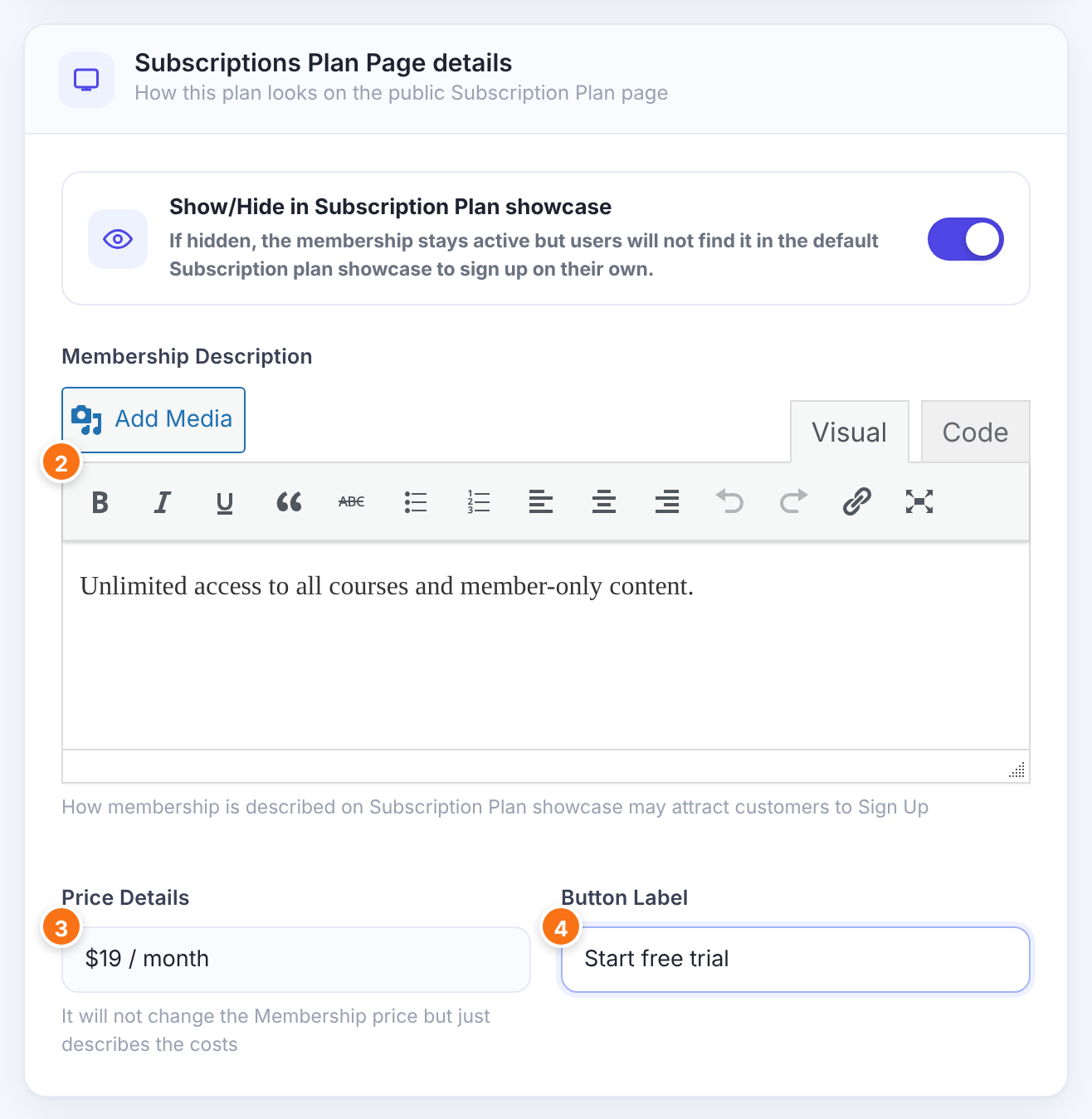
Turn it off to hide the plan from the Subscription Plan page. The Membership keeps working, so you can still sell it with its direct purchase link.
Default: On
The plan title. You set it in Step 2.
What members get. Short, scannable text works best.
The price text shown on the card, for example $19 / month. It’s display text only: members are charged the Membership Price from Step 6.
The text on the sign-up button.
Save the Membership
Click Save Changes in the bar at the bottom of the screen. Changes aren’t saved automatically. Your new plan now appears in the Memberships list.
Use your Membership’s shortcodes
Every Membership in the list comes with two ready-made shortcodes. Click the copy icon next to one, then paste it into any page or post.
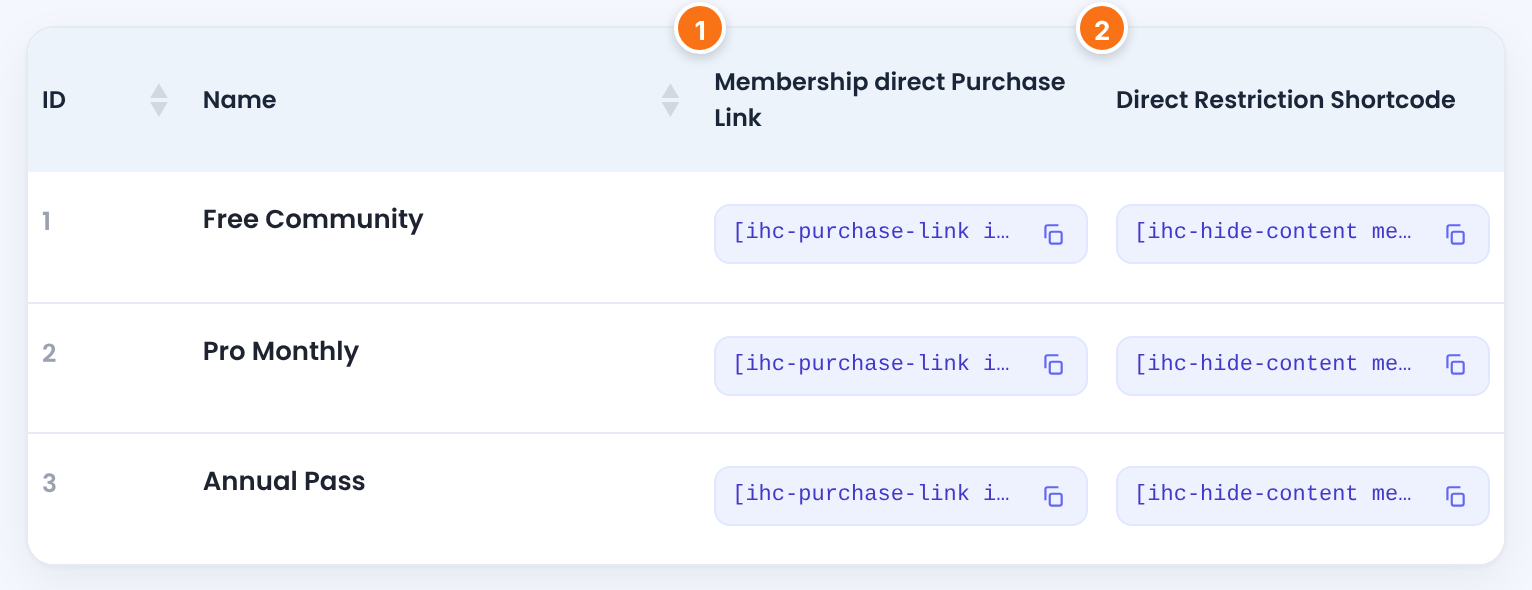
1Direct purchase link
[ihc-purchase-link id=2]SignUp[/ihc-purchase-link]Adds a link that takes visitors straight to sign-up for this Membership. Replace SignUp with your own text.
2Restriction shortcode
[ihc-hide-content membership=2]...[/ihc-hide-content]Put your members-only content in place of the dots. Only members of this Membership see it; everyone else sees a locker message. Admins always see it.
Example: monthly plan with a 7-day free trial
- Membership Name
- Pro Monthly
- Membership Slug
pro_monthly- Access Type
- Recurring Subscription
- Subscription Cycle
- 1 Months
- Cancel Subscription Action
- Do Nothing (recommended)
- Payment Type
- Payment
- Membership Price
- $19
- Recurring Subscription Time
- On Going
- Trial/Initial Payment Price
- $0 (free)
- Trial Period Type
- Certain Period
- Trial Certain Period
- 7 Days
- Price Details
- $19 / month
- Button Label
- Start free trial
Troubleshooting
“You cannot add more Memberships on Trial Version!”
Activate your License Key under Ultimate Membership Pro›Licensing. Until then you can have up to 3 Memberships.
“A Membership with this Slug … already exists.”
Every slug must be unique. Pick a different one.
“Membership Name is required.” or “Unique Membership Slug is required.”
Fill in both fields in Main Membership details. A slug made only of symbols is emptied when you save, so use letters or numbers.
The plan doesn’t show on the Subscription Plan page
Check that Show/Hide in Subscription Plan showcase is on, and that a page is selected as Subscription Plan Page under Ultimate Membership Pro›Settings›Pages Setup.
Members aren’t asked to pay
Check that the Payment Type is Payment and that a gateway is enabled under Ultimate Membership Pro›Payment Gateways.


