
Ultimate Membership Pro can take payments through 2Checkout, now part of Verifone, a global platform for selling across borders. Members are sent to 2Checkout’s hosted checkout to pay, and 2Checkout notifies your site when the payment is complete.
In the plugin, the gateway is listed as Verifone (2Checkout) and its settings page is called 2Checkout Gateway. This guide fills in the credentials, adds the notification URL in 2Checkout and runs a Sandbox test for the Coaching Club site.
Before you start
- You have a 2Checkout (Verifone) merchant account.
- You have a paid Membership, for example Pro Monthly at $19/month. See Create your first Membership.
- Your site is reachable from the internet, so 2Checkout can send payment notifications to it.
What 2Checkout supports
Payments
- One-time
- Yes: LifeTime, Limited Time and Date Range Memberships
- Recurring
- Yes: Recurring Subscription Memberships
- Checkout
- Redirect to 2Checkout’s hosted checkout
Billing rules
- Cycles
- 1 to 90 days, 1 to 52 weeks, 1 to 24 months or 1 to 5 years
- Trials
- One cycle at a trial price (free or paid)
- Limited billing
- 2 to 52 payments
Your site currency is sent with every payment. The member’s name, email and address from their profile are filled in on 2Checkout’s checkout.
Open the 2Checkout settings
- Go to Ultimate Membership Pro›Payment Gateways.
- Find Verifone (2Checkout) and click Complete setup (Manage once it’s active).

The page that opens is 2Checkout Gateway. Its badge shows Inactive, Sandbox or Live.
Turn on the gateway
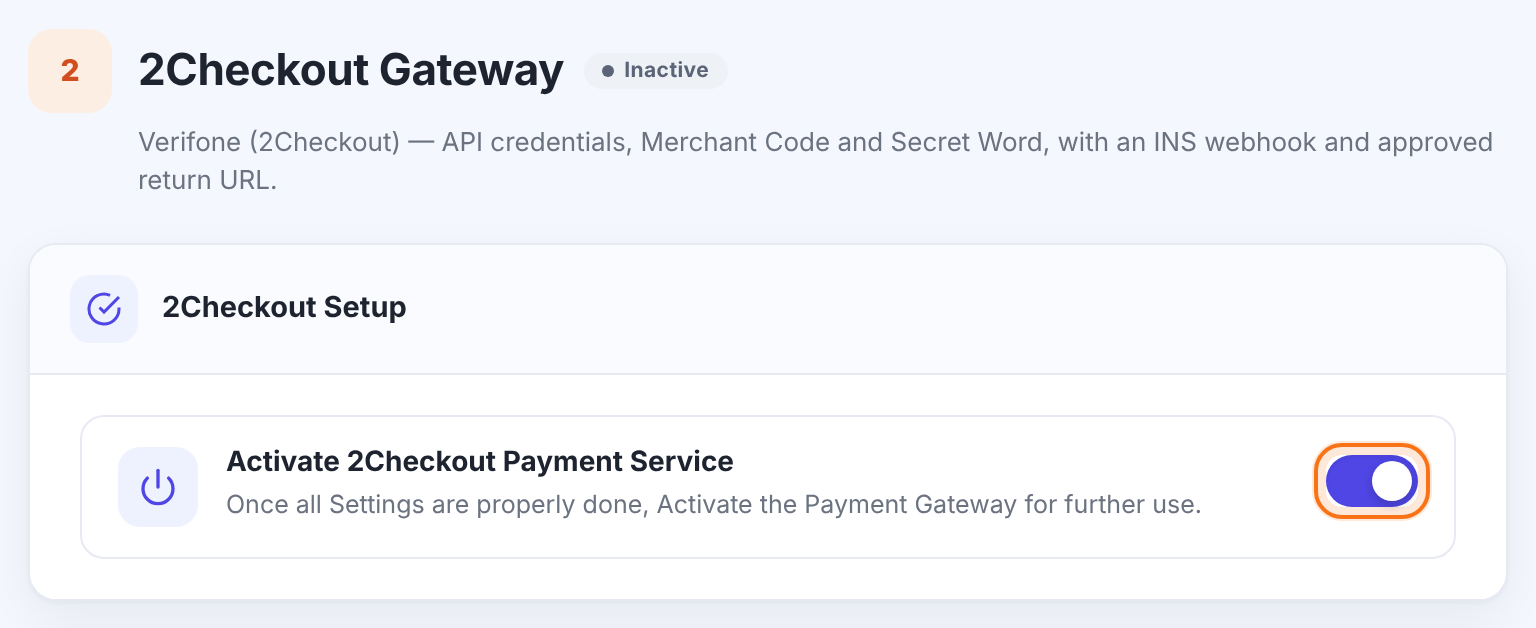
Makes 2Checkout available at checkout. It’s offered to members only when this is on and all five credential fields in the next step are filled in.
Default: Off
Enter your 2Checkout credentials
In your 2Checkout control panel, go to Integrations › Webhooks & API. That page shows your Merchant Code, API Private Key and Secret Word.
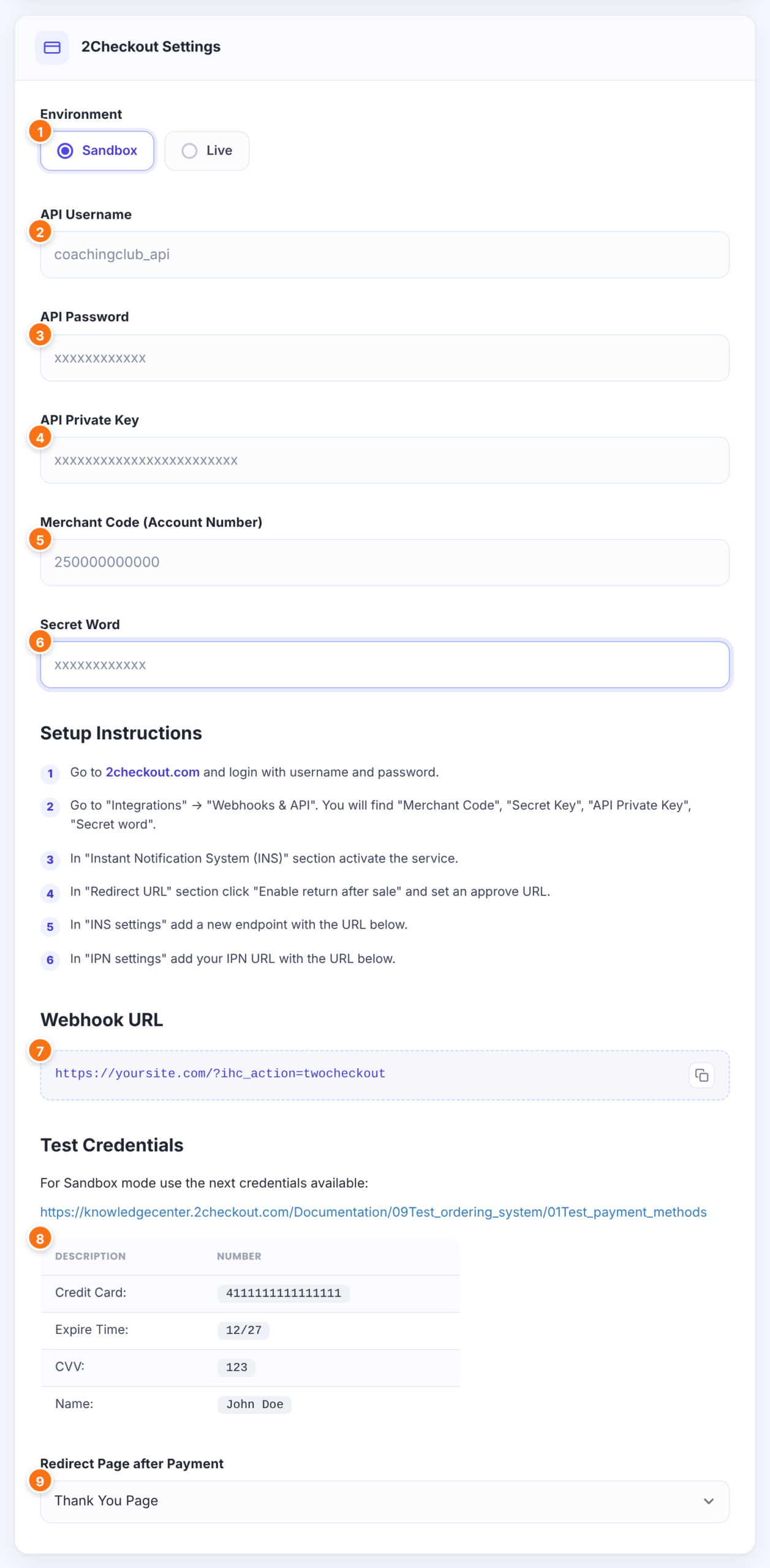
Sandbox marks the payments as test orders in 2Checkout; Live takes real payments.
- Sandbox
- Live
Default: Live
Your 2Checkout API username. All five credential fields must be filled in for the gateway to appear at checkout.
The password of that API user.
From Integrations › Webhooks & API. Together with the Merchant Code, it lets members cancel their 2Checkout subscription from your site.
Your 2Checkout merchant code. It identifies your account on the checkout.
From Integrations › Webhooks & API. It signs the checkout link; with a wrong Secret Word, 2Checkout rejects the checkout.
Where to find the credentials and which notification settings to turn on, shown on the screen for reference.
The address 2Checkout sends payment notifications to (Step 5). Use the copy button next to it.
A test card for Sandbox payments: 4111111111111111, expiry 12 of next year, CVV 123, name John Doe.
The page members come back to after paying. Leave … to use your Thank You page.
Default: …
Set up notifications and the return in 2Checkout

https://yoursite.com/?ihc_action=twocheckout- In 2Checkout, under Integrations › Webhooks & API, activate the Instant Notification System (INS).
- In INS settings, add a new endpoint with the Webhook URL.
- In IPN settings, add the same URL as your IPN URL.
- In the Redirect URL section, click Enable return after sale and set an approve URL for your site.
2Checkout then reports each order status to your site:
The order becomes Completed and the Membership is activated. Each renewal of a recurring plan adds a new order and extends the Membership.
The Membership is taken off the member’s account.
The payment failed or was reversed, and the Membership is taken off the member’s account.
The Membership’s status becomes Cancelled.
Nothing changes yet; the order stays Pending.
Set how 2Checkout appears at checkout
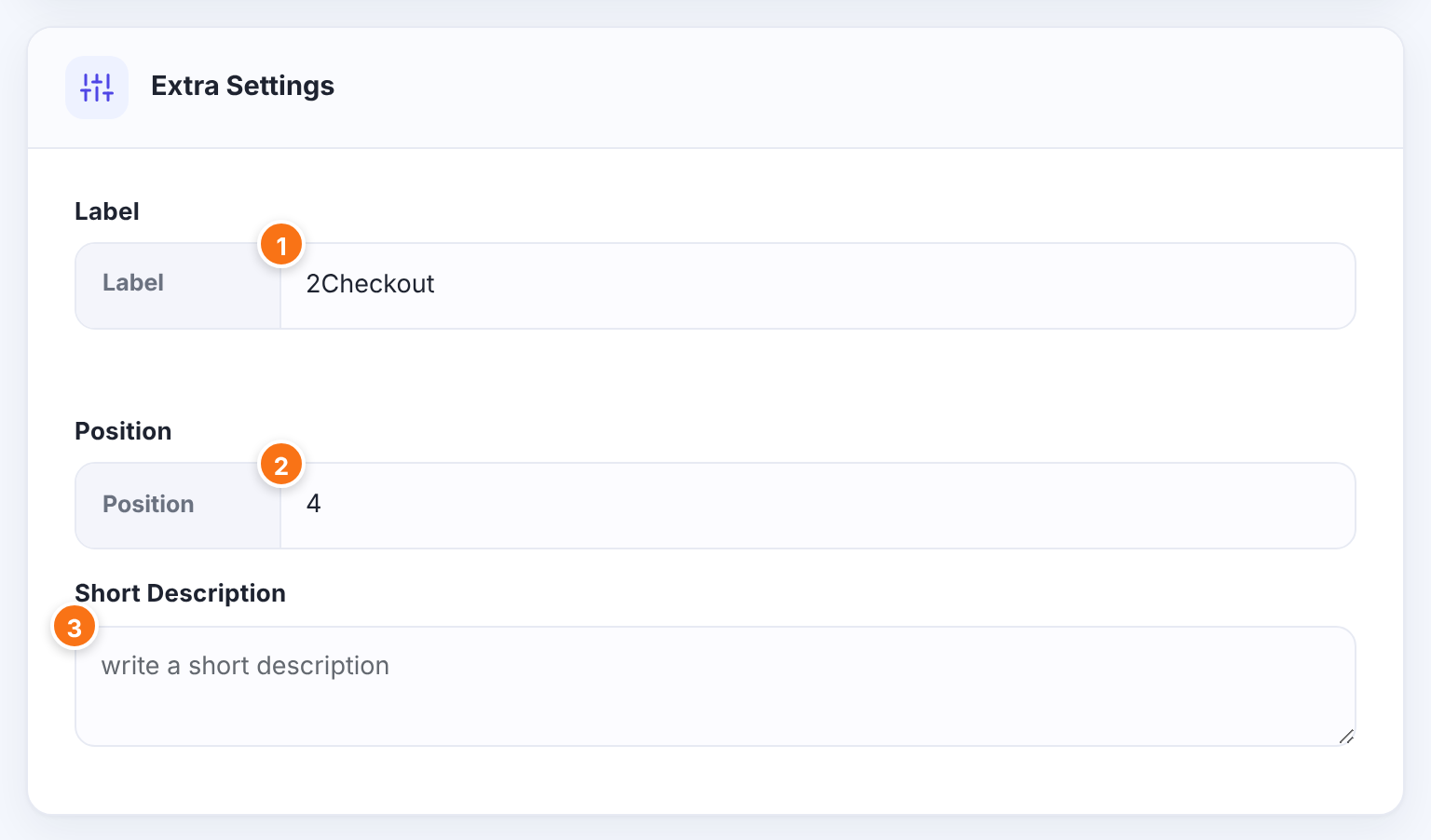
The name of this payment method at checkout.
Default: 2Checkout
The order of this gateway among the payment methods at checkout. Lower numbers come first.
Default: 4
Optional text about the gateway, saved with its settings.
Click Save Changes.
Test a payment
- With Environment on Sandbox, buy Pro Monthly on your site in a private window.
- Choose 2Checkout at checkout. You’re sent to 2Checkout’s checkout with your details filled in.
- Pay with the test card from Test Credentials. You return to the Redirect Page after Payment.
- In Ultimate Membership Pro›Payment History, the order becomes Completed when the COMPLETE notification arrives.
When it works, switch Environment to Live and save.
Limits to know
- Trials last 1 billing cycle (Couple cycles subscription payments, 1 cycle).
- The trial price applies to the first billing cycle only; after that members pay the Membership Price.
- Day cycles can be at most 90 days, month cycles at most 24 months.
- Limited plans need 2 to 52 payments.
- Refunds are made in your 2Checkout control panel.
Keep INS and IPN on the same URL
Use the exact Webhook URL from the settings page for both the INS endpoint and the IPN URL, and check it again if you move the site to a new domain.
Example: Coaching Club on 2Checkout
- Environment
- Sandbox while testing, then Live
- Merchant Code, API Private Key, Secret Word
- From Integrations › Webhooks & API
- INS endpoint and IPN URL
- https://yoursite.com/?ihc_action=twocheckout
- Redirect Page after Payment
- Thank You Page
- Membership
- Pro Monthly, Recurring Subscription, 1 Months, $19
- Label
- 2Checkout
Troubleshooting
Why doesn’t 2Checkout appear at checkout?
Check that Activate 2Checkout Payment Service is on and that all five fields are filled in: API Username, API Password, API Private Key, Merchant Code (Account Number) and Secret Word.
Why does 2Checkout show an error instead of the checkout?
The checkout link couldn’t be verified. Check the Merchant Code and the Secret Word against Integrations › Webhooks & API, then save again.
Why does the order stay Pending after the member paid?
2Checkout hasn’t sent a COMPLETE notification to your site. Check that INS is active, that the INS endpoint and IPN URL are https://yoursite.com/?ihc_action=twocheckout, and that your site is publicly reachable.
Can members cancel their 2Checkout subscription themselves?
Yes, from the Member Portal, when the API Private Key and Merchant Code are filled in. The subscription is cancelled in 2Checkout and the Membership becomes Cancelled. See Set up the Member Portal.
Where did the old 2Checkout settings go?
They’re now under Ultimate Membership Pro › Payment Gateways › Verifone (2Checkout). The field once called Account Number is now Merchant Code (Account Number).


