
Every purchase of a Membership creates an order, and all orders are listed in the Ultimate Membership Pro Payment History with their amount, gateway and status. It’s where you check who paid, confirm payments that need your approval, such as bank transfers, and correct an order when something went wrong.
This guide covers the Payment History screen, the order statuses, how to complete, edit or remove an order, and how to add a payment by hand.
Before you start
- At least one payment gateway is set up. See Connect a payment gateway.
- Orders appear here as soon as a member checks out for a paid Membership, before the payment is confirmed.
Open Payment History
- Go to Ultimate Membership Pro›Payment History. In the plugin’s top menu the same screen is called Payments.
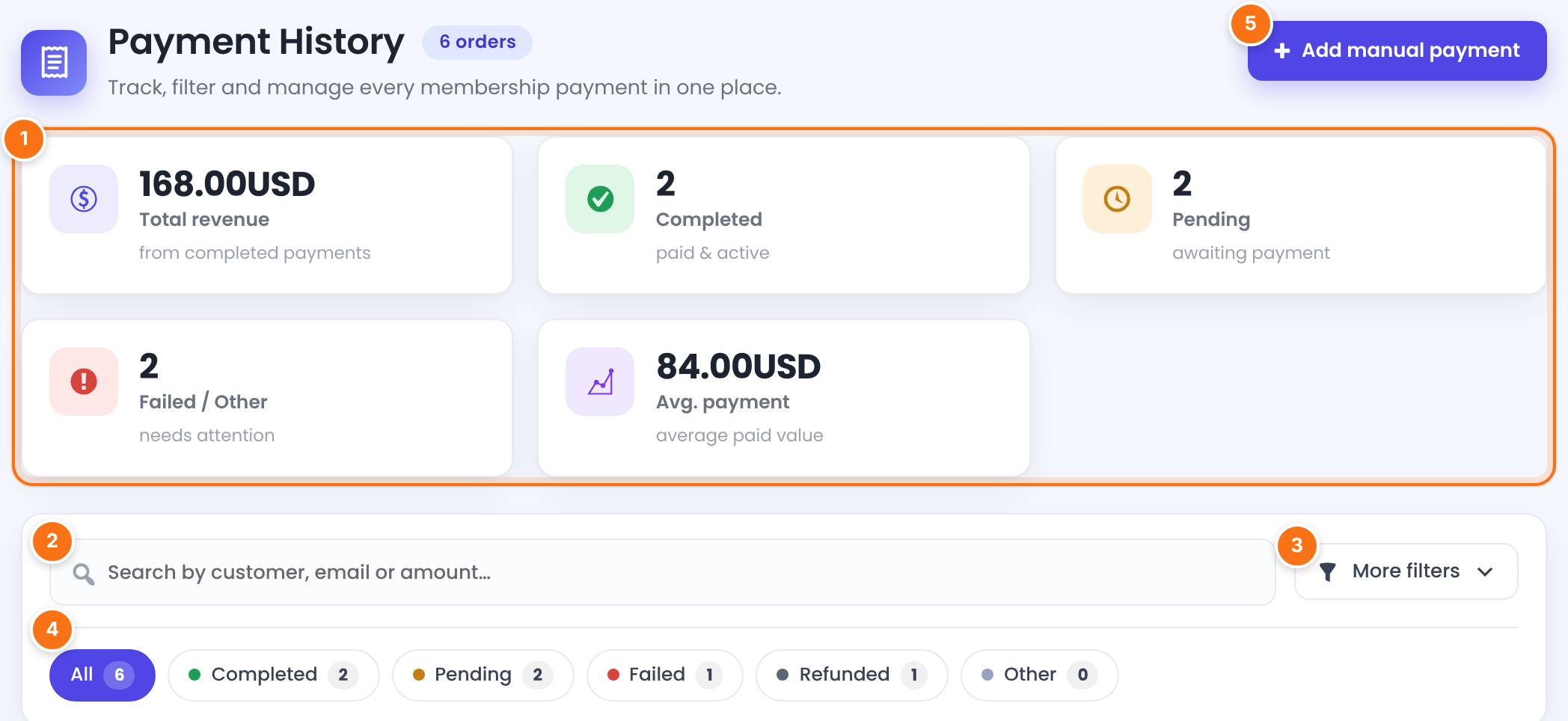
Total revenue (sum of Completed orders), Completed, Pending, Failed / Other (everything that isn’t Completed or Pending, refunds included) and Avg. payment. They follow the search and filters you apply. If your orders use more than one currency, Total revenue shows the most used one and says so, for example “completed payments in USD”.
Finds orders by username, name or email. A number finds orders with exactly that amount, for example 149.
Opens the extra filters (next step).
All, Completed, Pending, Failed (Failed and Error orders), Refunded and Other, each with its count. Other only appears when some orders have another status.
Records a payment you received outside the checkout (see the last step).
Filter the list
Click More filters to narrow the list. Active filters appear as chips; Clear all removes them.

One or more gateways. Only gateways that already have orders are listed.
Default: Any method
LifeTime, Limited Time, Date Range or Recurring Subscription, the type of the Membership bought.
Default: Any type
Orders created between a Start date and an End date.
Today, 7 days, 30 days or This month fill in the date range for you.
Read the orders table
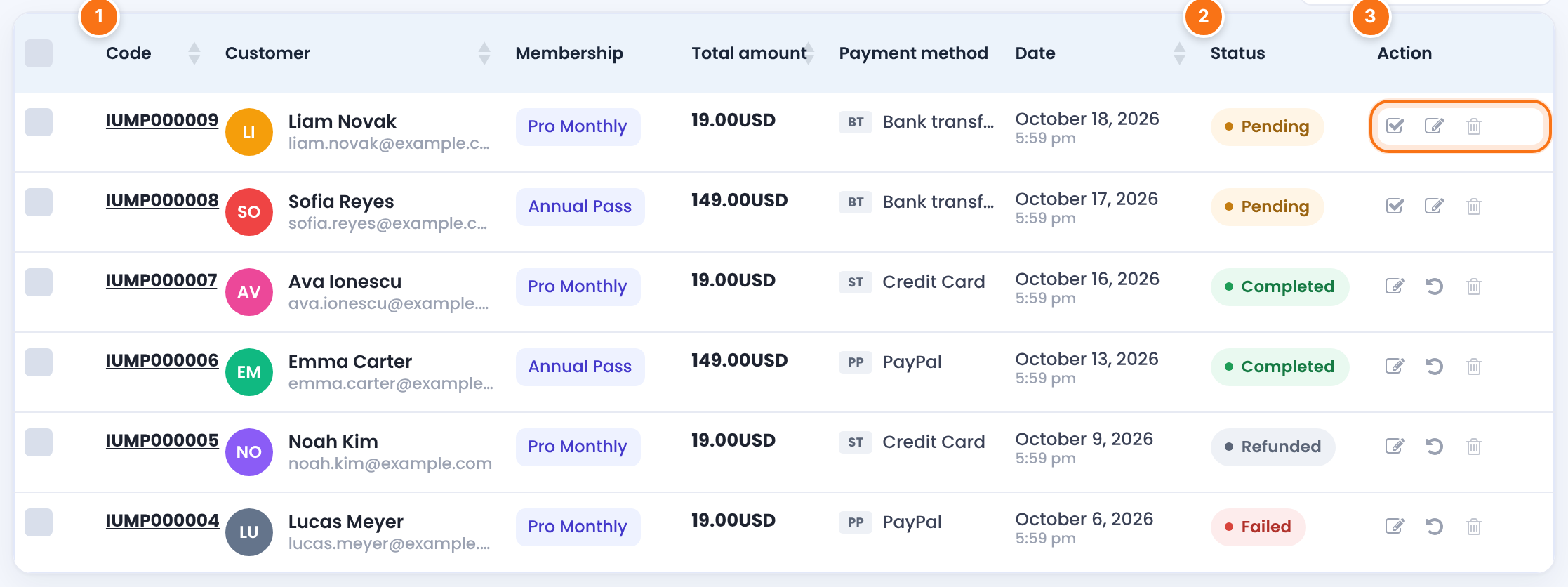
The order code, for example IUMP000009: a prefix plus the order ID. Click it to edit the order. The prefix is Invoice Prefix Code in Settings›Payment Settings (default IUMP).
Where the payment stands. See the statuses below.
The icons you use to complete, edit, refund or remove the order.
The other columns are ID, Customer (name and email; “Guest” or “Deleted user” when there’s no account), Membership, Total amount, Payment method, Coupon, Transaction (the gateway’s payment ID, linked to the gateway dashboard for PayPal, Stripe, Mollie, 2Checkout and Braintree) and Date. Net amount and Taxes appear when taxes are on, Invoice when invoices are on. Use Show / Hide columns to choose what you see. Click Code, Customer, Total amount, Date or ID to sort.
Order statuses
Pending
- Means
- Order created, payment not confirmed yet
- Set by
- Checkout, Add manual payment
- Membership
- On hold, no access
Completed
- Means
- Paid
- Set by
- The gateway’s confirmation, or you
- Membership
- Active
Failed / Error
- Means
- The payment didn’t go through
- Can be set
- In Edit Order
- Shown under
- the Failed chip
Refunded
- Means
- Money returned
- Can be set
- In Edit Order (status Refund)
- Membership
- Removed from the member
Orders created through WooCommerce can also show WooCommerce statuses such as cancelled, counted under Other.
How gateway notifications update orders
- When a gateway confirms a payment, the order becomes Completed and the Membership becomes active. Each renewal adds a new order.
- When a gateway reports a refund or a failed payment, Ultimate Membership Pro removes the Membership from the member.
- Orders created through WooCommerce follow the WooCommerce order status.
Complete a pending payment
A Pending order waits for a payment you confirm yourself, such as a bank transfer, or for a gateway confirmation that never arrived. Check that the money really reached your account, then click the Make Completed icon (the tick, first in the Action column). There’s no confirmation step.
The order becomes Completed and the Membership becomes active, with its dates counted from now (or added to the current expiry if the member’s Membership is still running). If the Membership has a trial period and the member never had it active, it starts with the trial period.
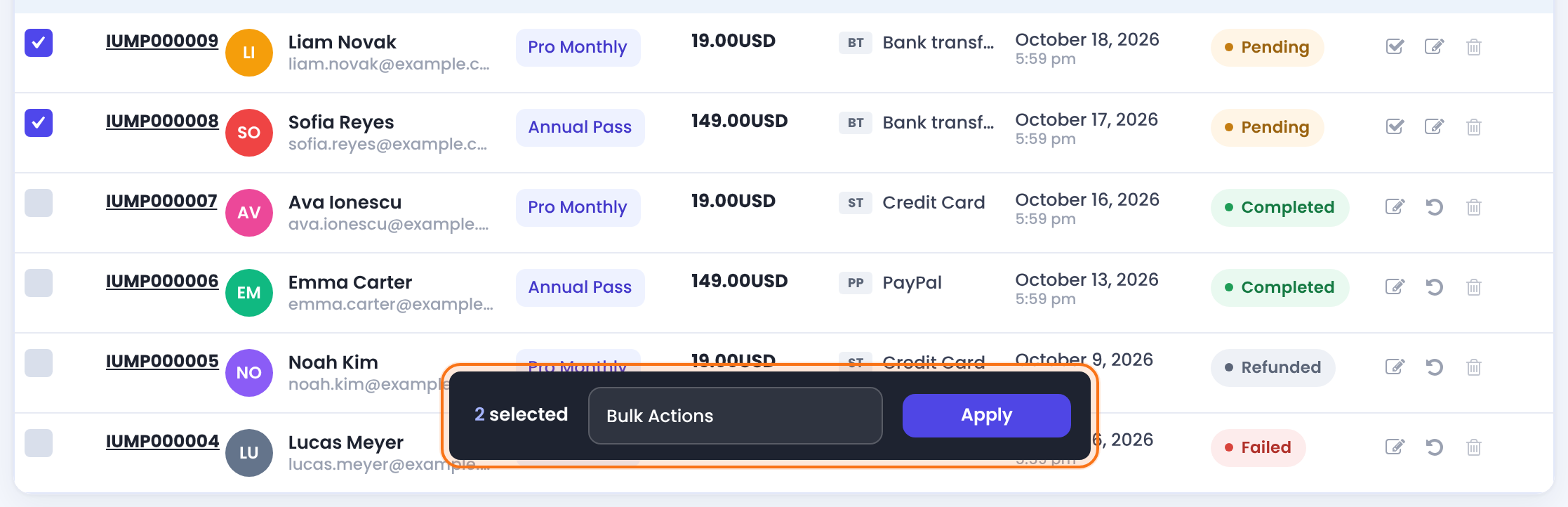
For several orders at once, tick them, choose Change Status to Completed in Bulk Actions, click Apply and confirm. Orders that are already Completed are skipped. The bulk action also works on Failed or Refunded orders, which have no tick icon.
Which emails are sent when you complete an order by hand
- The Membership activation emails (Activation Subscription – First Time or Activation Subscription – Renewed) go out if they are active.
- For Wire Transfer orders, Payment confirmation received – Order Completed is sent too, to the member and to you.
Paid but the order stays Pending? See Paid, but the Membership is still on hold. Confirming bank transfers step by step: Accept bank transfers.
Edit an order
- Click the Edit icon (pencil) or the order code.
- Change what you need and click Save Changes.
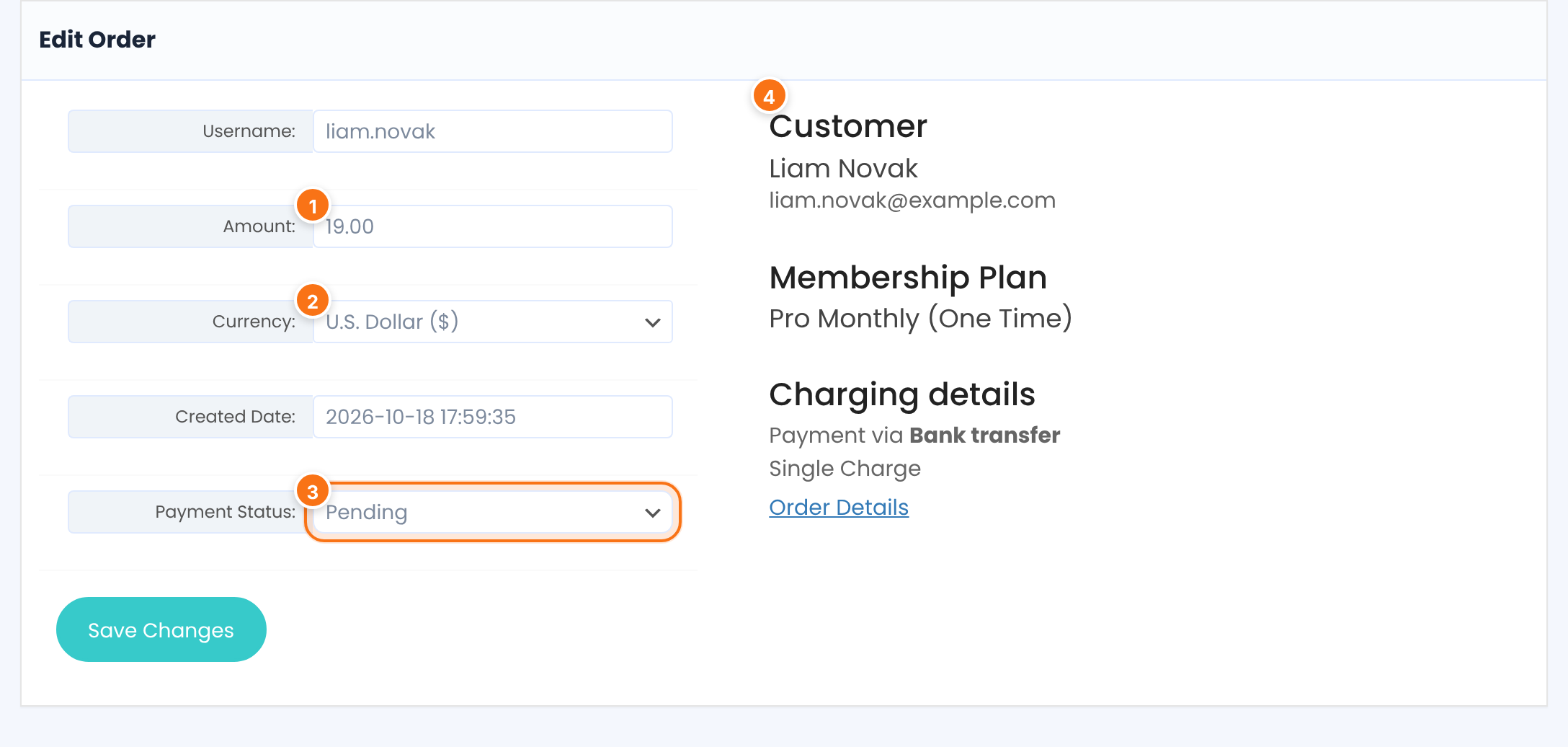
The amount of the order. Changing it doesn’t charge or refund anything.
The currency of this order only. See Set your currency.
Pending, Completed, Error, Refund or Failed. Changing it also changes the member’s Membership:
- Completed: activates the Membership, like Make Completed.
- Pending: the Membership goes back on hold (no access) and is marked Canceled.
- Error: the Membership is marked Canceled; its expiry date doesn’t change.
- Refund or Failed: the Membership is removed from the member.
Read-only details: the member, the Membership (One Time or Recurring), the gateway and charge type, taxes and coupon, with links Refund, Check Charging Plan and Order Details where the gateway has them.
Username: (the member the order belongs to) and Created Date: are shown too.
Refund a payment
The Refund icon (circular arrow) opens the payment in your gateway’s dashboard (PayPal, Stripe, Mollie, 2Checkout, Braintree, Authorize.net) in a new tab. Ultimate Membership Pro doesn’t send money back itself: refund it at the gateway. You can also set an order’s Payment Status: to Refund yourself in Edit Order. For recurring orders, Check Charging plan on opens the subscription at the gateway, where you can cancel future charges.
Remove an order
The Remove icon (bin) deletes the order after you confirm “Are you sure that you want to remove this Order?”. It only deletes the record: the member keeps the Membership and nothing changes at the gateway. Removed orders can’t be restored.
Add a payment by hand
Use it to record a payment you received outside the checkout, for example a cash payment or a company invoice paid by transfer.
- Click Add manual payment at the top of Payment History.
- Fill in the customer, Membership and amount, then click Add New Payment.
- The message “Order has been created!” appears and the order is listed as Pending. Click Make Completed on it to activate the Membership.
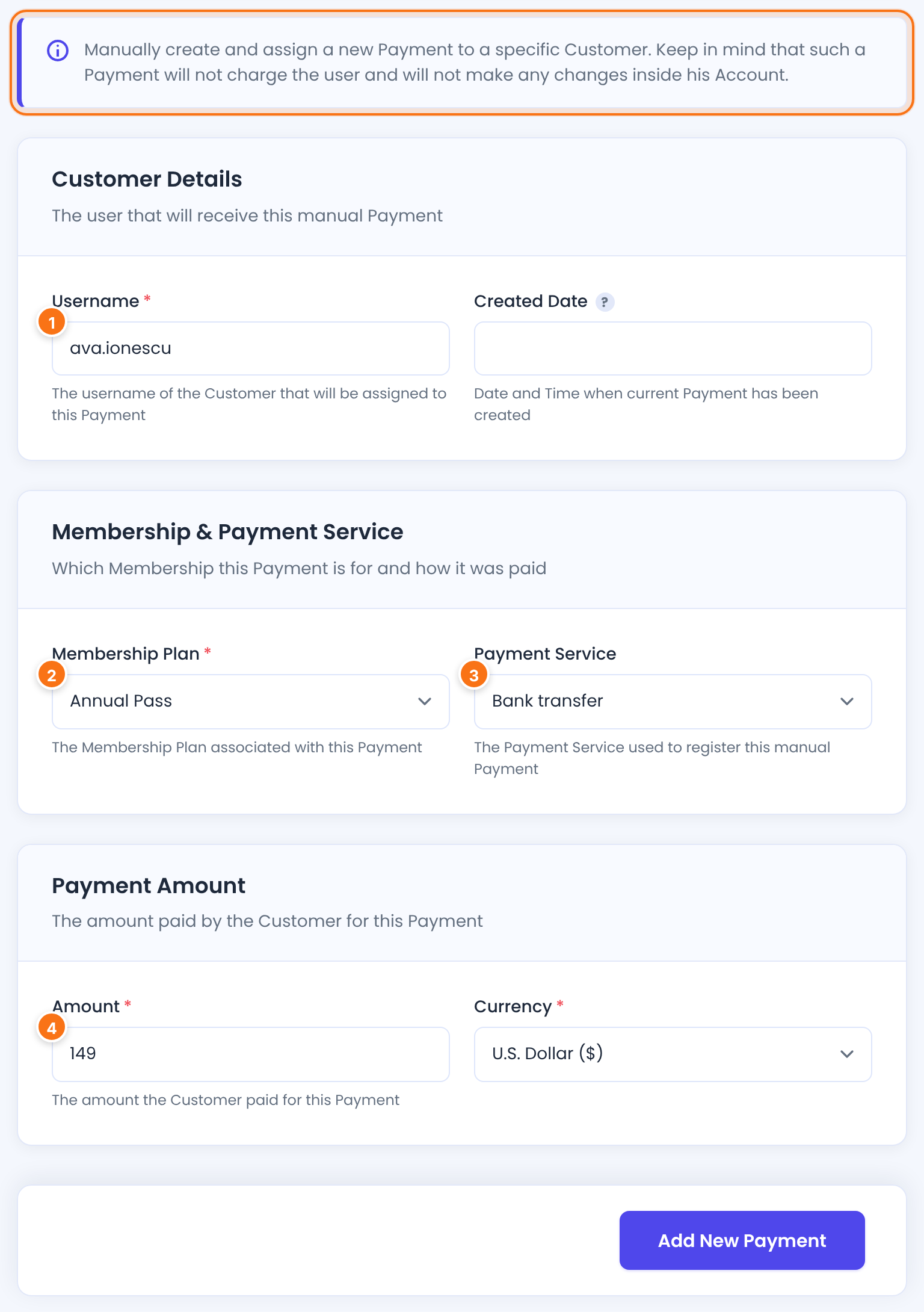
The member’s username (not the email). An unknown name shows “Wrong Username provided.”
The Membership this payment is for.
Only your active gateways are listed; Wire Transfer is preselected. Nothing is charged: it’s only recorded on the order.
What the member paid. The currency defaults to your site currency.
Required: when it’s empty, the form shows “No created date provided.”
Related settings
Save Payments Logs into Database in Settings›Payment Settings records each step of the gateway’s checkout and confirmation, to find out why an order didn’t complete. See Paid, but the Membership is still on hold.
Adds an Invoice column with a printable invoice per order. See Send invoices.
Adds Net amount and Taxes columns. See Charge taxes.
Members see their own orders in the Member Portal. See Customize the Subscriptions and Payments tables.
Example: a morning in Payment History
- Find them
- Status chip Pending: Liam Novak (Pro Monthly, $19) and Sofia Reyes (Annual Pass, $149)
- Confirm
- Tick both, Bulk Actions › Change Status to Completed › Apply
- Refund
- Refund at Stripe; when Stripe reports it, Noah Kim’s Pro Monthly is removed
- Check
- Total revenue now counts both transfers
Troubleshooting
A member paid but the order is still Pending. What do I do?
Check the payment in your gateway’s dashboard. If it went through, click Make Completed on the order. If it happens often, the gateway’s confirmation isn’t reaching your site: see Paid, but the Membership is still on hold.
Why is there no Make Completed icon on an order?
The tick icon only appears on Pending orders. For a Failed, Error or Refunded order, tick it and use Bulk Actions › Change Status to Completed, or edit it and set Payment Status: to Completed.
Which emails are sent when I complete an order by hand?
The Membership activation email, if it’s active. For Wire Transfer orders, the Payment confirmation received – Order Completed email is sent too.
Does removing an order cancel the member’s Membership?
No. Remove only deletes the order record. To take access away, set the order to Refund or Failed in Edit Order, or change the Membership on the member’s profile.
I only see 10 payments and a message about the trial version. Why?
Without an active license, Payment History shows 10 payments. Activate your license to see them all. See Find and activate your license key.
The order dates look wrong. Why?
Dates use your WordPress time zone and date format. See Dates and times look wrong.


