
In Ultimate Membership Pro, the Members screen lists everyone who registered on your site or whom you added yourself. It is where you manage members: find them, check their Memberships, approve new accounts and act on one member at a time.
This guide walks through the screen: the summary, search and filters, the actions menu of each member and the member’s profile page.
Before you start
- You have at least one Membership. See Create your first Membership.
- To add someone by hand instead of waiting for them to register, see Add a member and assign a Membership.
Open the Members screen
- Go to Ultimate Membership Pro›Members.
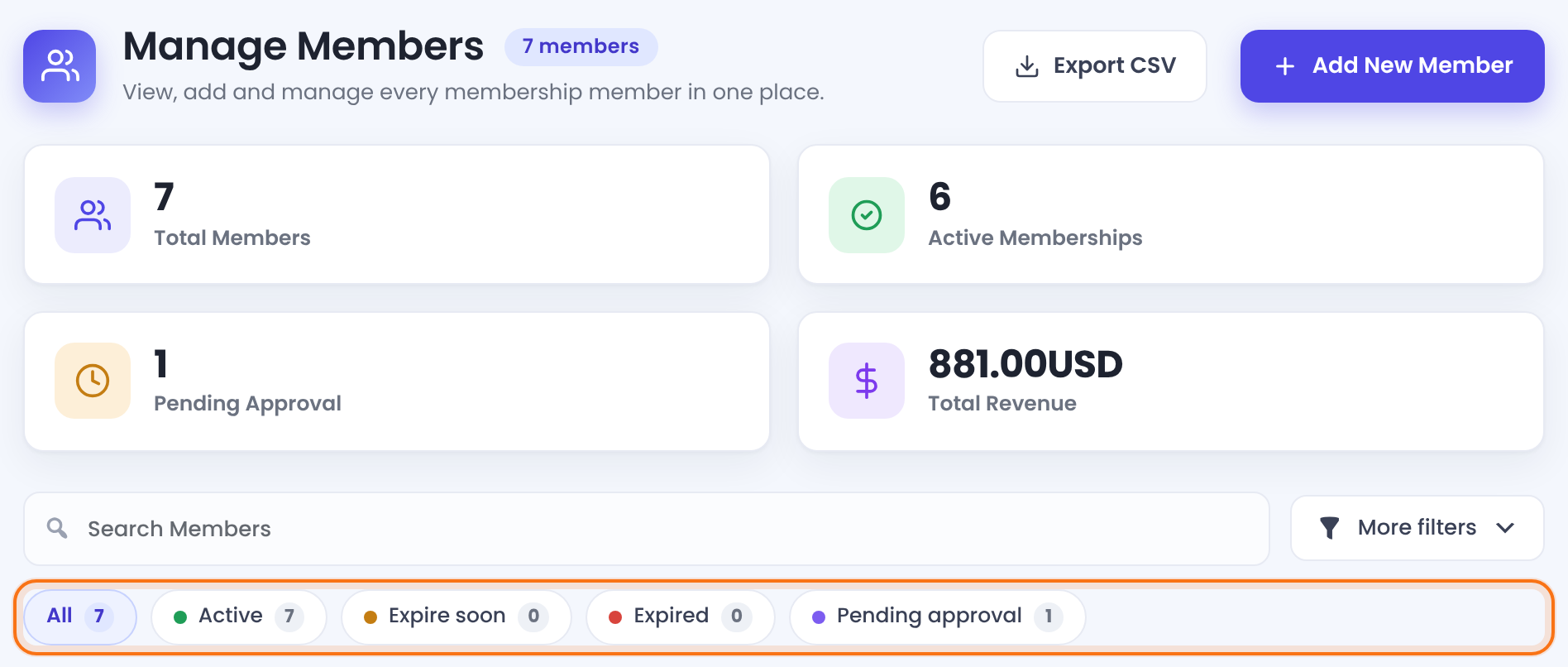
Everyone in the list. Administrators are never listed.
Members with at least one active Membership.
Accounts waiting for you to approve them (see step 4).
The total of completed payments.
One click narrows the list.
- Active: at least one Membership is active.
- Expire soon: less than 10% of the Membership period is left.
- Expired: a Membership has ended.
- Pending approval: the account still has the Pending role.
Each row shows the member’s name and username, email address, Membership Plans with their start and end dates, Total Spend, WordPress Role and Member Since. Use Show / Hide columns above the table to choose the columns.
Find a member
Type in Search Members to search by name, username or email address. For more precise lists, click More filters:
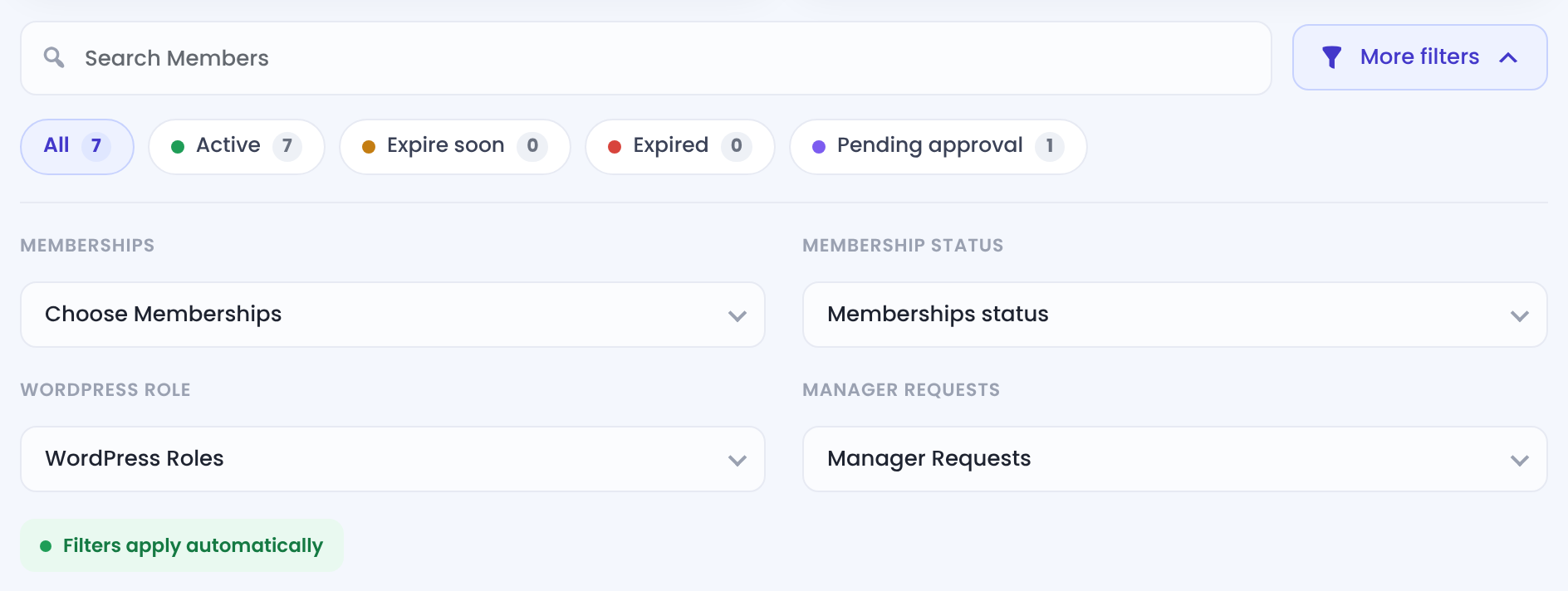
Only members of the Memberships you pick.
Active, Expired, On hold or Expire soon.
Only members with the roles you pick.
Approval Request lists accounts waiting for approval; Pending Email Verification lists members who haven’t confirmed their email address.
Filters apply automatically. Clear all removes them.
Use the actions menu of a member
Every row ends with a Details menu (the three dots). It holds everything you can do for that member:
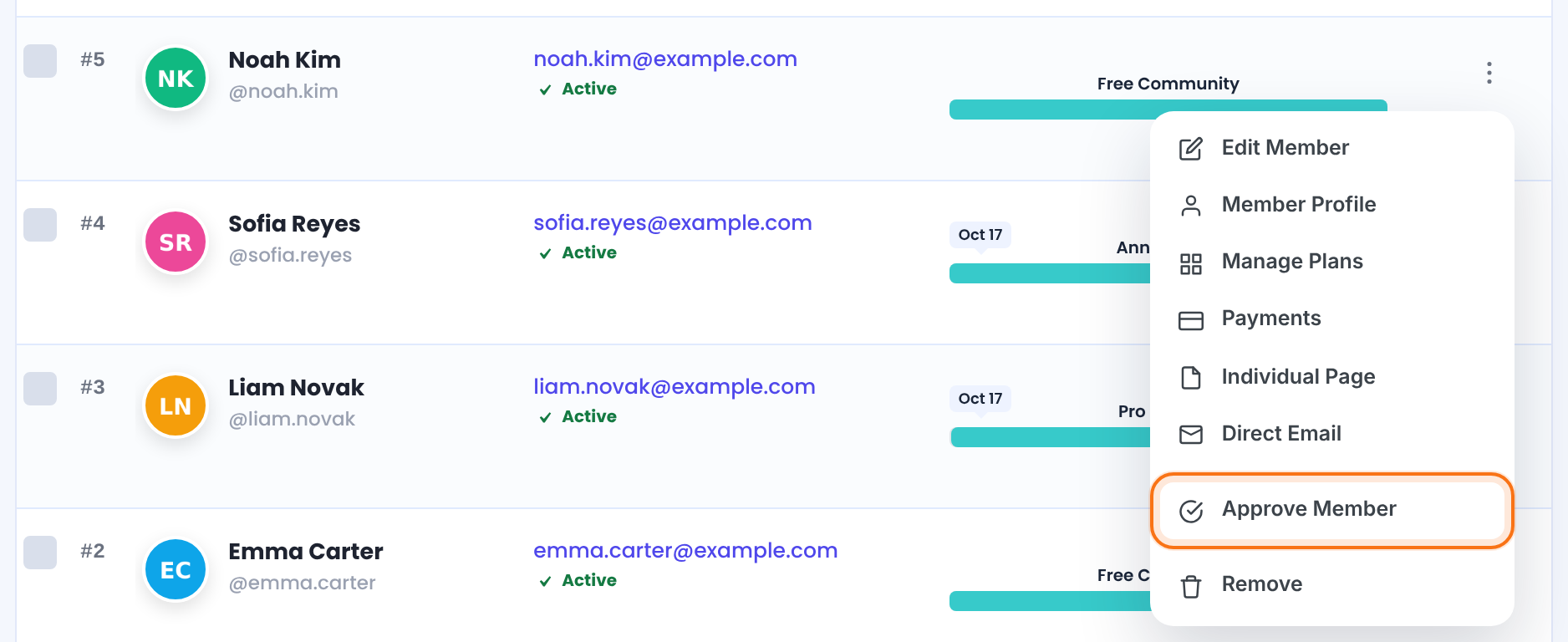
Account, profile fields, Memberships and extra settings. See Add a member and assign a Membership; editing works the same way.
A read-only overview of the member (see below).
Assign Memberships and change their start and expiry dates.
The member’s orders in Payment History.
The member’s activity log. See Track member activity.
Opens the member’s private page. See Give each member a private page.
Creates a one-time login link for the member.
Sends one email to the member (see step 6).
Approves a pending account (see step 4).
Confirms the member’s email address for them (see step 5).
Deletes the member (see the warning below).
Approve a pending account
When new accounts need your approval, they get the WordPress role Pending and can’t log in. In the list they show Pending in the WordPress Role column and appear under the Pending approval quick filter.
- Open the member’s Details menu and click Approve Member.
The account gets your site’s default role (Settings›General › New User Default Role) and the member can log in. If you set up the Account have been Approved by Admin email, the member receives it. See Set up email notifications.
Approve an email address
With email verification on, a status shows under each email address: Verified (confirmed), Unapproved (not confirmed yet) or Active (no verification needed). For an Unapproved address you can:
- Click Resend Verification link under the address to send the confirmation email again, or
- open the Details menu and click Approve Email to confirm it yourself.
Read more in Verify members’ email addresses.
Send a direct email
- Open the member’s Details menu and click Direct Email.
- Check From and To, write a Subject and a Message, then click Send Email.
The email goes out once, through your site’s mail system.
See a member’s profile
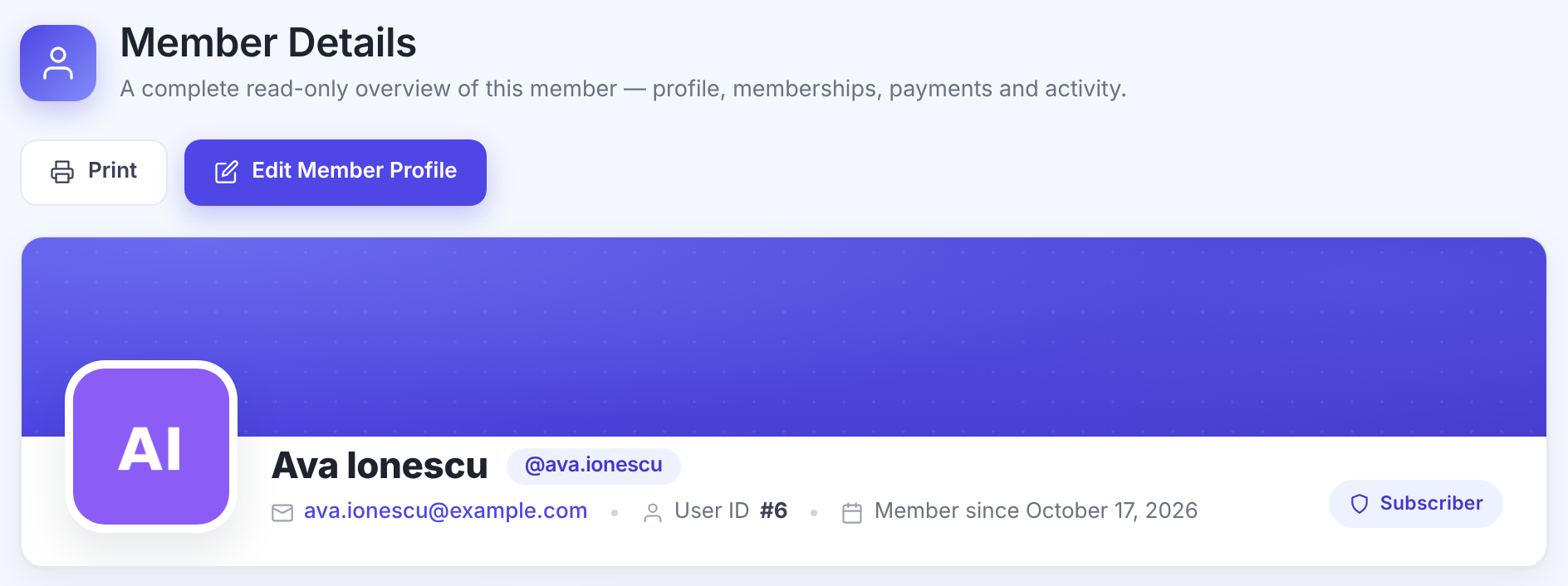
Member Profile in the Details menu opens Member Details: a read-only page with the member’s account status, profile fields, Membership History, payments and activity.
Export the list
Export CSV downloads the members currently in the list, so search and filters apply. The file has User ID, Email, Username, First Name, Last Name, Membership Slug, Membership Label, Started Time, Expired Time, WP Role, Join Date and your registration form fields. One member with two Memberships takes two rows. To bring members into another site, see Import members from a CSV file.
Remove deletes the account
- Remove (in the Details menu, or Bulk Actions › Remove for several members) deletes the WordPress user and all their Memberships. It can’t be undone.
- WordPress also deletes the content that member wrote, such as posts. To keep a member’s history, end their Membership in Manage Plans instead.
- Removing a member doesn’t cancel a subscription at the payment gateway. Cancel it there first.
Tip
- Use the Expire soon quick filter once a week to see who to remind before their Membership ends.
- Membership colors and statuses in the list are explained in Membership statuses explained.
Example: approve a new coach
- Who
- Noah Kim, registered for Free Community
- Where
- Members › Pending approval
- Action
- Details › Approve Member
- Result
- Role becomes Subscriber; Noah can log in
- Account have been Approved by Admin, if set up
Troubleshooting
Why doesn’t a member appear in the Members list?
Administrators are never listed on the Members screen. For anyone else, a search or a filter is hiding them: click All and Clear all to see every member again.
Why can’t a new member log in?
Check the WordPress Role column of the Members list. An account with the Pending role can’t log in until you click Approve Member in its Details menu. When email verification is on, an Unapproved email address can also block the login; click Approve Email or Resend Verification link.
Why don’t I see Approve Member or Approve Email in the Details menu?
Approve Member only appears while the account has the Pending role, and Approve Email only while the member’s email address is Unapproved.
Why is Payments missing from a member’s Details menu?
The Payments item only appears for members who have at least one order in Payment History.
What if Export CSV doesn’t download the file?
Click the link that appears under the Export CSV button; some browsers block the automatic download.


