
Direct Login is an Ultimate Membership Pro module that creates a temporary one-time login link that logs a member in without their password. Use it when a member can’t log in: the reset email doesn’t arrive, or they need help right now.
This guide switches the module on and creates a 48-hour link for a Coaching Club member, Emma.
Before you start
- Your license is active. This module needs an active license; see Find and activate your license key.
- You know the member’s username. The link is created by username, not by email address.
Switch on the module
- Go to Ultimate Membership Pro›Modules and open Direct Login, in the Security & Login group.
- Switch on Activate/Hold Direct Login.
- Click Save Changes. The Generate temporary Login links box appears below, once the module is saved.
Create a link for a member
- In Generate temporary Login links, enter the member’s Username.
- Enter how long the link works in Timeout, in hours.
- Click Generate link. The link appears above the button. Copy it.
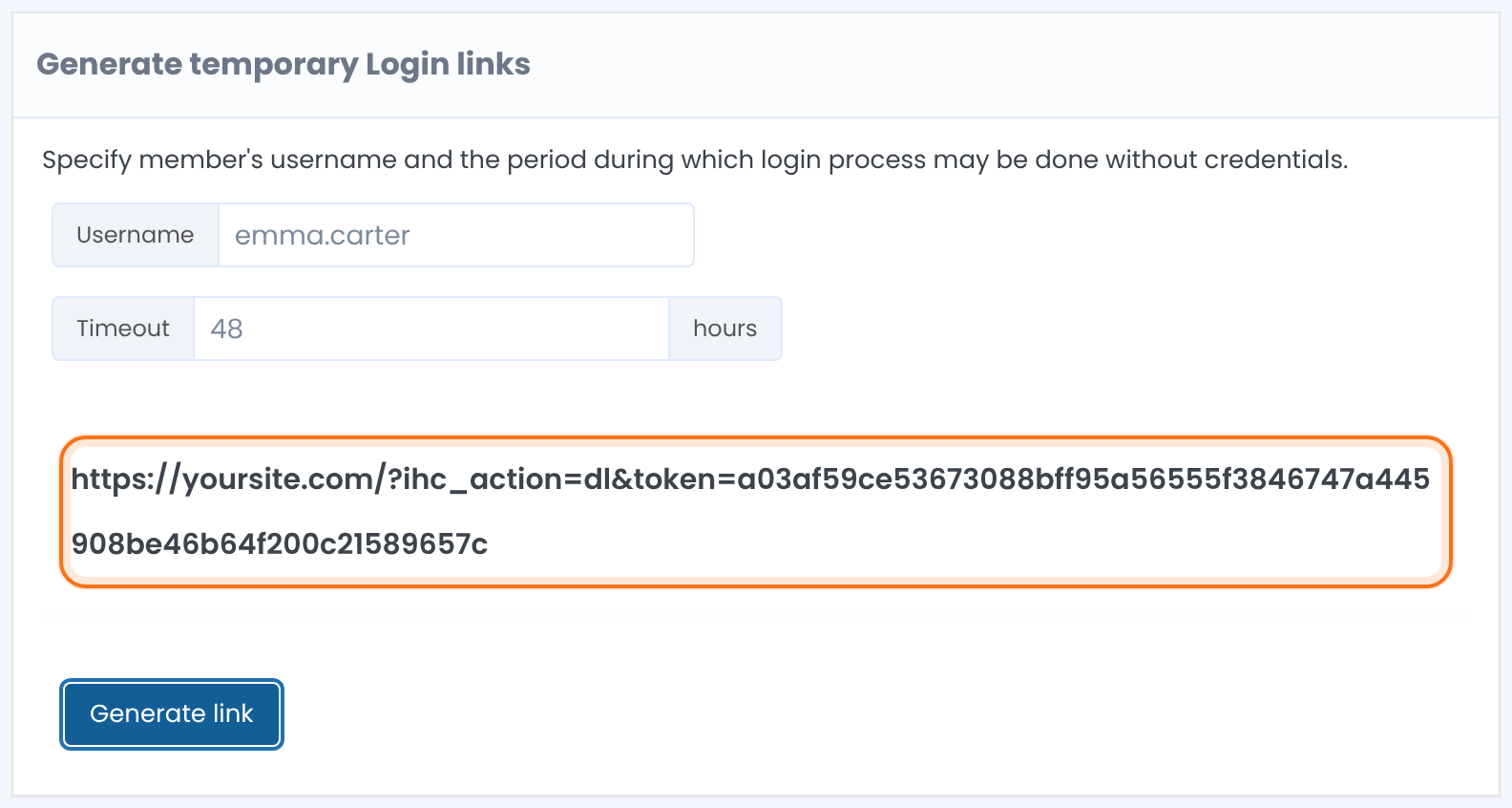
The member’s WordPress username.
How many hours the link stays valid. Leave it empty for 24 hours.
Default: 24 hours
Every link you create is listed below the box, with its Username, URL and Expire date. Expired links show in red. Click the trash icon in Action to cancel a link before it’s used.
Or create it from the Members list
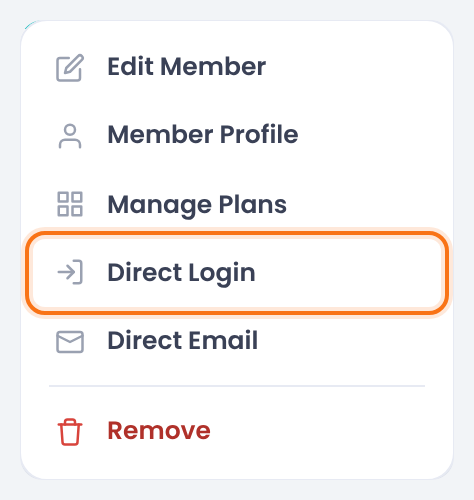
With the module on, go to Ultimate Membership Pro›Members, open the ⋮ menu of the member and click Direct Login. A Success popup shows the link. Links created this way last 24 hours.
Send the link to the member
When the member opens the link, they’re logged in and land on your home page. From there they can go to the Member Portal and set a new password under Profile Details.
The link logs the member in once. After that it no longer works.
Creating a new link for the same member replaces the previous one; only the newest works.
After the Timeout, the link no longer logs anyone in. It stays in the list until you delete it.
Treat the link like a password
- Anyone who opens it before it’s used or expires is logged in as that member. Send it only to the member, in a private message.
- Use a short Timeout, such as a few hours, and delete links you no longer need.
- Don’t open the link yourself while you’re logged in as administrator: it replaces your session with the member’s. Test it in a private window.
Example: help Emma get back in
- Module
- Direct Login, switched on
- Username
- emma.carter
- Timeout
- 48 hours
- Link
- https://yoursite.com/?ihc_action=dl&token=…
- After use
- Emma lands on the home page, logged in
Troubleshooting
Why does the Direct Login box show “Error” instead of a link?
The Direct Login box shows “Error” when no user has that username. Check the username in Members; the field doesn’t accept email addresses.
Why don’t I see the Generate temporary Login links box?
The Generate temporary Login links box appears only after you switch the Direct Login module on and click Save Changes.
Why does the Direct Login link open a page without logging the member in?
A Direct Login link doesn’t log the member in when it was already used, it expired, or a newer link replaced it. Create a new one.
Why is Direct Login missing from the Members menu?
The Direct Login item in the Members menu shows only while the module is switched on.
Why does the Direct Login card say Activate license?
The Direct Login module needs an active license. Activate your license under Ultimate Membership Pro›Licensing.


