
Ultimate Membership Pro can open its login form and its registration form in a popup window, so visitors log in or sign up without leaving the page they’re reading. These login and registration popups open from a menu link, a button or any piece of text.
This guide shows the three ways to add a popup and how to open it from your own button, using the Coaching Club site as the example.
Before you start
- Your login form is set up. The popup uses its saved template and options; see Set up the login form.
- For the registration popup, your registration form is set up; see Set up the registration form.
Choose how to add the popup
Menu link
- Where
- Appearance › Menus
- Opens from
- A Login or Register link in your menu
- Good for
- A site-wide login link
Shortcode
- Where
- Any page, post or widget
- Opens from
- The text inside it, or your own button
- Good for
- A call to action in a page
Elementor widget
- Where
- Elementor editor
- Opens from
- The widget text
- Good for
- Pages built with Elementor
Add Login and Register links to your menu
- Go to Appearance›Menus and select your menu.
- Open the Ultimate Membership Pro box in the left column. If you don’t see it, open Screen Options at the top of the screen and tick it.
- Tick Login, Register or both, then click Add to menu.
- Click Save Menu.
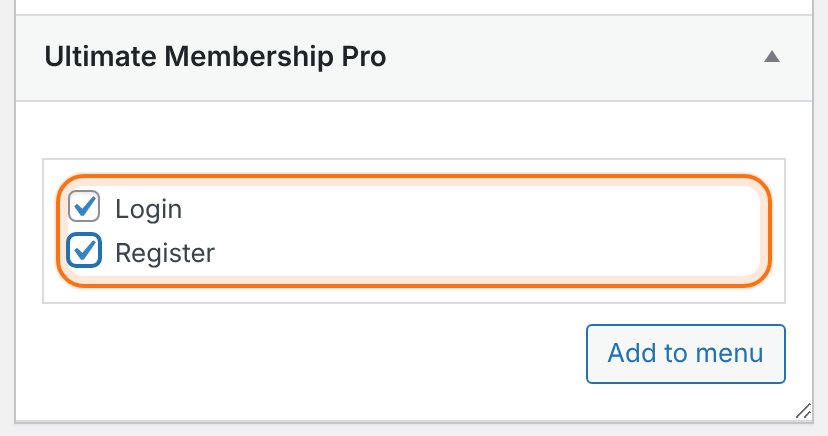
On your site, clicking these links opens the matching popup instead of a new page.
Hide them once members log in
The links stay in the menu after login, but do nothing for logged-in members. Open each item and set Show Menu Item Only for Unregistered Users. See Show menu items only to some members.
Or add a popup with a shortcode
Put the text that opens the popup between the opening and the closing tag:
Login popup
[ihc-login-popup]Member login[/ihc-login-popup]Registration popup
[ihc-register-popup]Join the club[/ihc-register-popup]The text can also be simple HTML, such as a <span> styled as a button. Don’t use a link to another page as the text: the browser would follow it. In the classic editor, the Login Modal and Register Modal cards of the shortcode dialog insert both shortcodes for you.
This is the login popup the Coaching Club page opens:
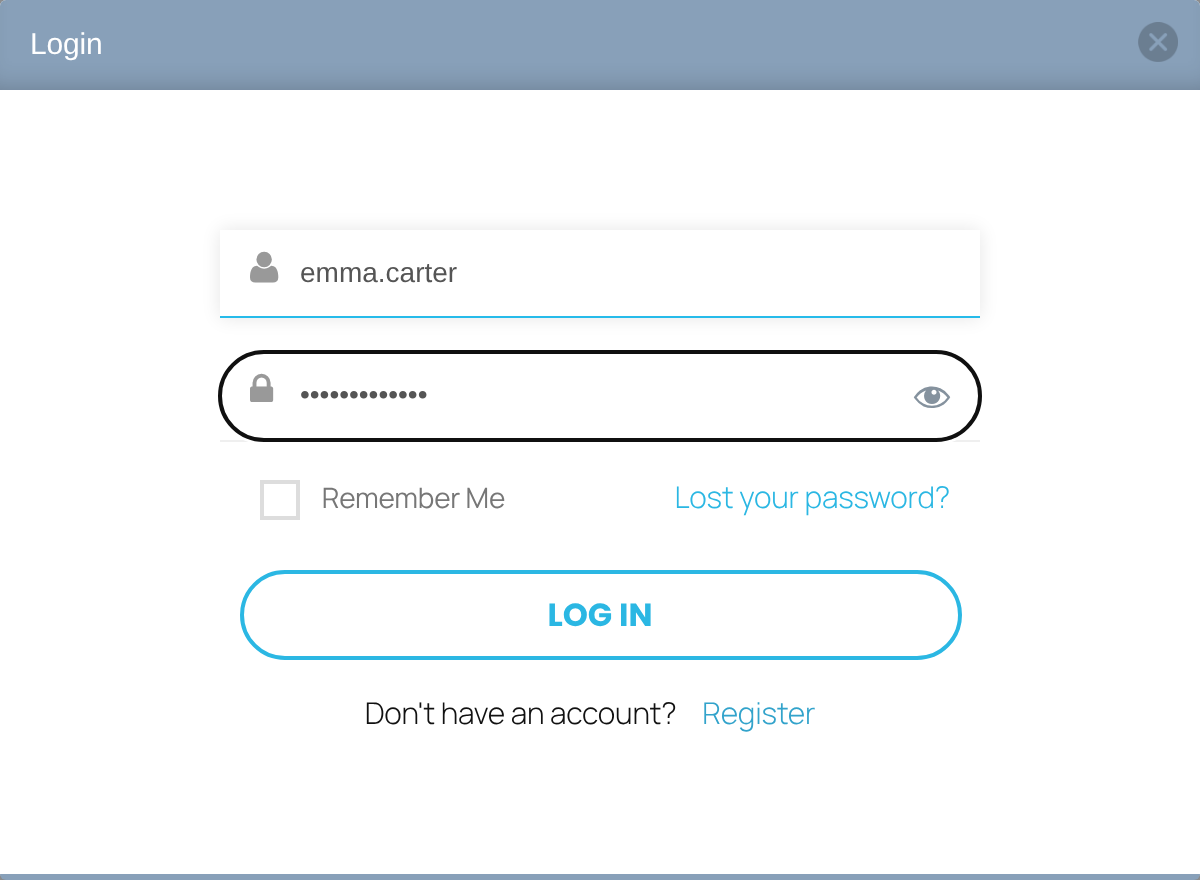
Shows the login form with the template and options saved in the Login Form showcase. After login, members go where the login form sends them; see Set up the login form. If the login fails, the page reloads with the popup closed: the error message shows when the visitor opens the popup again.
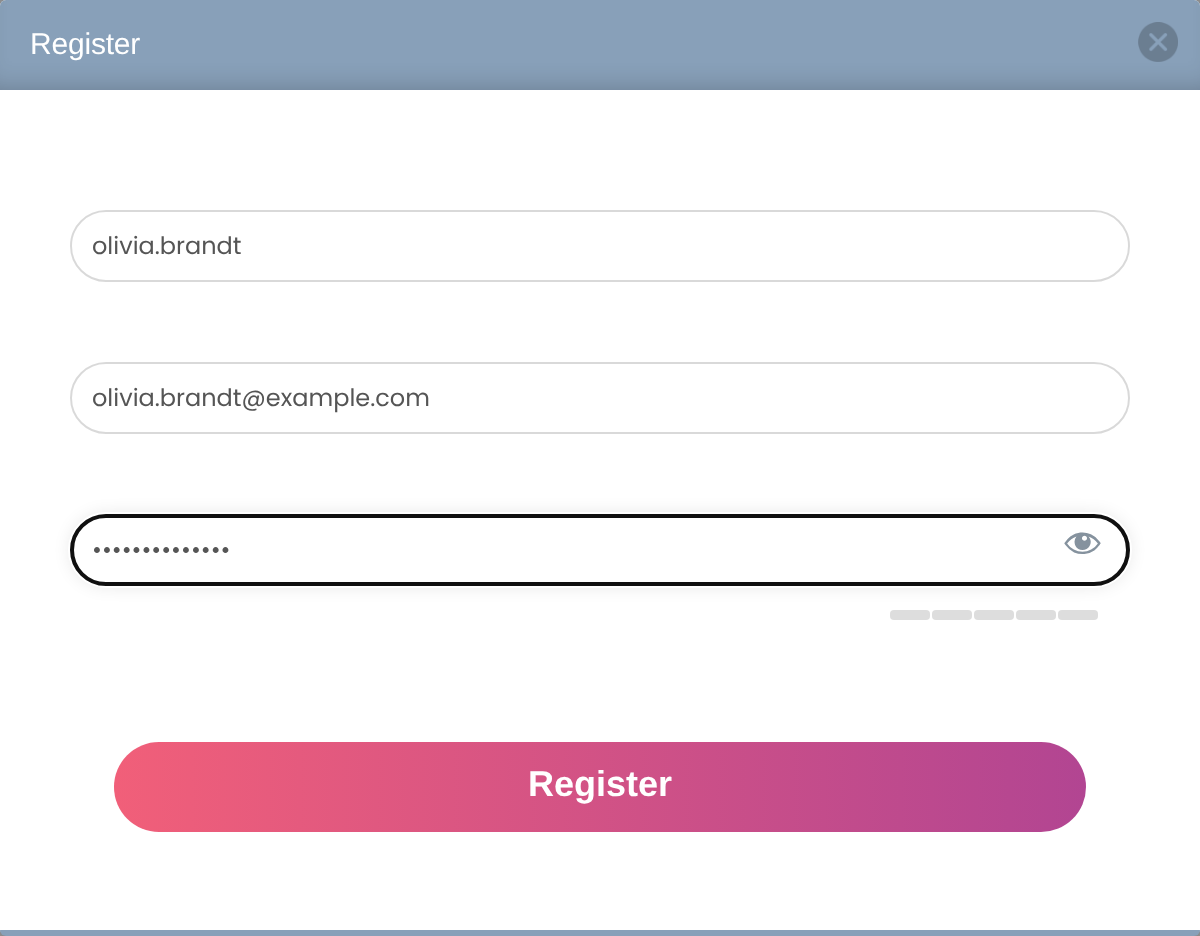
Shows the registration form with only the fields ticked in the On Modal column of the registration form’s custom fields. See Add custom fields to the registration form.
Open the popup from your own button
Use the trigger attribute to open the popup from any element on the page: a theme button, an image or a page-builder button.
- Give your button a CSS class, for example
open-login. In Elementor it’s under Advanced › CSS Classes; in the block editor under Advanced › Additional CSS class(es). - Add the shortcode on the same page with that class name, without a dot. You can leave the text empty.
Open the login popup from every element with the open-login class
[ihc-login-popup trigger="open-login"][/ihc-login-popup]triggerA CSS class name, without the dot. Clicking any element with that class opens the popup, and its own link isn’t followed. With a trigger set, the text between the tags no longer opens the popup.
Use the Elementor widgets
With Elementor active, search for UMP – Login Popup or UMP – Register Popup in the widget panel and drag it onto the page. The widget holds the shortcode with the text Login or Register. Change the text between the tags, or add a trigger.
Good to know
- Logged-in members don’t see the popup or its text. Shortcode text disappears after login; menu links stay but do nothing.
- The popup isn’t added on the page that already shows the same form: the Login Page or a page with the login form shortcode, and the Register Page or a page with the registration shortcode.
- The popup always uses the saved settings. Attributes such as
templateof[ihc-login-form]don’t apply inside it.
Example: Coaching Club call to action
- Login button
- [ihc-login-popup]Member login[/ihc-login-popup]
- Join button
- [ihc-register-popup]Join the club[/ihc-register-popup]
- Menu
- Login item, Show Menu Item Only for Unregistered Users
- Registration popup fields
- Username, Email, Password (ticked On Modal)
Troubleshooting
Why does the login popup close after a failed login?
The login popup closes because the page reloads after every login attempt. Open the popup again to see the message, for example “Invalid email address or password entered”.
Why does nothing happen when I click the popup link?
The popup link usually does nothing because you’re logged in: the popup is only for visitors. Test in a private window. If you use trigger, make sure the class name matches and has no dot.
Why does the Login menu link do nothing on the Login Page?
The login popup isn’t added on the page that already shows the login form, so the Login menu link does nothing there. That’s expected.
Why is the registration popup missing fields?
The registration popup shows only the fields ticked in the On Modal column of the registration form’s custom fields. Tick the missing fields there, then save.
Why do I get “Something went wrong, please try again later!” after logging in from the popup?
Ultimate Membership Pro shows this message when the page was served from a cache and the form’s security check expired. Exclude pages with the popup from page caching, or reload the page.


