
In Ultimate Membership Pro, any link to your site that ends in ?ihcdologout=true logs the member out, so you add a logout link to your menu as a custom link. Members expect it there, next to My Account.
This guide adds a Log Out link to the Coaching Club menu, shows it only to logged-in members, and sets the page they land on.
Before you start
- Your theme has a WordPress menu you can edit in Appearance›Menus.
- The rule that hides the link from visitors works like any menu restriction. See Show menu items only to some members.
Add the logout link to the menu
- Go to Appearance›Menus and select your menu.
- Open Custom Links in the left column.
- In URL, enter your site address followed by
/?ihcdologout=true, for examplehttps://yoursite.com/?ihcdologout=true. - In Link Text, enter
Log Out, then click Add to Menu.
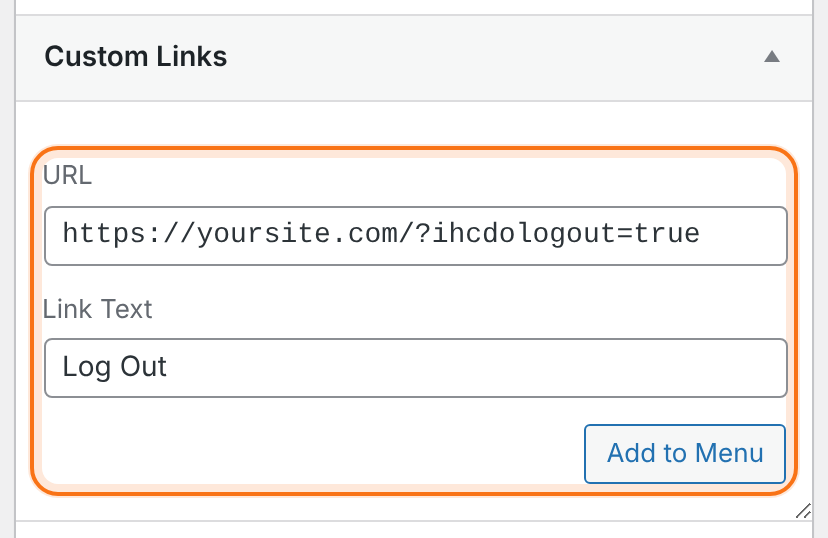
Any page of your site works in front of ?ihcdologout=true: the plugin sees the parameter, logs the member out and sends them to the After LogOut page (Step 3).
Show the link only to logged-in members
- In the menu structure, click the arrow on the new Log Out item to open it.
- Under Ultimate Membership Pro – Menu item Restriction, choose Show Menu Item Only.
- In …for, pick Registered Users.
- Click Save Menu.
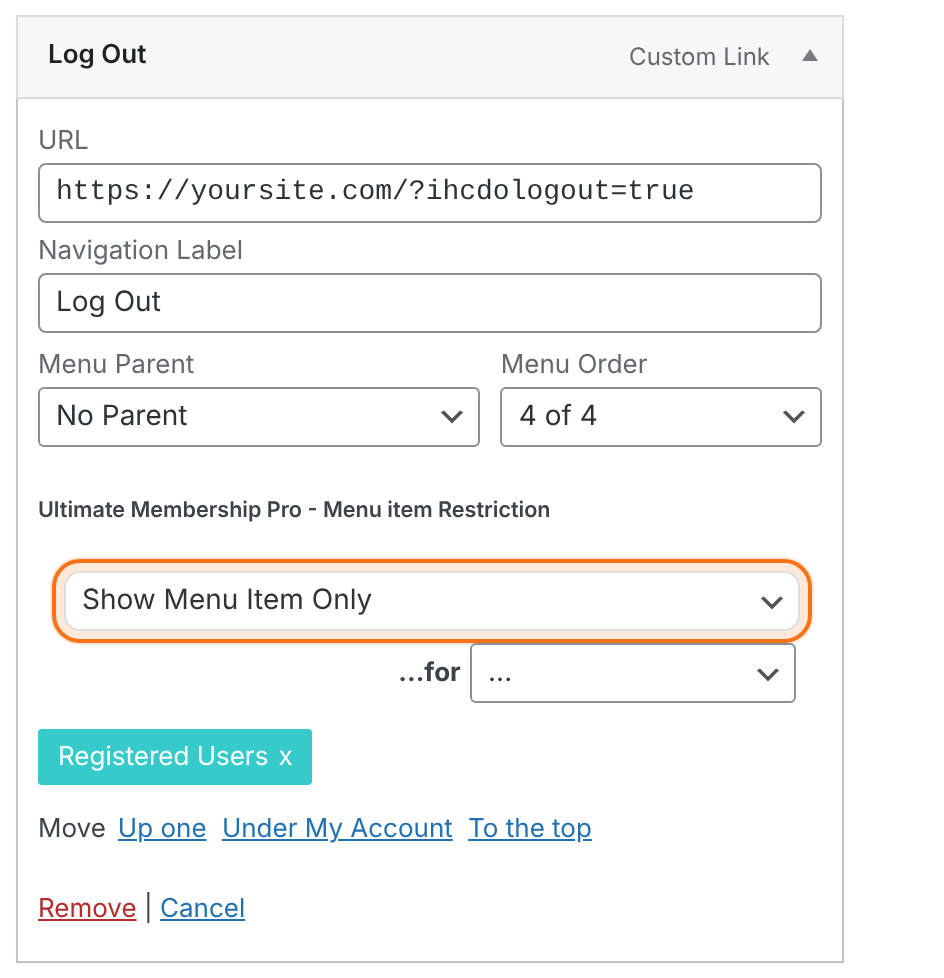
Shows the link only to the member types you add in …for.
Anyone who is logged in. Visitors don’t see the link.
Do the opposite for your login link: Show Menu Item Only for Unregistered Users. Administrators always see every link.
Choose where members land after logging out
- Go to Ultimate Membership Pro›Settings›Pages Setup.
- In the Redirects Setup card, pick a page in After LogOut.
- Click Save Changes.
The page members see after they log out. The plugin sets it to the Login Page when you activate it. Do Not Redirect keeps members on the page where they clicked the link. The list also shows your custom Redirect Links; see Add your own redirect links.
Default: Member Login
The same setting applies to every way of logging out: your menu link, the shortcode below and the LogOut tab of the Member Portal.
Other ways to log out
Logout link shortcode
[ihc-logout-link]Prints a Log Out link, only for logged-in users. Its optional template attribute, such as template="ihc-login-template-3", adds the CSS class of that login template. In page builders, use the Elementor widget UMP – Logout Link or the WPBakery element Membership Pro – Logout Button.
The plugin creates this page with [ihc-logout-link] and selects it as Logout Page in Pages Setup. Visitors who open it are sent to the Login Page.
The Member Portal menu has its own LogOut tab. You can rename it in the Member Portal showcase.
Login and Register, but no Logout
The Ultimate Membership Pro box in Appearance›Menus adds Login and Register links that open popups. It has no Logout item, so use the custom link above. See Login and registration popups.
Example: the Coaching Club menu
- Home
- No rule
- Member Login
- Show Menu Item Only for Unregistered Users
- My Account
- Show Menu Item Only for Registered Users
- Log Out
- https://yoursite.com/?ihcdologout=true, Show Menu Item Only for Registered Users
- After LogOut
- Member Login
Troubleshooting
Why do visitors see the Log Out link?
If visitors see the Log Out link, open the menu item and check that Show Menu Item Only has the Registered Users tag, then click Save Menu. Test in a private window: administrators see every link.
Why is the member still logged in after clicking the logout link?
If the logout link reloads the page but the member stays logged in, check that the URL is on your own site and has ?ihcdologout=true with no typo. If the page comes from a cache, exclude logged-in users from page caching.
Why do members land on the wrong page after logging out?
The page members land on after logging out is the After LogOut setting in Settings › Pages Setup › Redirects Setup. Do Not Redirect keeps them on the same page.
Why can’t I find Appearance › Menus?
Appearance › Menus is missing when your theme manages menus in the Site Editor. The logout URL still works as a link there. The Ultimate Membership Pro menu rules apply to menus you manage in Appearance › Menus.


