
In Ultimate Membership Pro, registration form special fields are ready-made fields that do more than store an answer: one uploads a profile picture, one checks a captcha, one links a social account. You turn them on, but you can’t delete them.
This guide lists each special field, what it does and what it needs. In the example, Coaching Club asks new members for their country, a profile picture and to accept the terms.
Before you start
- You know how the Custom Fields list works. See Add custom fields to the registration form.
Find the special fields
- Go to Ultimate Membership Pro›Registration Form and click the Custom Fields tab.
- Scroll to the rows below the address fields. Use the switches to show each one On Registration, On Profile or On Modal, then click Save Changes.
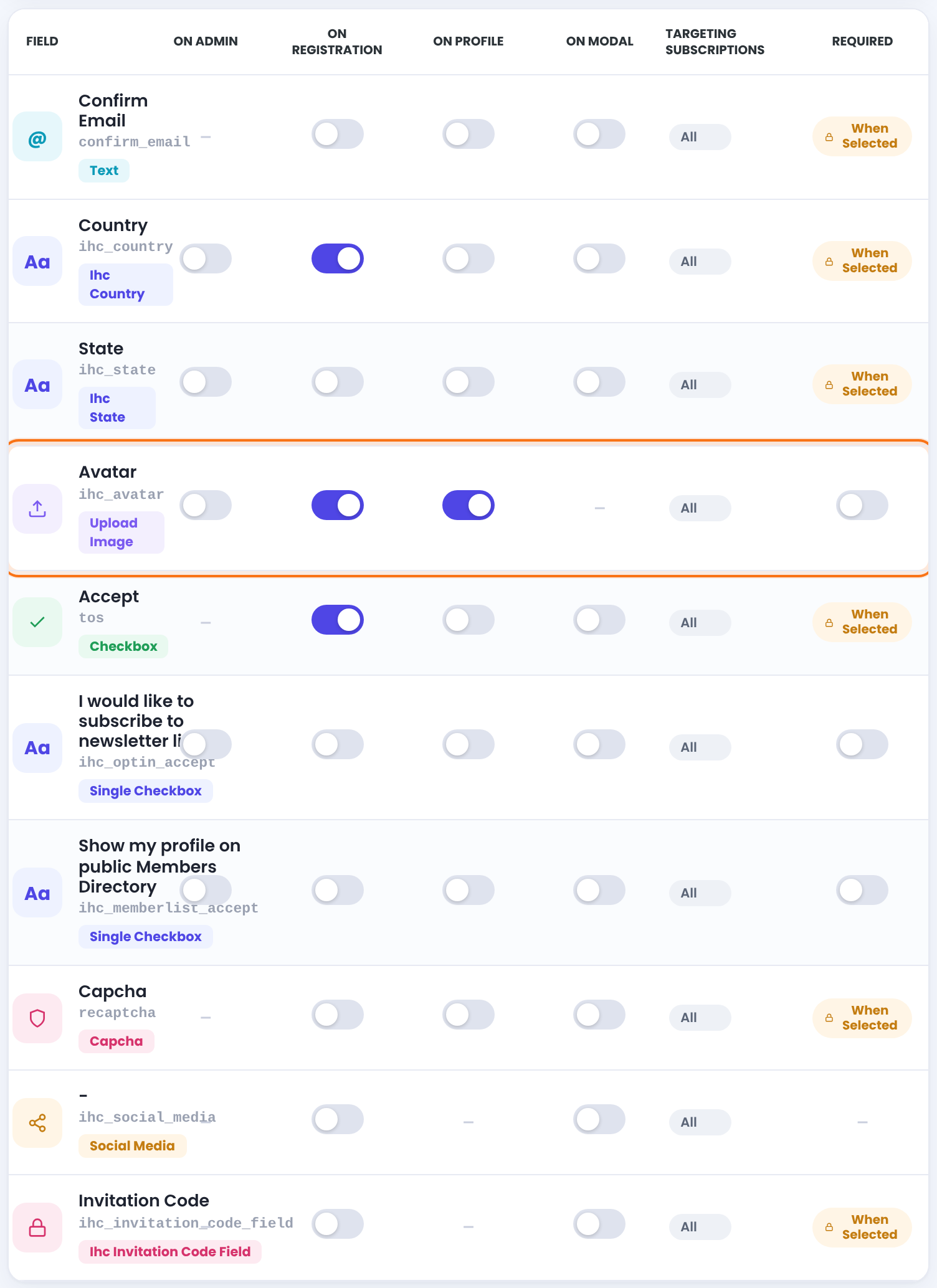
Click the edit icon of a special field to change its Field Label, Sub-Text or Targeting Memberships. The social media field can’t be edited, and most special fields keep their slug and type locked.
What each special field does
A second email box. If the two addresses differ, the member sees “Email Addresses do not match”.
A searchable country list. It starts on the Default Country set in Ultimate Membership Pro›Settings›Public Workflow; if none is chosen, the WordPress locale decides.
Default: On Registration
Follows the country: a list of states for the United States and Canada, a text box for other countries.
An Upload button for a profile picture, with a crop step. Not available in the popup form. More below.
Default: On Registration, On Profile
The terms checkbox. Its text is the Terms & Conditions (TOS) Label on the Register Form Showcase tab, and it links to the TOS Page from Pages Setup. Unticked, the member sees “Please agree to our Terms & Conditions”.
Default: On Registration
An opt-in checkbox for your mailing list. It works with Opt-In Subscription on the Register Form Showcase tab. Edit it to set Input Checkbox checked by default.
Lets the member agree to appear in your public member list. It also has Input Checkbox checked by default.
Google reCAPTCHA (the label is spelled this way in the list). It only appears once your keys are saved. See Add Google reCAPTCHA.
The social login buttons, for the networks you set up and turned on. See Let members log in with social accounts.
A box for an invitation code, for invite-only sites. See Invite-only registration.
Coupon, payment method and custom price moved
Older versions had special fields for a coupon code, the payment method and a price the member chooses. They aren’t part of the field list anymore. When someone signs up for a paid Membership, the payment part of the form (payment method, price summary and coupon box) appears under the fields, as on the Checkout page. See Create coupon codes and Let members choose a payment method.
Let members upload an avatar
Switch on On Registration for Avatar to ask for a picture at sign-up, and On Profile so members can change it later in the Member Portal. Both are on by default.
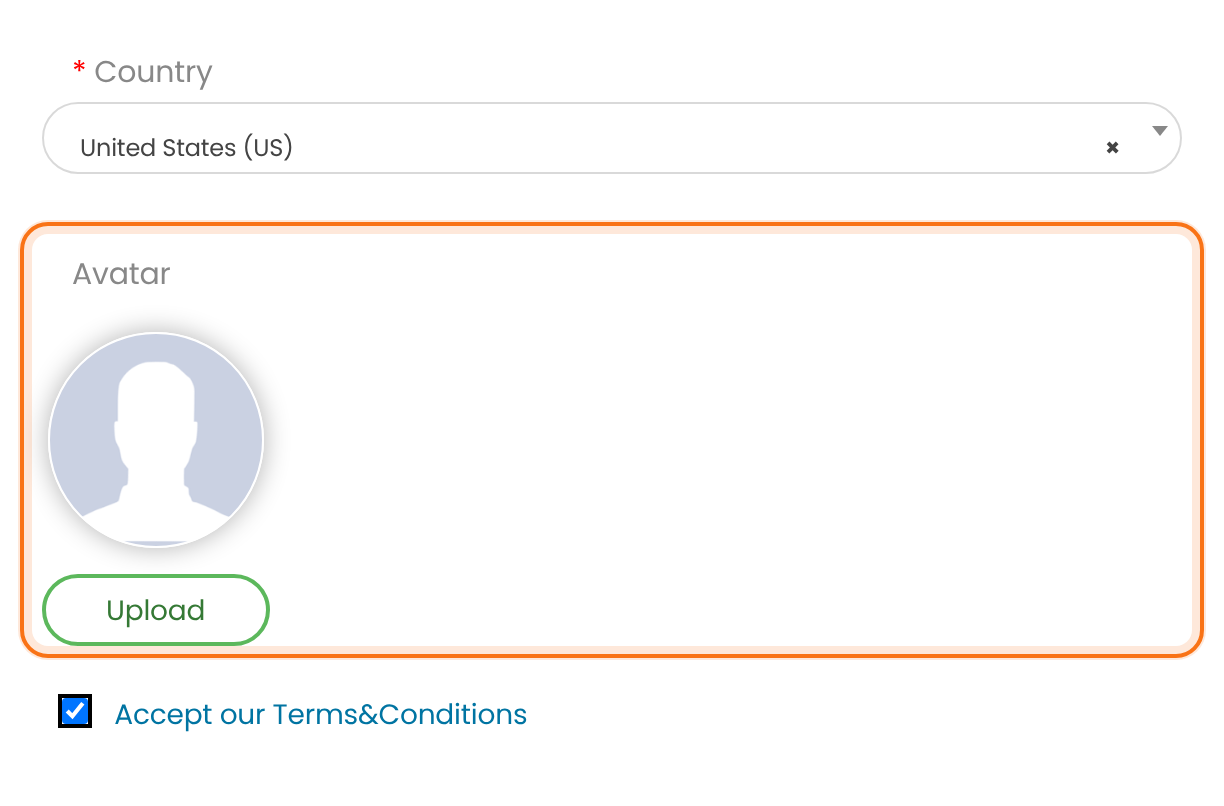
The uploaded picture is saved in the Media Library. It then replaces the member’s WordPress avatar wherever WordPress shows one: comments, author boxes, the admin bar and the plugin’s own pages.
What the avatar upload needs from your server
The upload and crop steps use PHP’s image functions (GD) and read the uploaded picture from its web address, so the PHP setting allow_url_fopen must be On. If something is missing, a red notice appears at the top of the Ultimate Membership Pro screens, for example under Settings. See Requirements. If the upload misbehaves, see the avatar questions under Troubleshooting.
Avatar settings
What shows for members without an uploaded picture is set in Ultimate Membership Pro›Settings›Public Workflow, Avatar Settings:
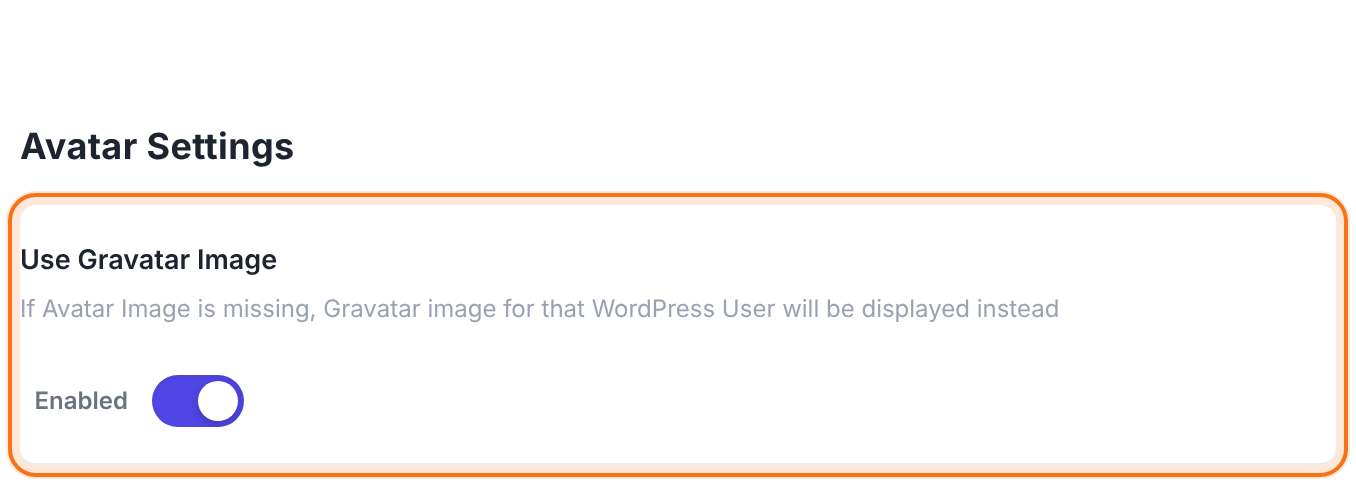
Shows the member’s Gravatar when they haven’t uploaded an avatar.
Default: On
Uses the BuddyPress profile picture instead.
Default: Off
File types and sizes for uploads are in Ultimate Membership Pro›Settings›Uploads Settings:
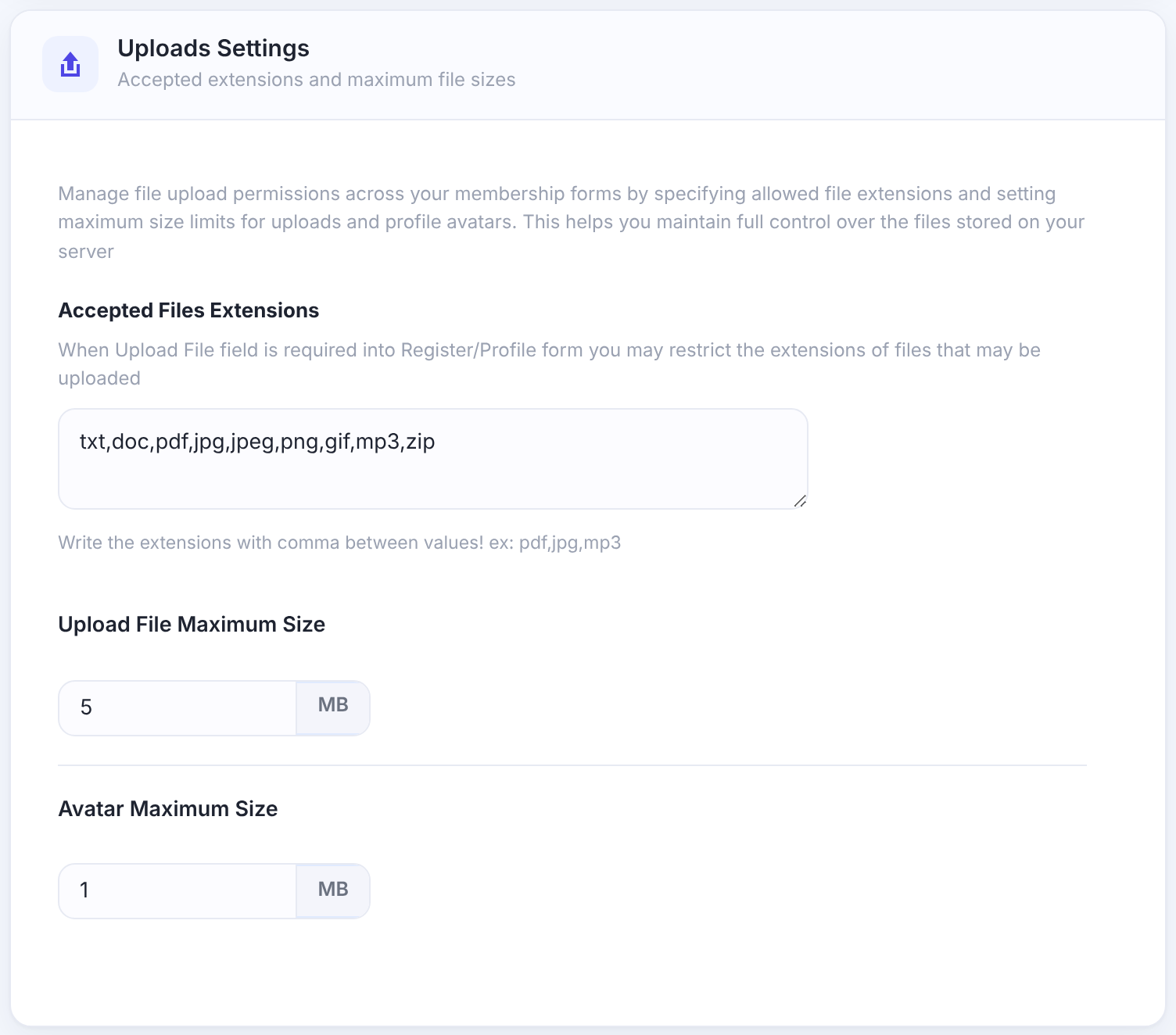
The file types members may upload, separated by commas.
Default: txt,doc,pdf,jpg,jpeg,png,gif,mp3,zip
The largest file a member may upload.
Default: 5 MB
Example: Coaching Club sign-up extras
- Country
- On Registration, Default Country United States
- Avatar
- On Registration, On Profile
- Accept
- On Registration, label Accept our Terms&Conditions, TOS Page Member TOS Page
- Use Gravatar Image
- On
Troubleshooting
Can I delete a special field?
Special fields are part of the plugin and can’t be deleted. Switch them off in every column to hide them.
Does the member’s avatar also show outside the plugin’s pages?
Yes. Once a member uploads an avatar, Ultimate Membership Pro uses it wherever WordPress shows the standard avatar image, for example next to their comments, in author boxes and in the admin bar. Members without an uploaded avatar keep their Gravatar. Some themes, page builders and plugins (BuddyPress or another avatar plugin, for example) take the picture straight from Gravatar or set their own, so the Gravatar or their picture still shows there. Clear any page cache after the upload.
The avatar upload keeps spinning or the crop window stays empty. What do I check?
The browser didn’t get a valid answer from your site. Check these in order.
- The server notice. Open any Ultimate Membership Pro screen as an administrator. If you see a notice that
allow_url_fopenis disabled, or that image functions such asgetimagesize()orimagecreatefromjpeg()are disabled, ask your host to turn them on. The upload reads the saved picture from its web address, soallow_url_fopenmust be On, and your server must be able to open your own site address. - A blocked request. Uploads go through
wp-admin/admin-ajax.php. In your browser’s developer tools, open the Network tab, try the upload again and look for a request toadmin-ajax.phpwith the actionihc_ajax_public_upload_file. If it returns 403 or 500, a security plugin, firewall or server rule is blocking it. See Server errors and blocked plugin files (500, 403). - An old copy of the page. If a caching plugin or CDN serves an old copy of the Register or profile page, the upload can be refused. Exclude those pages from page caching and clear the cache.
- A plugin conflict. Turn on Safe Mode and try again. If the upload works, turn plugins back on one at a time. See Find plugin conflicts with Safe Mode.
The cropped avatar is empty or black. Why?
Two things can cause it.
- Transparent areas. The cropped picture is saved as a JPEG, and JPEG has no transparency, so transparent parts of a PNG or GIF can come out black. Use a JPEG, or a PNG with a solid background.
- Missing image functions. Cropping needs PHP’s GD image functions. If the red notice at the top of the Ultimate Membership Pro screens lists functions like
imagecreatefromjpeg(), ask your host to enable GD. If the crop window itself doesn’t load, go through “The avatar upload keeps spinning” above.
Large photos fail to upload as an avatar. What limits the size?
Your server’s limits apply:
- Upload max filesize and Post max size: the largest file PHP accepts.
- PHP memory limit: cropping opens the whole picture in memory, so a photo with many megapixels needs more memory than a small one.
Find the three values in Tools›Site Health › Info › Server, and ask your host to raise them, or ask members to resize the photo first. Pictures around 1000 pixels wide are plenty for an avatar. For how to raise the memory limit, see Server errors and blocked plugin files (500, 403).
Why doesn’t the captcha show on the registration form?
The Capcha field appears only after the reCAPTCHA keys are saved in Settings › reCaptcha Setup. See Add Google reCAPTCHA.
Why don’t the social login buttons show?
Ultimate Membership Pro shows a social login button only for networks that are set up and switched on in Settings › Social Connect.
Why does the registration form say “Please agree to our Terms & Conditions”?
The registration form shows this message when the member didn’t tick the Accept checkbox. You can change the message under Custom Messages, Terms of Services checkbox.


