
When the site shows “There has been a critical error on this website”, a 500 Internal Server Error or a blank page right after you install or update Ultimate Membership Pro, PHP stopped with an error. The message you see hides the real cause; the server knows it. A 403 Forbidden message is different: a security rule refused the request before WordPress could answer.
This guide finds the real error message and fixes the causes we see most: an old PHP version, too little memory, an incomplete upload, and security tools that block or remove plugin files.
Before you start
- Access to your hosting control panel, or FTP / file manager access to the site’s files.
- The requirements: Ultimate Membership Pro needs PHP 7.4 or later and WordPress 6.0 or later.
Get back into the dashboard
When WordPress catches the error, it emails the site administrator a message with the error details and a link to log in in recovery mode, where the plugin that failed is paused for you. Look for that email first.
If there’s no email and you can’t reach the dashboard, rename the folder wp-content/plugins/ultimate-membership-pro (for example to ultimate-membership-pro-off) with your file manager or FTP. WordPress then deactivates the plugin and the site comes back. Rename it back when the cause is fixed, then activate the plugin again. Your memberships, members and settings are kept.
Find the real error
Ask your host for the PHP error log, or turn on the WordPress debug log: add these lines to wp-config.php, above the line /* That’s all, stop editing! Happy publishing. */, then load the page that fails once.
wp-config.php
define( 'WP_DEBUG', true );
define( 'WP_DEBUG_LOG', true );
define( 'WP_DEBUG_DISPLAY', false );
The errors are written to wp-content/debug.log. Read the last “PHP Fatal error” or “PHP Parse error” line, then match it below. Set WP_DEBUG back to false when you’re done.
Check your PHP version and memory
Go to Tools›Site Health, open the Info tab and expand Server.
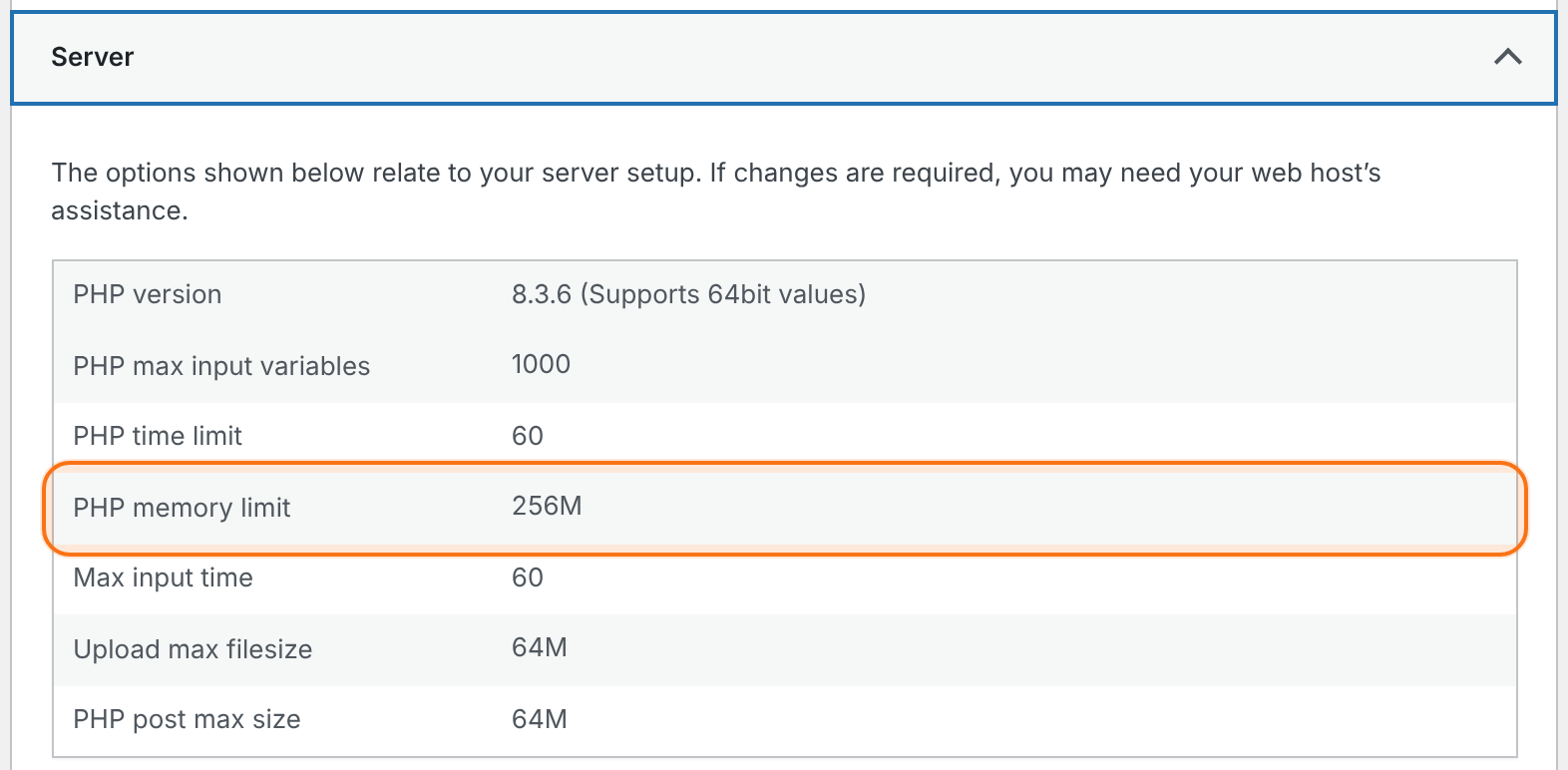
Must be 7.4 or later. Newer is better; your host can switch it for you.
How much memory one page load may use. If the log says memory is exhausted, this is the number to raise.
How many seconds one request may run. Large imports and reports need more time than ordinary pages.
“Parse error: syntax error, unexpected …”
The server runs a PHP version older than the plugin needs, so it can’t read the plugin’s code.
Ask your host to switch the site to PHP 7.4 or later (most hosts offer 8.x in the control panel). Then load the site again.
“Allowed memory size of … bytes exhausted”
The page needed more memory than PHP allows.
Ask your host to raise memory_limit, or add define( 'WP_MEMORY_LIMIT', '256M' ); to wp-config.php. WordPress can’t go above the limit the server sets, so if nothing changes, the host has to raise it.
“Maximum execution time of … seconds exceeded”
A long task, such as importing many members or building a large report, ran longer than the PHP time limit.
Ask your host to raise max_execution_time, or split the work, for example import the CSV file in smaller parts. See Import members from a CSV file.
“Failed opening required …” or “Class … not found”
Some plugin files are missing. Usually an update didn’t copy every file, because an upload or FTP transfer stopped halfway. If the error appears days after an install or update, a security scanner on the server may have removed or quarantined a plugin file.
Replace the plugin with a fresh copy of the .zip from your account, as in the manual method of Update the plugin. Replacing the files doesn’t touch your data. If a scanner removed the file, read “A security scanner flags or removes a plugin file” below first, or the scanner may remove it again.
“Cannot redeclare …”
Two copies of the same code are loaded, for example an old Ultimate Membership Pro folder next to the new one, or another plugin that bundles the same library.
Keep a single Ultimate Membership Pro folder in wp-content/plugins. For another plugin, see Find plugin conflicts with Safe Mode.
A 500 error with nothing in the PHP log
The web server or a firewall blocked the request before PHP ran, for example a security rule that matched a form or a file name.
Tell your host the time and the page where it happened, and ask what the server error log says for that request.
“403 Forbidden” on an upload, a login or a payment step
A button or a page shows “403 Forbidden”, or nothing happens, for example when a member uploads an avatar, logs in with a social account or is sent to the Stripe Checkout payment page.
A security plugin, a web application firewall (WAF), a CDN rule or an .htaccess rule refused the request before it reached WordPress. Rules that block PHP files inside wp-content/plugins are a common cause: Stripe Checkout sends members through includes/gateways/libraries/stripe-checkout/redirect.php, and social login uses includes/services/social.php. Avatar and file uploads and some form checks go through wp-admin/admin-ajax.php, so a rule that blocks that address stops them too.
Open your browser’s developer tools, go to the Network tab and repeat the action to see which address returns 403. Then check your security plugin’s firewall log, or ask your host which rule blocked that address, and allow it. Payment notifications use your site address followed by ?ihc_action=, so allow those requests too. With Stripe Connect, the recommended gateway, members pay on your own checkout page and the redirect file isn’t used.
A security scanner flags or removes a plugin file
Your security plugin (such as Wordfence) or your host’s malware scanner (such as Imunify360) reports a file of Ultimate Membership Pro, or a file disappears and the site shows “Class … not found”.
Scanners compare files with patterns of known threats. They can flag or quarantine a file of the plugin’s own code.
Don’t edit or delete the file yourself. Download a fresh copy of the plugin from your account on ultimatemembershippro.com and replace the plugin folder, as in the manual method of Update the plugin. Your data stays. If the scanner flags the fresh copy too, ask your host to restore the quarantined file and review the detection, and send support the scanner’s report with the file name and the rule it names.
Contacting support?
Send the error line from the log, what you did just before it appeared, and your WordPress and PHP versions from Tools›Site Health › Info. Remove passwords and personal data from anything you paste.
Troubleshooting
Will I lose members or settings if I deactivate or reinstall Ultimate Membership Pro?
No. Deactivating the plugin, or replacing its files with a fresh copy, keeps your Memberships, members, orders and settings in the database.
The error appeared after I updated another plugin, not Ultimate Membership Pro. Is it related?
Possibly. Read the file path in the error line: it names the plugin or theme folder where the error happened. If both plugins are involved, see Find plugin conflicts with Safe Mode.
The error only shows on one page, not the whole site. What should I check?
Load that page once with the debug log on and read the newest lines in debug.log. A page-specific error usually comes from a shortcode, a widget or a template on that page.
Why do I get 403 Forbidden when a member uploads an avatar or goes to pay?
A security rule on the server blocked the request. Find the address that returns 403 in your browser’s Network tab, then allow it in your security plugin, or ask your host to. Uploads use wp-admin/admin-ajax.php; Stripe Checkout uses a redirect file inside the plugin folder.
My security scanner says an Ultimate Membership Pro file is malicious. What should I do?
Replace the plugin folder with a fresh copy from your account on ultimatemembershippro.com; your data stays. If the fresh copy is flagged too, send the scanner’s report to support and ask your host to review the detection before anything is deleted.


