
In Ultimate Membership Pro, a paid Membership becomes active only when the payment gateway confirms the payment to your site. Until that confirmation (a webhook, or an IPN for PayPal) arrives, the order stays Pending and the member’s Membership shows Hold, even if the money has left the member’s account.
Below: how to recognise the problem, the notification address each gateway must call, the usual causes with their fix, how to read the payment logs, and how to complete an order by hand.
Before you start
- Access to your payment provider’s dashboard (Stripe, PayPal, Mollie and so on), to see whether the payment really went through.
- The member’s name or email, to find the order in Ultimate Membership Pro›Payment History.
How an unconfirmed payment looks
When a member checks out for a paid Membership, Ultimate Membership Pro does two things before the payment is confirmed:
A new order appears in Ultimate Membership Pro›Payment History with the status Pending.
The Membership is added to the member with no dates yet, shown as Hold (in the Members list, Hold/Expired). The member can’t open restricted content yet.
The gateway’s notification sets the order to Completed and starts the Membership with its real dates. Renewals of a recurring plan arrive the same way and add a new Completed order.
Only a few payments are confirmed at checkout itself: Braintree one-time payments and Braintree recurring plans with a trial, and Authorize.net recurring plans. Everything else, including Stripe Connect and every gateway that sends members to the provider’s page, waits for the gateway’s notification. If that notification never arrives, the order stays Pending.
Members can retry the payment
If Show Finish Payment Button is on (Showcases › Subscriptions Table, on by default), a member with a Membership on Hold sees Finish Payment in the Member Portal after a delay (12 hours by default). Tell the member not to use it if the money already left their account, or they may pay twice.
The notification address of each gateway
Every gateway reports payments to your site on its own address. Each address is your site address followed by a gateway code. Where the list says set it in the provider, the address must be added in your provider account; elsewhere Ultimate Membership Pro sends it automatically with each payment.
https://yoursite.com/?ihc_action=stripe_connect. Set it in Stripe as a webhook endpoint with all events from Charge, Customer, Invoice and Subscription Schedule. See Set up Stripe.
https://yoursite.com/?ihc_action=stripe_checkout. Set it in Stripe with all events from Charge, Customer, Invoice and Subscription Schedule, plus checkout.session.completed. See Set up Stripe Checkout.
https://yoursite.com/?ihc_action=paypal. Sent with every payment; also set it under Instant payment notifications in PayPal, as the settings screen advises. See Set up PayPal Standard.
https://yoursite.com/?ihc_action=paypal_express_checkout_ipn. Set it in the provider: PayPal › Account Settings › Notifications › Instant payment notifications. See Set up PayPal Express Checkout.
https://yoursite.com/?ihc_action=mollie. Sent automatically; nothing to set in Mollie. See Set up Mollie.
https://yoursite.com/?ihc_action=braintree. Set it in the provider as a webhook Destination URL, with all subscription options checked. See Set up Braintree.
https://yoursite.com/?ihc_action=authorize. Set it in the provider as Silent Post URL, Response/Receipt URL and Relay Response URL. See Set up Authorize.net.
https://yoursite.com/?ihc_action=twocheckout. Set it in the provider in the INS and IPN settings. See Set up 2Checkout.
https://yoursite.com/?ihc_action=pagseguro. Sent with every payment; also set it as the Notification URL under Transaction notification. See Set up PagSeguro.
https://yoursite.com/?ihc_action=ump_rzr. Set it in the provider under Settings › Webhooks. See Set up Razorpay.
https://yoursite.com/?ihc_action=ump_paystack. Set it in the provider as the Webhook URL. See Set up Paystack.
https://yoursite.com/?ihc_action=ump_payfast. Sent automatically with every payment. See Set up PayFast.
No address. You confirm every bank transfer yourself. See Accept bank transfers.
The exact address for your site is shown on each gateway’s settings page, under Webhook URL, with a copy button.
The payment isn’t complete in the provider account
The member left the provider’s page before paying, the card was declined, or the provider is still holding the payment. A payment that isn’t completed at the provider is never confirmed to your site.
Find the payment in the provider dashboard first. If it isn’t there, or isn’t marked as paid or completed, the order is correctly Pending: ask the member to pay again. If the provider holds it for your review (for example a payment in a currency your PayPal account doesn’t accept yet), approve it there; the notification follows.
The notification address isn’t set in the provider
For Stripe, PayPal Express Checkout, Braintree, Authorize.net, 2Checkout, Razorpay and Paystack, the provider only calls your site if the address is saved in your provider account, with the right events. Test and live modes usually have separate webhook settings: a Stripe webhook made in live mode isn’t used for test payments, and the other way round.
Copy the Webhook URL from the gateway’s settings page and add it in the provider account (in the same mode you’re testing in), with the events listed above. Stripe Connect shows on its settings page when the last webhook arrived, or a warning that none has been received.
The provider can’t reach your site
The provider calls the address from the internet. It fails on a local or staging site that only you can open, behind password protection or maintenance mode, or when a firewall, security plugin or CDN rule blocks the request. Server errors on that address have the same effect.
A homepage that is restricted with a Locker set to Redirect the Page causes the same problem. The notification address is your home page followed by ?ihc_action=, so a request from the provider is redirected like any visitor who isn’t allowed in, and the notification never finishes. The delivery log in your provider account shows a redirect (for example a 302 status). Keep the homepage public. See Fix redirect loops and pages that bounce.
Open the address in a private browser window. For most gateways a working address shows “No Payments details sent. Come later” (PagSeguro shows an empty page). If you get an error, a login page or a redirect, ask your host or check your security plugin, and allow the provider to reach it. Then look at the delivery log in the provider dashboard and resend the notification if the provider offers it.
Sandbox and live are mixed up
The gateway’s Environment (Sandbox or Live, or Stripe’s Test Mode / Live Mode) doesn’t match where the member paid. PayPal is the most common case: each IPN is checked with PayPal in the environment selected on your site, so a live payment is not confirmed while Sandbox is selected, and a sandbox payment not while Live is selected. PayPal’s sandbox can also be slower than live to send notifications.
Set the Environment to the system the member paid in, and use credentials and webhook settings from that same environment. Don’t switch the Environment while test orders are still waiting. If the sandbox stays slow, test once in live mode with a low-priced test Membership.
The gateway was switched off
A member paid while the gateway was active, then it was deactivated. Stripe Connect and Stripe Checkout process webhooks only while their Activate switch is on.
Switch the gateway back on as long as members still have payments or subscriptions running through it.
Stripe: the webhook endpoint doesn’t match the gateway
Stripe Connect and Stripe Checkout are two gateways with two webhook addresses:
- Stripe Connect:
https://yoursite.com/?ihc_action=stripe_connect - Stripe Checkout:
https://yoursite.com/?ihc_action=stripe_checkout
Each address is handled by its own gateway, and only while that gateway’s Activate switch is on. An endpoint you made for Stripe Checkout doesn’t confirm Stripe Connect payments, and an endpoint made for Stripe Connect doesn’t confirm Stripe Checkout payments. This is easy to miss when you switch from one gateway to the other and keep the old endpoint in Stripe.
Test mode and live mode are also separate in Stripe. Each mode has its own list of endpoints, and an endpoint in one mode never receives events from the other.
- In Ultimate Membership Pro, open the settings of the gateway your members pay with (Ultimate Membership Pro›Payment Gateways) and copy the address from the Webhook URL box.
- In Stripe, open Developers › Webhooks (the Webhooks tab in Workbench), in the same mode as the payment you’re checking. Make sure an endpoint with exactly that address exists.
- Check its events. Both gateways need all events from Charge, Customer, Invoice and Subscription Schedule. Stripe Checkout also needs
checkout.session.completed. See Set up Stripe and Set up Stripe Checkout. - Stripe Connect only: on the gateway’s settings page, Last Webhook Notification received at shows the time of the last event for the selected Environment. A yellow line saying No Webhooks Notifications have been received means nothing has arrived yet for that Environment.
The address is the same in test and live mode. You add it once in each mode in Stripe.
PayPal notifications arrive but aren’t confirmed
Before it accepts a PayPal IPN, your site asks PayPal to confirm it. That needs the PHP cURL extension and an outgoing HTTPS connection to PayPal. Without cURL, the gateway screens show “Curl is disabled.”
Ask your host to enable cURL and allow outgoing connections to paypal.com and sandbox.paypal.com. The payment logs (below) show whether PayPal’s answer came back.
The currency doesn’t match
Ultimate Membership Pro always charges in your site currency (Default System Currency in Settings›Payment Settings). If the provider account can’t receive that currency, the provider refuses or holds the payment, and no completed notification comes.
Check that your provider account accepts the site currency, or change the currency. See Set your currency.
Wire Transfer orders stay Pending
This is expected. A bank transfer has no automatic confirmation, so every Wire Transfer order waits for you.
When the money is in your bank account, complete the order as shown below. See Accept bank transfers.
A renewal was charged, but nothing was recorded
A renewal is confirmed the same way as the first payment: the gateway tells your site, and your site adds a new Completed order and moves the Membership’s end date. For Stripe, the renewal arrives as an Invoice event (invoice.payment_succeeded for Stripe Connect, invoice.paid for Stripe Checkout). If the notification doesn’t arrive, the money is taken in the provider account, but your site shows no new order and the Membership isn’t extended. The causes are the ones above: a missing or wrong endpoint, a gateway switched off, a site the provider can’t reach, or an endpoint without the Invoice events.
- In the provider account, find the renewal payment and confirm it was paid.
- In Ultimate Membership Pro›Payment History, look for a new Completed order for that member on the renewal date. If there is none, the notification didn’t arrive or didn’t finish.
- In Ultimate Membership Pro›Members, check the end date shown next to the Membership. It stays on the old date.
- For Stripe, read the endpoint’s delivery log (see “Read Stripe’s delivery log” below) for the invoice event of that renewal.
Fix the cause from the sections above. Then resend the renewal event from the provider dashboard if it offers that. The order is added when the notification arrives. Make Completed doesn’t help here, because it works on Pending orders only and a missed renewal has no order yet. To set the end date yourself, see Change a paying member’s plan, price or dates.
Turn on the payment logs
The payment logs show every notification your site receives and what it did with it. They are off by default.
- Go to Ultimate Membership Pro›Settings›Payment Settings.
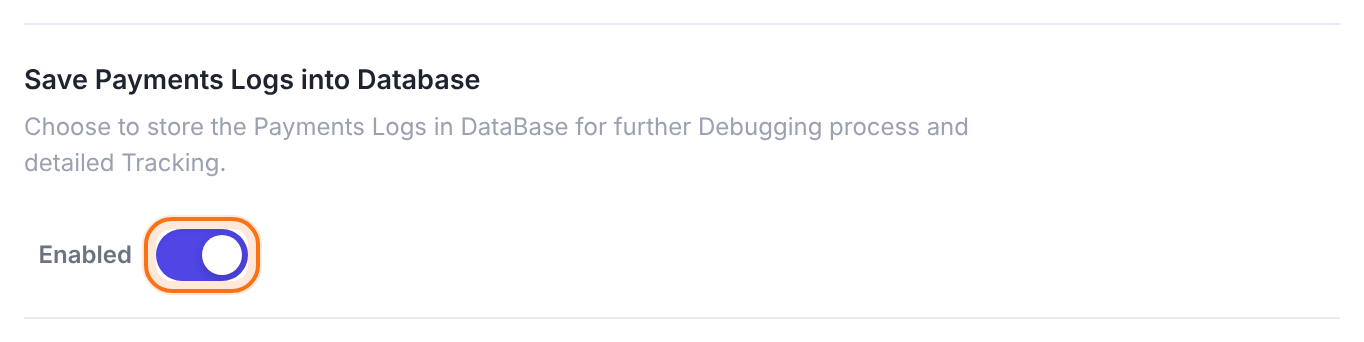
- Switch on Save Payments Logs into Database and click Save Changes.
- Make a new test payment, or resend the notification from the provider dashboard.
- Back on Payment Settings, click View Logs next to Clean Up Payment logs older than:. It opens the Payment Logs page.
The notification never reached your site: check the address, the provider settings and access to your site. (Lines about saving the order come from the checkout, not from the notification.)
A notification arrived but didn’t match any order on your site, for example a payment made on another site or in the other environment.
PayPal confirmed the IPN. If this line is missing, PayPal didn’t confirm it: check the Environment and cURL.
The order was confirmed before; the provider is resending a notification.
The View Logs button appears only once at least one log line exists. Turn the logs off again when you’re done, and clean up old lines with Clean Up Payment logs older than:.
Read Stripe’s delivery log
Stripe keeps a record of every attempt to call your site. It tells you in a minute whether the notification left Stripe and what your site answered.
- In Stripe, open Developers › Webhooks (the Webhooks tab in Workbench), in the same mode as the payment.
- Click your endpoint and open the Event deliveries tab. Each event shows as Delivered, Pending or Failed.
- Click an event to see the HTTP status code your site returned and when Stripe will try again.
What the result means:
Your site answered. If the order is still Pending, open Ultimate Membership Pro›Settings›Payment Settings and read the payment logs (see “Turn on the payment logs” above). A delivery with no matching order shows only the “Webhook – Start.” and “Webhook – Finish.” lines.
Your site redirected the request. Stripe counts any redirect as a failed delivery. A restricted homepage is the usual cause (see “The provider can’t reach your site” above). A redirect from http to https, or from www to the address without it, has the same effect: in that case, use the final address in Stripe.
Your site refused the request: password protection, a firewall or security plugin, or a rule that blocks the address. See Server errors and blocked plugin files (500, 403).
Your site had an error while it handled the request. Check your site’s error log or ask your host.
Stripe couldn’t reach your site, or couldn’t open a secure connection. Your site has to be public and use a valid HTTPS certificate.
Stripe tries a failed delivery again on its own: for up to three days in live mode, and three times over a few hours in test mode. Once you’ve fixed the cause, open the event and click Resend (Stripe allows this for up to 15 days after the event). The order is then confirmed the same way as on the first try. For all the status codes and the retry rules, see Stripe’s webhook guide (section “Debug webhook integrations”).
Complete an order by hand
If the provider dashboard shows the money arrived but the order is still Pending, you can complete it yourself.
- Go to Ultimate Membership Pro›Payment History and click the Pending filter.
- Find the member’s order and click the Make Completed action (the check icon, first in the Action column).
- For several orders at once, tick them, choose Change Status to Completed in Bulk Actions, click Apply and confirm.

The order becomes Completed and the Membership starts with its normal dates. Make Completed doesn’t charge the member or contact the provider, so use it only for payments you’ve checked in the provider account. For a recurring plan, later renewals still need working notifications.
Fix the cause too
- Completing orders by hand hides the problem for one member. Until the notification address works, every new payment through that gateway stays Pending.
- A refund, failed renewal or chargeback reported by the provider removes the Membership from the member, so these notifications need to arrive too.
Questions
Why does a Stripe payment show as Pending after it was approved?
Stripe approved it but your site didn’t get the webhook. Check that the webhook endpoint exists in the Stripe mode you’re using (test or live), with the events listed above, and that the gateway is switched on.
Does it matter if I have two Stripe endpoints with the same Ultimate Membership Pro address?
Keep one endpoint for each gateway address. A second endpoint with the same address only makes Stripe call your site twice for every event. Stripe can also send the same event more than once on its own. Your site recognizes a payment it has already completed and skips it (the payment logs show “This order has already been completed. Exit.”), but there is no benefit in sending everything twice. Delete the extra endpoint in Stripe.
Can another plugin’s Stripe webhook stay on the same Stripe account?
Yes. Another plugin that uses Stripe, such as a shop plugin, has its own endpoint with its own address. Leave it as it is. Ultimate Membership Pro only uses the address shown in its gateway settings, so you don’t need to change, merge or remove the other endpoint. Just make sure the Ultimate Membership Pro address exists as an endpoint of its own.
Which Stripe API version should my webhook endpoint use?
Ultimate Membership Pro doesn’t ask you to choose one. Stripe writes every event in the format of an API version (your account’s version, or the one you pick for the endpoint), and your site reads the version that is stated in each event. Both Stripe gateways understand the formats from before and after Stripe’s 2025-03-31 release. If a payment stays Pending, check the endpoint address, its events and the delivery log first (see “Read Stripe’s delivery log” above).
Why don’t I get a payment confirmation with PayPal set to Sandbox?
You need a sandbox Merchant account (its email in PayPal Merchant Email) and a sandbox Buyer account to pay with, and Environment must stay on Sandbox. Sandbox notifications can take a while; check the payment logs to see whether the IPN arrived.
Should I put the IPN address in my PayPal account?
For PayPal Express Checkout, yes: it’s required. For PayPal Standard, Ultimate Membership Pro sends the address with every payment, and the settings screen also tells you to add it under Instant payment notifications.
The member sees Finish Payment but already paid. What now?
Ask them not to pay again. Check the payment in the provider dashboard, then use Make Completed in Payment History.
Where do I see the member’s Membership status?
In Ultimate Membership Pro›Members, or in the member’s Subscriptions table in the Member Portal. See Membership statuses explained.


