
Ultimate Membership Pro can take payments through Mollie, a European payment provider with cards and many local payment methods. Members are sent to Mollie’s own payment page, pay there, and come back to your site; Mollie then tells your site the payment went through.
This guide connects Mollie with your API key, prepares your Mollie account for recurring plans, and runs a test payment for the Coaching Club site.
Before you start
- You have a Mollie account with a website profile for your site.
- Your site currency is one Mollie accepts. You set it under Ultimate Membership Pro›Settings›Payment Settings. See Set your currency.
- You have a paid Membership, for example Pro Monthly at $19/month. See Create your first Membership.
- Your site is reachable from the internet. Mollie confirms payments by calling your site, so a local test site that only you can open won’t receive them.
What Mollie supports
Payments
- One-time
- Yes: LifeTime, Limited Time and Date Range Memberships
- Recurring
- Yes: Recurring Subscription Memberships
- Checkout
- Redirect to Mollie’s payment page
Billing rules
- Cycles
- 1 to 365 days, 1 to 52 weeks or 1 to 12 months
- Trials
- Yes, as a set number of days
- Limited billing
- Yes, Max no of Periods is passed to Mollie
For one-time payments, Mollie shows every payment method that is active in your website profile. For recurring plans, the first payment is always made by Credit Card, so Mollie can charge the same card on every renewal. The currency sent to Mollie is your site currency.
Open the Mollie settings
- Go to Ultimate Membership Pro›Payment Gateways.
- Find Mollie and click Complete setup. Once the gateway is active, the button reads Manage.

The settings page is called Mollie Services and has three cards: Mollie Payment Setup, Mollie Settings and Extra Settings. Nothing is saved until you click Save Changes at the bottom of the page.
Prepare your Mollie account
Do this in your Mollie dashboard before you paste the key. The plugin’s own Setup Instructions list the same steps.
- In Mollie, go to Settings › Website profiles and create a website profile for your site, or open the one you have.
- In that profile, open Payment methods and activate Credit Card. Add any other methods you want to offer for one-time payments.
- Go to Developers › API keys and copy the Test API key. You switch to the Live API key once your test payment works.
Credit Card is needed for recurring plans
- Recurring Memberships always start with a card payment. If Credit Card isn’t active in your website profile, members can’t buy a Recurring Subscription.
- If no payment method is active at all, Mollie can’t take any payment.
Turn on the gateway
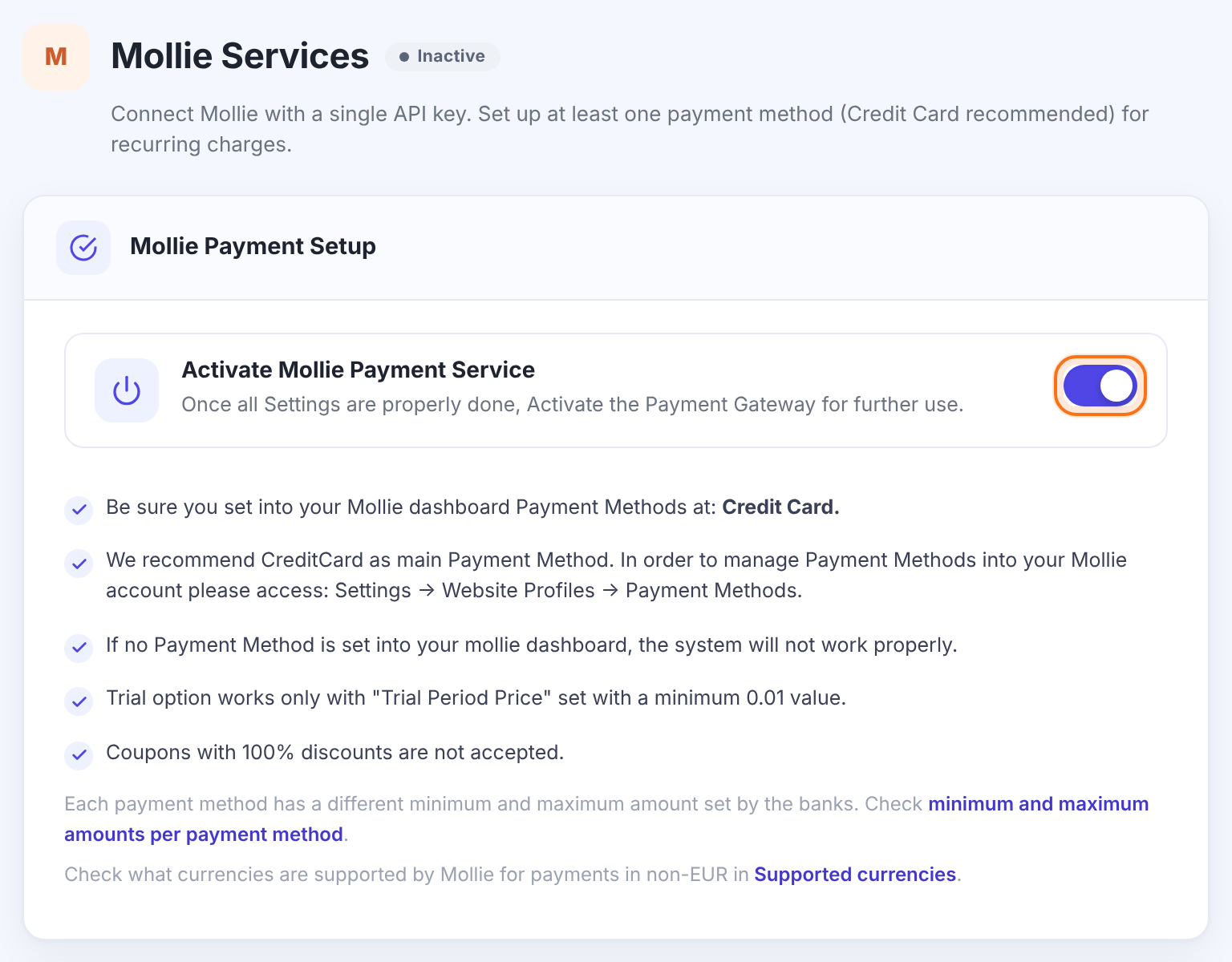
Makes Mollie available at checkout. Mollie is offered to members only when this is on and an API key is filled in.
Default: Off
Below the switch, the card repeats the account requirements (Credit Card active in your website profile) and links to Mollie’s pages on supported currencies and on the minimum and maximum amount of each payment method.
Paste the API key and choose the return page
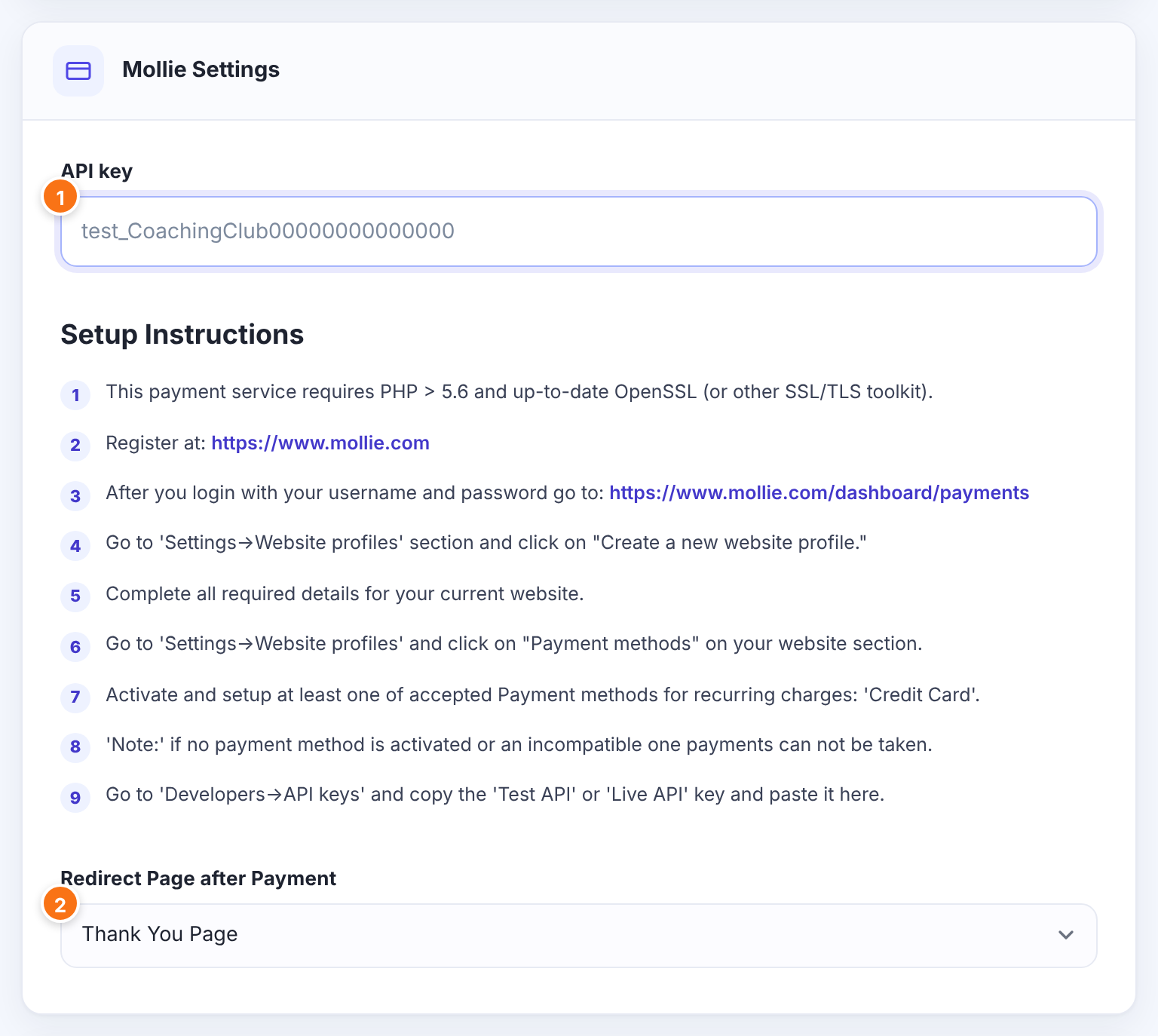
The key from Developers › API keys in Mollie. A Test API key puts the gateway in test mode; a Live API key takes real payments. There is no separate Sandbox switch for Mollie. Paste the key without spaces before or after it.
The steps from Step 2, shown on the screen for reference.
The page members come back to after paying on Mollie’s page. Leave … to use your Thank You page (set under Ultimate Membership Pro›Settings›Pages Setup).
Default: …
Set how Mollie appears at checkout
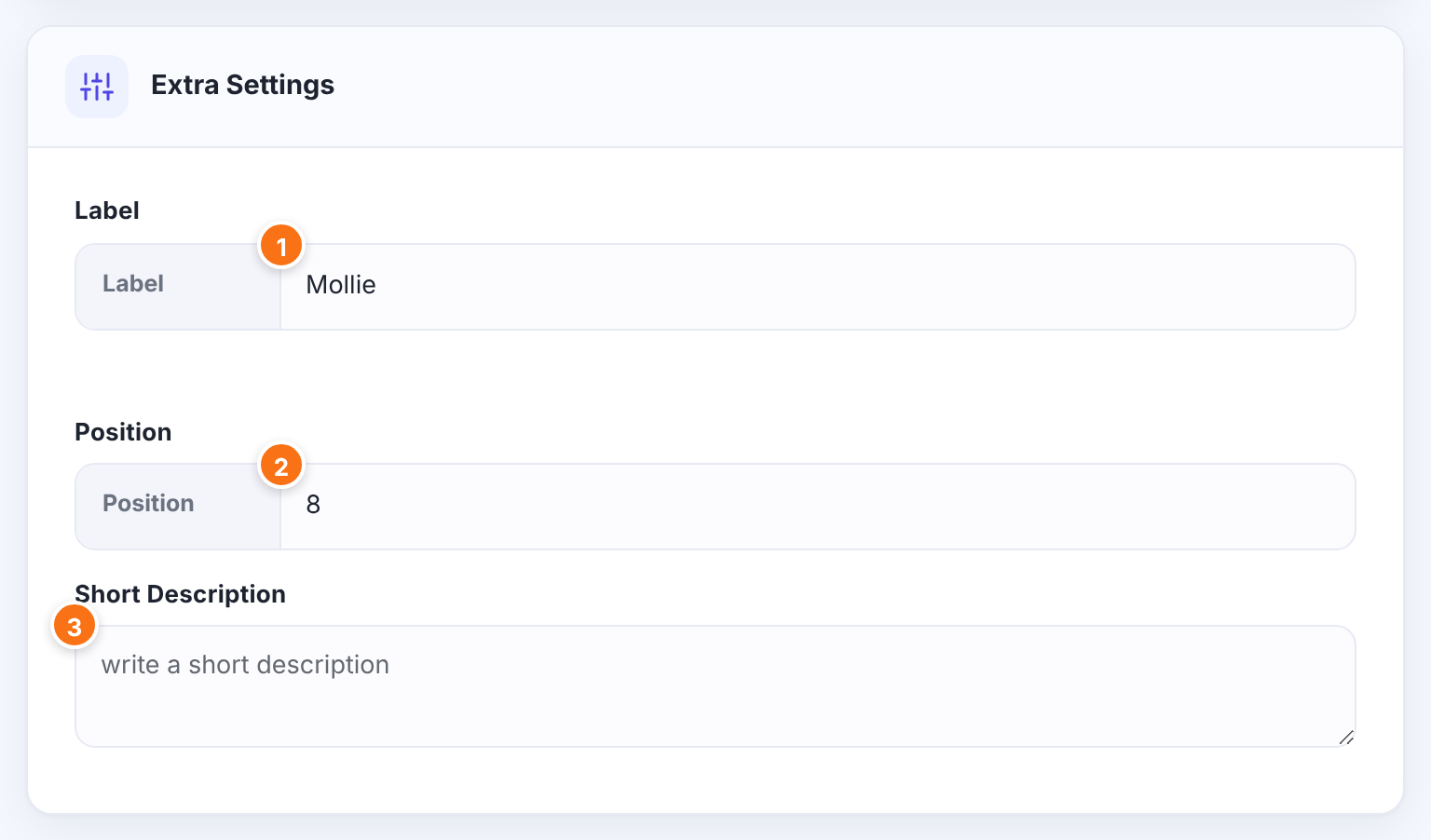
The name of this payment method that members see at checkout.
Default: Mollie
The order of this gateway among the payment methods at checkout. Lower numbers come first.
Default: 8
Optional text about the gateway, saved with its settings.
Click Save Changes. Back on Payment Gateways, Mollie now shows Manage instead of Complete setup.
Check the webhook address
You don’t need to add a webhook in Mollie. With every payment and subscription, Ultimate Membership Pro tells Mollie where to send updates:
https://yoursite.com/?ihc_action=mollieMollie calls this address when the status of a payment changes. When a payment is paid, your site marks the order as Completed and activates the Membership. Renewals of a recurring plan arrive the same way: each paid renewal adds a new order and extends the Membership.
Test a payment
- With the Test API key saved, log out (or use a private window) and buy Pro Monthly on your site.
- Choose Mollie at checkout. You land on Mollie’s payment page in test mode.
- Complete the test payment. You return to the Redirect Page after Payment.
- In Ultimate Membership Pro›Payment History, the order changes from Pending to Completed once Mollie has called your site, and the member’s Membership is active.
When the test works, replace the key with the Live API key and save.
Limits to know
- Subscription cycles can be up to 365 days, 52 weeks or 12 months.
- The settings screen notes that the trial option works only with a “Trial Period Price” of at least $0.01 (the Membership’s Trial/Initial Payment Price), and that coupons with a 100% discount are not accepted.
- Each Mollie payment method has its own minimum and maximum amount, set by the banks. Check Mollie’s list if a method doesn’t appear for a plan.
- Refunds are made in your Mollie dashboard, not in WordPress. After a refund, check the member under Members and remove the Membership if needed.
Keep test and live apart
Test payments made with the Test API key are not real charges. Delete test orders and test members on your site before you switch to the Live API key.
Example: Coaching Club on Mollie
- Mollie website profile
- yoursite.com, with Credit Card active
- API key
- Test API key first, then Live API key
- Redirect Page after Payment
- Thank You Page
- Label
- Card (Mollie)
- Position
- 1
- Membership
- Pro Monthly, Recurring Subscription, 1 Months, $19
- Webhook
- Nothing to add; Mollie uses
?ihc_action=mollie
Troubleshooting
Why don’t members reach Mollie’s payment page after choosing Mollie?
Ultimate Membership Pro couldn’t create the payment in Mollie. Check that the API key is complete, has no spaces, and belongs to the right website profile, and that at least one payment method (Credit Card for recurring plans) is active.
Why does the order stay Pending after the member paid?
Mollie hasn’t reached your site yet. Your site must be publicly reachable at https://yoursite.com/?ihc_action=mollie, without a password, maintenance mode or firewall blocking Mollie.
Why does the webhook address show “No Payments details sent. Come later”?
That’s normal. The address only does something when Mollie sends a payment to it; opening it in a browser shows this message.
Can members cancel their Mollie subscription themselves?
Yes. When a recurring Membership was paid with Mollie, members can cancel it from the Member Portal; Ultimate Membership Pro then cancels the subscription in Mollie. See Set up the Member Portal.
Which currencies does Mollie accept?
Ultimate Membership Pro sends your site currency to Mollie. Mollie accepts EUR and a list of other currencies; check Mollie’s Supported currencies page, linked on the settings screen, before you sell in a currency other than EUR.


