
In Ultimate Membership Pro, the Razorpay add-on lets members pay for a Membership through Razorpay, the payment platform used by many businesses in India. Members are sent to a secure Razorpay payment page to pay; Razorpay then tells your site the payment went through and the Membership is activated.
This guide explains the two Razorpay add-ons, the settings screen, the webhook Razorpay needs, and how to run a test payment.
Before you start
- You have a Razorpay account with access to the Dashboard and its API keys.
- You have a paid Membership, for example Pro Monthly at $19/month. See Create your first Membership.
- Your site currency, set under Ultimate Membership Pro›Settings›Payment Settings, is one your Razorpay account accepts. See Set your currency.
- The Ultimate Membership Pro – Razorpay add-on is installed and active. For recurring plans, Ultimate Membership Pro – Razorpay Pro is active too.
- Your site is reachable from the internet, so Razorpay can send it payment notifications.
Razorpay or Razorpay Pro?
Razorpay (Standard)
- Payments
- One-time only
- Good for
- LifeTime, Limited Time and Date Range Memberships
- Coupons
- Yes, on one-time payments
Razorpay Pro
- Payments
- One-time and recurring subscriptions
- Needs
- The Standard add-on, active at the same time
- Members can cancel
- Yes, from the Member Portal
Razorpay Pro is an upgrade layer: it uses the Standard add-on’s settings screen and connection, so keep both add-ons active. When Pro is active, the first box of the screen is titled “RazorPay Pro Payment Service”.
What Razorpay supports
Redirect. The member is sent to a Razorpay payment page. After a one-time payment, Razorpay sends them back to your site.
Yes, with both add-ons.
Yes. Ultimate Membership Pro creates the plan and the subscription in Razorpay for you; you don’t set up plans by hand.
Days: 7 to 90. Weeks: 1 to 52. Months: 1 to 24. Years: 1 to 15.
Limited: 2 to 52 payments. On Going: daily plans are set up for 90 payments, weekly for 52, monthly for 24 and yearly for 15.
Not supported. Use a Membership without a trial for Razorpay.
Your site currency is sent to Razorpay as it is. Your Razorpay account must accept it; the settings screen links to Razorpay’s list of supported currencies.
Yes, on one-time payments.
Switch on the Razorpay gateway
- Go to Ultimate Membership Pro›Payment Gateways.
- On the Razorpay card, click Complete setup (or Manage if it’s already set up).
- In the first box, turn on Activate RazorPay Payment Service and click Save Changes.
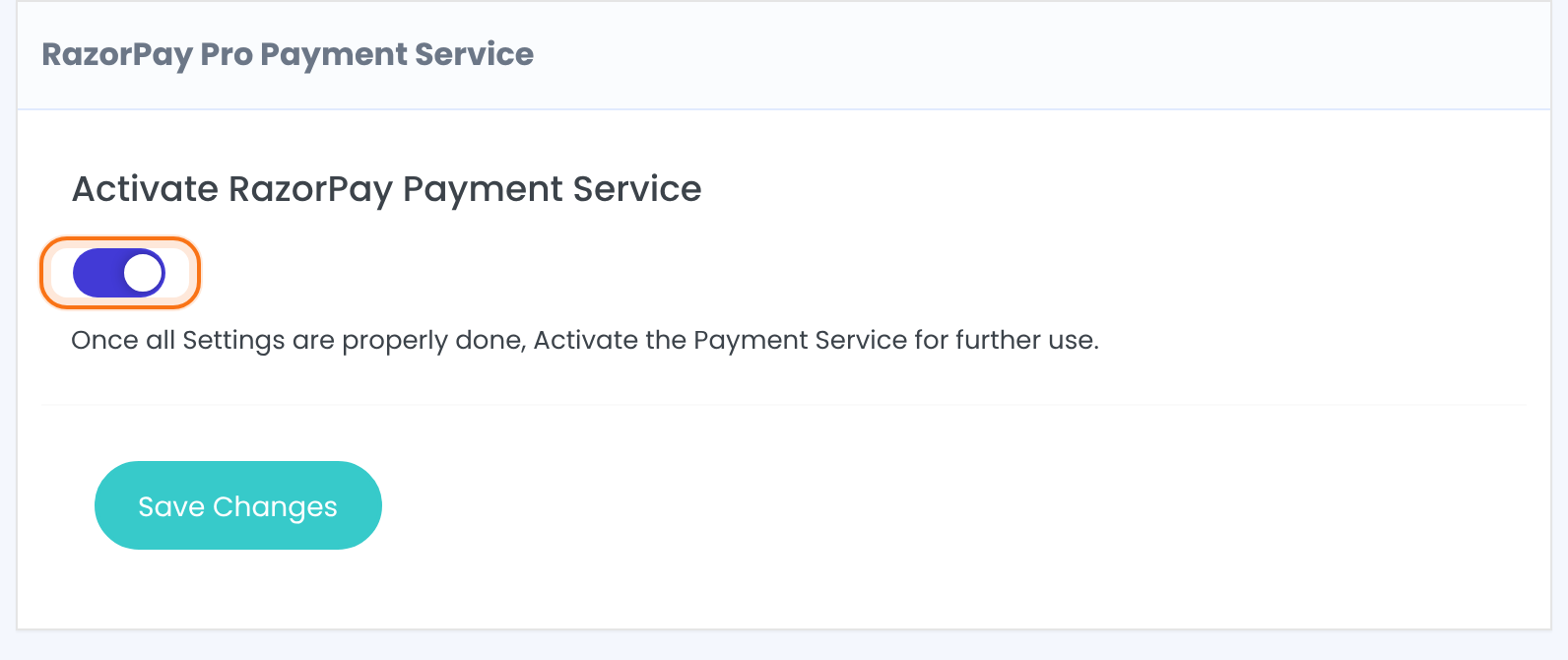
Turns the gateway on. Members see Razorpay at checkout only when this is on and both API keys below are filled in.
Default: Off
With only the Standard add-on active, this box also shows “RazorPay Capabilities” (single payments, coupons) and a note about the Pro version.
Add your API keys
- Log in to your Razorpay Dashboard.
- Open the API Keys page (
https://dashboard.razorpay.com/app/keys, linked on the settings screen) and generate a key. - Copy the Key Id and the Key Secret into the RazorPay Settings box.
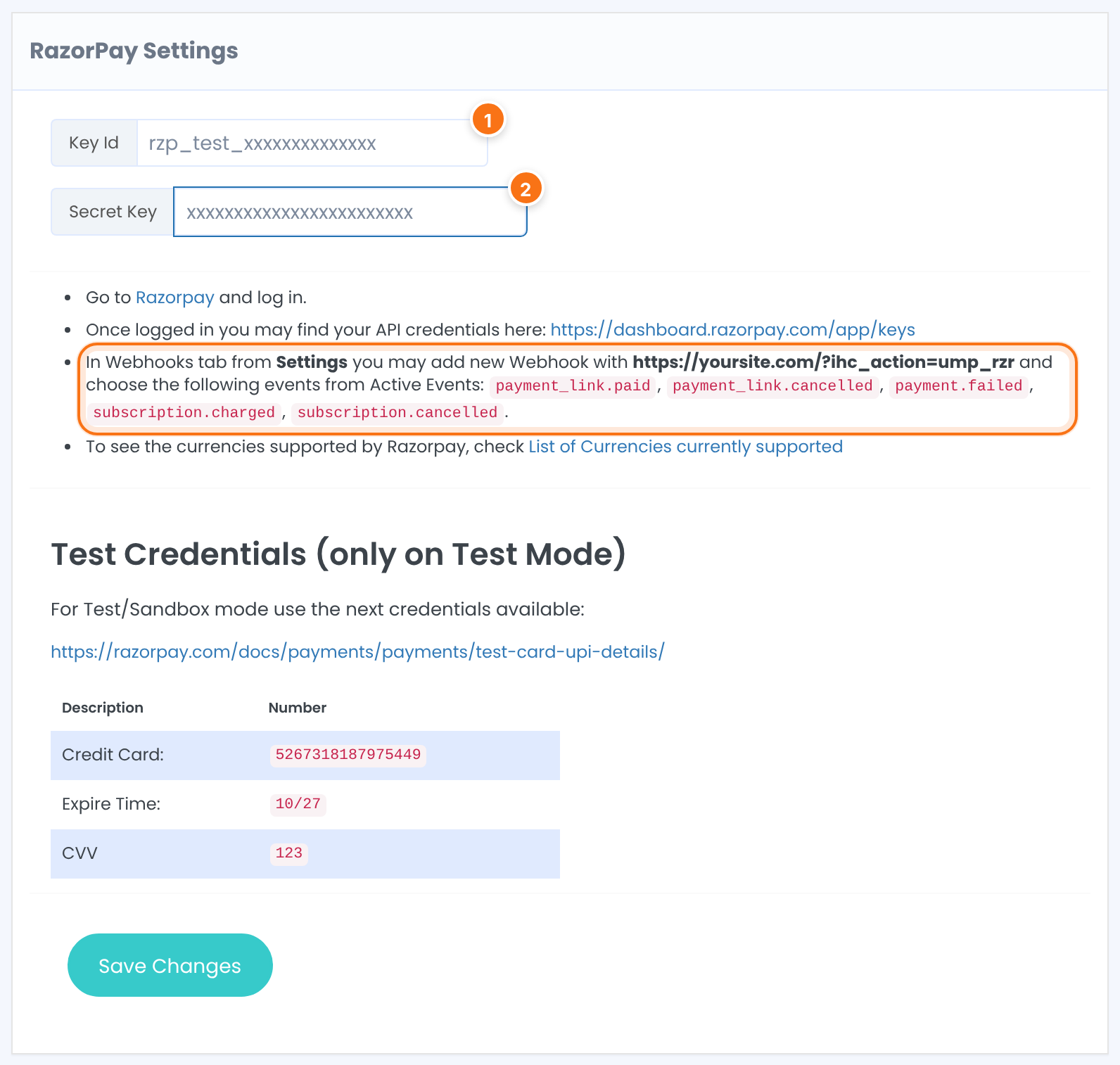
Your Razorpay API Key Id. Test keys start with rzp_test_, live keys with rzp_live_. A new install shows 0 in this field: replace it.
The Key Secret that goes with the Key Id. Razorpay shows it only once, when you generate the key.
There’s no separate test switch: the keys you paste decide the mode. Click Save Changes under the box.
Add the webhook in Razorpay
Razorpay tells your site about payments through a webhook. Without it, members pay but their Membership stays inactive.
- In the Razorpay Dashboard, open the Webhooks tab of Settings and add a new webhook.
- Paste your webhook URL (shown in bold on the settings screen):
- Under Active Events, tick the events below, then save the webhook.
Webhook URL
https://yoursite.com/?ihc_action=ump_rzrReplace yoursite.com with your domain.
A one-time payment went through: the order becomes Completed and the Membership becomes active.
The payment was cancelled or failed.
A subscription payment went through. The first one activates the Membership; each later one adds a renewal order and extends it.
The subscription was cancelled in Razorpay.
Set how Razorpay appears at checkout
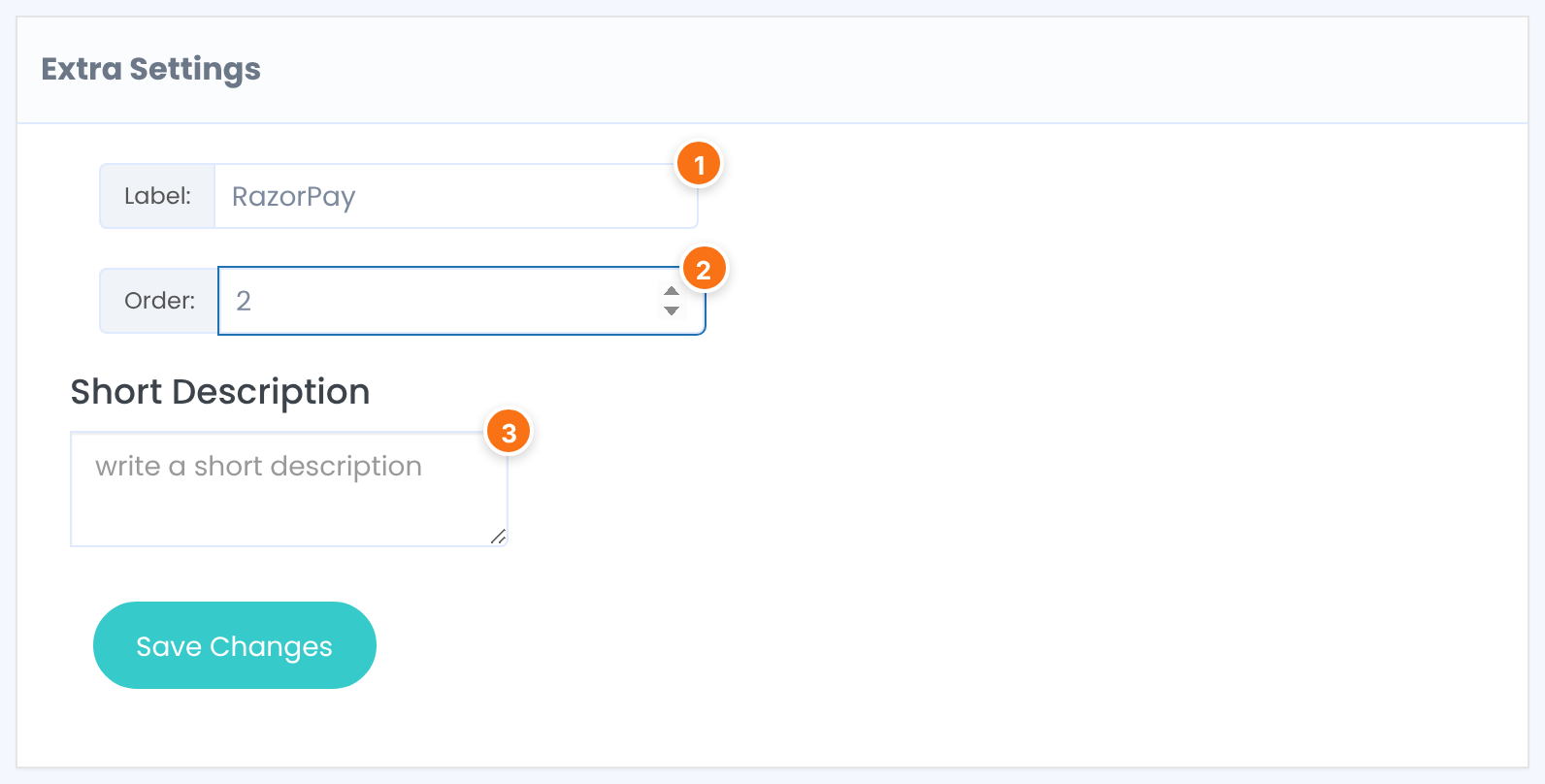
The gateway name members see when they choose how to pay. You can change it, for example to “Razorpay (cards, UPI)”.
Default: RazorPay
The position of Razorpay in the list of payment methods at checkout. Lower numbers come first.
Optional text about the gateway, saved with its settings.
After a one-time payment, members return to the Thank You Page set under Ultimate Membership Pro›Settings›Pages Setup (or your home page if none is set).
Test a payment
- Paste your Razorpay test keys (rzp_test_…) and save.
- Log out, or use a private browser window, and buy your Membership with Razorpay as the payment method.
- On the Razorpay page, pay with the test card shown on the settings screen under “Test Credentials (only on Test Mode)”: card number 5267318187975449, the expiry date shown there, CVV 123.
- Check Ultimate Membership Pro›Payment History: the order should be Completed and the member’s Membership active.
- When everything works, replace the test keys with your live keys and save.
Opening the webhook URL in a browser shows “No Payments details sent. Come later”. That means the URL is reachable; Razorpay’s own requests carry the payment details.
Limits
- The Standard add-on takes one-time payments only. For a Recurring Subscription Membership, activate Razorpay Pro.
- Free trials aren’t supported.
- With Razorpay Pro, an On Going plan is created in Razorpay for a set number of payments: 90 daily, 52 weekly, 24 monthly or 15 yearly payments.
- The Razorpay subscription page is valid for 24 hours. A member who opens it later has to start the purchase again.
- Make refunds in your Razorpay Dashboard, then update the order and the member in Ultimate Membership Pro.
Before you go live
- Run one test purchase for each kind of Membership you sell (one-time and recurring).
- Want to offer cards and bank transfers side by side? See Let members choose a payment method.
Example: monthly plan with Razorpay Pro
- Add-ons
- Razorpay and Razorpay Pro, both active
- Activate RazorPay Payment Service
- On
- Key Id / Secret Key
- rzp_live_… key pair from the Razorpay Dashboard
- Webhook URL
- https://yoursite.com/?ihc_action=ump_rzr
- Active Events
- payment_link.paid, payment_link.cancelled, payment.failed, subscription.charged, subscription.cancelled
- Label: / Order:
- RazorPay / 2
- Membership
- Pro Monthly, Recurring Subscription, 1 Months, no trial
Troubleshooting
Why doesn’t Razorpay show up at checkout?
Razorpay appears only when Activate RazorPay Payment Service is on and both Key Id and Secret Key are filled in. Save the screen and check the Razorpay card on Payment Gateways. If your Membership allows only some payment methods, check that too. See Allow only some payment methods for a Membership.
I clicked to pay but stayed on my site. What’s wrong?
Ultimate Membership Pro couldn’t create the Razorpay payment page. Check that the Key Id and Secret Key are a matching pair from the same mode (test or live), and that your Razorpay account accepts your site currency. For a Recurring Subscription Membership, Razorpay Pro must be active.
The member paid but the Membership is still not active. Why?
Your site didn’t receive the payment notification. Check the webhook in Razorpay: the URL must be https://yoursite.com/?ihc_action=ump_rzr with your domain, and payment_link.paid (and subscription.charged for Razorpay Pro) must be ticked under Active Events.
Do I need to create plans in Razorpay for recurring Memberships?
No. Razorpay Pro creates the plan in your Razorpay account the first time someone buys the Membership, and reuses it afterwards.
Can members cancel a Razorpay subscription themselves?
Yes, with Razorpay Pro. Members cancel from the Member Portal, and the subscription is cancelled in Razorpay too.


