
In Ultimate Membership Pro, the Wire Transfer gateway lets members pay for a Membership by bank transfer instead of by card. The member places the order, sees your bank details, and sends the money from their bank; you check your bank account and confirm the payment, which activates the Membership.
This guide covers the Wire Transfer settings, the payment instructions and their tags, what the member sees, and how to confirm a payment in Payment History.
Before you start
- You have a paid Membership, for example Pro Monthly at $19/month. See Create your first Membership.
- A Thank You Page is selected under Ultimate Membership Pro›Settings›Pages Setup and contains the
[ihc-thank-you-page]shortcode. The plugin creates it on activation. See Set up the membership pages. - You have the bank details members should pay to (account name, IBAN, BIC/SWIFT or your local equivalent).
- No provider account, API key or webhook is needed: Wire Transfer works entirely inside your site.
How a bank transfer payment works
1. Member orders
- At checkout
- Picks Wire Transfer and sees “Wire Transfer details will be shown after payment complete”
- Order status
- Pending
2. Member pays
- Instructions
- Shown on your Thank You Page right after checkout
- Wire Transfer Payment Details, if active
3. You confirm
- Where
- Payment History
- Action
- Make Completed
4. Access starts
- Order status
- Completed
- Membership
- Active from the moment you confirm
What Wire Transfer supports
Yes. Best for LifeTime, Limited Time and Date Range Memberships.
No automatic renewal charges. Nothing is collected from the member when a recurring Membership renews.
Any. The amount uses the currency set under Ultimate Membership Pro›Settings›Payment Settings.
Yes. The member’s instructions show the discounted amount.
On your site. The member is never sent to an outside payment page.
Manual. You mark each payment as completed after the money arrives.
Open the Wire Transfer gateway
- Go to Ultimate Membership Pro›Payment Gateways.
- On the Wire Transfer card, click Complete setup (or Manage if it’s already active).
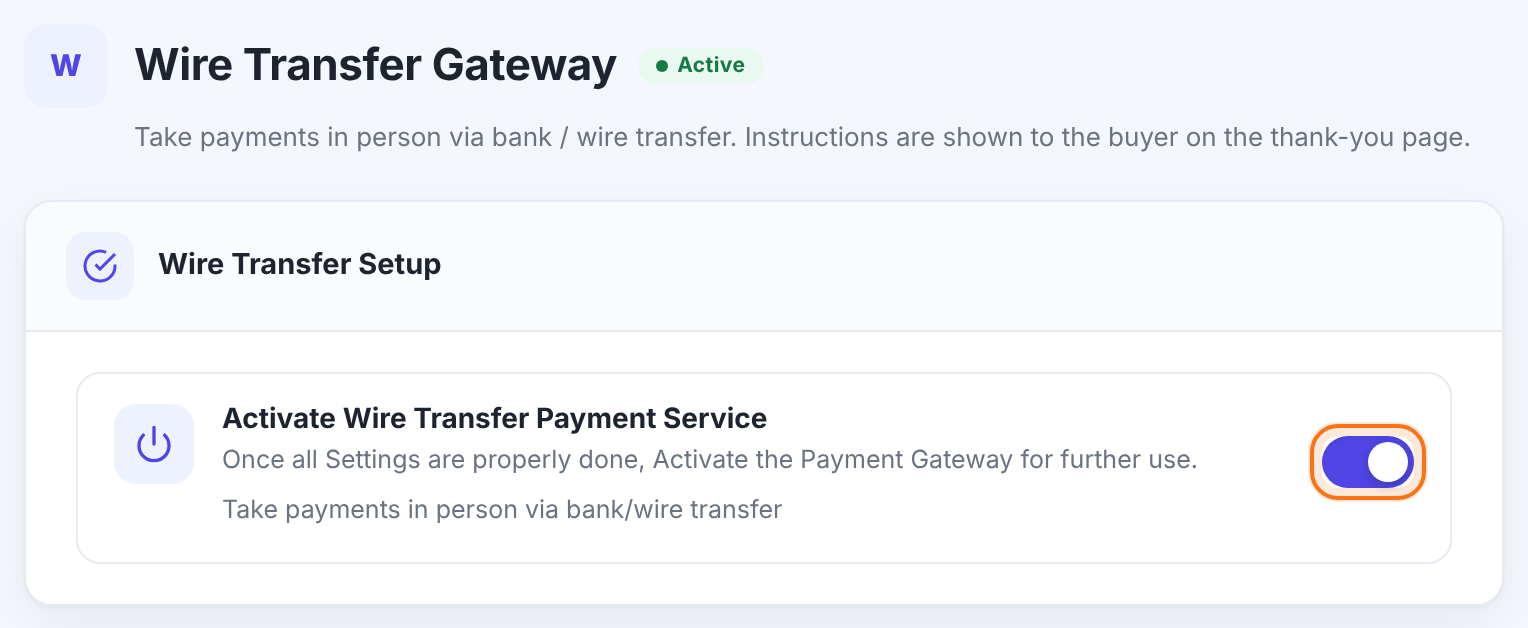
Turns the gateway on or off. Fill in Payment Instructions too: with that field empty, Wire Transfer counts as Inactive and members have nothing to pay by. The badge next to the screen title shows Active or Inactive.
Default: On
Write the payment instructions
In the Wire Transfer Settings card, replace the sample text in Payment Instructions with your own bank details. The tags listed under the editor show which values you can insert. Type a tag into the text; each tag is replaced with the member’s real data.
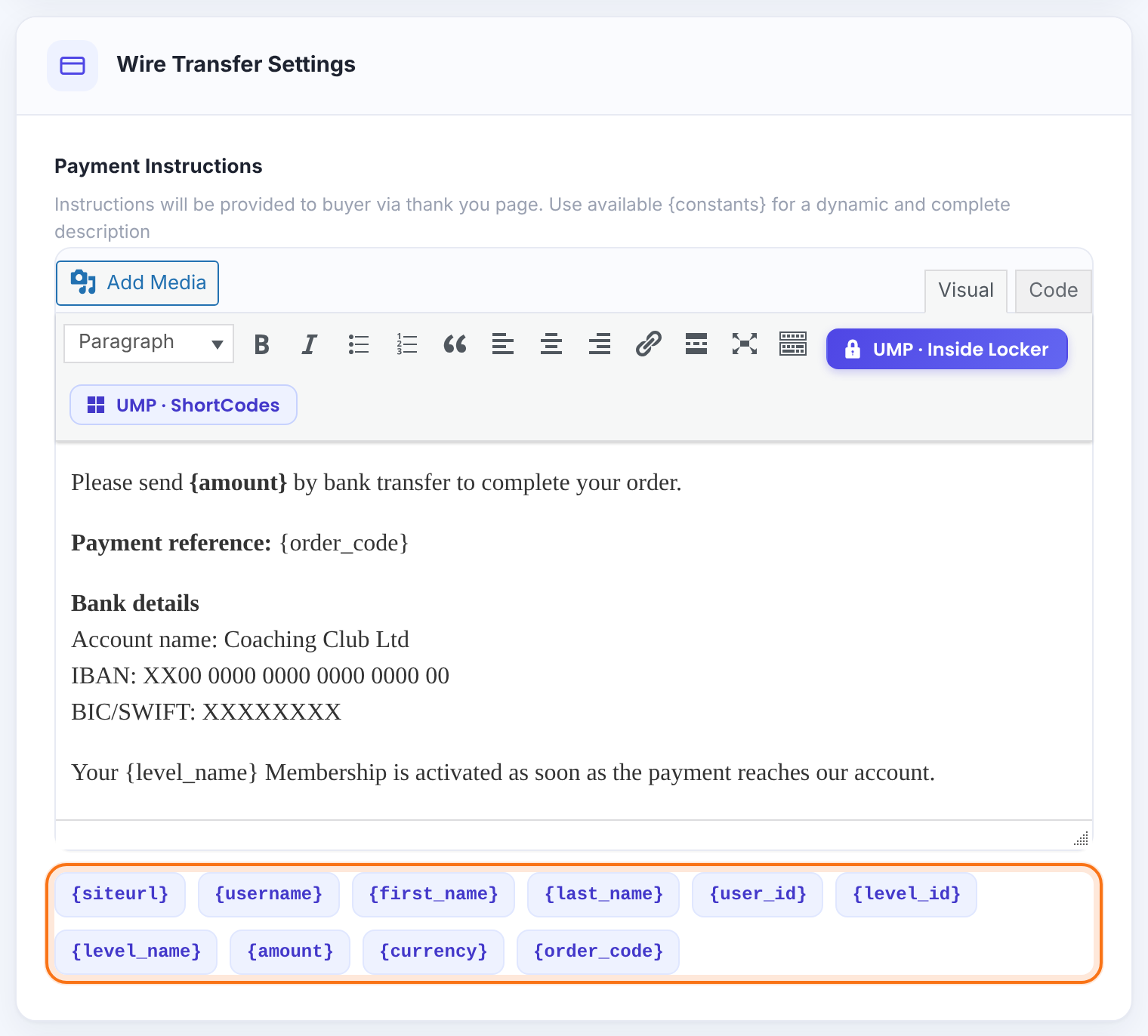
The text the member sees on the Thank You Page after placing the order. It’s a full editor, so you can use bold text, line breaks and links. The default text contains a placeholder IBAN (IBAN:xxxxxxxxxxxxxxxxxxxx) and “Bank NAME”: replace them before you go live.
Tags you can use
The order total with its currency code, formatted as in Payment Settings, for example 19.00USD. Includes discounts and taxes.
The order code shown in Payment History, for example IUMP000012. The best payment reference: ask members to put it in the transfer description.
The Membership name, for example Pro Monthly.
The member’s username and name.
The member ID and the Membership ID. The default text combines them as {user_id}_{level_id}, another way to build a unique reference.
Set how Wire Transfer appears at checkout
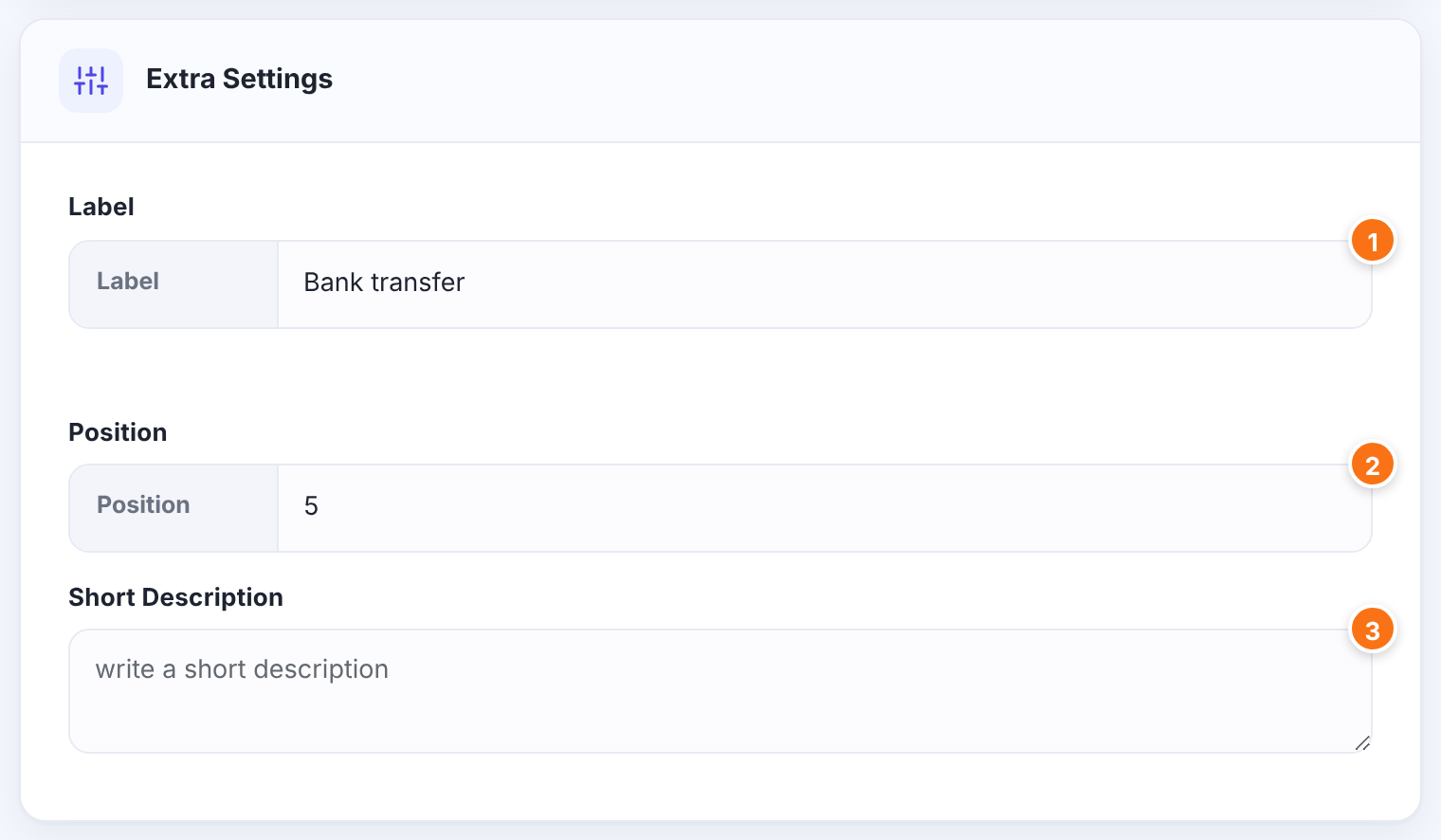
The gateway name members see when they choose how to pay, and the name shown in Payment History.
Default: Wire Transfer
The order of this gateway in the list of payment methods at checkout. Lower numbers appear first.
Default: 5
Optional text about the gateway, saved with its settings.
Click Save Changes in the bar at the bottom of the screen.
Send the instructions by email
The instructions appear on the Thank You Page right after checkout, in the browser the member used to pay. If the member closes the page or comes back later, they don’t see them again. An email gives them a copy they can keep.
- Go to Ultimate Membership Pro›Email Notifications.
- Look for the notification Wire Transfer Payment Details. If it isn’t there, click Add notification and pick it in When should this notification be sent?
- Put your bank details in the email text. The email has its own text: it doesn’t copy Payment Instructions, and the default contains placeholder bank details (IBAN xxxx xxxx xxxx xxxx, Bank NAME).
- Save it and make sure its status is Active.
The email goes out as soon as the order is placed. In the email, {currency}{amount} prints the currency code followed by the plain amount, for example USD19.00, and {order_code} works here too. See Set up email notifications.
Check what the member sees
At checkout, the member picks Wire Transfer (or your Label) and completes the order. Ultimate Membership Pro creates the order with the status Pending and sends the member to the Thank You Page, where your instructions appear under the thank-you message:
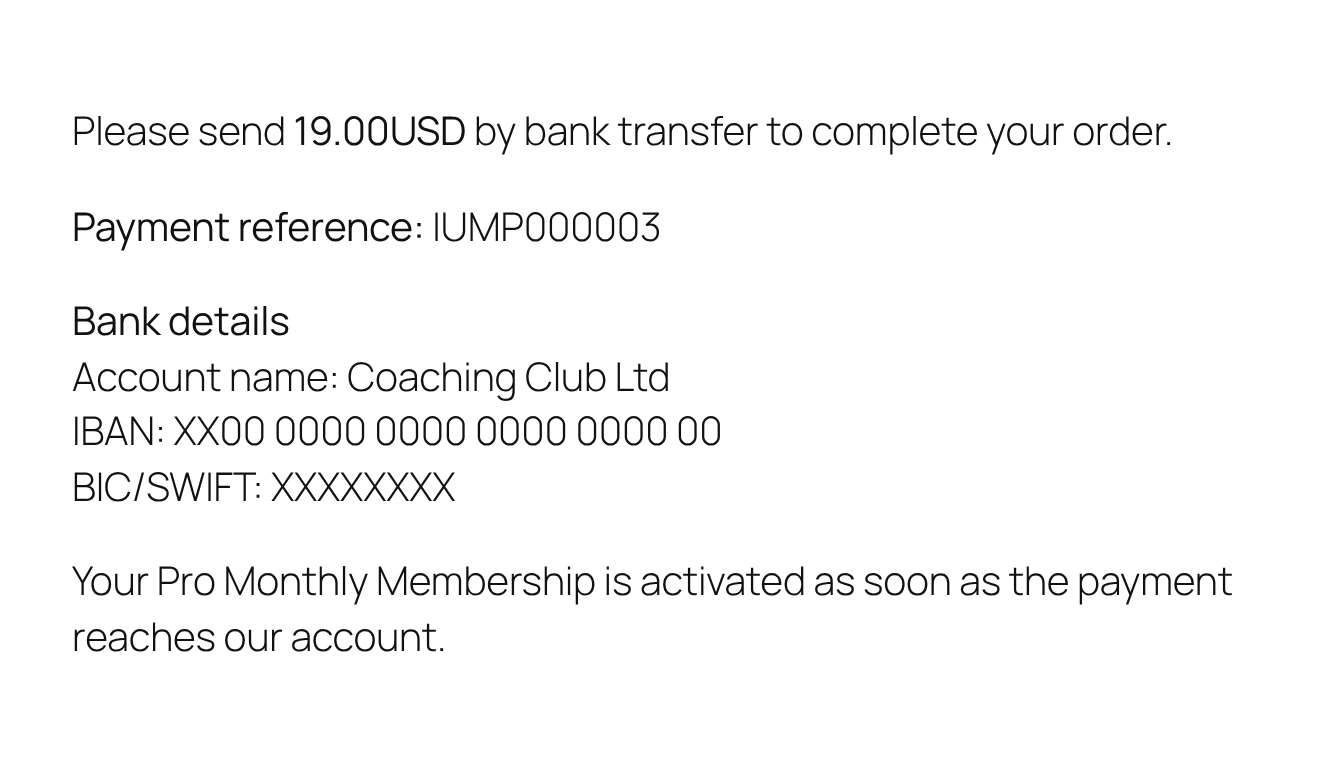
Until you confirm the payment, the Membership isn’t active and the member doesn’t get access. In the Member Portal it’s listed with the status Hold.
Confirm the payment
When the money reaches your bank account, find the order: go to Ultimate Membership Pro›Payment History and click the Pending status filter. Match the order by the order code or amount in the transfer description.

Use one of these three actions:
In the Action column of a Pending order. One click completes the order; there’s no confirmation step. Only Pending orders have this icon.
Tick several orders, choose Change Status to Completed in Bulk Actions, click Apply, then confirm. Orders that are already completed are skipped.
Opens Edit Order. Set Payment Status: to Completed and click Save Changes. Use it for an order marked Failed or Error, which has no tick icon.

Completing the order activates the Membership: its start and expiry dates count from the moment you confirm. The member gets the email Payment confirmation received – Order Completed if that notification is active.
Limits
- Nothing is confirmed automatically. A Pending order stays Pending until you complete it, and the member has no access in the meantime.
- Recurring Memberships don’t renew by bank transfer: nothing is charged when they come up for renewal. For monthly or yearly plans, offer a card gateway too.
- A refund or a cancelled transfer isn’t detected either. To take access back, edit the order and set its Payment Status to Refund.
Make transfers easy to match
- Put
{order_code}in the instructions and ask members to use it as the transfer reference. - Offer Wire Transfer next to a card gateway so members can choose. See Let members choose a payment method.
Example: invoices for company members
- Activate Wire Transfer Payment Service
- On
- Payment Instructions
- Amount {amount}, reference {order_code}, account name Coaching Club Ltd, IBAN and BIC
- Label
- Bank transfer
- Position
- 5
- Email notification
- Wire Transfer Payment Details, Active, with the same bank details
- Confirming
- Payment History › Pending › Make Completed once the money arrives
Troubleshooting
Why doesn’t Wire Transfer show up at checkout?
Wire Transfer only appears when Activate Wire Transfer Payment Service is on and Payment Instructions contains text. Check both and click Save Changes. If your Membership allows only some payment methods, check that too. See Allow only some payment methods for a Membership.
The member says they never saw the bank details. What happened?
The instructions appear once, on the Thank You Page right after checkout, in the browser used to pay. They aren’t shown again later or on another device. Turn on the Wire Transfer Payment Details email so every member receives a copy, and check that a Thank You Page with the [ihc-thank-you-page] shortcode is set under Settings › Pages Setup.
I got the money. How do I activate the member’s Membership?
Go to Ultimate Membership Pro › Payment History, filter by Pending and click the Make Completed tick icon on the order. The order becomes Completed and the Membership becomes active.
There’s no tick icon on the order. How do I complete it?
The Make Completed icon only appears on Pending orders. For an order marked Failed or Error, click the Edit icon, set Payment Status: to Completed and click Save Changes.
Where is the “Add New” link from the old instructions?
It no longer exists. Confirm a bank transfer with the Make Completed icon, the Change Status to Completed bulk action, or Edit Order. The Add manual payment button at the top of Payment History creates a new order; it doesn’t confirm an existing one.
The member didn’t get the bank transfer email. Why?
Check that Wire Transfer Payment Details exists and is active under Email Notifications, and that your site can send email. See Emails are not sent.


