
PayPal Standard is the simplest way to take PayPal payments in Ultimate Membership Pro: members click Pay, finish the payment on PayPal’s own page, and come back to your site. PayPal then sends your site an Instant Payment Notification (IPN), and that notification activates the Membership.
This guide sets up the gateway for the Coaching Club site, adds the IPN address, picks the language of the PayPal page, and runs a test payment in the PayPal sandbox.
Before you start
- You have a PayPal Business account. For testing you also need a PayPal developer account with a sandbox Merchant (business) account and a sandbox Buyer (personal) account.
- Your site currency is one your PayPal account accepts. You set it under Ultimate Membership Pro›Settings›Payment Settings. See Set your currency.
- You have a paid Membership, for example Pro Monthly at $19/month. See Create your first Membership.
- Your site is reachable from the internet. PayPal confirms payments by calling your site, so a local site that only you can open never receives them.
What PayPal Standard supports
Payments
- One-time
- Yes: LifeTime, Limited Time and Date Range Memberships
- Recurring
- Yes: Recurring Subscription Memberships, as a PayPal subscription
- Checkout
- Redirect to PayPal’s payment page
Billing rules
- Cycles
- 1 to 90 days, 1 to 52 weeks, 1 to 24 months or 1 to 5 years
- Trials
- Free or paid, as one trial period
- Limited billing
- Max no of Periods from 2 to 52
Coupons work on one-time and recurring Memberships, on the first payment or on every payment. The currency sent to PayPal is your site currency; PayPal Standard has no currency setting of its own.
Open the PayPal settings
- Go to Ultimate Membership Pro›Payment Gateways.
- Find PayPal and click Complete setup. Once the gateway is active, the button reads Manage.

The settings page is called PayPal Standard Gateway and has three cards: PayPal Standard Setup, PayPal Standard Settings and Extra Settings. Nothing is saved until you click Save Changes at the bottom of the page.
Turn on the gateway
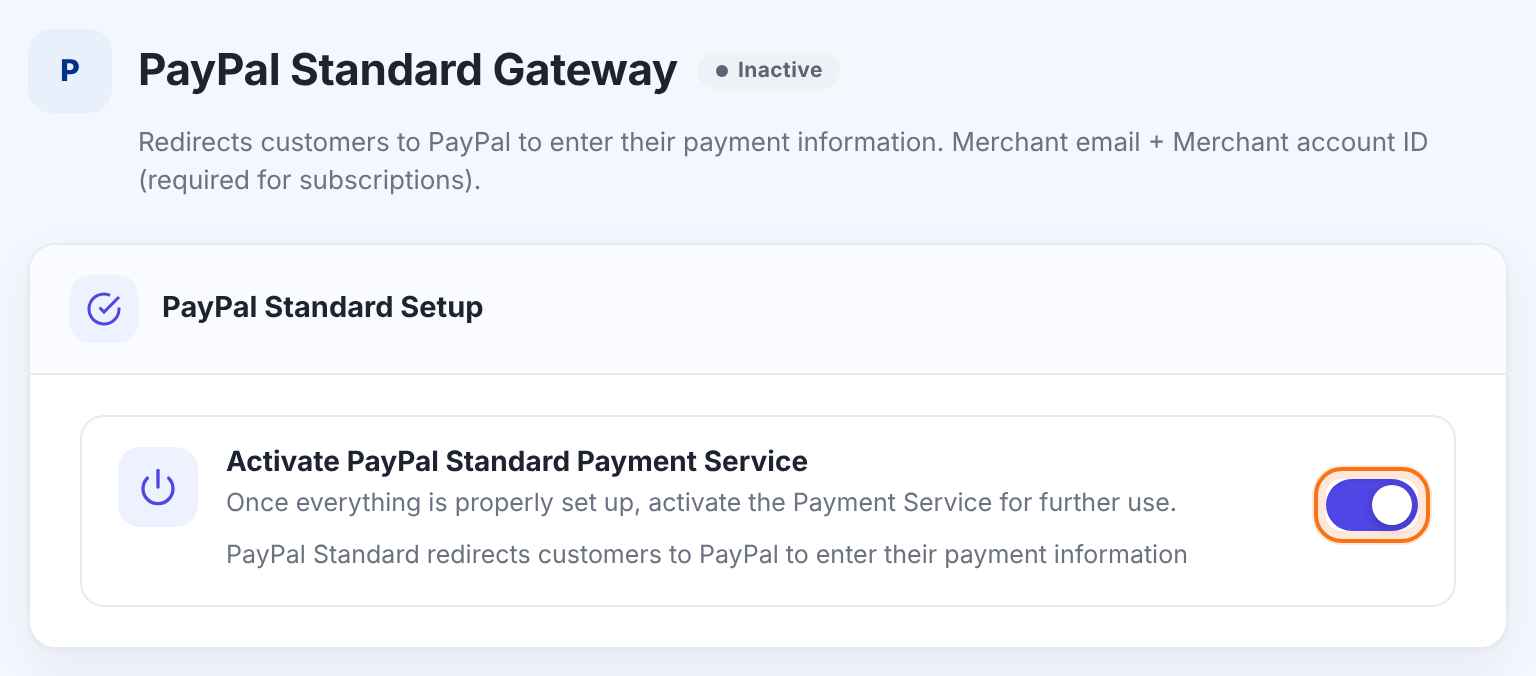
Makes PayPal available at checkout. PayPal is offered to members only when this is on and PayPal Merchant Email is filled in.
Default: Off
Enter your PayPal account details
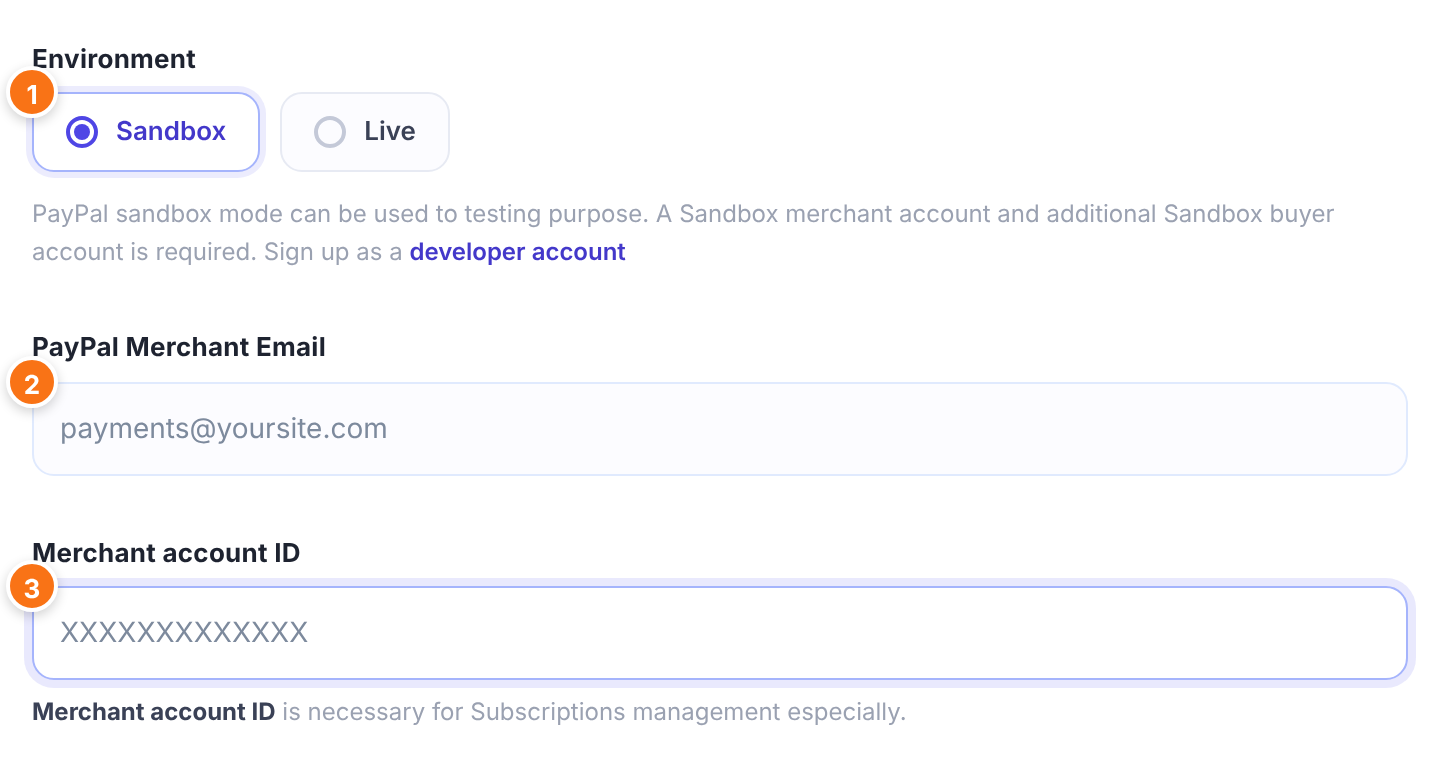
Sandbox sends members to PayPal’s test site (sandbox.paypal.com), where no real money moves. Live takes real payments. Your site checks every payment notification with PayPal in the selected environment, so a sandbox payment is only confirmed while Sandbox is selected, and a live payment only while Live is selected.
- Sandbox: for testing with sandbox accounts from developer.paypal.com.
- Live: for real payments.
Default: Live
The email address of the PayPal account that receives the money: your sandbox Merchant account’s email while testing, your live PayPal email afterwards. Paste it without spaces before or after.
Your PayPal Merchant ID, found in PayPal under Account Settings › Business information › PayPal Merchant ID. The screen notes it’s needed for subscription management: it helps send members to the right PayPal page when they cancel a recurring Membership from your site. Fill it in if you sell Recurring Subscription Memberships.
When you switch the Environment, the instructions below it change too: one set for a live PayPal account, one for the sandbox.
Add the IPN address in PayPal
The card shows the address PayPal must call to confirm payments, under the title Webhook URL. It is always your site address followed by:
https://yoursite.com/?ihc_action=paypal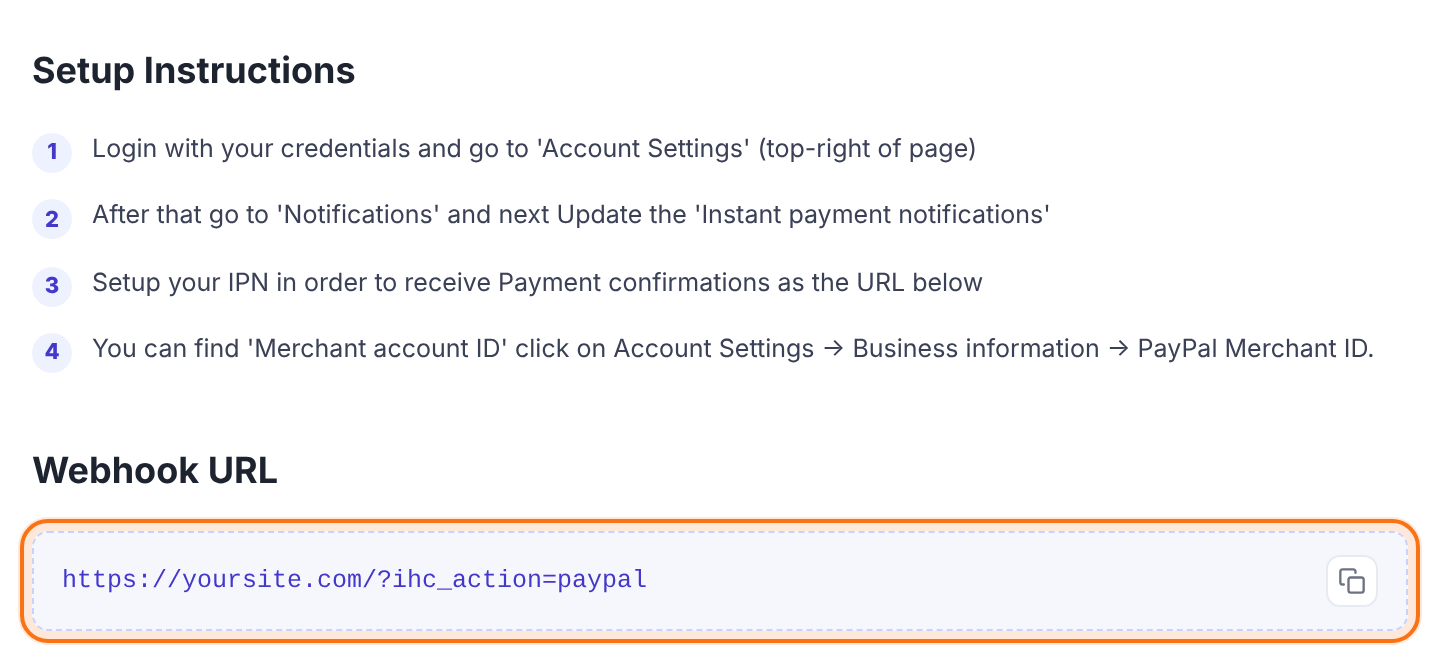
Then follow the steps on the screen in your PayPal account:
- Log in to PayPal (for testing: sandbox.paypal.com with your sandbox Merchant account) and open Account Settings at the top right.
- Live account: go to Notifications and click Update next to Instant payment notifications. Sandbox account: go to Website payments › Instant payment notifications.
- Turn on IPN messages and paste the Webhook URL as the notification URL. Save.
Ultimate Membership Pro also sends this same address to PayPal with every payment and subscription, so PayPal knows where to report it. The address must stay publicly reachable: no password protection, maintenance mode or firewall rule in front of it. Open it in a browser to check: it shows “No Payments details sent. Come later”, which means it’s reachable.
Choose the PayPal page language and return pages
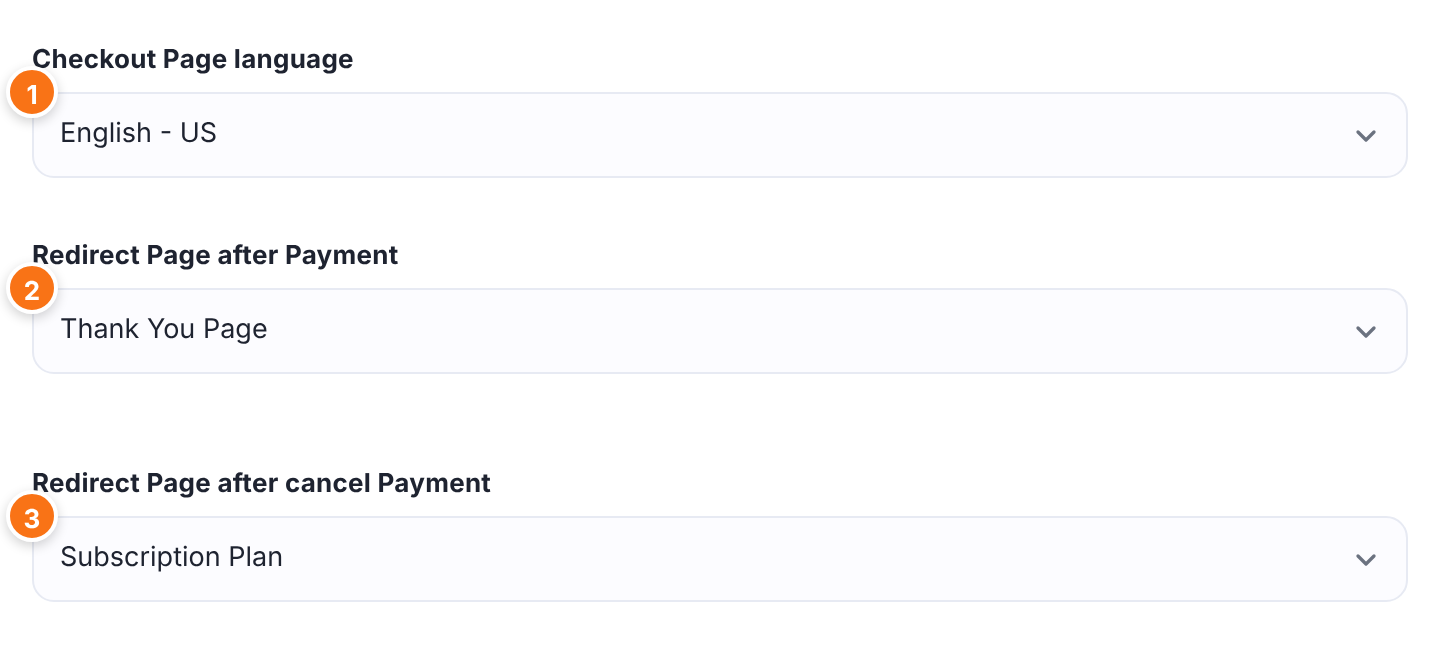
The language PayPal should use on its payment page for your buyers. Ultimate Membership Pro sends it to PayPal as a locale code (en_US for English – US). PayPal treats it as a preference, so its page may still appear in another language.
- Choices: English – US (en_US, the default), Arabic – Egipt, France – Algeria, English – Australia, German – Germany, Dutch – Netherlands, French – France, Portuguese – Brazil, French – Canada, Chinese – China, Danish – Denmark, Russian – Russia, English – Grand Britain, Indonesian – Indonesia, Hebrew – Israel, Italian – Italy, Japanese – Japan, Norwegian – Norway, Polish – Poland, Portuguese – Portugal, Swedish – Sweden, Chinese – Taiwan, Thai – Thailand, Spanish – Spain.
Default: English – US
The page members return to after paying on PayPal. Leave … to use your Thank You page (set under Ultimate Membership Pro›Settings›Pages Setup). Returning to this page doesn’t activate the Membership; the IPN does.
Default: …
The page members return to when they cancel on PayPal’s page instead of paying. Leave … to send them to your home page.
Default: …
Set how PayPal appears at checkout
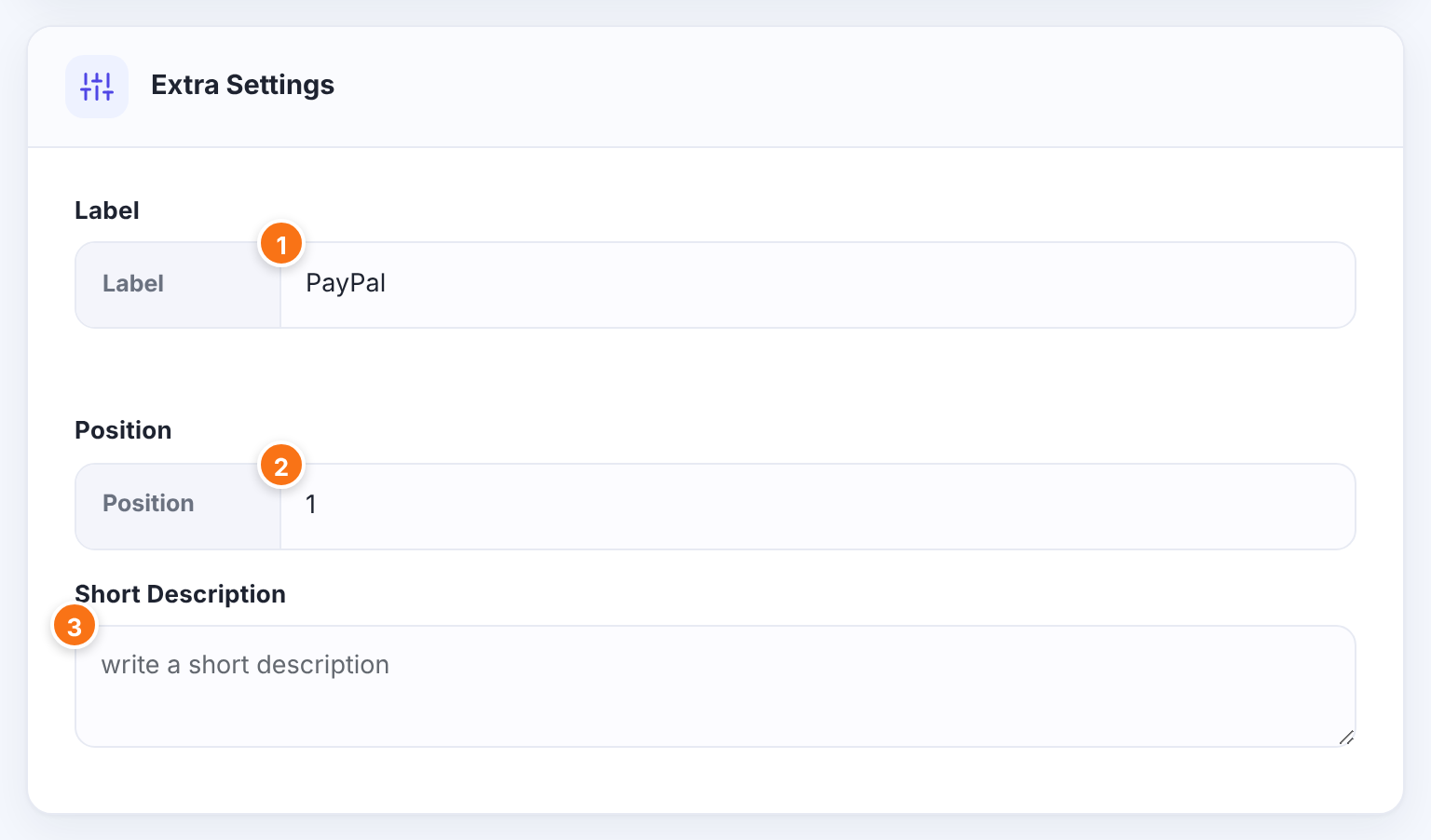
The name of this payment method that members see at checkout. It is also shown as the payment method in Payment History.
Default: PayPal
The order of this gateway among the payment methods at checkout. Lower numbers come first.
Default: 1
Optional text about the gateway, saved with its settings.
Click Save Changes. Back on Payment Gateways, PayPal now shows Sandbox or Live and a Manage button.
Test a payment in the sandbox
- With Environment set to Sandbox and your sandbox Merchant email saved, open your site in a private window and buy Pro Monthly.
- Choose PayPal at checkout. You land on PayPal’s sandbox page. Log in with your sandbox Buyer account and pay.
- You return to the Redirect Page after Payment.
- In Ultimate Membership Pro›Payment History, the order changes from Pending to Completed once the IPN arrives, and the member’s Membership becomes active.
When the test works, switch Environment to Live, replace the email with your live PayPal email, add the IPN address in your live PayPal account, and save.
Limits to know
- Billing cycles can be up to 90 days, 52 weeks, 24 months or 5 years.
- A limited plan is billed 2 to 52 times (Max no of Periods).
- A trial is always one period. A trial set as a number of billing cycles becomes one trial period of the same total length.
- The PayPal page language can only be one of the 24 choices in Checkout Page language.
- Members finish the payment on PayPal’s site. Whether they can pay by card without a PayPal account depends on your PayPal account settings and on your and the buyer’s country.
Keep test and live apart
Sandbox payments are not real. Delete test orders and test members before you switch to Live, and make your first live purchase yourself to confirm the IPN reaches your site.
Example: Coaching Club on PayPal
- Environment
- Sandbox for testing, then Live
- PayPal Merchant Email
- payments@yoursite.com
- IPN address in PayPal
https://yoursite.com/?ihc_action=paypal- Checkout Page language
- English – US
- Redirect Page after Payment
- Thank You Page
- Redirect Page after cancel Payment
- Subscription Plan
- Membership
- Pro Monthly, Recurring Subscription, 1 Months, $19
Troubleshooting
Why is the order still Pending after a member paid with PayPal?
PayPal’s notification didn’t reach your site or wasn’t confirmed. Check that Environment matches where the member paid, that the IPN address is reachable, and that cURL is enabled on your server. See Paid, but the Membership is still on hold.
How do I show the PayPal checkout page in another language?
Pick the language in Checkout Page language on the PayPal Standard Gateway page and save. You don’t need to edit any plugin file.
Why don’t members see a credit card option on PayPal?
That depends on your PayPal account, not on Ultimate Membership Pro. See PayPal doesn’t show the credit card option.
What does the notice “Curl is disabled.” mean?
Your server can’t make the outgoing connection that confirms each PayPal notification. Ask your hosting provider to enable the PHP cURL extension.
How do members cancel a PayPal subscription?
From the Member Portal. They are sent to PayPal to stop the automatic payments, and the Membership is cancelled on your site when PayPal reports the cancellation. See Set up the Member Portal.
Why does the Webhook URL show “No Payments details sent. Come later” in my browser?
That’s expected. The address only acts when PayPal sends a payment notification to it; in a browser it shows this message, which also proves it’s reachable.


