
The Ultimate Membership Pro thank you page is where members land after they complete a purchase. It confirms the order with live details such as the member’s name, the Membership, the amount and the order code, and for bank transfers it adds your payment instructions.
This guide checks which page is used, writes the message with its tags, sets the fallback text, and shows what members see.
Before you start
- Your checkout page is set up and at least one payment gateway is active. See Configure the checkout page.
- You have a paid Membership, for example Pro Monthly at $19/month. See Create your first Membership.
When members see it
With Stripe Connect, Wire Transfer and the other gateways that take the payment on your checkout page, the member goes to the thank you page right after Complete Purchase.
With PayPal, Stripe Checkout, Mollie and similar gateways, the provider sends the member back to the thank you page after paying.
Stripe Connect, Stripe Checkout, PayPal Standard, PayPal Express Checkout, Mollie and 2Checkout also have their own return or success page setting. When you fill it in, members of that gateway land on that page instead.
The message is filled in from the order just placed. It’s shown in the browser the member paid with, for one hour after the order. Opened later, on another device or directly, the page shows the fallback message instead.
Check the thank you page
Ultimate Membership Pro creates a page named Thank You Page with the [ihc-thank-you-page] shortcode when you activate it. Make sure it’s selected:
- Go to Ultimate Membership Pro›Settings›Pages Setup.
- In Thank You Page, pick the page that contains the
[ihc-thank-you-page]shortcode, then click Save Changes.
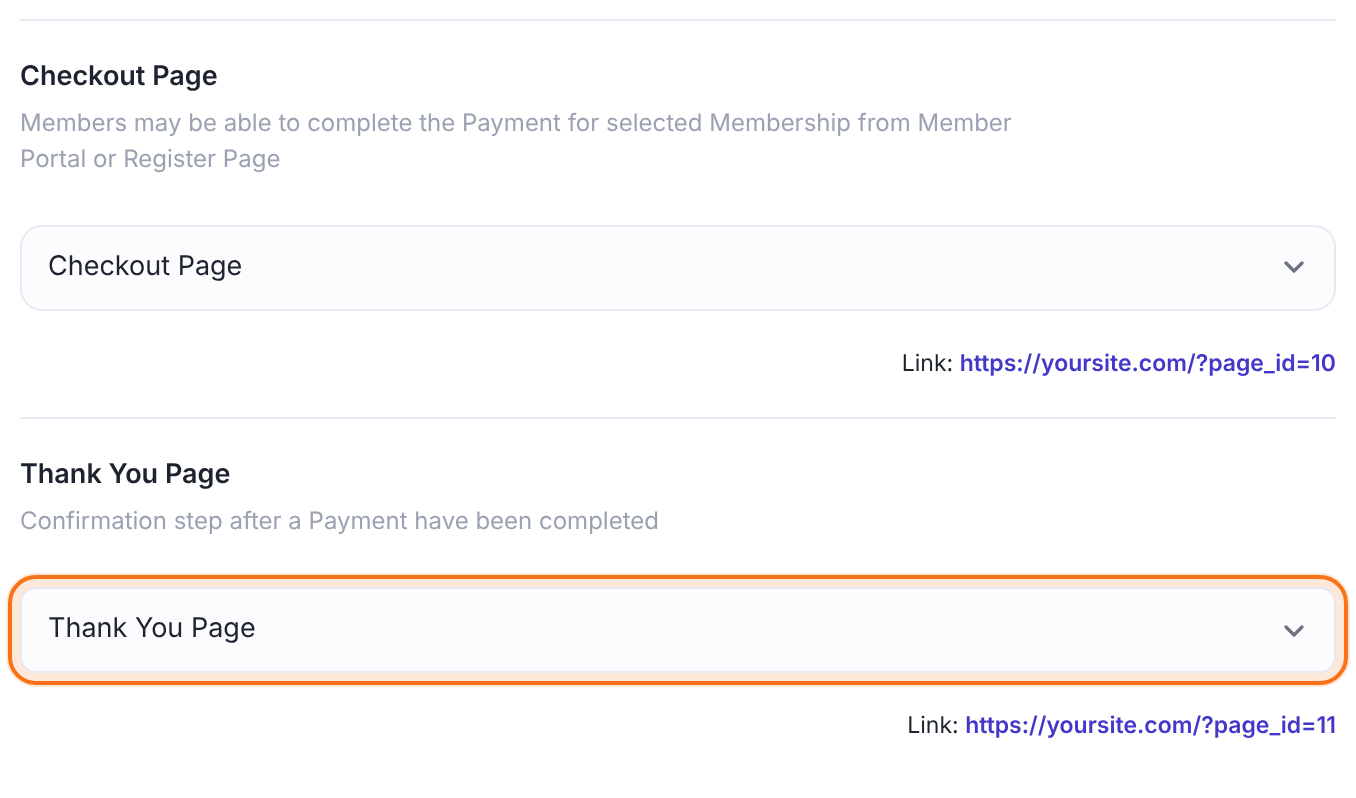
The page members land on after paying. Keep a page selected: without one, members don’t get a confirmation page. The shortcode works on any page, so you can design the page around it: add images, links to your courses or a contact line.
Default: Thank You Page (created on activation)
Open the Thank You Page settings
- Go to Ultimate Membership Pro›Showcases and click Thank You Page. It has no entry of its own in the menu.
Write the thank you message
The Thank You Message card holds a full editor. Replace the default text with your own and insert tags where the order details should go. The Embed the Thank You page strip above it shows the shortcode with a Copy button.
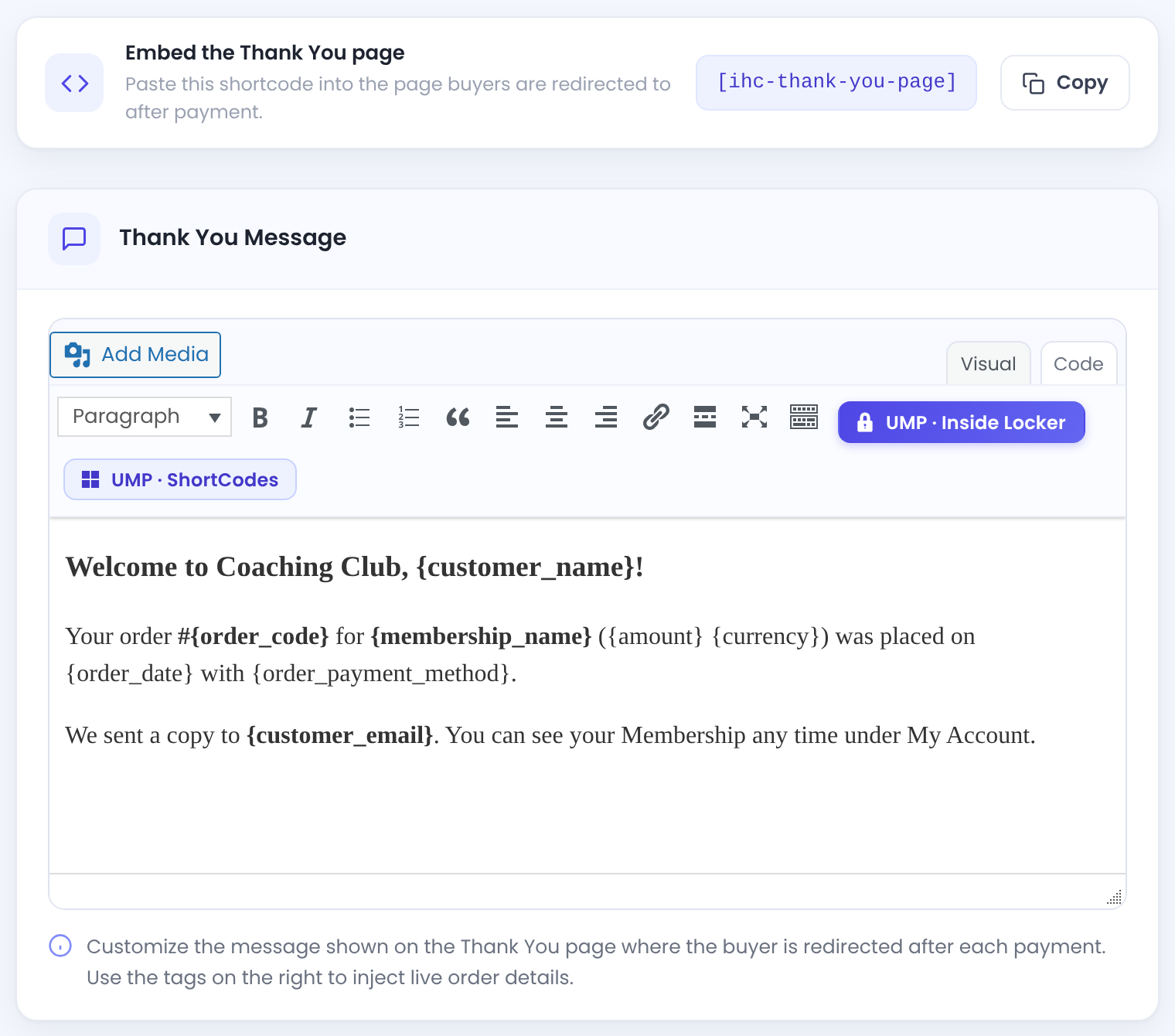
The text of the thank you page. You can use headings, bold text, links and images. The default text thanks the member, confirms the payment ({amount}{currency}) through {order_payment_method} for {membership_name}, and gives the order code and email address.
Tags you can use
The Template Tags card lists the tags. Click a tag to insert it at the cursor in the message.
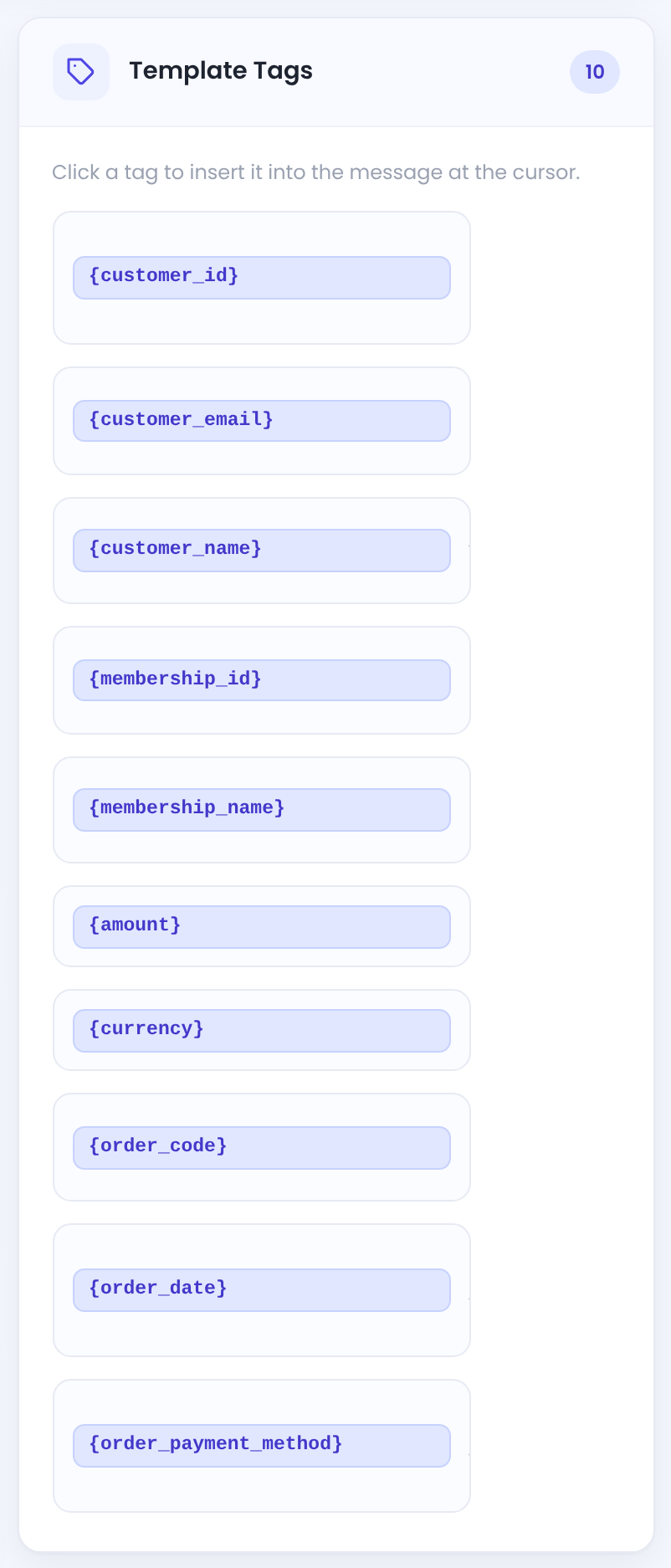
Buyer full name, for example Liam Novak.
Buyer email address.
Buyer / member ID.
Purchased membership name (for example Pro Monthly) and ID.
Amount paid, as a plain number, for example 19.00.
Currency code, for example USD. Nothing is added between the two tags, so the default {amount}{currency} prints 19.00USD. Type a space between them if you prefer 19.00 USD.
Unique order code, the one shown in Payment History, for example IUMP000009.
Date of the order.
Gateway used to pay, with the Label you gave it, for example Credit Card or Bank transfer.
Member tags such as {first_name}, {last_name}, {username} and {blogname} work here too.
Set the fallback message
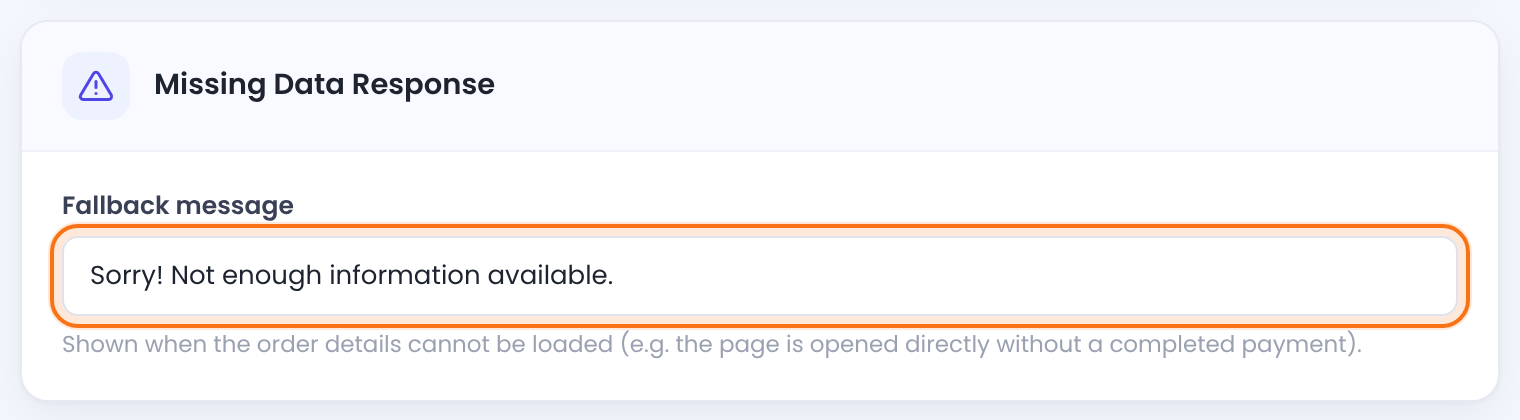
Shown instead of the thank you message when the order details can’t be loaded: the page is opened directly, more than an hour after the order, or in another browser. Write something useful, for example a link to My Account.
Default: Sorry! Not enough information available.
Click Save Changes at the bottom of the screen.
Add your own CSS
CSS rules for the thank you page, for example to change colors, fonts or spacing. See Style forms and pages with CSS.
Default: Empty
Click Save Changes at the bottom of the screen.
What members see
Liam orders Pro Monthly and pays by bank transfer. After Complete Purchase he lands on the thank you page: your message with his order details, followed by the Wire Transfer Payment Instructions:
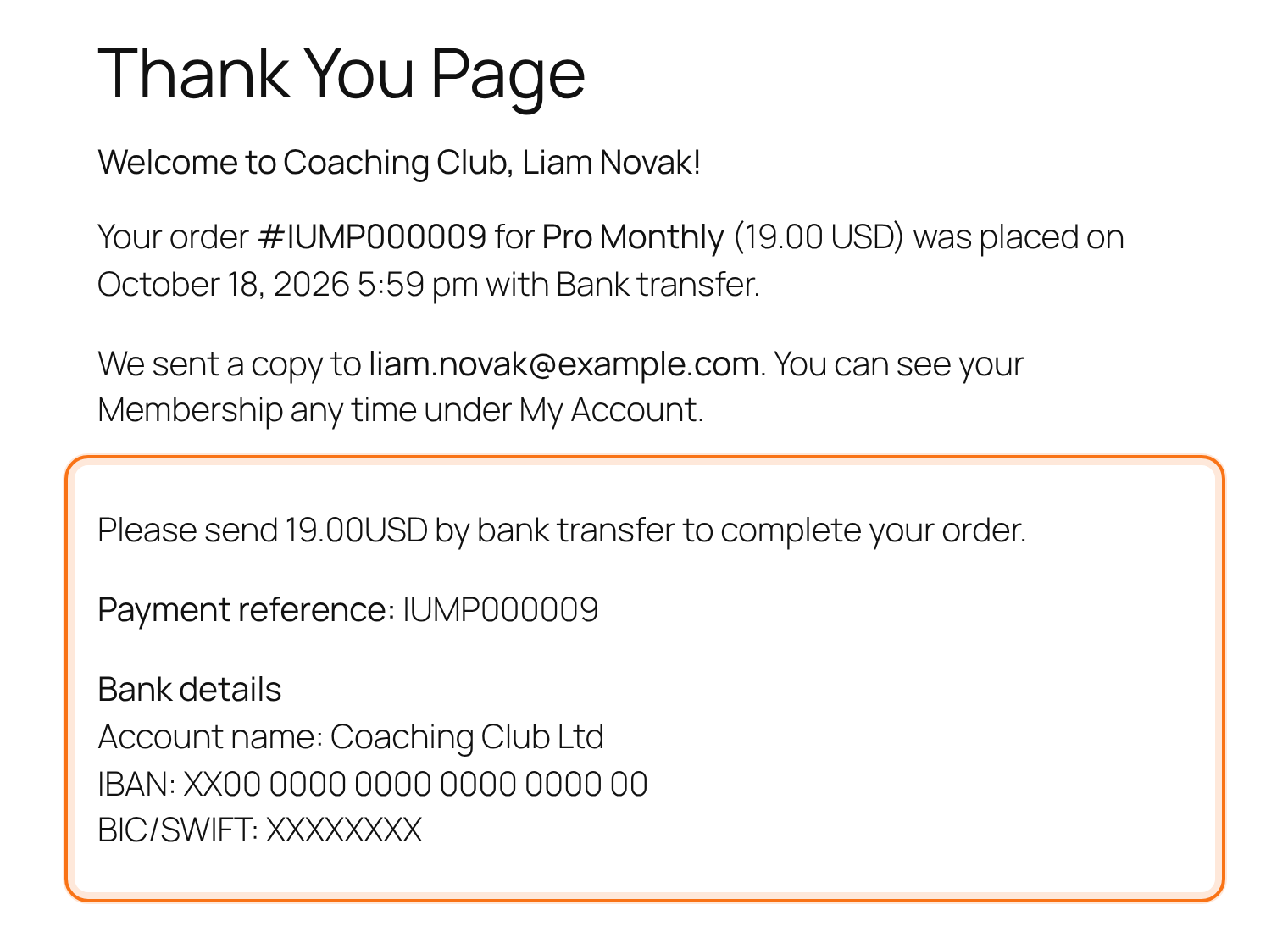
The bank transfer instructions come from Payment Gateways›Wire Transfer and appear only after a Wire Transfer order. See Accept bank transfers.
Opened directly, the same page shows only the fallback message:

Limits
- There’s one message for every Membership and gateway. Keep it general, or use the tags to show what was bought.
- The order details are shown once, right after checkout, in the browser used to pay, for one hour. Send members a copy by email so they can keep it.
Use the email too
- Payment confirmation emails reach members even when they close the page. See Set up email notifications.
Shortcode
[ihc-thank-you-page]Example: the Coaching Club welcome
- Thank You Page
- Thank You Page, with [ihc-thank-you-page]
- Thank You Message
- Welcome to Coaching Club, {customer_name}! Your order #{order_code} for {membership_name} ({amount} {currency}) was placed on {order_date} with {order_payment_method}.
- Fallback message
- Your order is in your account: open My Account to see your Membership.
- Bank transfer
- Wire Transfer Payment Instructions appear below the message
Troubleshooting
Why does my thank you page say “Sorry! Not enough information available.”?
That’s the fallback message. Ultimate Membership Pro shows the order details only in the browser that placed the order, for one hour after checkout. Opening the page directly, later or on another device shows the fallback. Place a test order and look at the page right after Complete Purchase.
Members don’t land on the thank you page after paying. Why?
Check that a page with the [ihc-thank-you-page] shortcode is selected under Settings › Pages Setup › Thank You Page. If the gateway has its own return or success page setting, that page is used instead.
Some tags show up empty. Why?
Use the tags from the Template Tags card and spell them exactly, with curly braces. Tags for member profile fields stay empty when the member hasn’t filled in that field.
The bank details don’t appear on the thank you page. How do I fix it?
They appear only right after a Wire Transfer order and only if Wire Transfer has Payment Instructions. See Accept bank transfers.
Can I show a different thank you message for each Membership?
No. There’s one message for all Memberships. Use {membership_name} to name what was bought.


