
In Ultimate Membership Pro, every showcase (the login and registration forms, the Member Portal, the checkout and more) has a Custom CSS box. The rules you add there load together with that form or page, so you can match it to your brand without editing theme or plugin files.
This guide shows where the Custom CSS boxes are, how to find the class of the element you want to change, and walks through one change from start to finish.
Before you start
- Basic CSS knowledge: selectors and properties.
- A desktop browser with developer tools (Chrome, Firefox, Edge or Safari).
- First pick the template closest to your design in the showcase; see Customize what members see (Showcases).
Where the Custom CSS boxes are
Ultimate Membership Pro›Showcases: Registration Form, Login Form, Subscriptions Plan, Checkout Page, Member Portal, Profile Form, Thank You Page and Members Directory each have a Custom CSS box.
The locker templates have their own Custom CSS box.
Modules with a front-end part have one too, for example Register Lite, Membership Card, Membership Badges, Invoice and List Access Posts.
wp-login.php is styled in Settings › Admin Workflow; see Style the WordPress login page.
Find the class of the element
- Open the page with the form in a private window, logged out. Logged-in users don’t see the login and registration forms.
- Right-click the element you want to change and choose Inspect.
- In the Elements (or Inspector) panel, read the classes of the element and of its wrapper, and the rules already applied to it in the Styles panel.
Wrapper class with the template number, for example .ihc-login-template-11. Rows use .impu-form-line-fr, the button row .impu-form-submit.
.iump-register-form plus the template class, for example .ihc-register-9.
#ihc_account_page_wrapp; the footer is .ihc-user-page-footer.
.ihc-checkout-page-wrapp.
Add the CSS to the showcase
- Go to Ultimate Membership Pro›Showcases›Login Form (or the showcase of your form).
- Scroll to the Custom CSS box and type your rules.
- Click Save Changes.
![Custom CSS card of the Login Form showcase with a code editor holding a rule for .ihc-login-template-11 .impu-form-submit input[type=submit]: background and border color #0f766e, white text, border radius 999px](https://ultimatemembershippro.com/wp-content/uploads/2026/10/ump-custom-css-01-login-custom-css.png)
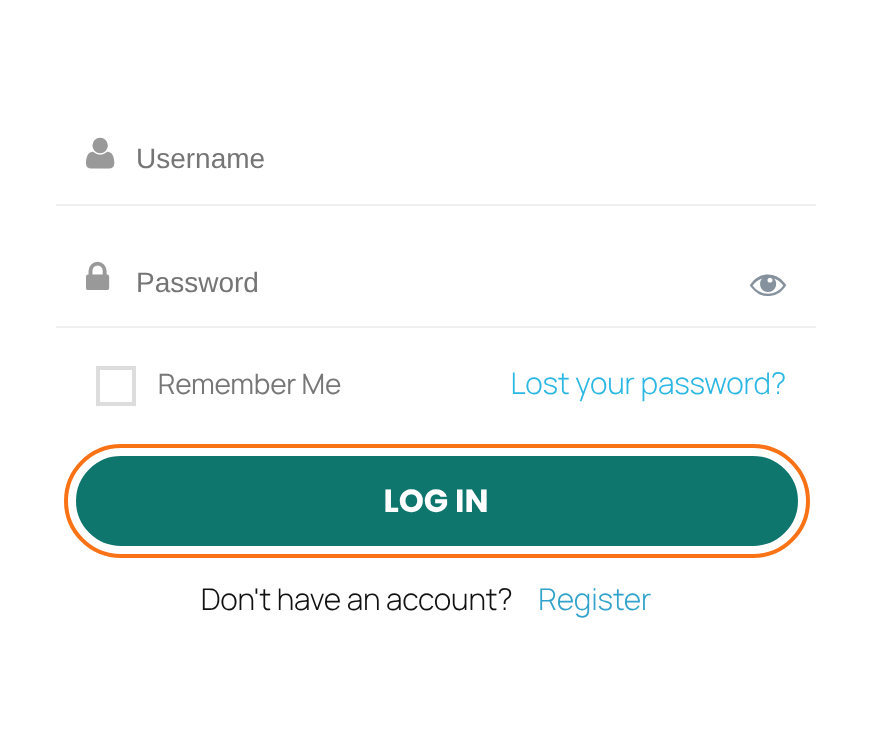
The rule from the example
.ihc-login-template-11 .impu-form-submit input[type=submit] {
  background: #0f766e !important;
  border-color: #0f766e !important;
  color: #fff !important;
  border-radius: 999px !important;
}
Check the result
- Reload the page in the private window.
- If nothing changes, clear your caching or optimization plugin’s cache and look again.
Good to know
- Start every rule with the wrapper class (.ihc-login-template-11, #ihc_account_page_wrapp …) so it only affects that form.
- If the plugin’s own rule wins, make yours more specific, or add !important to that declaration.
- Switching to another template changes the wrapper class. Update your selectors after a template change.
Tip
- CSS that should apply across the whole site belongs in your theme’s Additional CSS; keep form-specific rules in the showcase so they travel with it.
Example: a brand-colored login button
- Showcase
- Login Form, template 11
- Element found with Inspect
- .impu-form-submit input[type=submit]
- Rule
- background and border #0f766e, white text, border-radius 999px
- Saved in
- Login Form › Custom CSS
Troubleshooting
Why does my custom CSS have no effect?
Inspect the element and look for your rule in the Styles panel. Missing: check the selector and that you saved the right showcase. Crossed out: another rule is more specific, so add the wrapper class or !important. Also clear any cache or CSS optimization plugin.
Why do I see the change but my visitors don’t?
A page cache or CDN still serves the old page. Purge it after saving.
Can I edit the plugin’s CSS files instead?
No. Plugin files are replaced on every update, so your changes would be lost. Use the Custom CSS boxes or your theme.


