
Ultimate Membership Pro gives the standard WordPress login page, wp-login.php, its own look: a background image, a white login box and the plugin’s logo. It’s on after you install the plugin. You can switch it off, or keep it and show your own logo.
This guide puts the Coaching Club logo on the WordPress login page.
Before you start
- Your logo is ready as an image of about 300 × 100 pixels or smaller, for example a PNG with a transparent background.
Open the Admin Workflow settings
- Go to Ultimate Membership Pro›Settings›Admin Workflow.
- Find the two login options in the Admin Workflow Settings card.
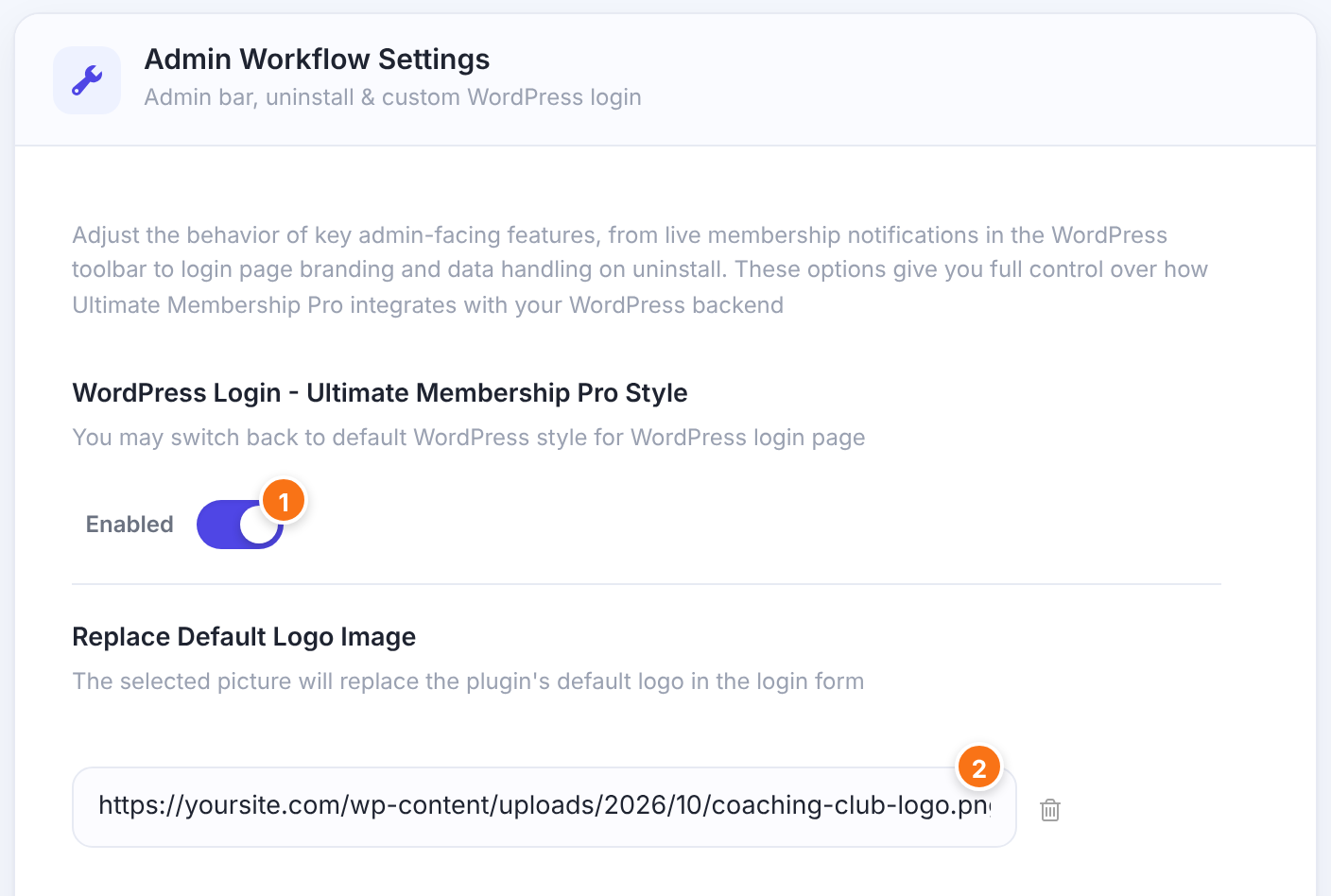
Enabled uses the plugin’s look on wp-login.php. Off brings back the standard WordPress login page.
Default: Enabled
Click the field to open the Media Library, then pick or upload your logo. The trash icon next to the field removes it, and the plugin’s logo comes back. It’s used only while the style is Enabled.
Default: Empty (the plugin’s logo)
Click Save Changes.
Check the login page
Open yoursite.com/wp-login.php in a private window:
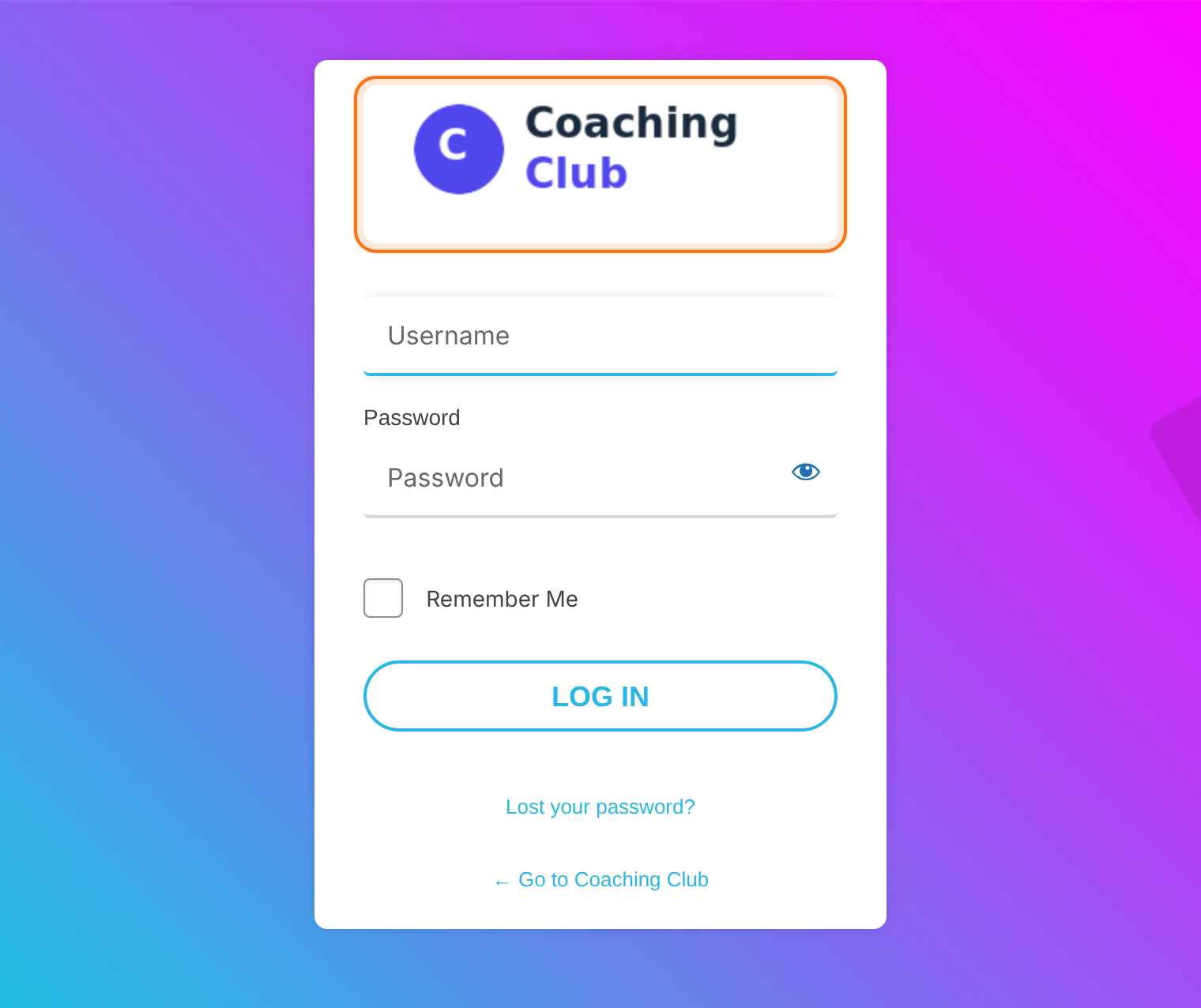
The style changes:
- the page background, with the plugin’s background image,
- the login box: white, rounded, 300 pixels wide,
- the logo at the top of the box,
- the fields and the Log In button, in a flat, rounded style.
It applies to every screen of wp-login.php: login, lost password, registration and password reset. It doesn’t change the plugin’s own login form, which you style in the Login Form showcase; see Set up the login form.
Good to know
- The logo is shown at its own size, in an area 300 pixels wide and 100 pixels high. A bigger image is cut off, so resize it first.
- There are no color or background settings. If you need a different design, switch the style off and use your theme or a login page plugin.
- Where people go after logging in on wp-login.php isn’t changed by this style.
Send members to your own login page
Members normally log in on your Login Page. The paid add-on Hidden WP Login hides the WordPress login page and sends users to the membership login page. To keep members out of the dashboard, see Control access to the WordPress dashboard.
Example: Coaching Club
- WordPress Login – Ultimate Membership Pro Style
- Enabled
- Replace Default Logo Image
- coaching-club-logo.png, 260 × 80 pixels
Troubleshooting
Why is my logo cut off on the WordPress login page?
The logo is cut off when the image is bigger than 300 × 100 pixels. Upload a smaller version and pick it again.
Why doesn’t my logo show on the WordPress login page?
Your logo shows only while the style is Enabled and after you click Save Changes. Then reload the login page without the browser cache, for example in a private window.
Why does the WordPress login page still look like the default?
The WordPress login page keeps its default look when the style is Off, or when another plugin or your theme also changes the login page. Switch the other customization off to see the plugin’s style.
Why does a member see “Pending User” on wp-login.php?
A member sees “Pending User” when their account is waiting for your approval. Approve the account in the Members list. See Manage your members.


