
In Ultimate Membership Pro, members who forget their password use the membership password reset on your site, without contacting you. The plugin confirms the request by email first, then emails the member a new, generated password they can use to log in.
This guide explains each step of that flow and the settings behind it: the Lost Password page, the three emails and the page members land on.
Before you start
- A Lost Password Page is set. The plugin creates a Lost Password page with the
[ihc-pass-reset]shortcode when you activate it. See Set up the membership pages. - Your site can send email. See Set up email notifications.
The flow at a glance
- The member enters their username or email address on the Lost Password page and clicks Get New Password.
- They get an email with a link to confirm the request.
- They click the link within one hour. The plugin sets a new, random password.
- They get a second email with that password, and a third one that says the password has changed.
- They log in with the new password and can then choose their own.
There is no form where the member types a new password during the reset. The new password always comes by email.
Check the Lost Password page
Members reach the page from the Lost your password? link of the login form, or you can link to it yourself. Open it in a private window:
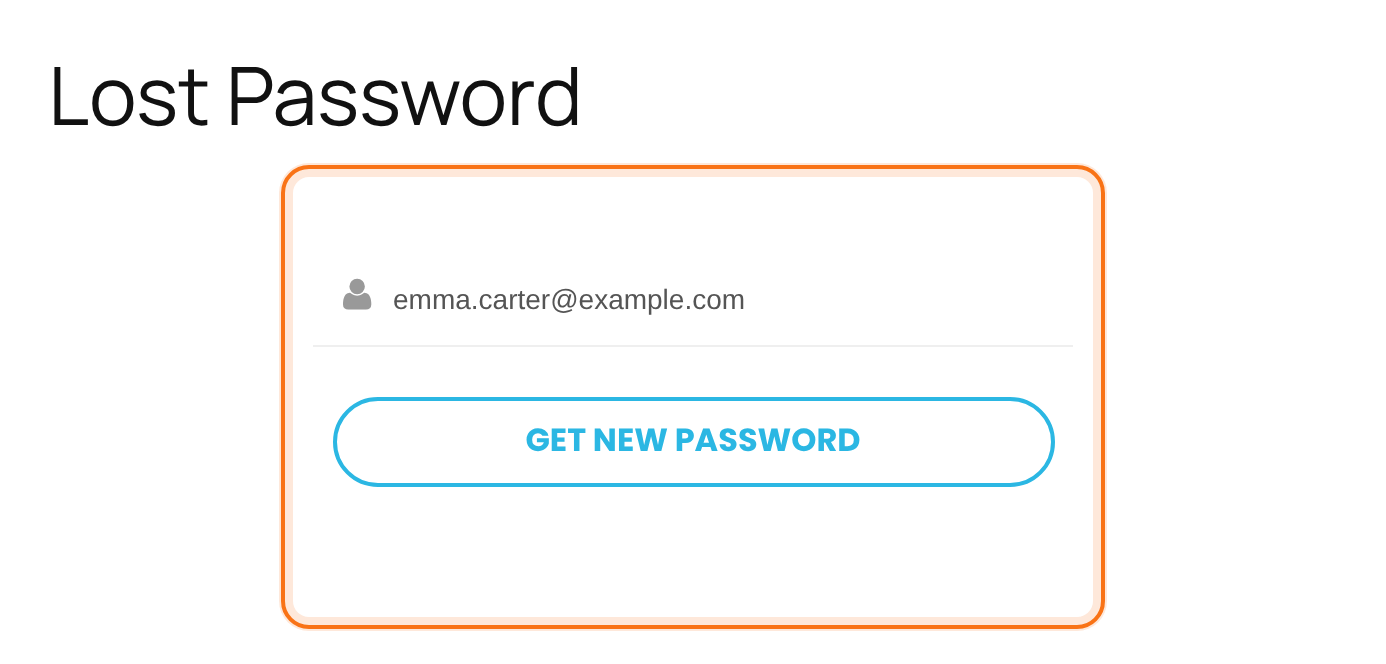
The member can type either. The form looks for an account with that email address first, then for that username.
Sends the confirmation email. The form is then replaced by a success message.
The look comes from the Login Form Template and Custom CSS in Ultimate Membership Pro›Showcases›Login Form. See Set up the login form.
The two texts the form shows are in the same showcase, tab Custom Messages, section Reset Password Messages:
Shown after the member submits the form.
Default: A new password has been sent to your email address
Shown when no account matches what the member typed.
Default: Invalid email address or username entered
Match the message to the flow
At this point the member has only received the confirmation link, not the password. Consider changing the Successfully Message to something like “Check your inbox and confirm the request to get your new password.”
Check the three emails
- Go to Ultimate Membership Pro›Email Notifications.
- Find the three notifications whose type starts with Reset Password – Step. The plugin creates them when you activate it.
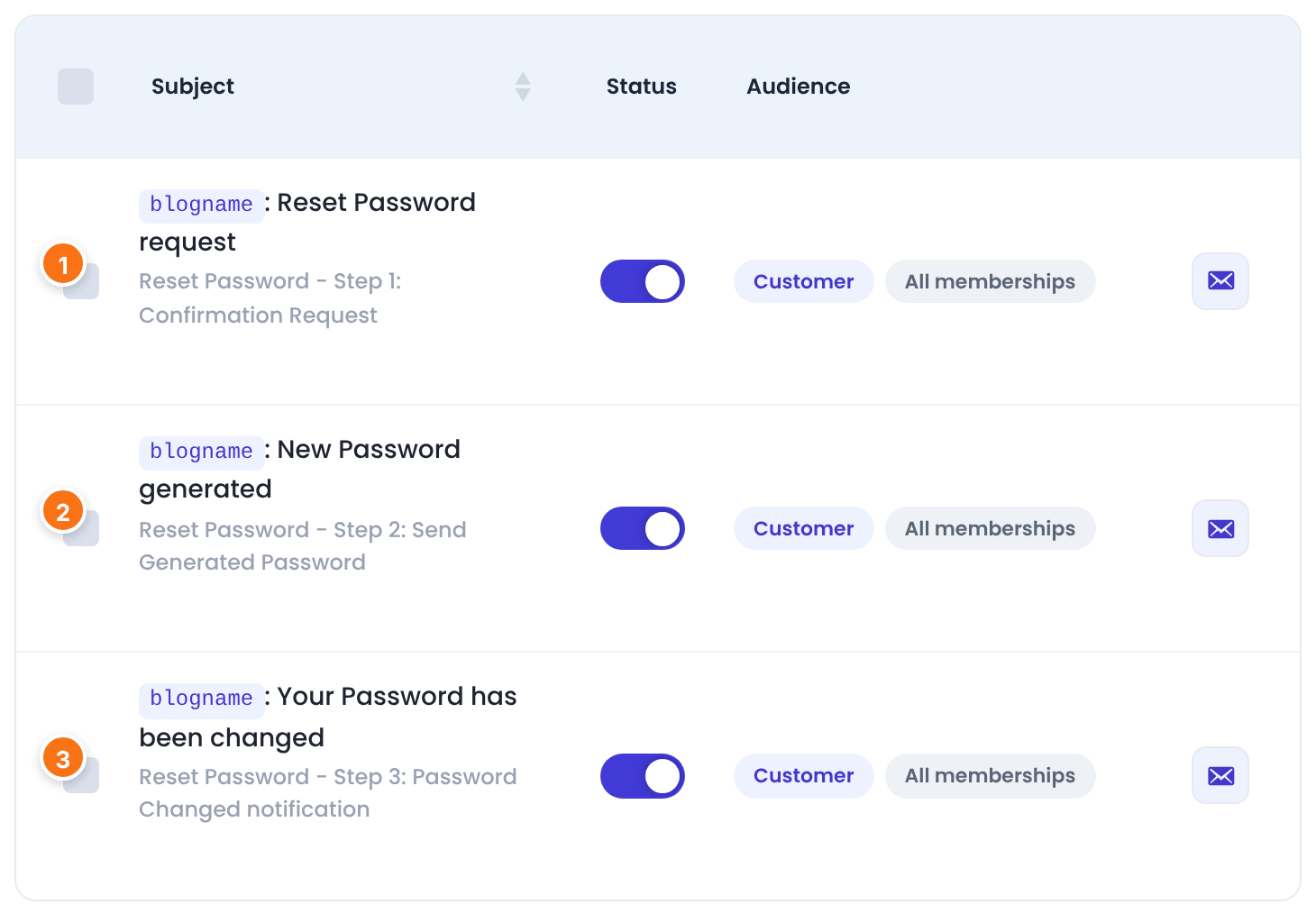
Sent when the member submits the form. It holds the confirmation link, through the {password_reset_link} tag. Keep that tag in the message.
Default: {blogname}: Reset Password request
Sent when the member clicks the link. It holds the new password, through the {NEW_PASSWORD} tag, and a button to the Member Portal.
Default: {blogname}: New Password generated
Sent right after Step 2, to confirm the change. WordPress’ own “password changed” email isn’t sent.
Default: {blogname}: Your Password has been changed
Click a notification to edit its subject and message. Keep all three switched on. See Set up email notifications for the editor and the other tags.
Choose where members land
When the member clicks the confirmation link, they’re sent to a page of your site. Set it in Ultimate Membership Pro›Settings›Pages Setup, card Redirects Setup:
The page members land on after they click the link. With nothing selected, they land on the Default Redirect Page, or on your home page if that isn’t set either.
Default: – (none)
The page shows no message of its own. Pick or create a page that says what happens next, for example “Your new password is on its way. Check your inbox, then log in.” with a link to the Login Page.
Good to know
- The confirmation link works for one hour and only once.
- Each new request replaces the previous link: only the link in the latest email works.
- The generated password has 10 characters, including symbols. Members can choose their own afterwards, in the Member Portal under Profile Details.
- Logged-in members who open the Lost Password page are sent to the Member Portal. Administrators see a notice instead of the form.
Add the form to another page
Lost Password form
[ihc-pass-reset]The shortcode has no attributes. In page builders, use the Elementor widget UMP – Password Reset or the WPBakery element Membership Pro – Password Recovery. If you move the form, select its page as Lost Password Page so the login form links to it.
Example: Emma resets her password
- 1. Lost Password page
- Emma types emma.carter@example.com and clicks Get New Password
- 2. First email
- {blogname}: Reset Password request, with the Confirm request button
- 3. Link clicked
- Within the hour; Emma lands on the After Password Reset page
- 4. Second and third emails
- Her new password, then a password changed notice
- 5. Login
- Emma logs in, then sets her own password under Profile Details
Troubleshooting
Why does the Lost Password form say “Invalid email address or username entered”?
The Lost Password form shows this message when no account has that email address or username. Check for typos, or look the member up in Ultimate Membership Pro › Members.
Why doesn’t the member get the password reset email?
When the password reset email doesn’t arrive, check the spam folder first. Then click Check SMTP on the Email Notifications screen: it sends a test email to the admin email address. If that one doesn’t arrive either, your site can’t send email yet; many hosts need an SMTP plugin.
Why doesn’t the password change after the member clicks the reset link?
The password doesn’t change when the reset link is older than one hour, was already used, or a newer request replaced it. Ask the member to submit the form again and use the newest email.
Why do members land on the home page after clicking the reset link?
Members land on the home page when neither After Password Reset nor the Default Redirect Page is set. Pick a page in Settings › Pages Setup.
Why does the Lost your password link on the login form go nowhere?
The Lost your password link goes nowhere when no Lost Password Page is selected. Select one in Settings › Pages Setup.


