
Ultimate Membership Pro has several ways to stop spam registrations on its registration form, and most sites need only the first two. A public registration form attracts bots: fake accounts clutter your member list, skew your reports and can hurt your email reputation.
Start at the top of the list and add more only if spam keeps coming.
Before you start
- Your registration form is set up. See Set up the registration form.
Pick your protections
Google reCAPTCHA
- Stops
- Automated bots
- Effort
- Get two keys from Google
- Guide
- Add Google reCAPTCHA
Email verification
- Stops
- Fake and mistyped addresses
- Effort
- One switch, two pages
- Guide
- Verify members’ email addresses
Blocked usernames and emails
- Stops
- Known names and addresses
- Effort
- Lists you keep up to date
- Guide
- Below
Approval or invitation
- Stops
- Anyone you didn’t approve or invite
- Effort
- Manual work per member
- Guide
- Set up the registration form, Invite-only registration
1. Add a captcha
A captcha on the registration form stops most bots. Save your Google keys in Ultimate Membership Pro›Settings›reCaptcha Setup, then switch on the Capcha field in the Custom Fields list. See Add Google reCAPTCHA.
2. Make members confirm their email
With Double Email Verification, new accounts only work after the member clicks a link sent to their address. Fake addresses never confirm. Set Delete Member Account if is not Verified so those accounts are removed automatically after 1 to 30 days. See Verify members’ email addresses.
3. Block usernames and email addresses
In Ultimate Membership Pro›Settings›Security, two lists stop registrations you recognize as spam.
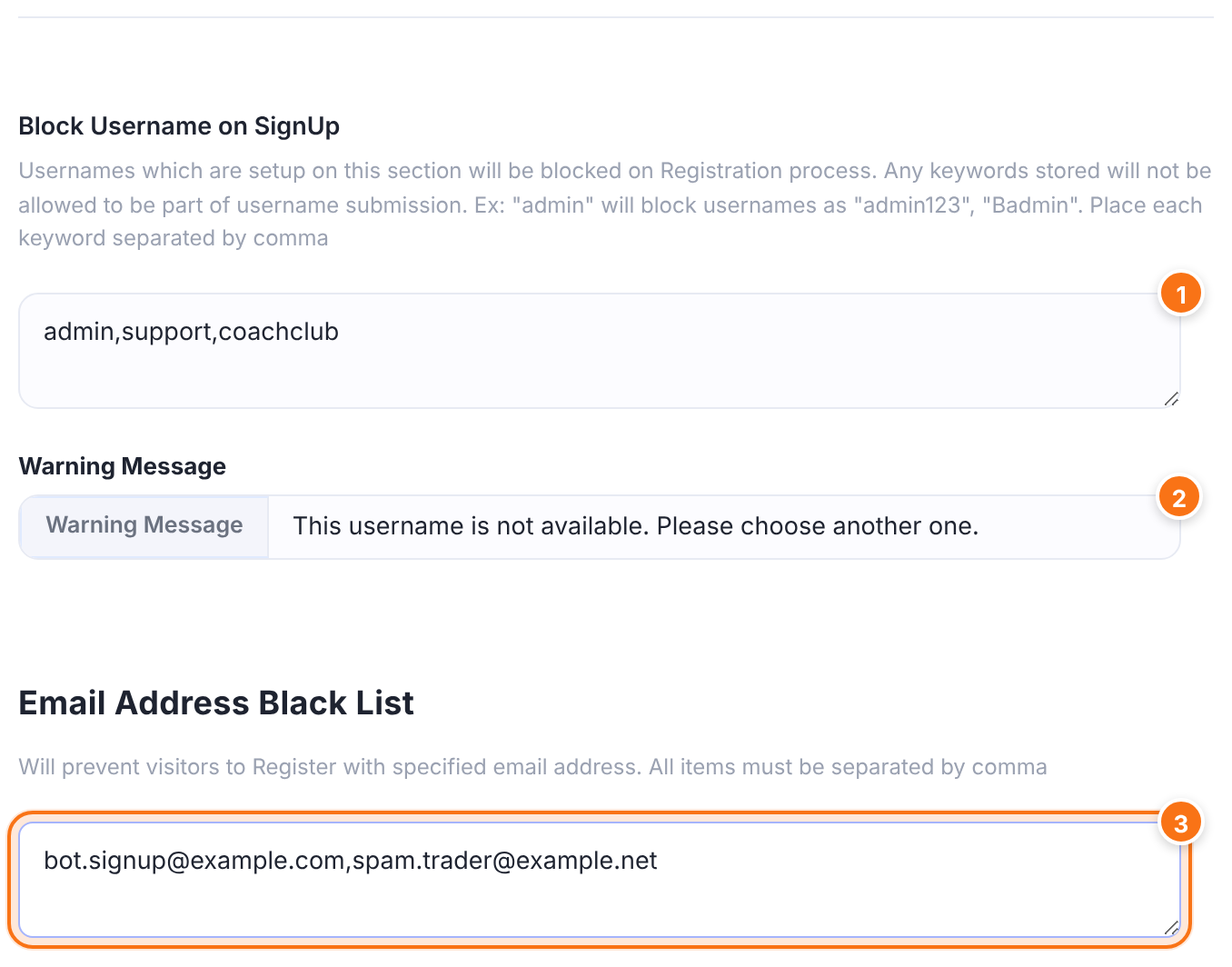
Words that may not appear in a username, separated by commas. A word blocks every username that contains it: admin also blocks admin123. Capital letters count, so add each spelling you want to block.
Default: Empty
The message shown under the Username field when a word matches. Fill it in, otherwise the visitor sees no explanation.
Default: Empty
Full email addresses that may not register, separated by commas. Only an exact match is blocked: a domain such as @example.net or part of an address does nothing. A blocked visitor sees the “Email address has already been taken” message.
Default: Empty
Click Save Changes.
Block whole groups of addresses
To block disposable email services, or registrations from certain IP addresses, use the paid add-ons Blacklist Disposable Emails and IP Registration.
4. Approve or invite members
For closed communities, check people before they get in. Set the register role to Pending and approve each account in Members (Set up the registration form), or ask for an invitation code at sign-up (Invite-only registration).
5. Protect the login form too
Bots that get an account often try passwords next. The Security Login module locks the login form after too many failed attempts. It protects logging in, not registration. See Block brute-force login attempts.
Example: Coaching Club
- reCAPTCHA
- On the registration and login forms
- Double Email Verification
- On
- Delete Member Account if is not Verified
- After 7 days
- Block Username on SignUp
- admin,support,coachclub
- Email Address Black List
- Addresses that registered spam before
Troubleshooting
Why do spam accounts still register on my site?
If spam accounts still appear, check that the Capcha field is switched on in Custom Fields and that your reCAPTCHA keys are saved, then add email verification. Also check WordPress’s own sign-up: in Settings › General, “Anyone can register” lets people register through the WordPress login page, outside the plugin’s form.
Why can people still register with an email domain I blocked?
The Email Address Black List only blocks complete addresses. Use the Blacklist Disposable Emails add-on to block whole domains.
Why do visitors see an empty error under Username?
Visitors see an empty error under Username when a blocked word matched and the Warning Message is empty. Fill in the Warning Message in Settings › Security.
How do I find and delete accounts that never confirmed?
To find accounts that never confirmed their email, go to Members, open More filters and pick Pending Email Verification under Manager Requests. Remove them from the row menu, or let Delete Member Account if is not Verified do it.


