
In Ultimate Membership Pro, Double Email Verification makes every new member click a link in an email before their account works. It proves the address is real, which keeps fake sign-ups out and makes sure your emails reach people.
This guide turns it on, sets how long the link works and where members land, and shows how to check and approve addresses yourself.
Before you start
- Your site can send email. Test it with Check SMTP in Ultimate Membership Pro›Email Notifications, or see Set up email notifications.
- Two pages for the result, for example “Email confirmed” and “Link expired”. Without them, members land on your home page.
How it works
The member registers. The plugin creates the account and sends the Double E-mail Verification Request email with a personal link.
Until they click it, the plugin’s login form refuses them with “The email address has not been confirmed yet”. The Members list shows them as Unapproved.
The link marks the address as Verified, sends Double E-mail Verification Completed and opens your success page.
Turn on verification
- Go to Ultimate Membership Pro›Registration Form, tab Register Form Showcase.
- In Additional Settings, switch on Double Email Verification.
- Check that Automatic Login after Registration, a few rows below, is off.
- Click Save Changes.

Using the email-only form? Register Lite has its own Double E-mail Verification switch. See Registration with email only (Register Lite).
Set the link life time and pages
Go to Ultimate Membership Pro›Settings›Email Verification. The numbers match the screenshot.
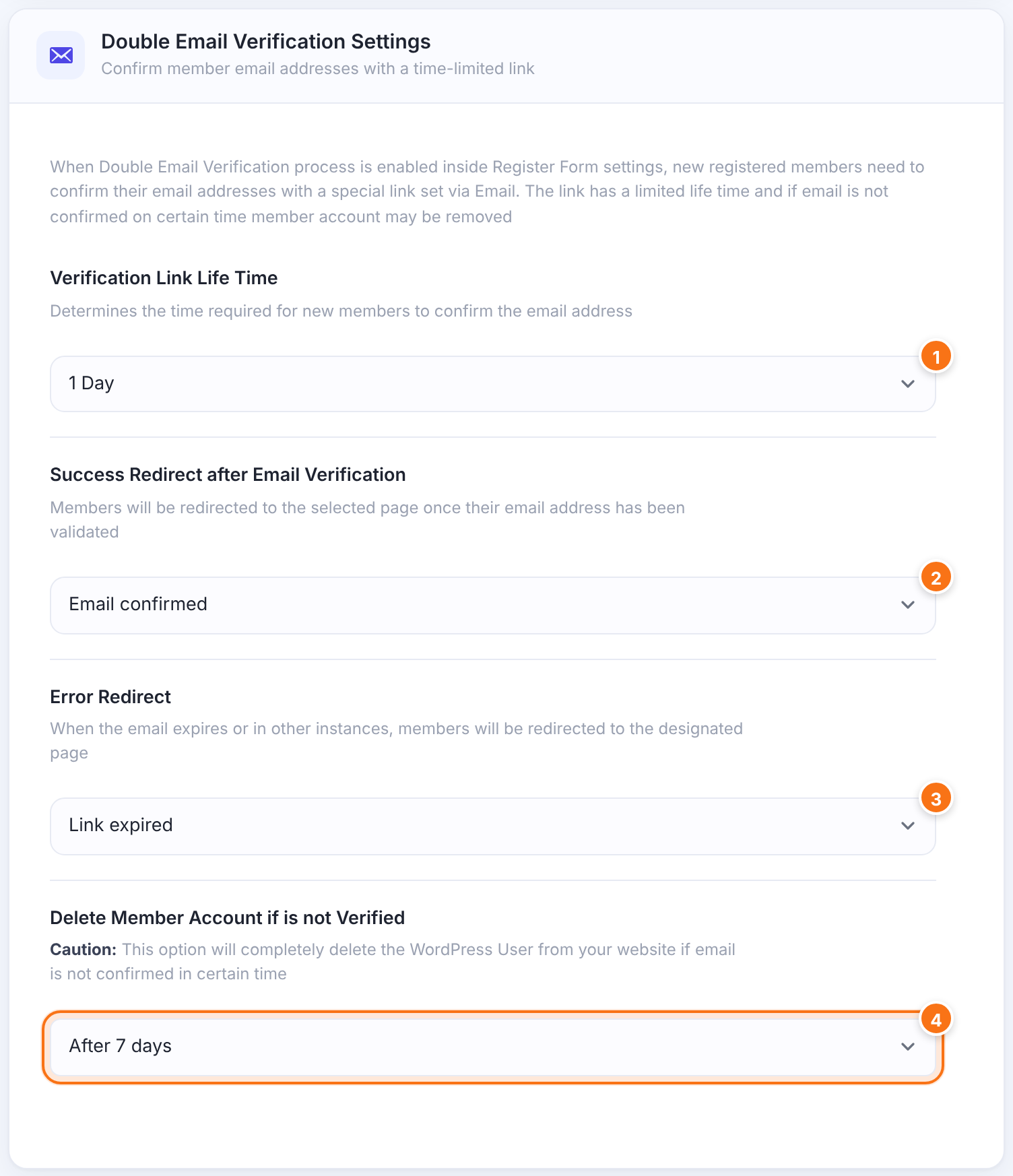
How long the link works: 15 Minutes, 1 Hour, 12 Hours, 1 Day or Never (no limit).
Default: Never
The page members see after clicking a valid link. The plugin shows no message of its own, so put a short confirmation on that page.
Default: None (home page)
The page for expired or wrong links. Tell members to contact you for a new link.
Default: None (home page)
Deletes the WordPress user of members who never confirm: After 1 day, After 7 days, After 14 days or After 30 days, counted from registration.
Default: Never
Both redirect lists also show your custom links from the Redirect Links module. Use only links to your own site here: links to another website aren’t followed. See Add your own redirect links. Click Save Changes.
Deleting unconfirmed members is permanent
- The account and its Memberships are removed. It can’t be undone.
- The check runs once a day with WP-Cron, so “After 1 day” can take up to a day longer. If WP-Cron is disabled on your site, nothing is deleted.
Check the two emails
Both emails exist from the start in Ultimate Membership Pro›Email Notifications. Their subjects begin with your site name:
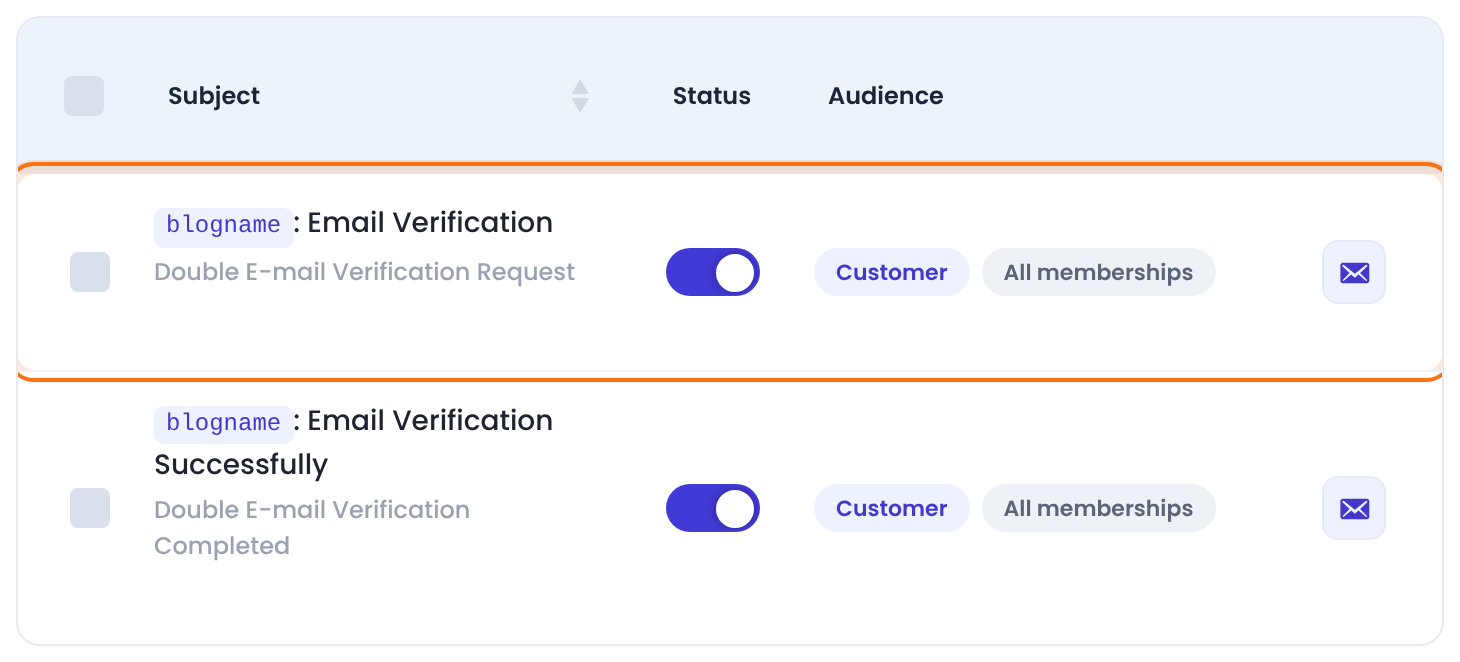
Sent right after sign-up. It must contain the {verify_email_address_link} placeholder: that is the link. If you rewrite the email, keep it.
Sent once the address is confirmed, also when you approve it by hand.
See and approve addresses in Members
In Ultimate Membership Pro›Members, a badge under each email address shows its status:
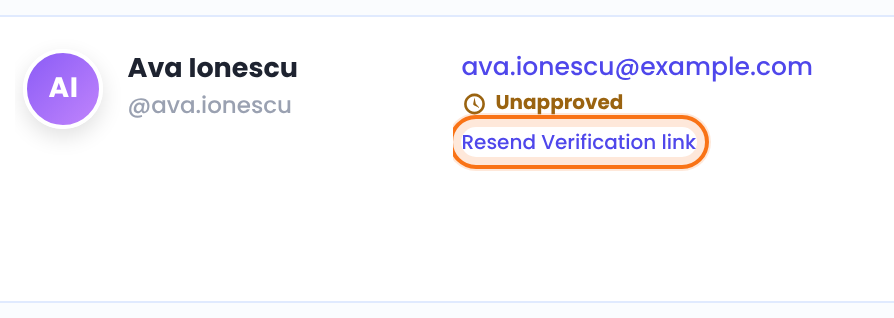
The email was sent and not confirmed yet.
The member clicked the link, or you approved the address.
No verification was asked, for example for members who joined before you turned it on.
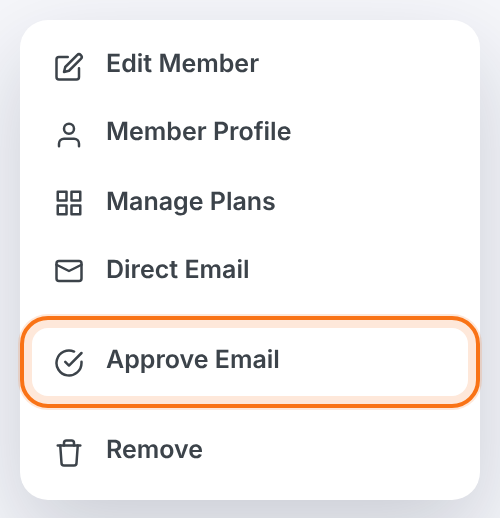
Click Resend Verification link to send a new email; you’ll see “Email verification successfully sent.” To confirm the address yourself, open the row menu and click Approve Email:
Find everyone who hasn’t confirmed
In Members, open More filters and pick Pending Email Verification under Manager Requests.
Email approval is not account approval
Verification checks the address. To check the person, set the register role to Pending and use Approve Member. You can use both. See Set up the registration form.
Example: Coaching Club
- Double Email Verification
- On
- Automatic Login after Registration
- Off
- Verification Link Life Time
- 1 Day
- Success Redirect after Email Verification
- Email confirmed
- Error Redirect
- Link expired
- Delete Member Account if is not Verified
- After 7 days
Troubleshooting
Why don’t members receive the verification email?
When members don’t receive the verification email, check, in order: Double Email Verification is switched on and saved; the Double E-mail Verification Request email is active and still contains {verify_email_address_link}; your site can send email at all (Check SMTP, or an SMTP plugin); the member’s spam folder. Then send it again with Resend Verification link in Members.
Why does the login form say “The email address has not been confirmed yet”?
Ultimate Membership Pro shows this message when the member hasn’t clicked the verification link. Send the link again with Resend Verification link, or click Approve Email in the row menu.
Why does the verification link open the error page?
The verification link opens the error page when the link expired or was already used. Approve the address in Members, and consider a longer Verification Link Life Time, such as 1 Day.
Why do members land on the home page after clicking the verification link?
Members land on the home page when no Success Redirect after Email Verification page is selected. Pick one in Settings › Email Verification.
Why do existing members show Active, not Verified?
Existing members show Active because they registered before verification was on, so they were never asked. They can log in normally.


