
In Ultimate Membership Pro, registration form custom fields let the form ask for more than the username, email and password it asks for out of the box: a phone number, a company name, a choice from a list, a file. Each field can also appear in the member’s profile and on the member’s admin screen, so you collect the data once and use it everywhere.
This guide adds a Coaching goal drop-down that only people signing up for Pro Monthly see, plus a follow-up box that opens when they pick Something else.
Before you start
- Your registration form is set up. See Set up the registration form.
- A test page or a private browser window to check the form as a visitor.
Open the field list
- Go to Ultimate Membership Pro›Registration Form (also under Showcases).
- Click the Custom Fields tab.
The list holds every field the plugin knows: the WordPress fields, ready-made fields such as Phone and Address, the built-in special fields and your own. Switches in each row decide where the field appears. The numbers match the screenshot.
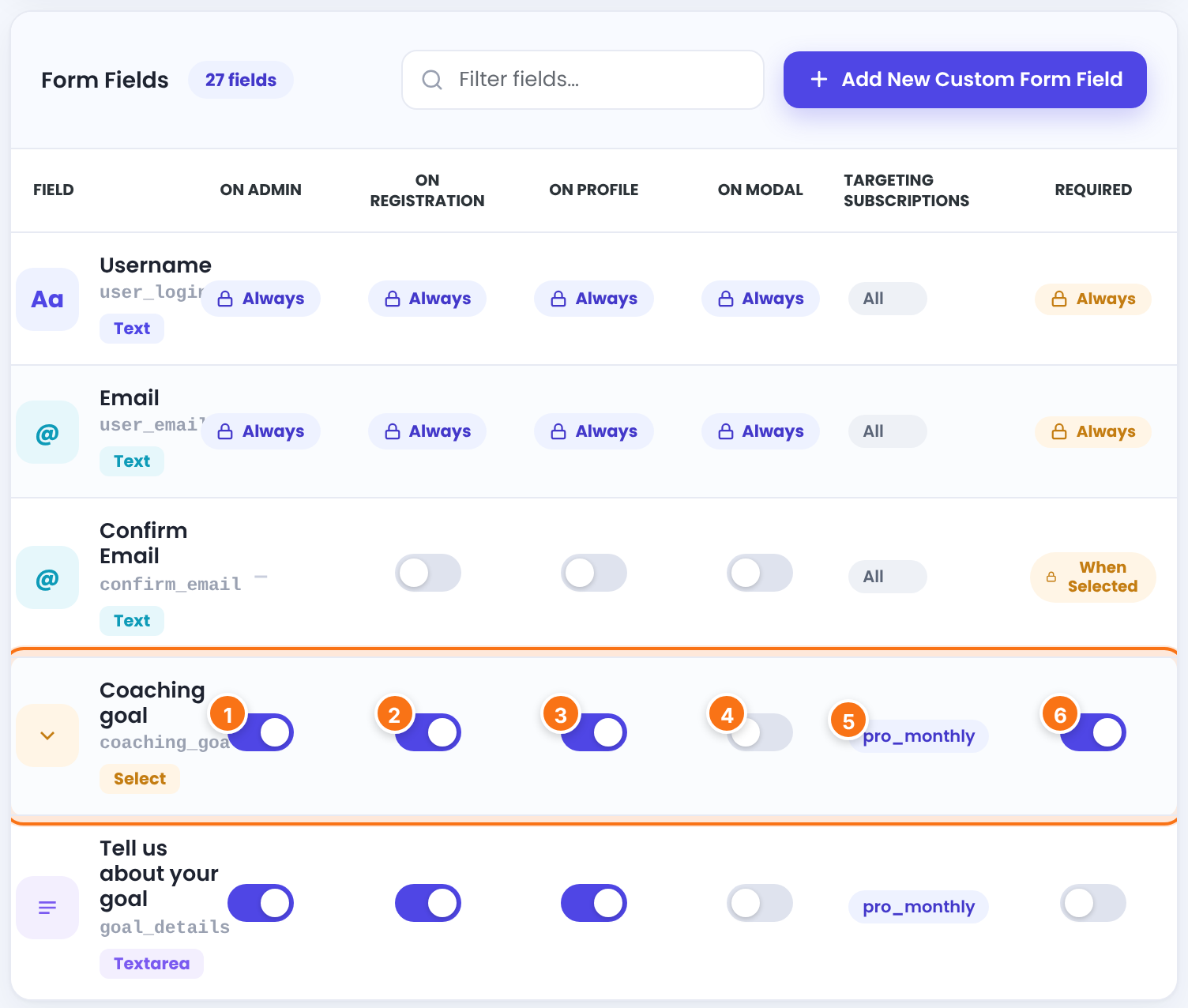
Shows the field on the member’s edit screen in the admin.
Shows the field on the registration form.
Lets members see and edit the field in their profile in the Member Portal.
Shows the field on the popup version of the form. See Login and registration popups.
All, or the Memberships the field is limited to (Step 4).
Members can’t register without filling it in. The same rule applies in the profile form when On Profile is on: a member can’t save the profile while this field is empty. Always and When Selected mean the field is always required whenever it’s on the form, and you can’t change that.
Always in a column means the field can’t be turned off there. A dash means the field isn’t available there. The last column tells WP Native fields (stored by WordPress itself) from Custom ones. Drag a row by its handle to change the order. Click Save Changes after you change switches or the order.
Create the field
Click + Add New Custom Form Field. The Add / Edit Field tab opens.
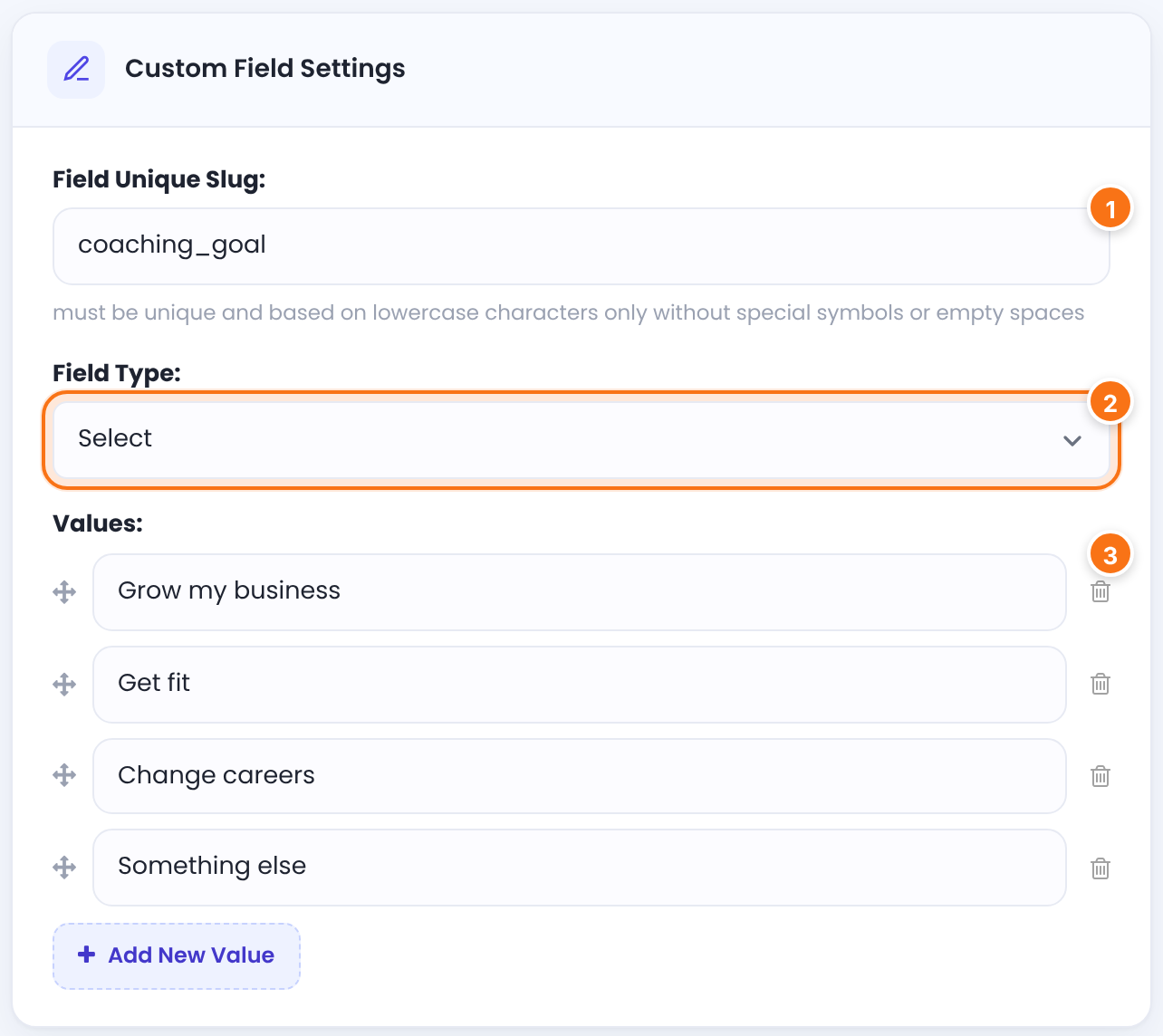
The field’s internal name, for example coaching_goal. Use lowercase letters, numbers and underscores; spaces become underscores and other symbols are removed. It must be unique: a field with a slug that already exists isn’t saved.
What kind of input the member gets. See the list below.
Default: Text
The choices. Click Add New Value for each one; drag to reorder. A Select shows the first value as its starting choice.
Field types
A one-line box, a multi-line box, or a box that only accepts numbers.
A date box with a calendar. Dates are saved as day-month-year, for example 25-03-2027.
Choices from your Values: a drop-down with one or several answers, tick boxes or round buttons.
An Upload button. Allowed extensions and size are set in Ultimate Membership Pro›Settings›Uploads Settings.
Not an input: text, links or images you write in Content:, shown inside the form.
The member must type the answer you set in Right Answer:. Otherwise they see your Error Message:. A simple question works as a basic check against bots.
A text box whose value no other member may have, such as a membership number. Duplicates get “This value is already exist.”
Set the label
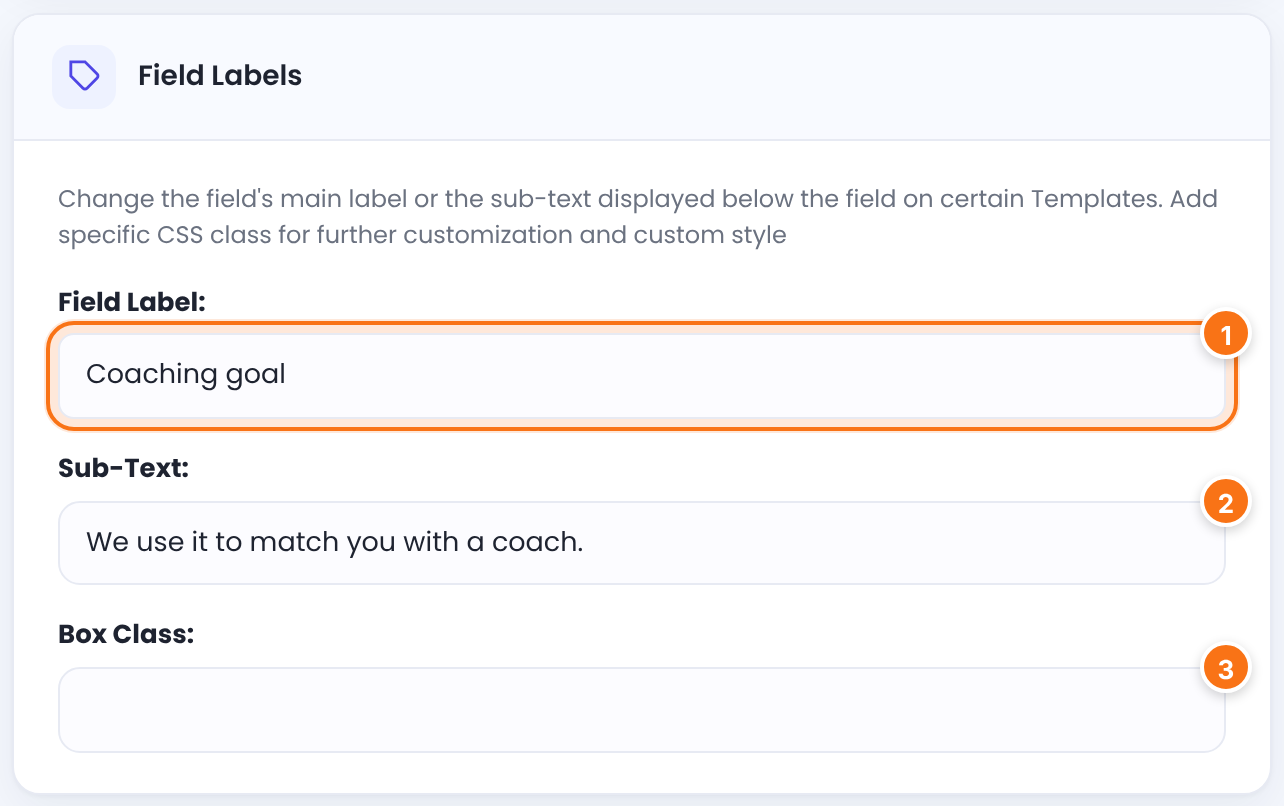
The name shown on the form.
A short help text under the field. Some templates don’t show it.
A CSS class added to the field’s box, for your own styles. See Style forms and pages with CSS.
Show it only for some Memberships
In Targeting Memberships, pick Memberships from to Show Up Only for Membership:. Each one becomes a tag; click x to remove it. With no tag, the field shows for everyone.
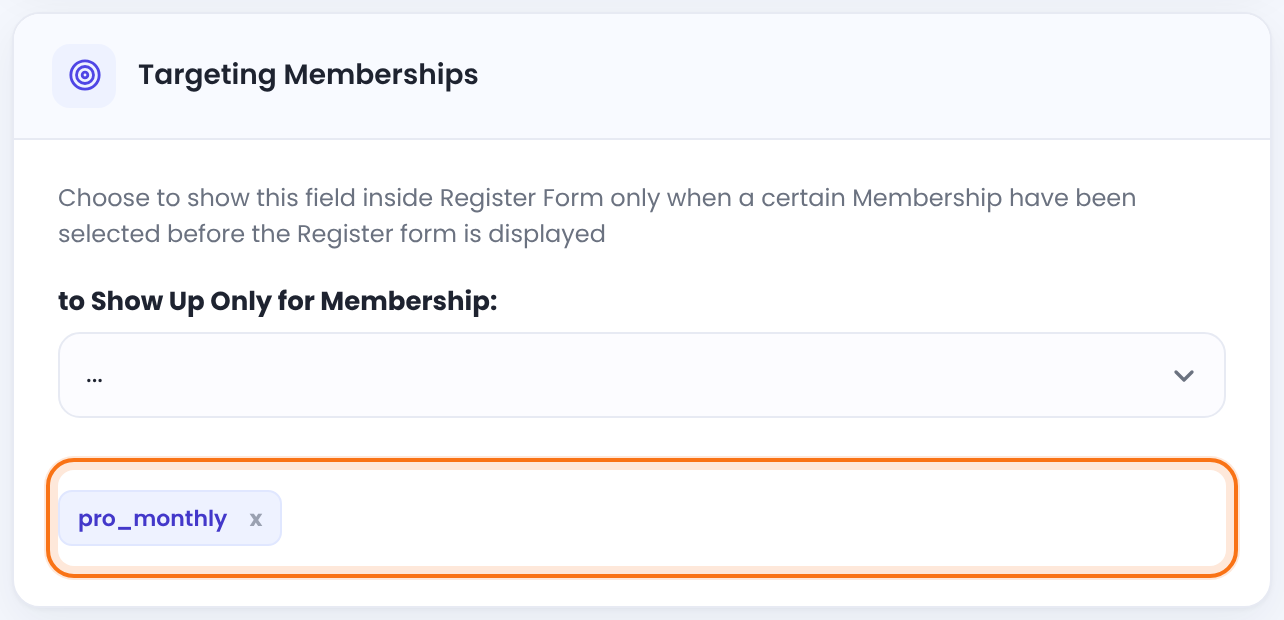
The form knows the Membership from the plan the visitor picked on the Subscription Plan page, the ?lid= in the link, or the Membership set as Subscription assigned to new Member. Pick No Membership selected to show a field only when the form has no Membership.
One form, different questions per plan
There is one registration form, but targeting makes it look different for each Membership. A field for Pro Monthly only shows to visitors who chose Pro Monthly; Free Community sign-ups never see it.
Show it only after another answer
Conditional logic shows or hides a field depending on another field’s value. The example adds a second field, goal_details (Textarea, Tell us about your goal), that opens only when the member picks Something else.
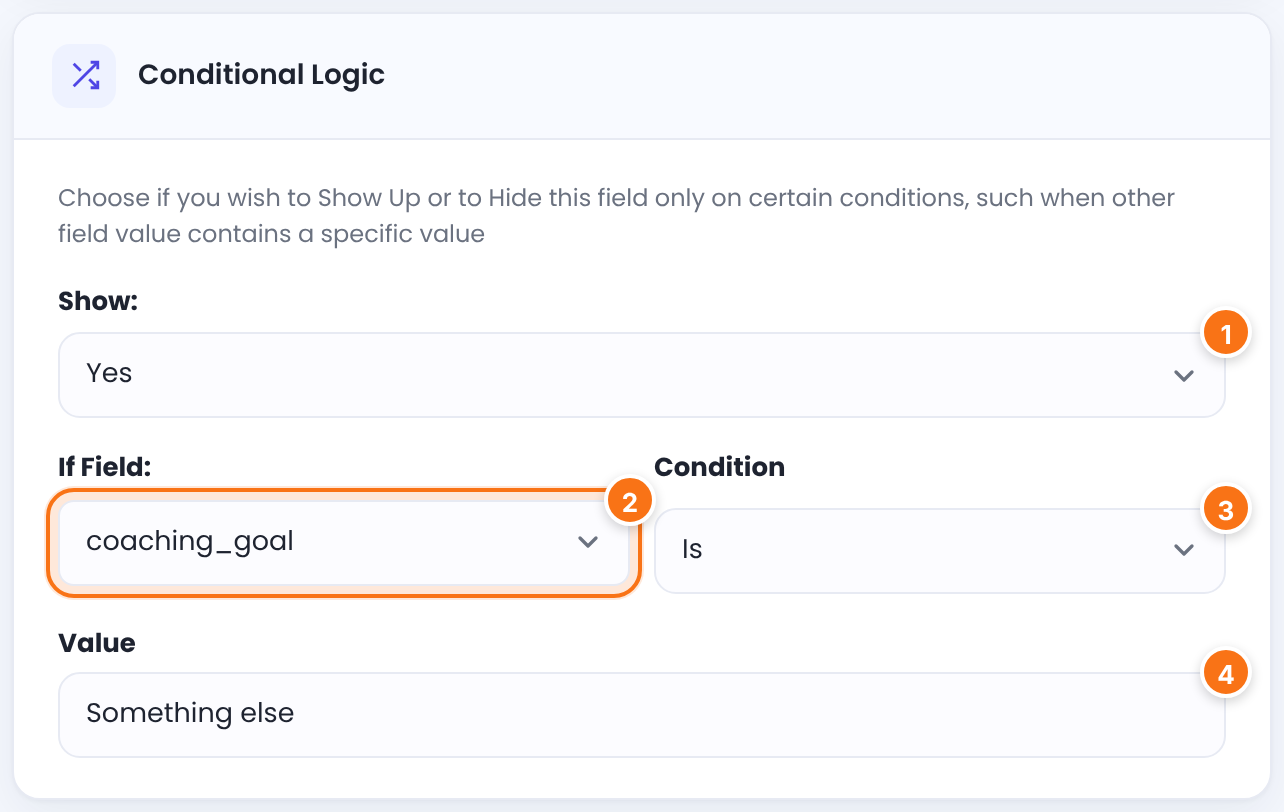
Yes shows this field when the condition is met; No hides it then.
Default: Yes
The field to watch. The list shows slugs, and only fields that are on the registration form. Upload, HTML and captcha fields can’t be watched.
Is: the value matches exactly. Contains: the value includes your text.
The value to compare with, exactly as written in the other field’s Values.
A required field that is hidden by its condition isn’t checked, so members aren’t blocked by a field they can’t see.
Save and turn the field on
- Click Save Changes. The field is added to the end of the list, with every switch off.
- In the list, switch on On Registration and any other place you want it, and Required if needed.
- Drag the row to where it should appear in the form, then click Save Changes.
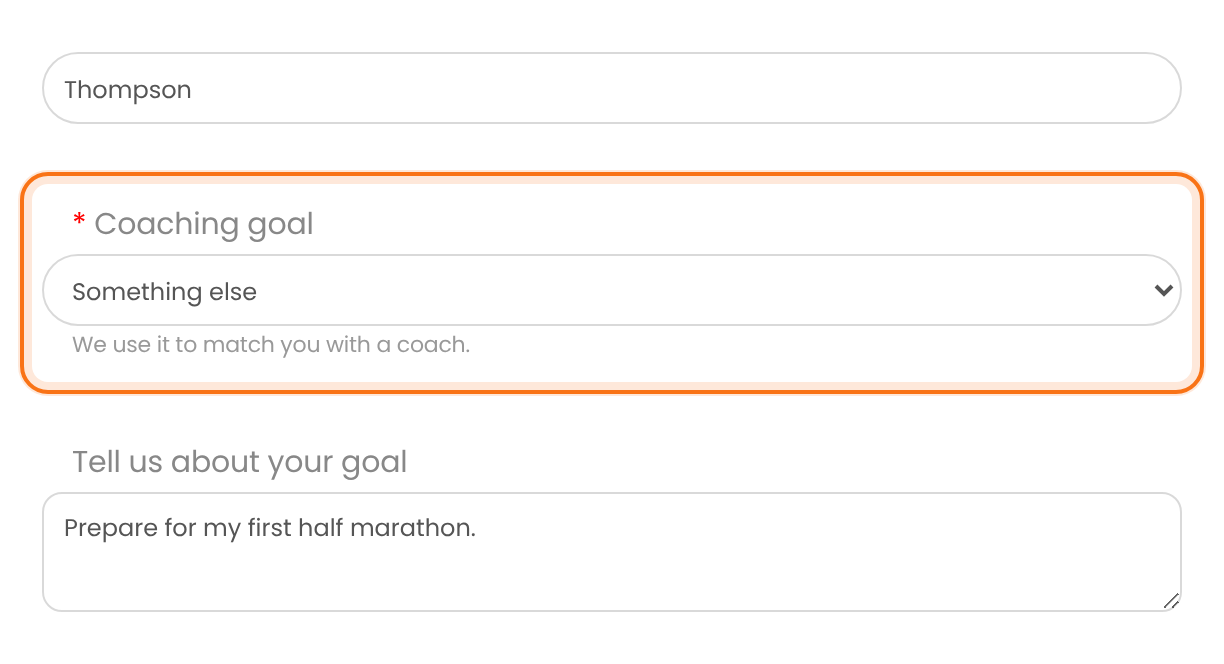
Open the Register page in a private window, with the Membership in the link, to check it:
Tip
- After you change fields or their order, clear your page cache (caching plugin, host and CDN) and check the form again in a private window. A saved copy of the page can show the old version.
Use the answer in emails
Every custom field has a placeholder for email notifications: {CUSTOM_FIELD_coaching_goal} for the example. See Set up email notifications.
Show the field in the Members Directory and on public profiles
The switches in the list control the registration form, the admin screen, the profile form and the popup. Two other places read the same list of fields:
- Members Directory. Every field in the list can be shown on a member card. Open Ultimate Membership Pro›Showcases›Members Directory, tick the field under Displayed User Fields, then copy the new shortcode to your directory page. See List members on your site (Members Directory).
- Public profile. In the Public Individual Page tab, tick the field under Show Custom Fields (Predefined Templates), or add its
{CUSTOM_FIELD_…}constant to Custom Content. For the example, that is{CUSTOM_FIELD_coaching_goal}. See Show public member profiles.
Members edit their own answers in the profile form when On Profile is on. See Customize the profile form.
Empty fields stay hidden
- If a member has no value for a field, the field isn’t shown on their card in the Members Directory or in the Predefined Templates version of their public profile. This also hides the label. Members who signed up before you added the field are in this case until they fill it in or you add it on their edit screen.
- In Custom Content, an empty field is replaced by nothing, but the text you typed around it (for example “Goal:”) still shows.
Example: Coaching goal for Pro Monthly
- Field Unique Slug
coaching_goal- Field Type
- Select
- Values
- Grow my business, Get fit, Change careers, Something else
- Field Label
- Coaching goal
- Sub-Text
- We use it to match you with a coach.
- to Show Up Only for Membership
- Pro Monthly
- Switches
- On Admin, On Registration, On Profile, Required
- Second field
goal_details, Textarea, Show Yes ifcoaching_goalIs Something else
Troubleshooting
Can I have a different registration form for each Membership?
Ultimate Membership Pro has one registration form, but each field can be limited to some Memberships with Targeting Memberships, so each plan gets its own set of questions. For a minimal email-only form, see Registration with email only (Register Lite).
Why can’t I edit a field such as Username or First Name?
Fields marked WP Native (Username, Email, First Name, Last Name, Website, Password, Confirm Password, Biographical Info) belong to WordPress, so you can’t edit or delete them. You can still switch them on or off where the switch is shown. To change their label, use a translation file. See Change plugin texts and messages. Other ready-made fields, such as Phone or Address, can be edited.
Where are the files members upload in a File Upload field?
Files from a File Upload field go into the WordPress Media Library; the plugin saves the file’s attachment ID with the member. Switch on On Admin for the field to see a link to the file on the member’s edit screen in Ultimate Membership Pro › Members. Allowed extensions (Accepted Files Extensions) and Upload File Maximum Size (in MB) are in Settings › Uploads Settings.
Why does the registration form say “Please fill out all mandatory fields”?
The registration form shows this message when a required field is empty. The message shows under that field. You can change the text under Custom Messages, Empty Required Fields.
Why doesn’t my custom field show on the registration form?
A custom field shows on the registration form only when On Registration is on and saved, the visitor is signing up for a Membership listed in its targeting, and its conditional logic doesn’t hide it. Test in a private window.
Why can’t a member save their profile?
The profile form checks the fields that have Required and On Profile switched on. If one of them is empty, the member sees “Please fill out all mandatory fields” under that field and the form isn’t saved until it’s filled in. This also happens when you turn on Required for a field that existing members haven’t filled in yet. The text of the message is under Custom Messages, Empty Required Fields. See Customize the profile form.
Why isn’t my custom field shown in the Members Directory or on the public profile?
A field is not shown automatically. Tick it under Displayed User Fields in the Members Directory generator and copy the new shortcode to your page. For the public profile, tick it under Show Custom Fields or add its {CUSTOM_FIELD_…} constant to Custom Content. A member who has no value for the field doesn’t show it either. See List members on your site (Members Directory) and Show public member profiles.
Why is a field from another plugin not in the Custom Fields list?
The list holds the fields saved by Ultimate Membership Pro: the WordPress fields, the ready-made and special fields, and the ones you add with + Add New Custom Form Field. Fields that another plugin adds are not part of this list. They don’t get the switches (On Registration, On Profile and so on) and aren’t offered in the Members Directory or the public profile settings. To collect the same information here, create a field with + Add New Custom Form Field.
Why does the Custom Fields tab say “Adding new fields is license-gated”?
The Add New Custom Form Field button is locked because of your license status. Check it under Ultimate Membership Pro › Licensing. See Find and activate your license key.


