
In Ultimate Membership Pro, the membership pricing page is the Subscription Plan page: a table of your Memberships with a sign-up button on each. It’s built by one shortcode, so you can style it with a theme and place it on any page.
This guide picks a theme, decides which plans appear and in what order, and adds single buy buttons for landing pages.
Before you start
- Your Memberships exist. See Create your first Membership.
- A Subscription Plan page is set under Ultimate Membership Pro›Settings›Pages Setup. The plugin creates one called Subscription Plan on activation. See Set up the membership pages.
Copy the pricing table shortcode
- Go to Ultimate Membership Pro›Showcases›Subscriptions Plan.
![Plans table shortcode strip with [ihc-select-level] and a Copy button](https://ultimatemembershippro.com/wp-content/uploads/2026/10/ump-pricing-page-01-shortcode.png)
The default Subscription Plan page already contains [ihc-select-level]. Paste the shortcode into any other page or widget to show the table there too.
Pick a theme
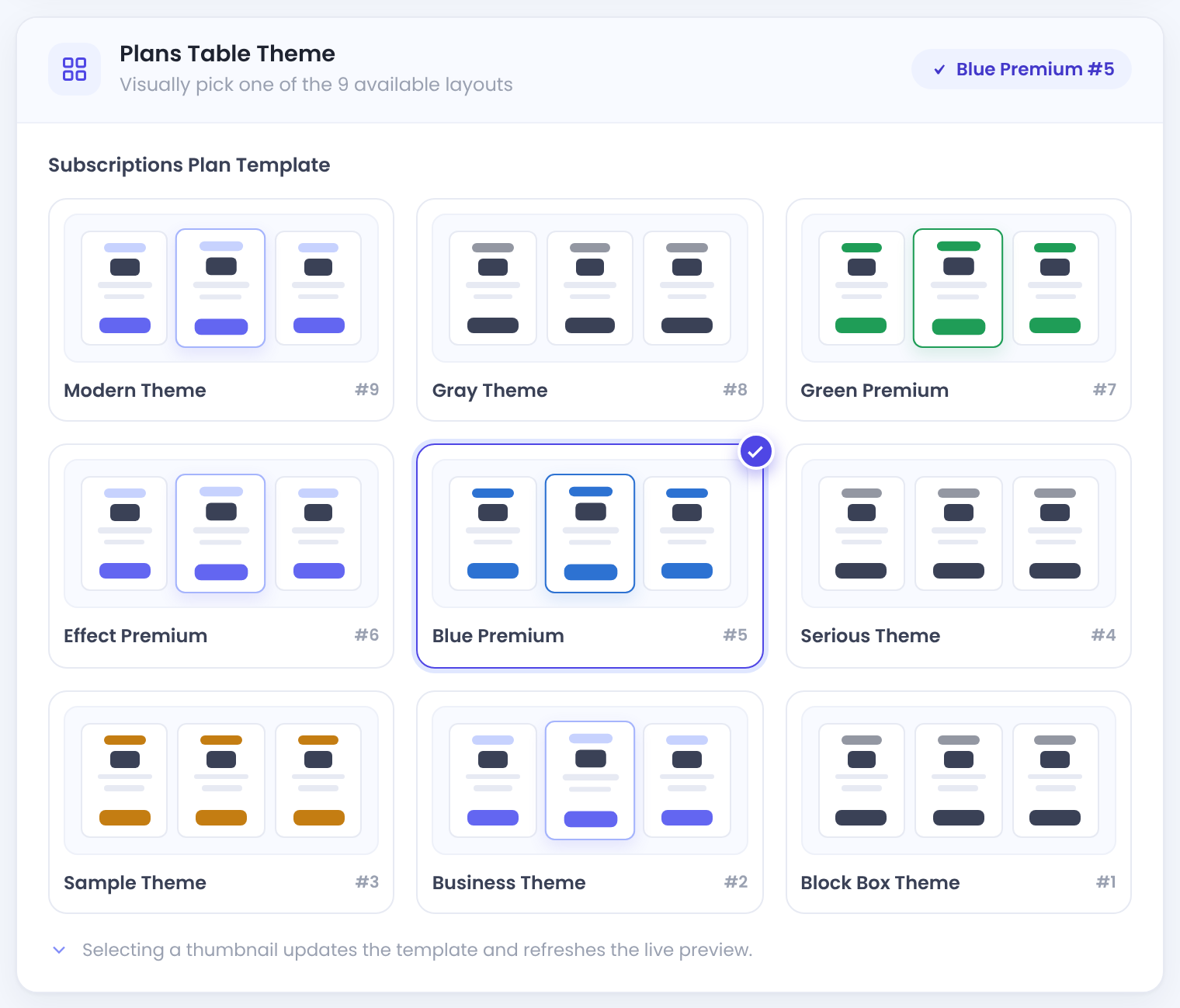
Click a thumbnail: Block Box Theme (#1), Business Theme (#2), Sample Theme (#3), Serious Theme (#4), Blue Premium Theme (#5), Effect Premium Theme (#6), Green Premium Theme (#7), Gray Theme (#8) or Modern Theme (#9).
Default: Blue Premium Theme (#5)
Your own CSS for the table. It applies only to the table rendered by [ihc-select-level].
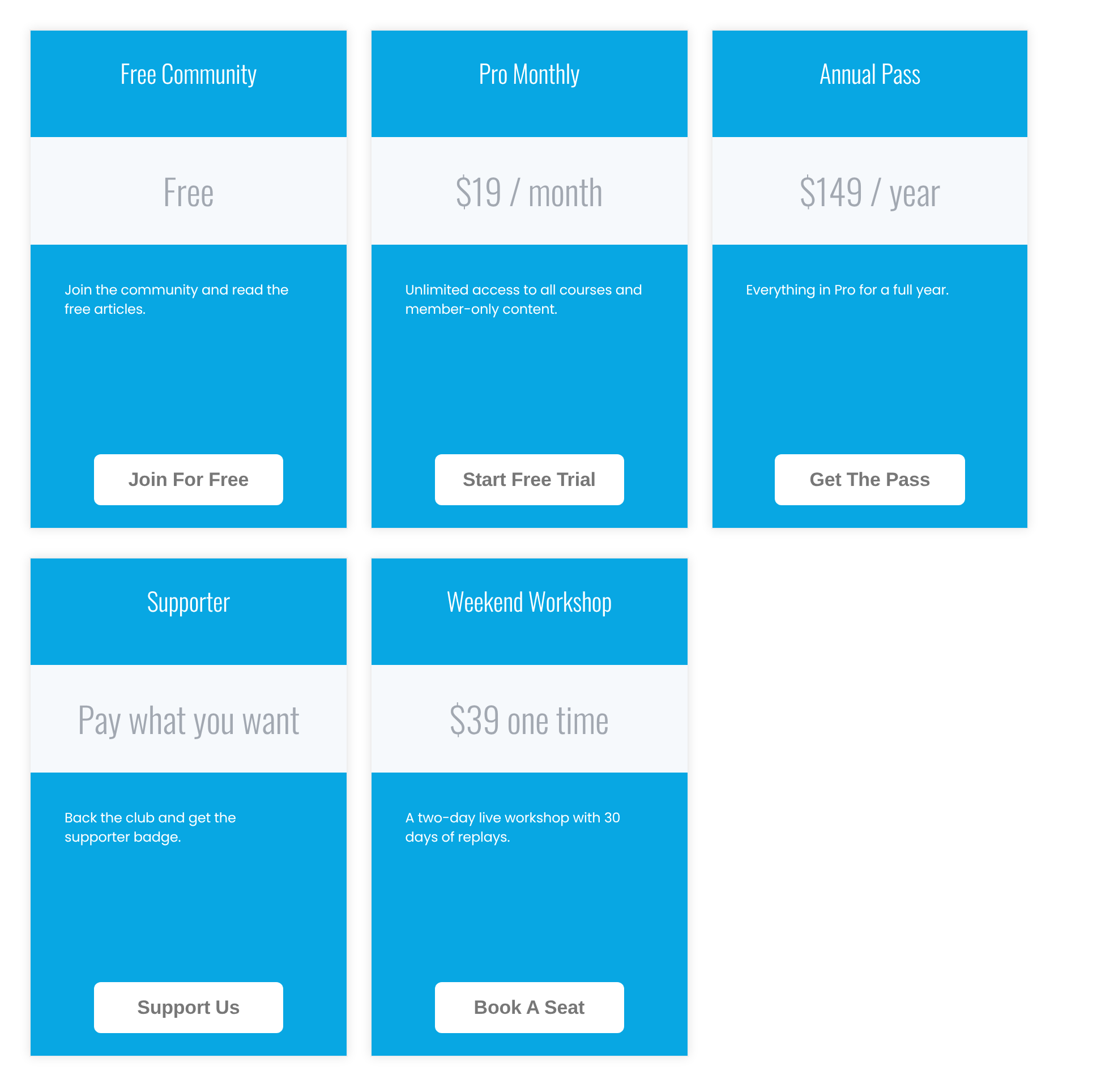
Click Save Changes. Visitors now see your plans with that theme:
Write what each plan card says
The text on each card comes from the Membership itself. Edit a Membership and open its Subscriptions Plan Page details card:
Turn it off to keep a Membership off the table. It still works, so you can sell it with a buy button or assign it by hand.
Default: On
What members get. Short, scannable text works best.
The price text on the card, such as $19 / month. It’s display text only; members are charged the Membership Price.
The text on the card’s button.
Default: Sign Up
Set the order of the plans
- Go to Ultimate Membership Pro›Memberships and click Arrange Memberships.
- Drag the Memberships into the order you want. The table follows this order.
Arranging isn’t available until your License Key is activated.
Show only some plans
Add shortcode attributes to change one table without touching the others:
Only two plans, with another theme
[ihc-select-level id="2,4" template="ihc_level_template_9"]One Membership ID or a comma-separated list. Only those Memberships are shown. Find IDs in the Memberships list.
A theme for this table only, from ihc_level_template_1 to ihc_level_template_9.
Custom CSS for this table only.
To show different plans to different visitors, for example an upgrade only to people who already bought a plan, use Memberships Plus.
Add a buy button anywhere
For a landing page or a blog post, link straight to one Membership:
Buy button for Membership 2
[ihc-purchase-link id=2]Start free trial[/ihc-purchase-link]Visitors who aren’t logged in go to the register page with that Membership selected; logged-in members go to the checkout page. [ihc-level-link] works the same way. The text between the tags is the button label (Sign Up if empty). The Memberships list shows this shortcode for every plan.
The Membership ID.
An extra CSS class for the button wrapper.
Another register page URL for visitors.
Another checkout page URL for logged-in members.
Example: a pricing page for Coaching Club
- Theme
- Blue Premium Theme (#5)
- Order
- Free Community, Pro Monthly, Annual Pass, Supporter, Weekend Workshop
- VIP Coaching
- Hidden from the table, sold to existing members
- Blog button
[ihc-purchase-link id=2]Start free trial[/ihc-purchase-link]
Troubleshooting
A Membership doesn’t appear on the pricing table
Check Show/Hide in Subscription Plan showcase on the Membership, the id attribute of the shortcode, and Memberships Plus rules if that module is on.
The buy button does nothing for logged-in members
The checkout page must be set under Settings › Pages Setup and contain [ihc-checkout-page].
Can I change the price on the card without changing what members pay?
Yes. Price Details is display text only. Members always pay the Membership Price set in Membership Billing.
How do I change the order of plans on the pricing page?
Go to Ultimate Membership Pro › Memberships, click Arrange Memberships and drag the plans into order.


