
Ultimate Membership Pro subscription changes that you make in the admin, such as a new price, a new Expires On date or Set as Canceled, change your site. Apart from Pause and Resume on a Stripe Connect subscription, they are not sent to Stripe or PayPal, so the gateway keeps charging the member the way it was set up when they subscribed.
This guide covers members who pay a recurring subscription. For each change it shows what you do, what happens at the gateway and what to do next. It ends with the steps to move a member to a new plan or price.
Before you start
- You know how a Membership renews, expires and gets cancelled. See How renewals, cancellations and expiry work.
- Your payment gateway is set up. Stripe Connect is the recommended one; see Set up Stripe.
- You can sign in to your Stripe or PayPal dashboard. Some changes only happen there.
How the gateway and your site share the work
Each subscription has its own amount, billing interval, card and payment dates. Ultimate Membership Pro sends them when the member subscribes, and the gateway charges them on every renewal.
The Membership, its status and its Starts On and Expires On dates. When a payment is confirmed, the gateway tells your site (with Stripe through the webhook, with PayPal Standard through the IPN), and your site moves the end date forward.
The two sides stay in step only through those notifications. When you change something on your site, the gateway doesn’t hear about it.
Ultimate Membership Pro subscription changes at a glance
New sign-ups pay the new price. Existing subscribers keep paying the amount they subscribed with.
Moves the access date on your site. The gateway still charges on its own dates.
No payment is taken and no subscription is created at the gateway.
Changes your site only. The subscription keeps charging until you cancel it at the gateway.
With Stripe Connect, also pauses or resumes payment collection in Stripe.
Use Change Plan (Stripe Connect), or cancel the old subscription and buy the new Membership.
Existing subscriptions stay in the old Stripe account.
Change a Membership’s price
- Go to Ultimate Membership Pro›Memberships and edit the Membership. See Create your first Membership.
- In the Membership Billing card, change Membership Price and save the Membership.
Membership Price of a Recurring Subscription Membership, for example Pro Monthly from $19 to $24 a month.
Pay the new price. With Stripe Connect, the plugin creates a new Stripe price for each new subscription, at the amount of that sign-up.
Nothing changes at the gateway. Each subscription keeps the amount it was created with, so members keep paying $19 until their subscription ends. With Stripe Connect, each renewal order shows the amount Stripe charged.
The Amount of a member’s Membership is the copy saved when they got the Membership or bought it again. It still shows the old price for existing members.
PayPal Standard, PayPal Express Checkout, Stripe Checkout, Mollie, Braintree, Authorize.net, 2Checkout and PagSeguro also set the recurring amount when the member subscribes.
With Stripe Connect on, saving a Membership also keeps its product name in Stripe up to date. It doesn’t change what existing subscribers pay.
Nothing, if existing members keep their price. To bring a member to the new price, follow Move a member to a new plan or price, further down this page.
Keep the billing period as it is
- The billing period (Recurring Subscription Time) is also set at the gateway when the member subscribes.
- On each renewal, your site adds the Membership’s current period to the end date, whatever interval the gateway uses.
- If a Membership has subscribers, create a new Membership for a new period instead of editing the old one.
Edit a member’s expiry date
- Go to Ultimate Membership Pro›Members, open the member’s Details menu and click Manage Plans.
- Click the pencil next to Expires On, pick the new date and click Save Changes.
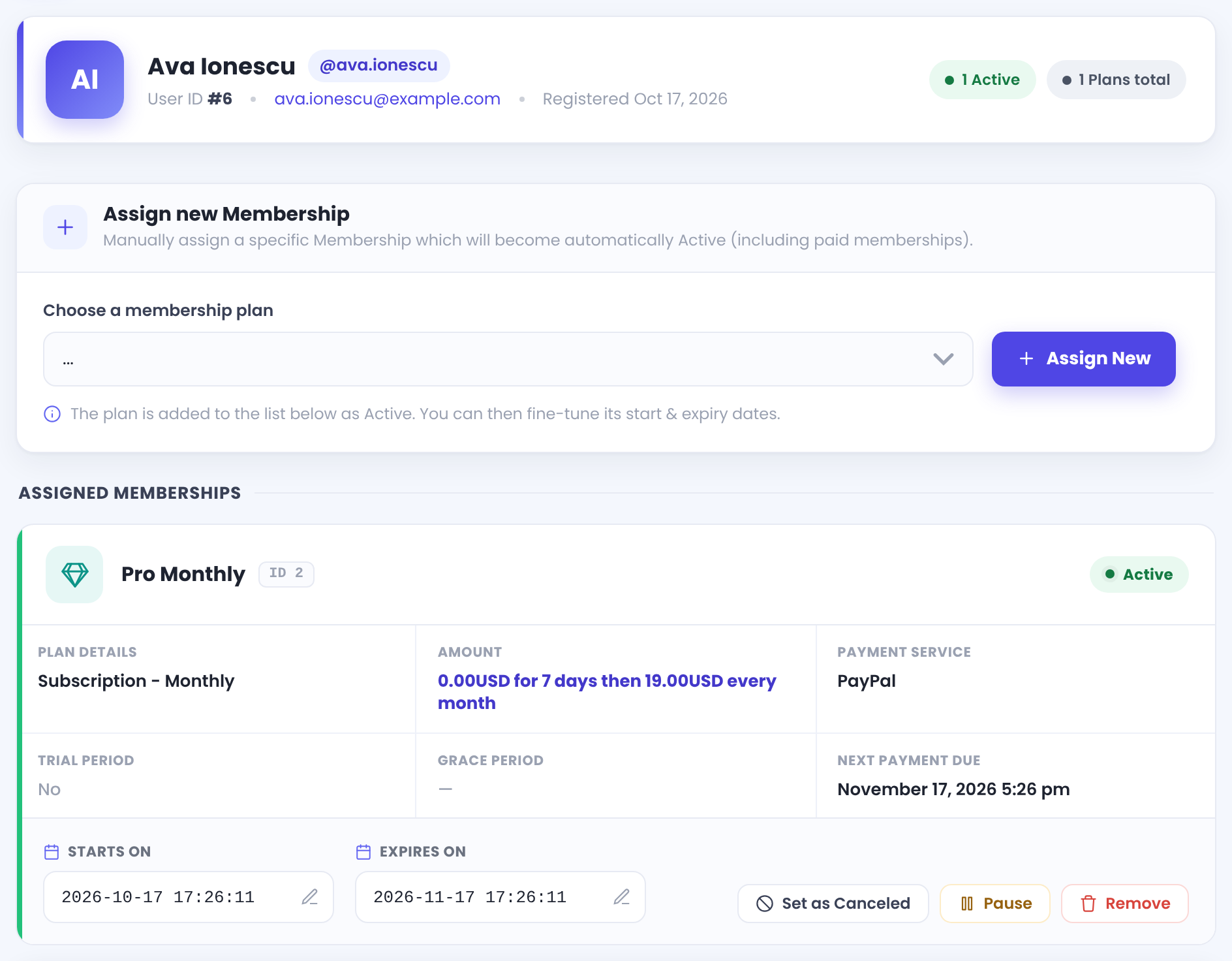
Expires On of one Membership. See Add a member and assign a Membership.
Nothing. Stripe or PayPal keeps its own payment dates, so the member is charged on the usual day.
The member has access until the new date, plus any Grace Period. A date in the past makes the Membership Expired. See Membership statuses explained.
Your site adds one billing period of the Membership to the end date. It counts from your Expires On date while that date is still in the future. If the date has passed, it counts from the day the payment is confirmed.
To give a free month, move Expires On one month later. The next payment adds its period to your later date, so the month is kept. To end access early, moving the date isn’t enough: cancel the subscription at the gateway too.
Assign a Membership by hand
You add a Membership in Add New Member or with Assign New in Manage Plans.
Nothing. No checkout runs and no subscription is created, so a recurring Membership doesn’t renew by itself.
A Membership the member already holds, and that hasn’t expired, is left as it is. Your assignment doesn’t change a subscription that is already running.
Extend Expires On when the time runs out, or ask the member to buy the Membership so the gateway bills them. See Add a member and assign a Membership.
Cancel, remove or delete: stop the payments first
These three actions end access on your site. None of them cancels the subscription at the gateway.
Marks the Membership Cancelled on your site. The member keeps access until the end date. Hover the button: Ultimate Membership Pro reminds you that the first charging plan should be canceled from the payment service platform.
Deletes the Membership from the member when you click Save Changes. Access ends at once.
Deletes the account and all its Memberships. See Manage your members.
Nothing is sent. The subscription keeps running and the member’s card is charged at the next renewal date.
A payment for a Membership you removed, or for a member you deleted, doesn’t give the Membership back. The member is still charged.
Cancel at the gateway, then on your site
- In Ultimate Membership Pro›Payment History, open the member’s latest order. For a recurring order, click Check Charging Plan. It opens the subscription at the gateway. See Manage payments and orders.
- Cancel the subscription in the gateway dashboard. In Stripe, use Cancel subscription on the Subscriptions page. In PayPal, cancel the automatic payment of that subscription.
- Check the member’s Manage Plans page. With Stripe Connect and PayPal Standard, the gateway’s notification marks an Active Membership Cancelled and runs its Cancel Subscription Action. If it still shows Active, click Set as Canceled.
- To end access at once, click Remove and then Save Changes. Otherwise the member keeps access until the end date.
Cancel at the gateway first
If you click Set as Canceled first, the Membership is already Cancelled when the gateway’s notification arrives, so its Cancel Subscription Action doesn’t run. See How renewals, cancellations and expiry work.
Pause and resume a Stripe Connect subscription
Pause or Resume on the member’s Membership in Manage Plans.
With a Stripe Connect subscription, Pause pauses payment collection on that Stripe subscription, and Resume turns it on again. No payment is taken while it is paused.
Pause stops the clock and keeps the remaining time. Resume adds that time back from the day you resume.
Pause and Resume only change the Membership on your site. The gateway doesn’t hear about them.
Reconnect Stripe with a different account
Go to Ultimate Membership Pro›Payment Gateways, open Stripe Connect with Manage, choose the Environment and click ReConnect with Stripe. See Set up Stripe.
Existing subscriptions, customers, saved cards, products and prices stay in the old Stripe account. The new account starts empty.
Everything new uses the connected account: sign-ups, Cancel, Change Card, Pause and Resume. They can’t reach a subscription that lives in the old account.
When the new account has no product for a Membership, or no customer for a member, the plugin creates it at the next checkout. Members enter their card again, because cards don’t move between Stripe accounts.
The new account needs its own webhook. Add it as described in Set up Stripe.
Test Mode and Live Mode are connected separately. ReConnect changes only the Environment you are in.
Disconnects the account for that Environment. It doesn’t cancel subscriptions in Stripe.
Before you switch accounts, move your active subscribers to the new account with the steps below, or cancel their old subscriptions in the old Stripe dashboard.
Move a member to a new plan or price
Use this when a member should pay a different price, or switch to another Membership such as Annual Pass, and you want the gateway to bill the new amount.
Choose how to move the member
Change Plan
- Gateway
- Stripe Connect only
- Who acts
- The member
- Billing
- New price minus credit for unused time
Cancel and buy again
- Gateway
- Any
- Who acts
- The member
- Billing
- A new subscription at the new price
Move by hand
- Gateway
- Any
- Who acts
- You
- Billing
- None, unless the member buys
Move the member
With Change Plan (Stripe Connect)
- Switch on Prorated Subscriptions and put the plans in a Prorate Group. See Upgrade and downgrade with prorated charges.
- Ask the member to open Subscriptions in the Member Portal and click Change Plan.
- The member picks the new plan and pays at checkout. When the payment goes through, the plugin cancels the old Stripe subscription and removes the old Membership.
The Change Plan button shows only when the member’s last payment was made with Stripe Connect. Other gateways charge the full price of the new plan.
Cancel and buy again (any gateway)
- Ask the member to click Cancel in the Subscriptions section of the Member Portal. With PayPal, they are sent to PayPal to stop the automatic payment.
- The old Membership keeps its access until the end date when its Cancel Subscription Action is Do Nothing.
- The member buys the new Membership from your Subscription Plan page. See Build your pricing page. The gateway creates a new subscription at the new price.
- When the old Membership expires, its End of Term Action decides what happens next.
Move the member yourself
- Cancel the old subscription at the gateway, as in the steps above.
- Check in Manage Plans that the old Membership shows Cancelled.
- Send the member to buy the new Membership so the gateway bills them. Or click Assign New in Manage Plans to give it without a payment, and set Expires On.
- To end the old access now, click Remove on the old Membership and Save Changes.
A Membership you assign isn’t billed
- A Membership you assign by hand has no subscription at the gateway, so it never renews.
- If the member should keep paying, they have to buy the new Membership at checkout.
Check the result
- In Manage Plans, the new Membership is Active with the right Expires On date.
- In Ultimate Membership Pro›Payment History, the new order is Completed.
- In the gateway dashboard, the member has one active subscription, at the new price.
Example: Coaching Club raises the price of Pro Monthly
- Membership Price
- Changed to $24 in the Membership Billing card
- Maya’s next renewal
- Charged $19 by Stripe, as before
- A new member today
- Charged $24
- Maya’s Expires On
- Moved one month later as a thank-you; her next payment is still on the usual day
- Moving Maya up
- She clicks Change Plan and picks Annual Pass ($190/year) in the same Prorate Group
- Result
- The plugin cancels the $19 Stripe subscription, Maya pays the Annual Pass price minus credit, and the old Membership is removed
Learn more about subscription changes
- Stripe Connect and Stripe Checkout with Ultimate Membership Pro
- Payment gateways you can use
- Subscriptions and recurring billing
- Stripe: cancel subscriptions
- Stripe: change the price of existing subscriptions
Troubleshooting
I raised the price, but existing members still pay the old one. Why?
The gateway holds the amount of each subscription, and it was set when the member subscribed. A new price applies to new sign-ups only. To move a member to the new price, follow the steps in Move a member to a new plan or price, further down this page.
Does editing Expires On change the day Stripe or PayPal charges the member?
No. The gateway keeps its own payment dates. Expires On only decides how long the member has access on your site, and where the next end date starts counting from.
I clicked Set as Canceled, but the member was charged again. Why?
Set as Canceled marks the Membership on your site only. Cancel the subscription at the gateway to stop the payments: open the member’s order in Payment History and click Check Charging Plan.
How do I cancel a member’s subscription in Stripe?
Open the member’s order in Payment History and click Check Charging Plan. In Stripe, open the subscription, click the ⋯ menu and choose Cancel subscription. With Stripe Connect, Stripe then tells your site and the Membership is marked Cancelled.
I deleted a member, but Stripe still charges the card. How do I stop it?
Deleting a member doesn’t cancel anything at the gateway. In your Stripe dashboard, find the customer by email address, open the subscription and cancel it. The payment doesn’t give the member a Membership back.
Can a member switch to a cheaper or dearer plan without paying twice?
With Stripe Connect and Prorated Subscriptions, yes. The member clicks Change Plan and pays the new price minus credit for the unused time. Other gateways charge the full price of the new plan. See Upgrade and downgrade with prorated charges.
I reconnected Stripe with a new account. Where do my old subscribers pay?
Their subscriptions stay in the old Stripe account. Cancel them there, and have those members subscribe again so they get a subscription in the new account.


