
Stripe Connect is the recommended way to take card payments in Ultimate Membership Pro. Members pay by card on your own checkout page, without leaving your site, and Stripe handles one-time payments, recurring plans, trials, saved cards and 3D Secure.
This guide connects your Stripe account, adds the webhook that confirms payments, explains every setting on the screen, and runs a test payment for the Coaching Club site.
Before you start
- You have a Stripe account that is activated (verified) for payments. You can also create one during the connection.
- Your site uses HTTPS with a valid SSL certificate. Stripe refuses card payments from sites without one.
- Your site is reachable from the internet. Stripe confirms every payment by calling your site, so a local site that only you can open never gets those calls.
- You have a paid Membership, for example Pro Monthly at $19/month. See Create your first Membership.
- Your currency is set under Ultimate Membership Pro›Settings›Payment Settings. See Set your currency.
Stripe Connect or Stripe Checkout?
Ultimate Membership Pro has two Stripe gateways. Both use your own Stripe account. Pick one for new sign-ups; you can run both if you need to.
Stripe Connect
- Checkout
- Card form on your own page
- Connection
- Connect with Stripe button, no API keys
- Member Portal
- Cancel, Change Card, saved cards
Stripe Checkout
- Checkout
- Stripe’s hosted payment page
- Connection
- Publishable and Secret key
- Member Portal
- Cancel
Already on Stripe Checkout and want to switch? See Move from Stripe Checkout to Stripe Connect.
What Stripe Connect supports
Payments
- One-time
- Yes: LifeTime, Limited Time and Date Range Memberships
- Recurring
- Yes: On Going and Limited (2 to 52 payments)
- Checkout
- On your site, with Stripe’s secure card field
Billing rules
- Cycles
- 1 to 365 days, 1 to 52 weeks, 1 to 12 months or 1 year
- Trials
- Free or paid, set in any period
- Currencies
- Your site currency, as Stripe accepts it
The smallest amount Stripe charges is $0.50 in currencies with cents; a lower price or discounted amount is charged as $0.50. Currencies without cents, such as JPY or KRW, are sent as whole amounts.
Open the Stripe Connect settings
- Go to Ultimate Membership Pro›Payment Gateways.
- Find Stripe Connect (marked PRO and Recommended) and click Complete setup. Once the gateway is on, the button reads Manage.

The page is called Stripe Connect Gateway and has three boxes: Stripe Connect Setup, Stripe Connect Settings and Extra Settings. Its badge shows Inactive, Sandbox (test mode) or Live. Nothing is stored until you click Save Changes.
Turn on the gateway
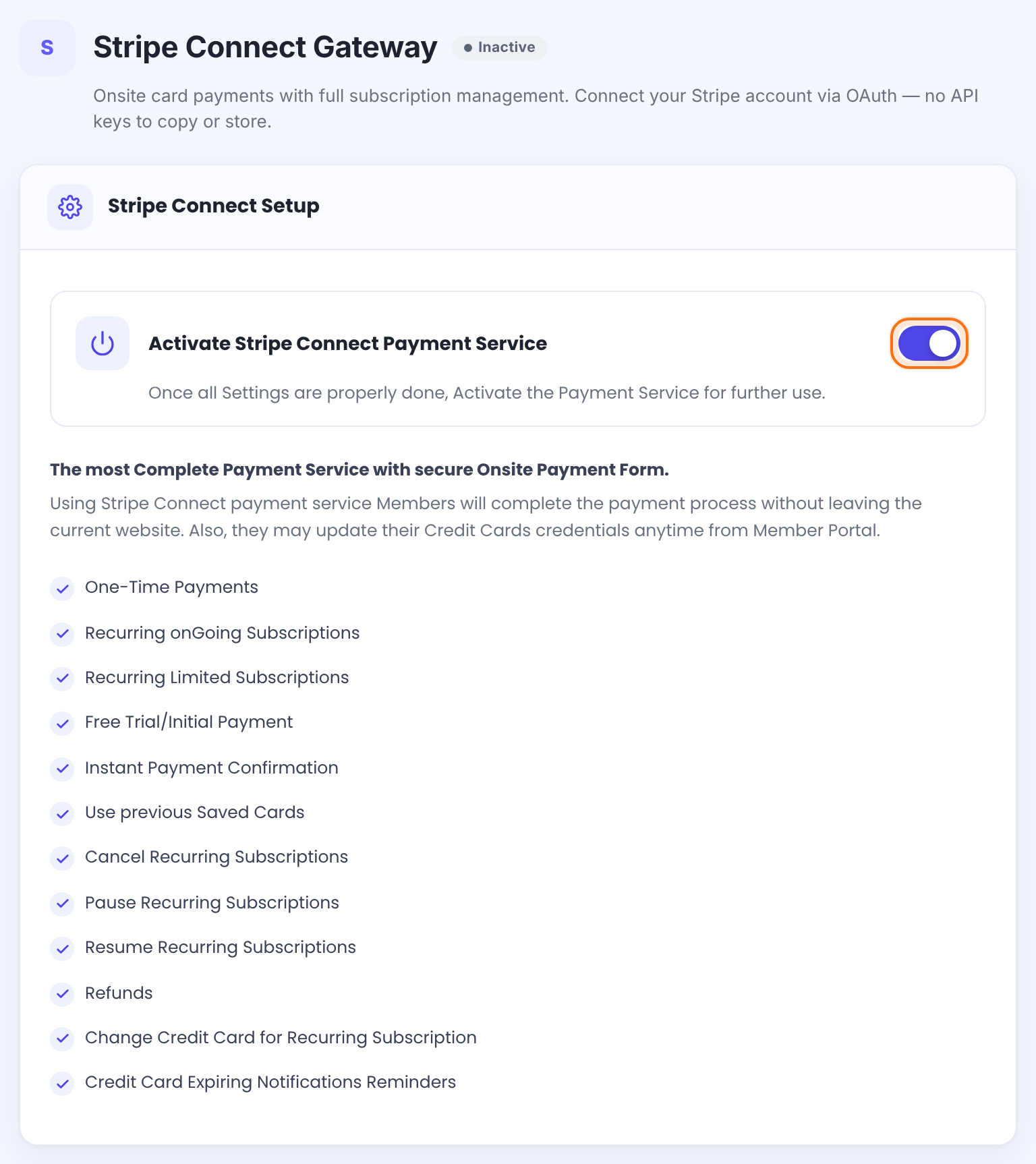
Makes Stripe Connect available at checkout once an account is connected for the selected Environment. While it’s off, your site doesn’t process Stripe’s webhook calls. When you save with the switch on and the account connected, Stripe Connect also becomes your Default Payment Gateway.
Default: Off
Under the switch, the box lists what the gateway does: one-time and recurring payments, trials, saved cards, cancel and card changes for subscriptions, refunds and card expiry reminders.
Connect your Stripe account
In Stripe Connect Settings, choose the Environment first. Test Mode and Live Mode are connected separately, each with its own Stripe account connection, so you can test without touching real money.
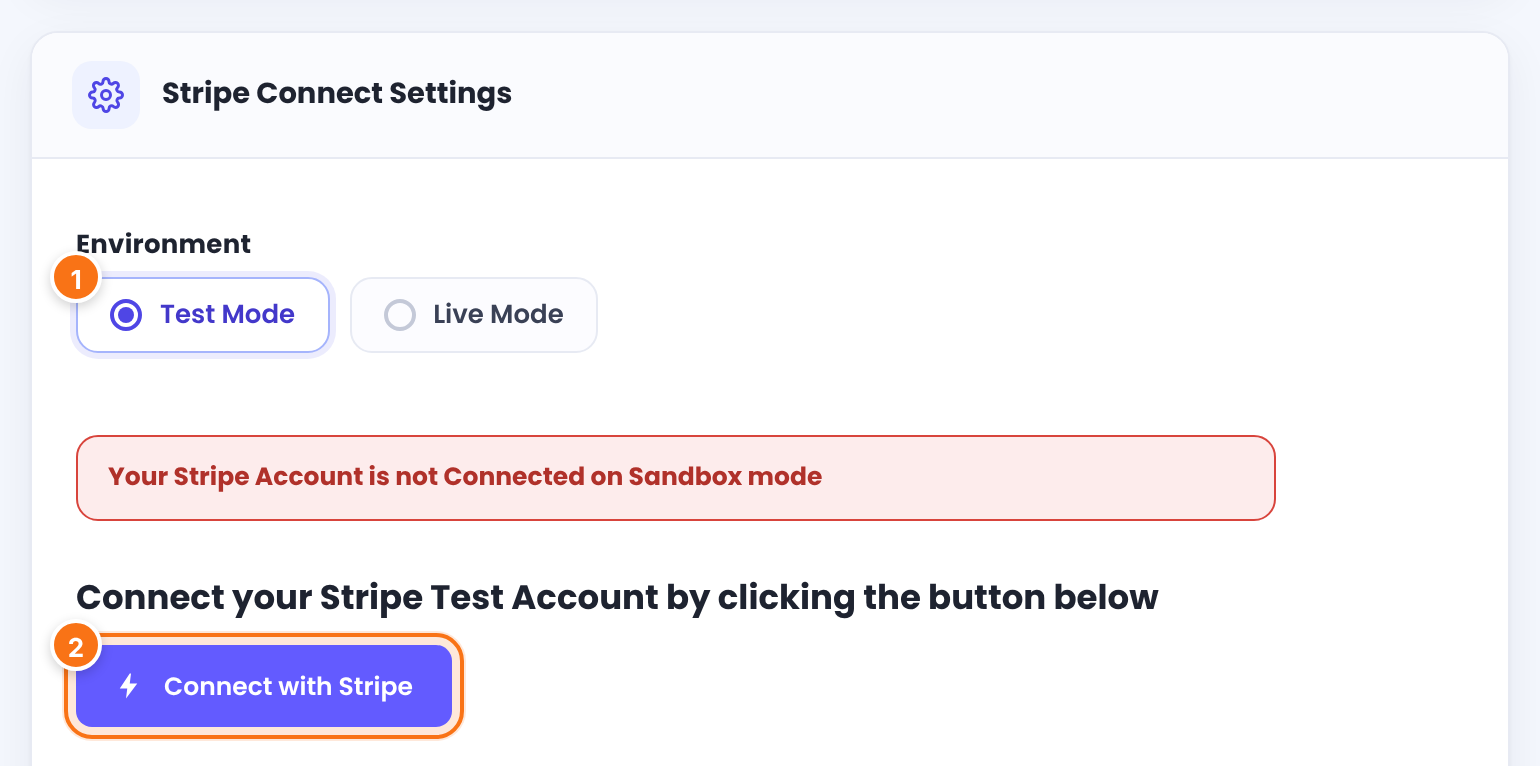
Which Stripe connection is used. Clicking an option switches the panels below; the choice is stored when you save.
- Test Mode: test payments with Stripe test cards. Members see a Sandbox Mode label above the card form.
- Live Mode: real payments.
Default: Test Mode
Starts the connection. Until it’s done, the box says “Your Stripe Account is not Connected on Sandbox mode” (or Live mode).
- Click Connect with Stripe. You’re taken to Stripe. If you aren’t logged in to Stripe, click Sign in at the top, or create an account.
- Select your Stripe account and click Connect my Stripe account.
- Stripe sends you back to this screen, which now shows “Congratulations! Your Stripe Account is connected in Test Mode”.
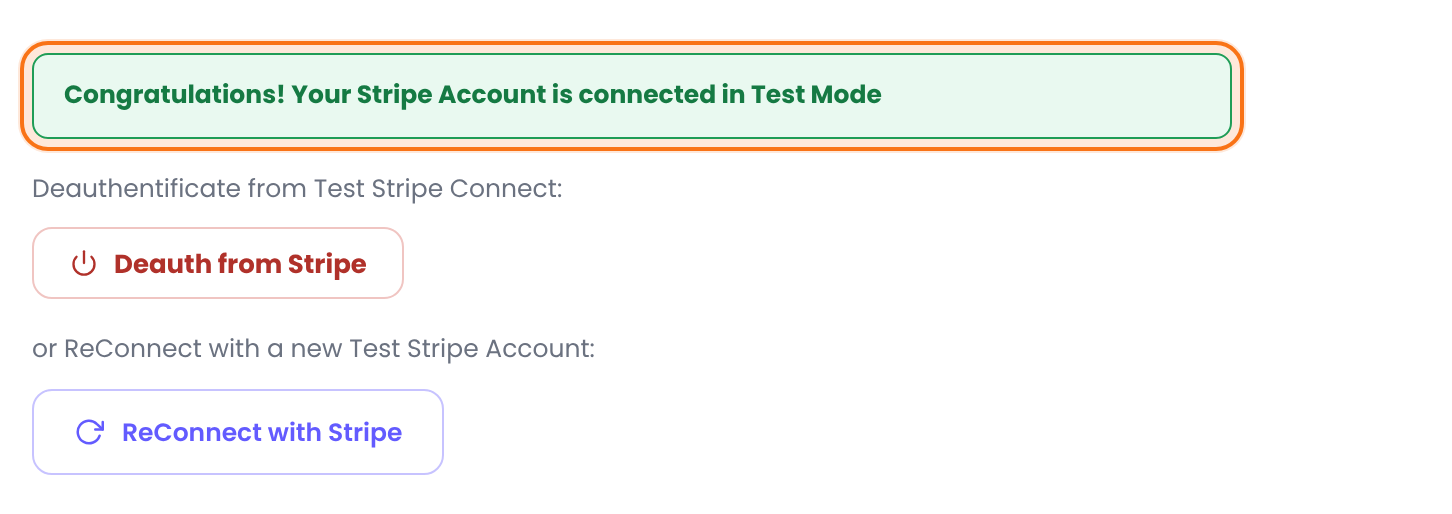
Disconnects the Stripe account for this Environment. It doesn’t switch the gateway off and doesn’t cancel subscriptions in Stripe. If it fails, the screen shows “Error on trying to deauth from Stripe.”
Connects a different Stripe account for this Environment.
There are no API keys to copy: the connection stores everything the gateway needs. Repeat this step with Live Mode selected when you’re ready to take real payments.
The Setup Instructions under the button repeat these steps and remind you of the SSL requirement.
Add the webhook in Stripe
Stripe tells your site about every payment, renewal, cancellation and refund through a webhook. Without it, orders stay Pending and Memberships aren’t activated or renewed.
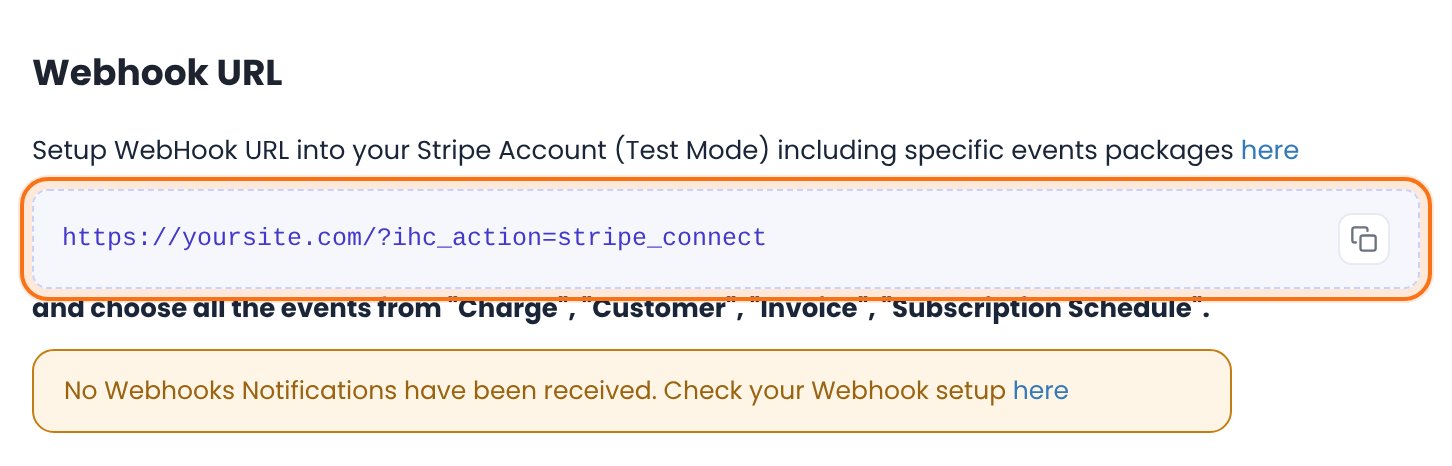
https://yoursite.com/?ihc_action=stripe_connect- Click the copy icon next to the address. It’s the same for Test and Live Mode.
- Open the Stripe webhooks page with the here link in the panel (it opens the test or live dashboard to match the Environment) and add a new endpoint.
- Paste the address as the endpoint URL.
- Select all the events from Charge, Customer, Invoice and Subscription Schedule, then save the endpoint.
- Repeat in Stripe’s other mode when you switch Environment: test and live webhooks are set separately in Stripe.
Green line with the time (GMT) of the last call from Stripe for the selected Environment. It appears after the first event arrives.
Yellow line: nothing has arrived yet for this Environment. Normal before your first test payment; afterwards, check the endpoint in Stripe.
Set the payment options
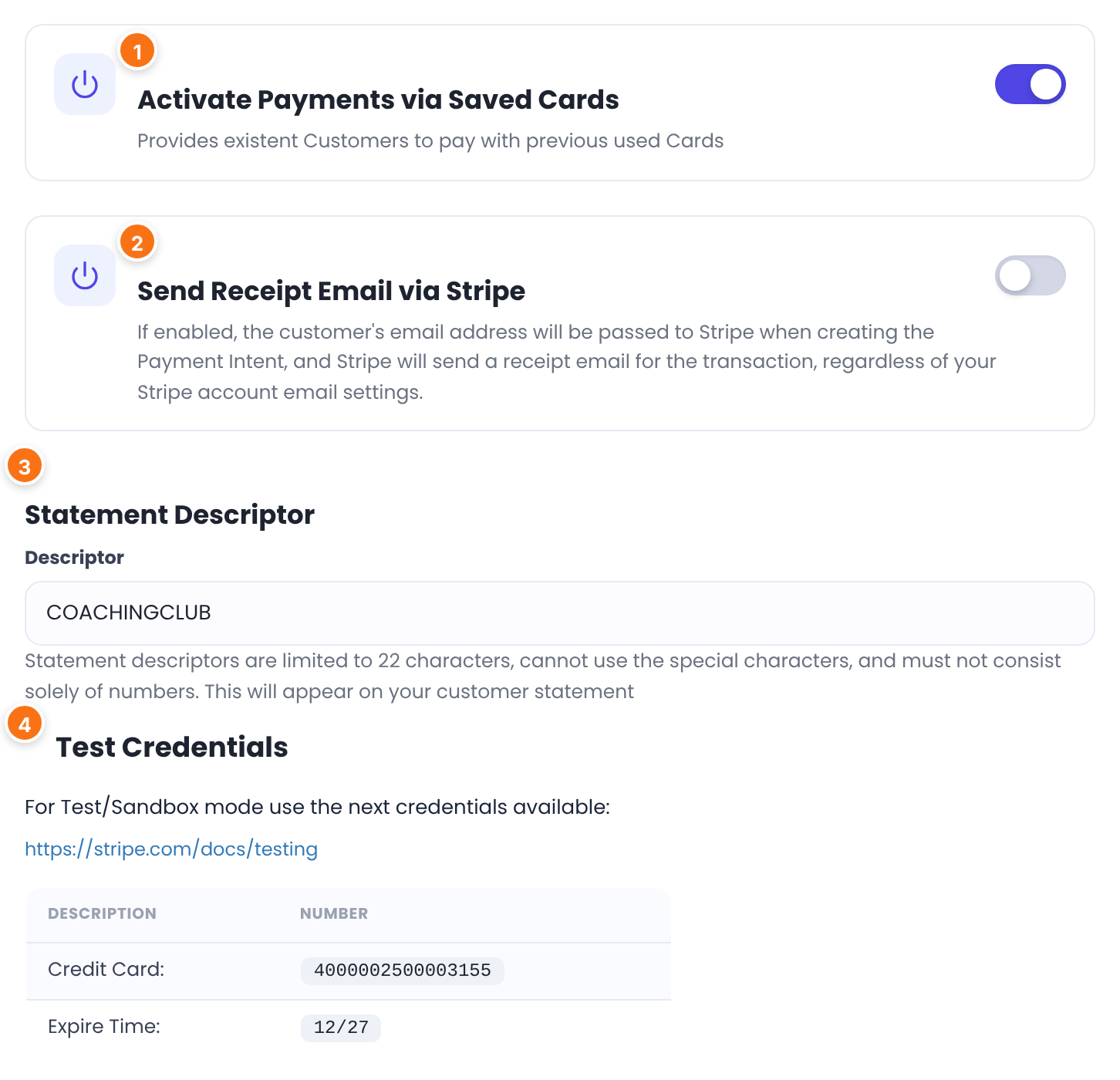
Lets returning members pay with a card they used before. At checkout they see their saved cards (brand, last 4 digits, expiry) and an Add new Card option. Cards are stored by Stripe, not on your site.
Default: Off
Passes the member’s email to Stripe with the payment so Stripe emails its own receipt, whatever your Stripe email settings. It applies to a member’s first payment through Stripe Connect.
Default: Off
The text on your members’ card statements, such as COACHINGCLUB. Keep it short, use letters (not only numbers) and no special characters. Leave it empty to use the default descriptor of your Stripe account.
Default: Empty
A Stripe test card for test payments: 4000002500003155, expiry 12 of next year. More test cards are on stripe.com/docs/testing.
Set how Stripe appears at checkout
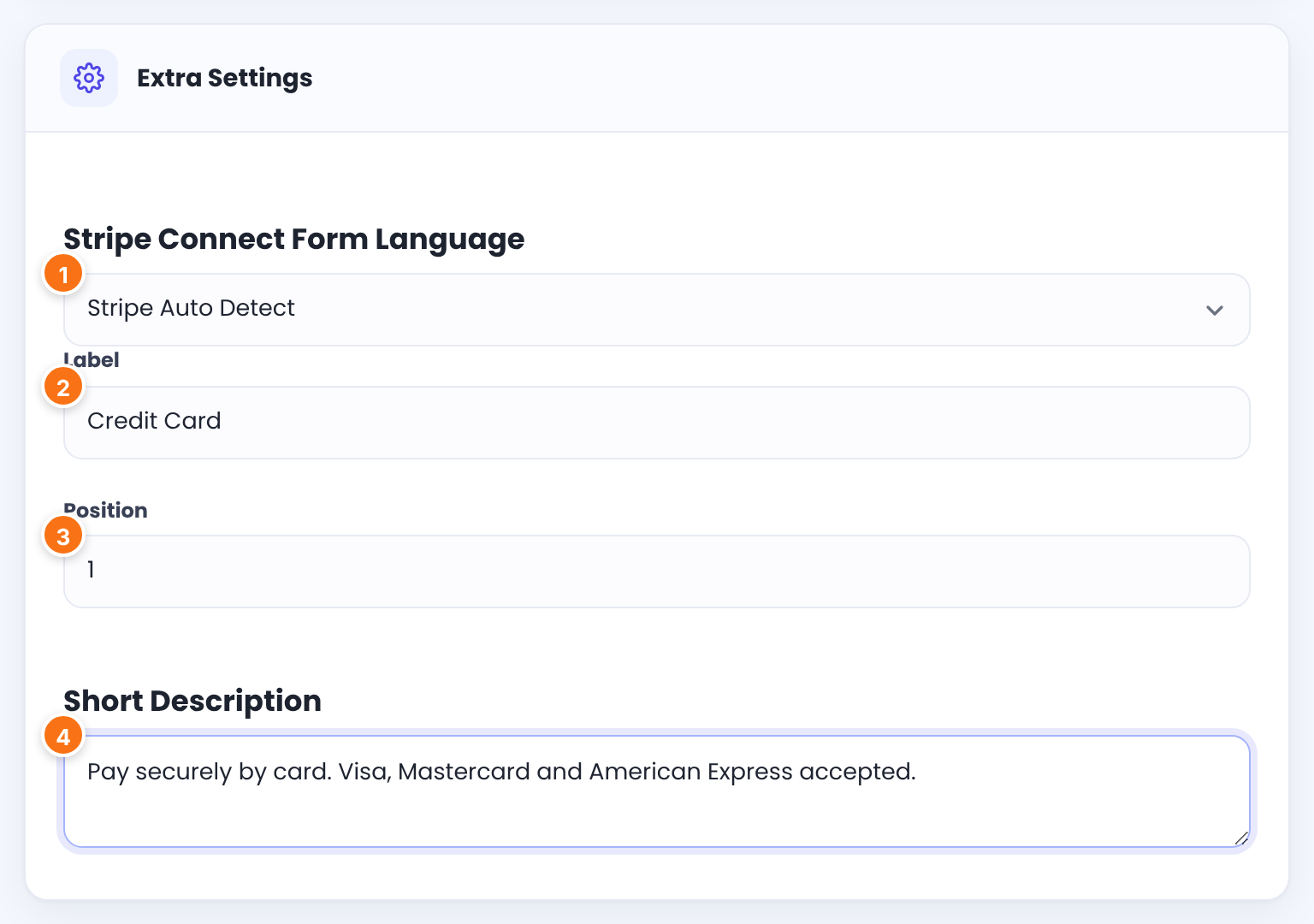
The language of the card field and its messages. Stripe Auto Detect follows the visitor’s browser; or pick a fixed language.
Default: Stripe Auto Detect
The name of this payment method that members see at checkout.
Default: Credit Card
The order of this gateway among the payment methods at checkout. Lower numbers come first.
Default: 1
Optional text about the gateway, saved with its settings.
Click Save Changes. Back on Payment Gateways, Stripe Connect shows Sandbox or Live and a Manage button.
Test a payment
- With Environment on Test Mode and the test webhook added, open your site in a private window and buy Pro Monthly.
- At checkout, pick Credit Card. Enter a name, the test card
4000002500003155, the expiry date shown under Test Credentials (12 of next year) and any 3-digit CVC. - This test card asks for 3D Secure, so a Stripe authentication window opens. Approve it.
- In Ultimate Membership Pro›Payment History, the order turns Completed as soon as Stripe’s webhook arrives, and the Membership is active. The webhook panel shows the time of the last notification.
- In your Stripe test dashboard, you see the payment and, for a recurring plan, the subscription.
Ready for real payments? Select Live Mode, connect your live Stripe account, add the live webhook in Stripe and save. Delete test orders and test members first.
What members see
A Name on the Card * field and Stripe’s secure card field (number, expiry, CVC) appear on the checkout or register page. Card details go straight to Stripe; your site never stores them. Card errors from Stripe show under the field.
When the bank asks for authentication, Stripe opens its verification window right on the page; the payment finishes once the member approves it.
With Activate Payments via Saved Cards on, logged-in members who paid by card before can choose a saved card or Add new Card.
For a recurring plan paid with Stripe Connect, members can Cancel the subscription and use Change Card to replace the card used for renewals. See Set up the Member Portal.
Renewals, cancellations and refunds
Stripe charges the saved card on each renewal date. When the payment succeeds, the webhook adds a new Completed order and extends the Membership. A trial or initial payment period runs first; the regular price starts when it ends.
Stripe retries the card according to your Stripe settings. Meanwhile the Membership isn’t extended, so it runs out at its expiry date (plus any grace period). If Stripe then cancels the subscription, the Membership is marked Cancelled.
A member who clicks Cancel in the Member Portal cancels the subscription in Stripe right away; no further payments are taken. The Membership’s Cancel Subscription Action decides what happens on your site. A subscription cancelled in Stripe is also marked Cancelled on your site.
Refund in your Stripe dashboard. When Stripe reports a refund, or money withdrawn for a dispute, the Membership is removed from the member.
Stripe’s own fees depend on your country (see Stripe’s pricing page). Stripe Connect adds a 1% application fee per payment, which supports the Connect service.
Limits to know
- Billing cycles can be at most 1 year (or 12 months, 52 weeks, 365 days).
- Limited subscriptions take 2 to 52 payments.
- The minimum charge is $0.50 in currencies with cents.
- Webhooks only reach public sites. Staging sites behind a password or on localhost don’t get them.
Extra protection against card testing
Bots sometimes try stolen cards on sign-up forms. Under Ultimate Membership Pro›Settings›Security, Turn On reCaptcha for Stripe Connect payment gateway adds a reCAPTCHA v3 check for visitors who aren’t logged in. It needs reCAPTCHA set up and on the registration form.
Example: Coaching Club on Stripe Connect
- Environment
- Test Mode first, then Live Mode
- Stripe account
- Connected with Connect with Stripe in both modes
- Webhook
?ihc_action=stripe_connect, events from Charge, Customer, Invoice, Subscription Schedule- Activate Payments via Saved Cards
- On
- Statement Descriptor
- COACHINGCLUB
- Label
- Credit Card
- Position
- 1
- Membership
- Pro Monthly, Recurring Subscription, 1 Months, $19, On Going
Troubleshooting
The order stays Pending after the member paid. Why?
The order stays pending until Stripe confirms it through the webhook. If the payment shows as succeeded in Stripe but the order is Pending, the webhook isn’t reaching your site: check that the endpoint exists in the right Stripe mode (test or live) with the four event groups, that the gateway switch is on, and that your site is public. The webhook panel’s No Webhooks Notifications have been received line confirms nothing arrived. See Paid, but the Membership is still on hold.
Why does the card field show before the member finishes the registration form?
The card field is part of the form. When the member submits, Ultimate Membership Pro first checks every registration field; the card is processed only when the form is valid, and the account and order are created right after. Members are never asked for their card twice and aren’t charged for a form with errors.
Do coupons work with Stripe?
Yes, with one-time and recurring Memberships. A coupon set to Entire Billing Period lowers every payment. A coupon set to Just for Initial Payment lowers only the first payment; the full price starts one billing cycle later. If a coupon makes a one-time price free, no payment is taken. A 100% Just for Initial Payment coupon on a recurring plan still asks for a card, charges nothing now and charges the full price when the first period ends. Any discounted amount below $0.50 is charged as $0.50. See Create coupon codes.
Should I use the old Stripe settings with API keys and ?ihc_action=stripe?
No. That older Stripe gateway no longer exists. Use Stripe Connect and the webhook address shown on its screen. If an admin notice says “Stripe Standard Payment Service have been shut down”, set up Stripe Connect.
Why don’t members see Stripe at checkout?
Check that the gateway switch is on, that an account is connected for the selected Environment, and that you saved. If you limit payment methods per Membership, check that Stripe Connect is allowed for it. See Allow only some payment methods for a Membership.
Why does the webhook address show “No Payments details sent. Come later” in my browser?
That’s expected. The address only does something when Stripe sends an event to it.


