
The Ultimate Membership Pro Invoice module gives every Membership order a printable invoice with your company details, the member’s billing details, the amount and the tax. Members open and print their invoices from the Member Portal, and you open any member’s invoice from Payment History.
Invoices are shown on screen and printed (or saved as PDF) from the browser. Ultimate Membership Pro doesn’t email invoices or attach PDF files. This guide sets up the invoice, explains invoice numbers, and shows where members and admins find it.
Before you start
- Your license is active; modules need it. See Find and activate your license key.
- Members can see the Payments tab of the Member Portal. See Set up the Member Portal.
- If you charge taxes, set them up first so invoices show them. See Charge taxes.
Switch on the Invoice module
- Go to Ultimate Membership Pro›Modules and open Invoice (in Payments & Billing). The Order Invoices screen opens.
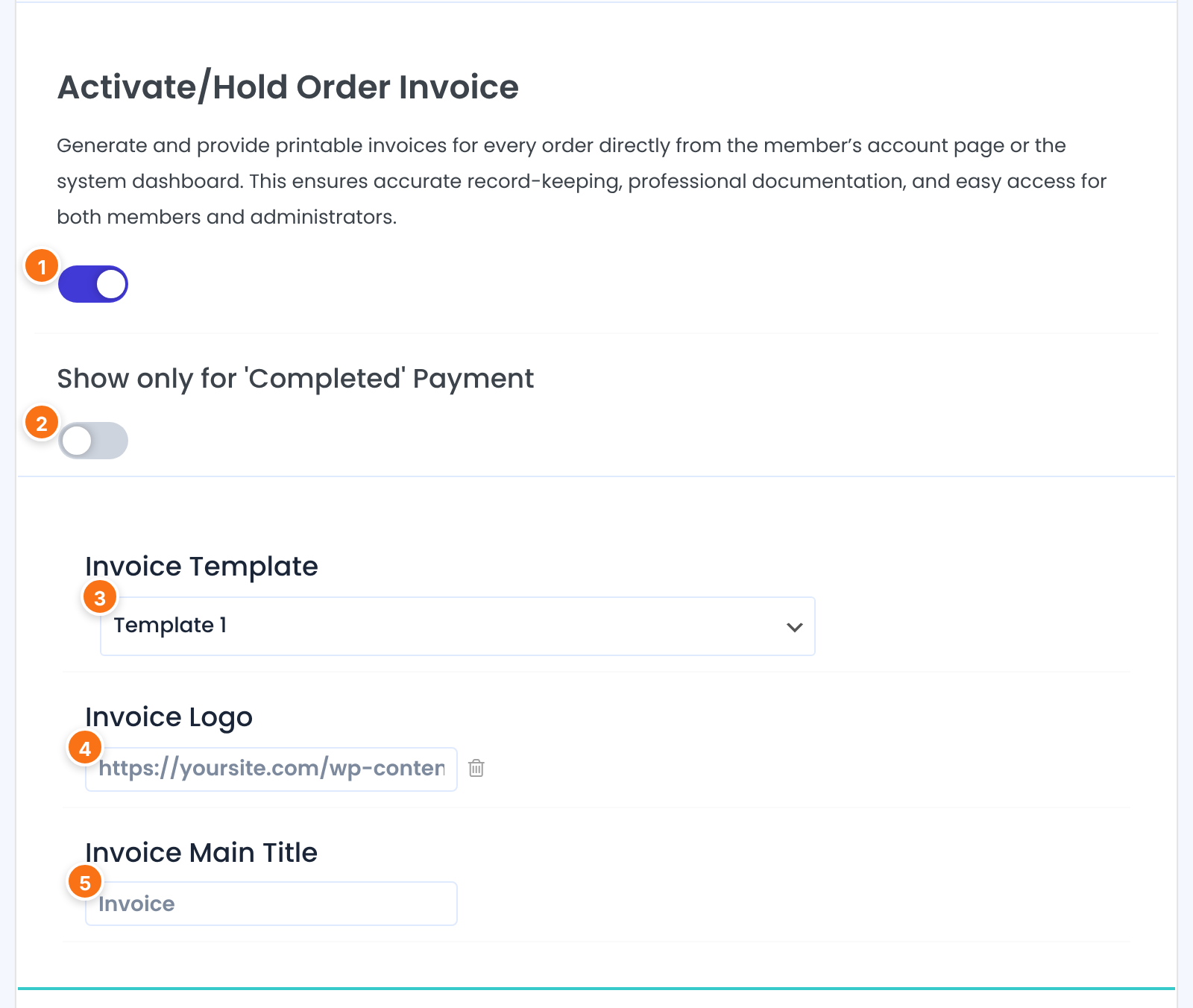
Turns invoices on. An Invoice column with a document icon appears in the member’s Payments table and in Payment History.
Default: Off
When on, the invoice icon appears only for completed orders. Turn it on so members can’t print an invoice for a payment that hasn’t gone through, such as a pending bank transfer.
Default: Off
Two layouts for the same content. The Preview at the bottom of the screen updates when you change it.
Default: Template 1
Click the field to pick an image from the Media Library. Replace the sample logo with your own; the trash icon removes it.
The heading of the invoice, for example Invoice.
Default: Your Order Invoice
Add your company and billing details
Under Additional Invoice Details, two editors fill the top of the invoice:
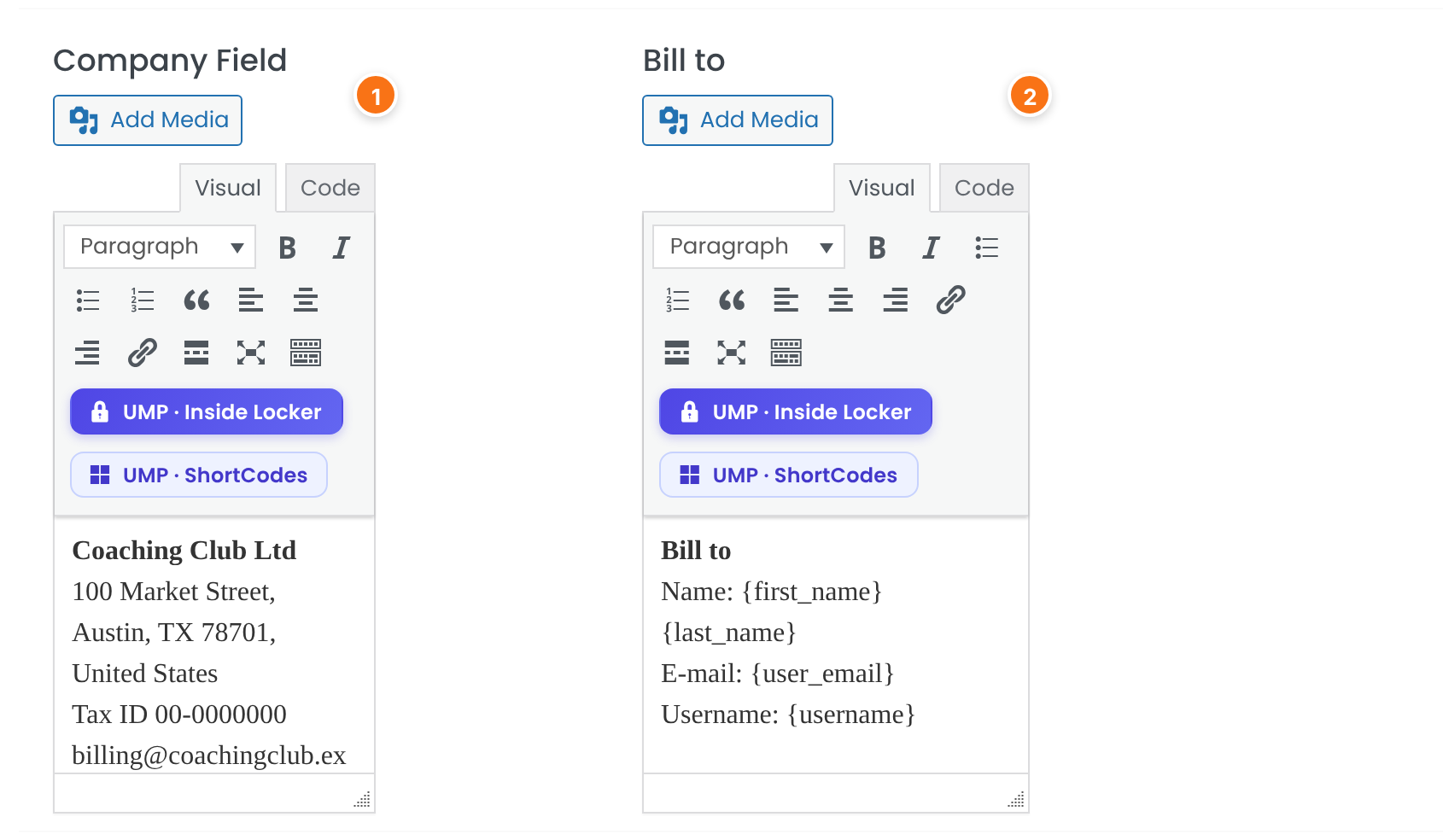
Your business name, address, tax or VAT number and contact details, exactly as they should appear on the invoice. Replace the sample text (Your CompanyName LLC, Unique Code: #99991239).
The member’s details. Use placeholders that are filled in for each member, for example {first_name} {last_name} and {user_email}. The default text ends with Address: {CUSTOM_FIELD_addr1}, filled in from the address field of your registration form.
Text at the bottom of the invoice, for example payment terms or a support address.
Default: If you have any questions about this Invoice, please contact us!
CSS for the invoice, for example to change fonts or colors. The Preview updates when you leave the field.
Click Save Changes. The Preview box under the button shows the invoice with sample data.
Placeholders that work on invoices
Use these placeholders in Company Field, Bill to, Footer Invoice Info and Invoice main Title:
The member’s name, username, email address and ID.
Any registration form field, for example {CUSTOM_FIELD_addr1} for an address field. The list is under Custom Fields constants.
All the member’s Memberships, not only the one on this invoice.
Your site name and addresses.
The day the invoice is opened or printed. The order date is already printed as Date:.
Tip: show the member’s VAT number on the invoice
Members don’t have a VAT number field by default. To collect one, add it as a custom field and use it in Bill to:
- Go to Ultimate Membership Pro›Registration Form›Custom Fields and click + Add New Custom Form Field.
- Set Field Unique Slug to
vat_number, keep Field Type as Text, and set Field Label to VAT number. See Add custom fields to the registration form. - Click Save Changes, then switch on On Registration (and On Profile, so members can add or fix it later).
- On the Order Invoices screen, add a line to Bill to, for example:
VAT No.: {CUSTOM_FIELD_vat_number}.
The number is printed as the member typed it. Members who registered before you added the field have no value, so the line is empty for them. Ultimate Membership Pro doesn’t check the number and it doesn’t change the tax that is charged.
Set the invoice number prefix
Each invoice is numbered with its order code: a prefix followed by the order number in six digits, for example IUMP000007. To change the prefix, go to Ultimate Membership Pro›Settings›Payment Settings:
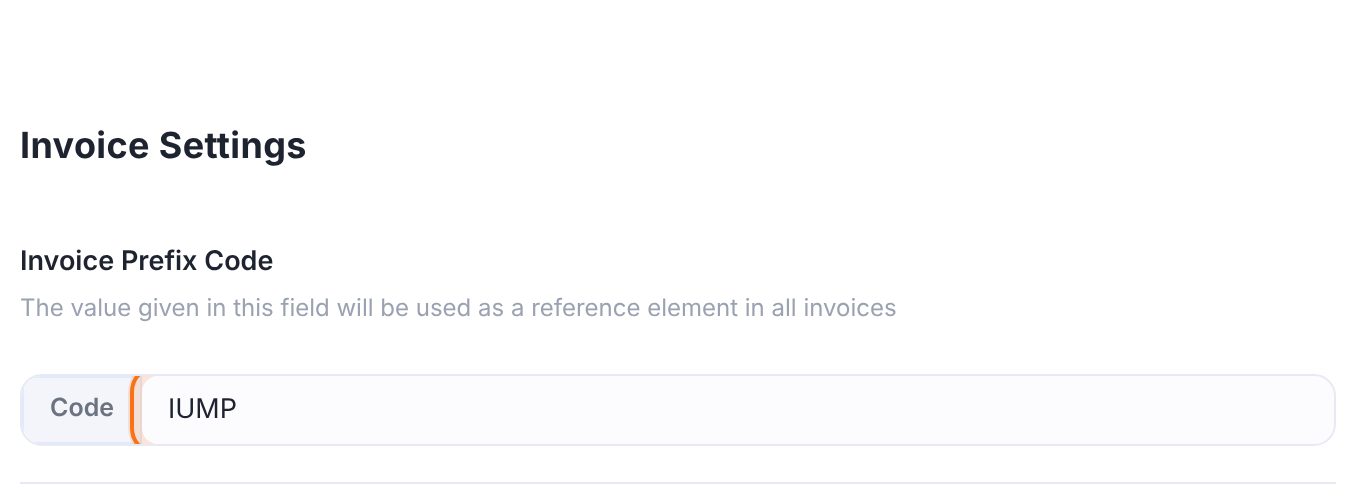
The letters in front of every new order code and invoice number, for example CC for CC000012. Existing orders keep their code. If you leave it empty, UMP is used.
Default: IUMP
The same code is shown as Code in Payment History and in the member’s Payments table, so an invoice is easy to match with its order. Numbers aren’t strictly consecutive: every checkout attempt creates an order, including payments that fail or are never finished, and each takes the next number.
Your business address and VAT number go in Company Field.
Where members open their invoices
Members log in, open the Member Portal and go to the Payments tab. Each order has a document icon in the Invoice column:
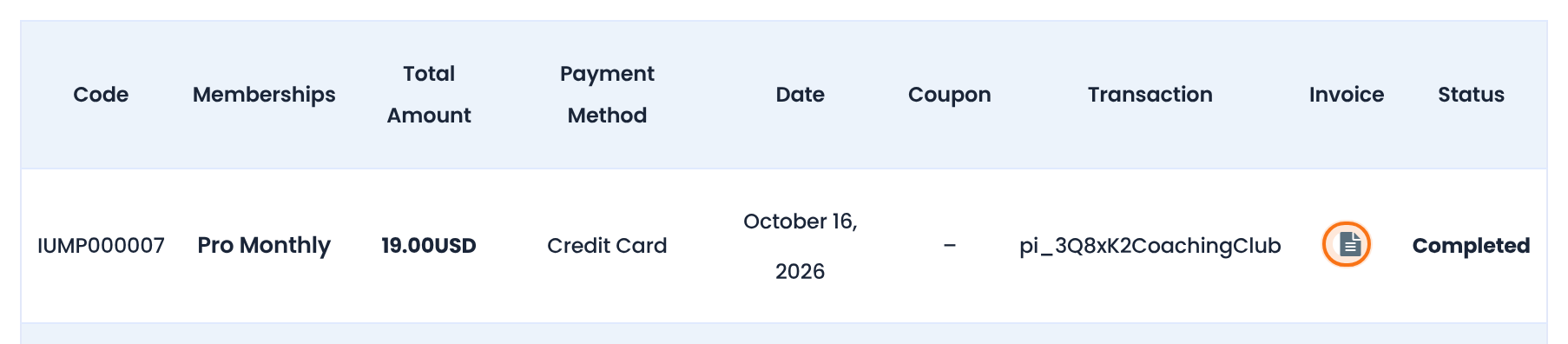
The icon opens the invoice in a window. Print Invoice opens the browser’s print dialog, where the member can print it or save it as a PDF.
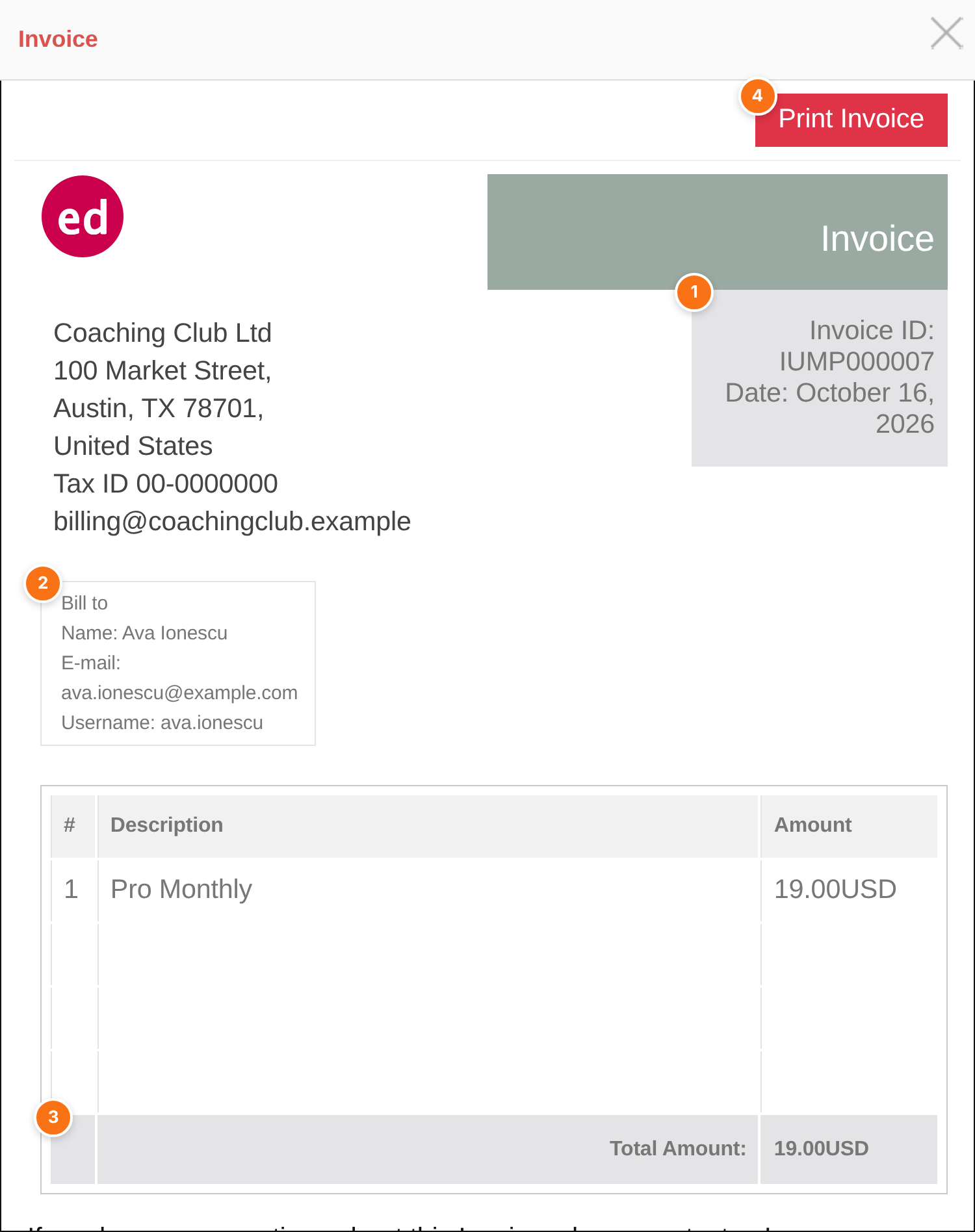
The order code and the date of the order.
Your Bill to text with the member’s details filled in.
What the member paid. The line above lists the Membership with its price before tax; with the Taxes module on, a Total Taxes: line shows the tax.
Prints only the invoice, without the rest of the page.
If the Invoice column is missing, check that Show Orders Table is on for the Payments tab of the Member Portal and that the Invoice column is on under Ultimate Membership Pro›Showcases›Payments Table. See Customize the Subscriptions and Payments tables.
Where admins open invoices
Go to Ultimate Membership Pro›Payment History. While the module is on, the Invoice column has the same icon, so you can open and print any member’s invoice, for example to send it by email yourself.
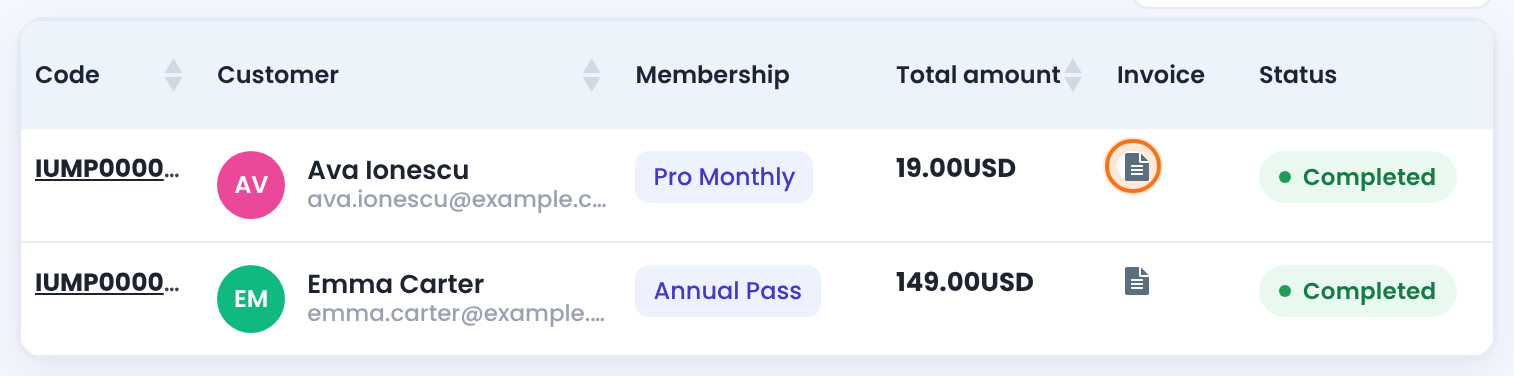
With Show only for 'Completed' Payment off, Payment History shows the icon for completed and pending orders; with it on, only for completed ones.
Add-on: Reset Invoice ID
The Reset Invoice ID add-on adds a Reset Invoice ID module that sets the number order numbering starts from, 1 or a number you choose. It doesn’t renumber or delete existing invoices. Set it up on a new site, before your first real order.
Limits
- Invoices aren’t emailed and there’s no PDF file. Members and admins print them, or save them as PDF from the browser’s print dialog.
- An invoice uses your current settings each time it’s opened: if you change your company details or logo, past invoices show the new ones too.
- Ultimate Membership Pro doesn’t save invoice files. It builds the invoice from the order each time someone opens it. The order code, date, amounts and taxes come from the order. Your company details, logo, footer and the Membership name are read when the invoice is opened, and so are the member’s details in Bill to: if a member changes their name or address in their profile, earlier invoices show the new details.
- There is no option to download all invoices at once. To get your orders in bulk, use the Export Orders To CSV add-on. It exports a CSV file with the order code, customer, Membership, amount, taxes, total, date and status, which you can send to your accountant. See Export orders to a CSV file. It is a Pro add-on.
- Check with your accountant whether these invoices meet the legal requirements in your country, for example consecutive numbering.
- Ultimate Membership Pro doesn’t create e-invoices for national e-invoicing systems. Its invoice is a printable page, as described above. If your country requires e-invoices, create them in your accounting software; the Export Orders To CSV add-on gives you the order data to work from.
Example: invoices for the Coaching Club
- Activate/Hold Order Invoice
- On
- Show only for ‘Completed’ Payment
- On
- Invoice main Title
- Invoice
- Company Field
- Coaching Club Ltd, address, tax ID, billing email
- Bill to
- Name {first_name} {last_name}, E-mail {user_email}, Username {username}
- Invoice Prefix Code
- IUMP
- Result
- Emma Carter’s $149 Annual Pass invoice: IUMP000006, Total Amount 149.00USD
Troubleshooting
Can Ultimate Membership Pro email invoices to members automatically?
No. The Invoice module makes printable invoices that members open from the Payments tab of the Member Portal and admins open from Payment History. To send one, open it in Payment History, save it as PDF from the print dialog and attach it to an email.
Why don’t members see an Invoice column?
Check that Activate/Hold Order Invoice is on and saved, that Show Orders Table is on for the Payments tab, and that the Invoice column is on in Showcases › Payments Table. With Show only for ‘Completed’ Payment on, orders that aren’t completed show “-” instead of the icon.
How do I add my VAT number and address to invoices?
Type them into Company Field on the Order Invoices screen.
How do I change the invoice number format?
Change Invoice Prefix Code under Settings › Payment Settings › Invoice Settings. The number after the prefix is the order number and can’t be edited.
Why are there gaps in my invoice numbers?
Invoice numbers are order numbers, and an order is created at every checkout attempt, including payments that fail or are abandoned. Those orders take a number too.
Can I download all invoices at once?
No. Invoices are built one at a time when someone opens them, and there is no bulk download. To get all your orders in one file, use the Export Orders To CSV add-on and send the CSV to your accountant. See Export orders to a CSV file.
Can members enter a VAT number for their invoice?
Yes, with a custom field. Add a Text field with the slug vat_number under Ultimate Membership Pro › Registration Form › Custom Fields, switch on On Registration, then add VAT No.: {CUSTOM_FIELD_vat_number} to Bill to. See “Tip: show the member’s VAT number on the invoice” above.
Does Ultimate Membership Pro create e-invoices for my country’s e-invoicing system?
No. It makes a printable invoice only. Create e-invoices in your accounting software, using the order data from Export Orders To CSV.


