
The Ultimate Membership Pro checkout page is where a member pays for a Membership: they choose a payment method, see the price, apply a coupon and click Complete Purchase. You decide which sections the checkout shows, what its texts say and how it looks.
This guide checks that your checkout page is in place, walks through every setting of the Checkout Page screen, and shows what members and visitors see.
Before you start
- You have a paid Membership, for example Pro Monthly at $19/month with a 7-day free trial. See Create your first Membership.
- At least one payment gateway is active, for example Stripe Connect. See Set up Stripe.
- To offer discount codes, you have created at least one coupon. See Create coupon codes.
How members reach the checkout
The checkout always shows one Membership, chosen by the lid parameter (the Membership ID) in the page address, for example ?lid=2 for Pro Monthly. The buttons of your pricing page and Member Portal add it for you. See Build your pricing page.
Open the checkout page itself, for example https://yoursite.com/checkout-page/?lid=2, and pay with the Complete Purchase button.
Are sent to your Register page, with the same lid. The checkout sections appear inside the registration form, just above its Register button, so a new member signs up and pays in one step.
If the address has no lid, the checkout shows nothing.
Check the checkout page
Ultimate Membership Pro creates a page named Checkout Page with the [ihc-checkout-page] shortcode when you activate it. Make sure it’s still selected:
- Go to Ultimate Membership Pro›Settings›Pages Setup.
- In Checkout Page, pick the page that contains the
[ihc-checkout-page]shortcode, then click Save Changes.
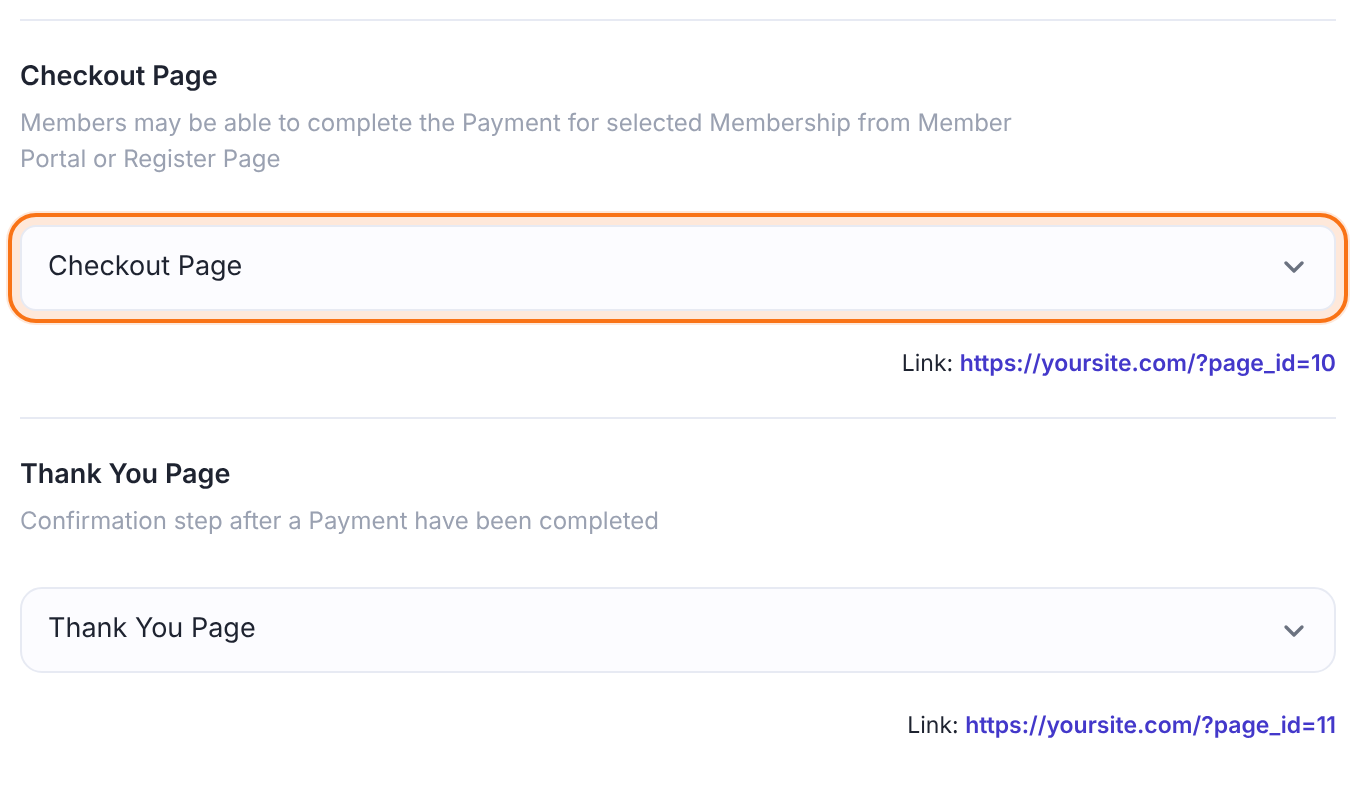
The page members pay on. If it’s empty, deleted or doesn’t contain the shortcode, the Checkout Page screen shows the warning “Checkout Page is missing or is not properly setup.” For the page that follows payment, see Customize the thank you page.
Default: Checkout Page (created on activation)
Open the Checkout Page settings
- Go to Ultimate Membership Pro›Showcases and open Checkout Page.
![Embed the checkout page strip with the [ihc-checkout-page] shortcode and Copy button highlighted, above the Checkout Showcase and Custom Messages tabs](https://ultimatemembershippro.com/wp-content/uploads/2026/10/ump-checkout-page-02-shortcode.png)
The shortcode to put on your checkout page, [ihc-checkout-page]. Copy copies it to the clipboard.
Which sections the checkout shows, their order and the custom CSS.
The titles, button labels and price words members read. Each tab has its own Save Changes button and is saved on its own.
Choose the sections
On the Checkout Showcase tab, the Checkout Page Settings card starts with Select Checkout Template, set to (#1) Main Template. Below it, under Checkout Page Additional Settings, a switch turns each section on or off:
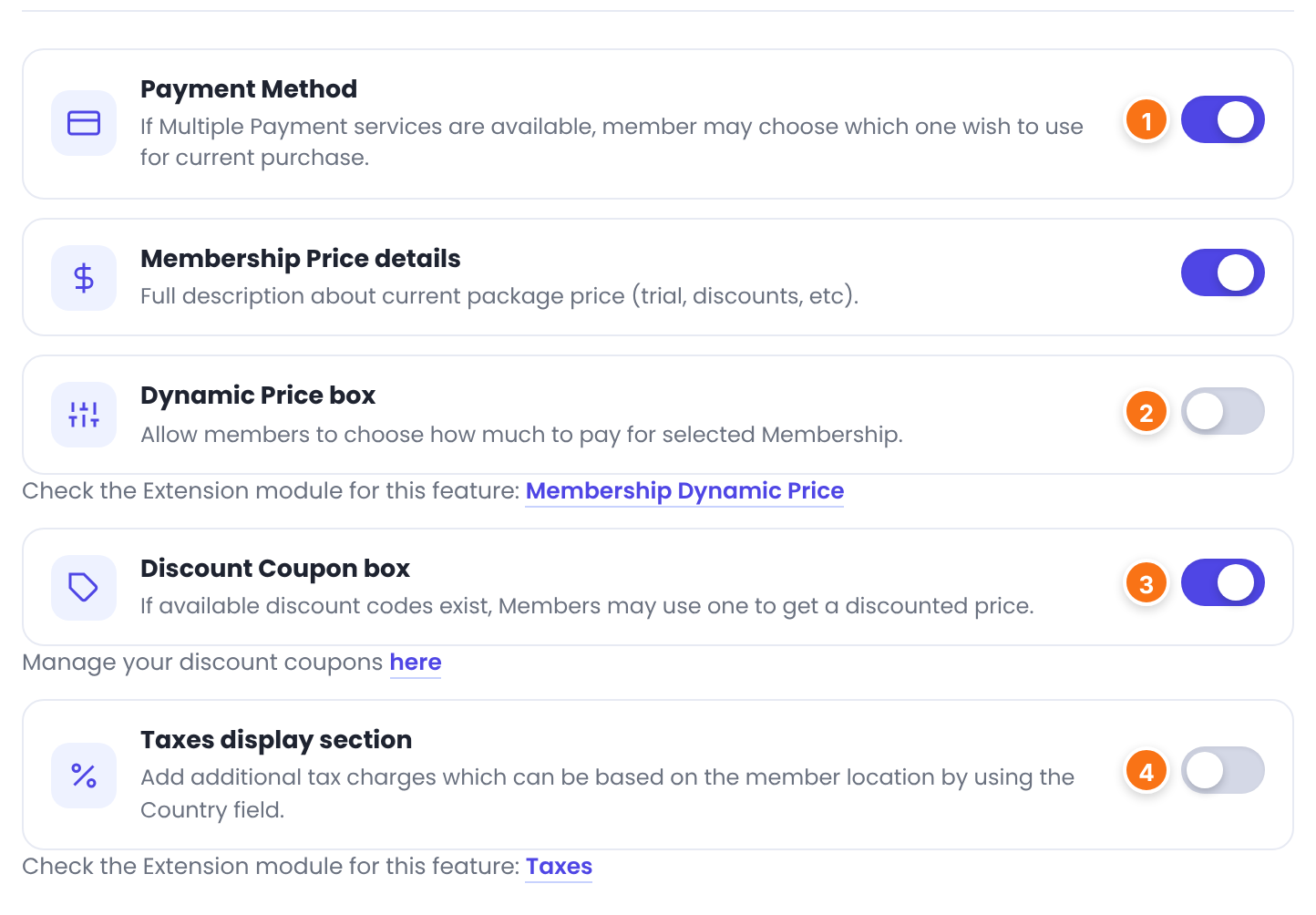
Shows the list of active payment gateways so the member can pick one. When it’s on, two more settings appear: Template (Logos, RadioBox or DropDown) and Default Payment Gateway. When it’s off, the default gateway is used without asking. See Let members choose a payment method.
Default: On
Lets members type how much they want to pay. It appears only when the Membership Dynamic Pricing module is on (the link Membership Dynamic Price under the switch opens it) and the Membership allows it. See Let members choose their price.
Default: Off
Shows a field where the member enters a coupon code and clicks Apply. The link here under the switch opens your coupons. See Create coupon codes.
Default: On
Shows the taxes added to the price. It appears only when the Taxes module is on and a tax rate matches the member’s country. See Charge taxes.
Default: Off
Add a privacy message and set the behavior
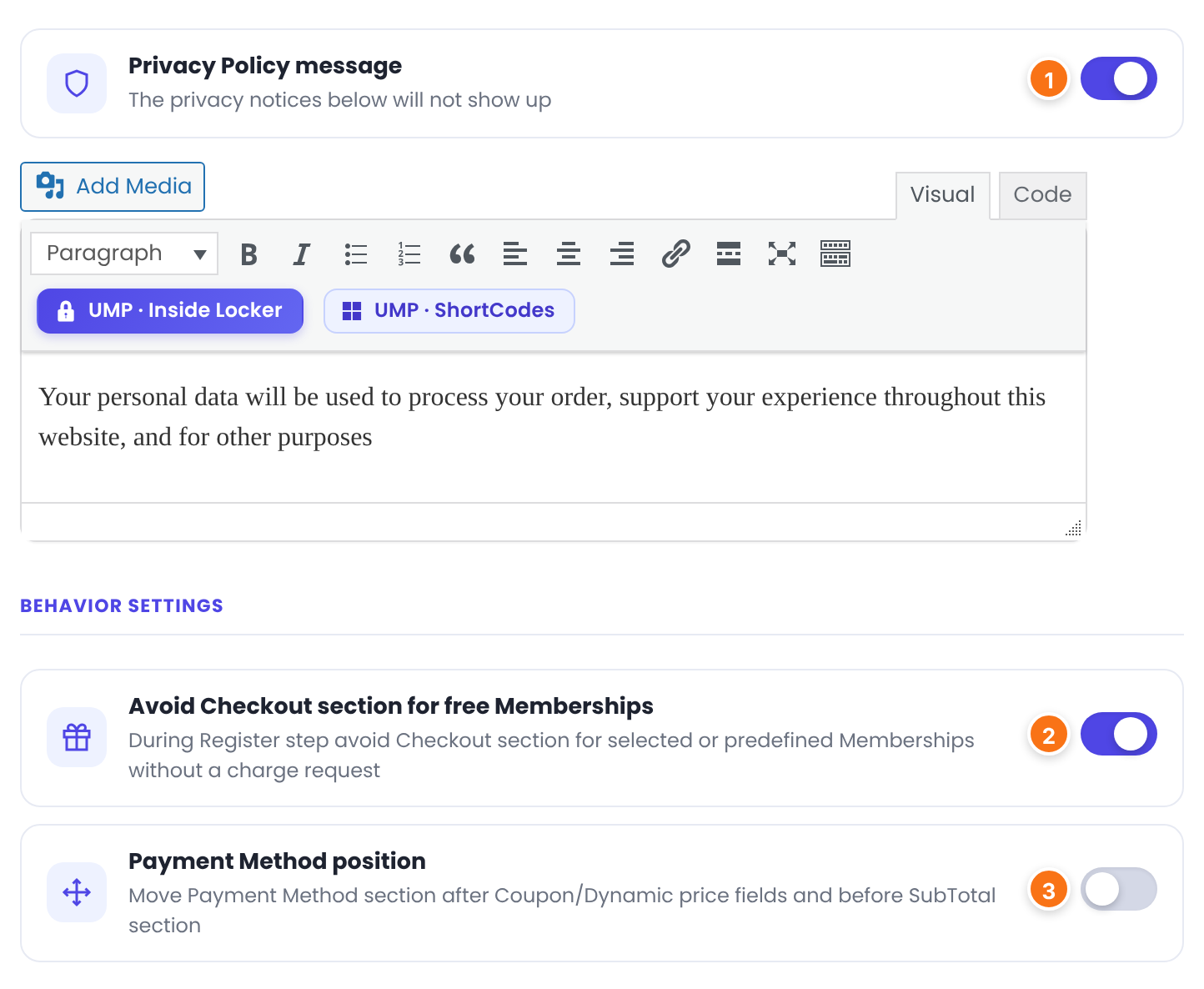
Shows the text of the editor below the switch just above the purchase button. The default text is “Your personal data will be used to process your order, support your experience throughout this website, and for other purposes”. Add a link to your privacy policy page with the editor’s link button.
Default: Off
Removes the checkout sections from the registration form when the visitor signs up for a free Membership, such as Free Community. It only affects the Register page.
Default: Off
Off: the payment method list comes first, before the Membership price. On: it moves below the coupon, dynamic price and taxes boxes, right before Subtotal.
Default: Off
Click Save Changes at the bottom of the screen.
Change the texts
Open the Custom Messages tab to rename any heading or button, for example to translate the checkout or match your site’s wording.
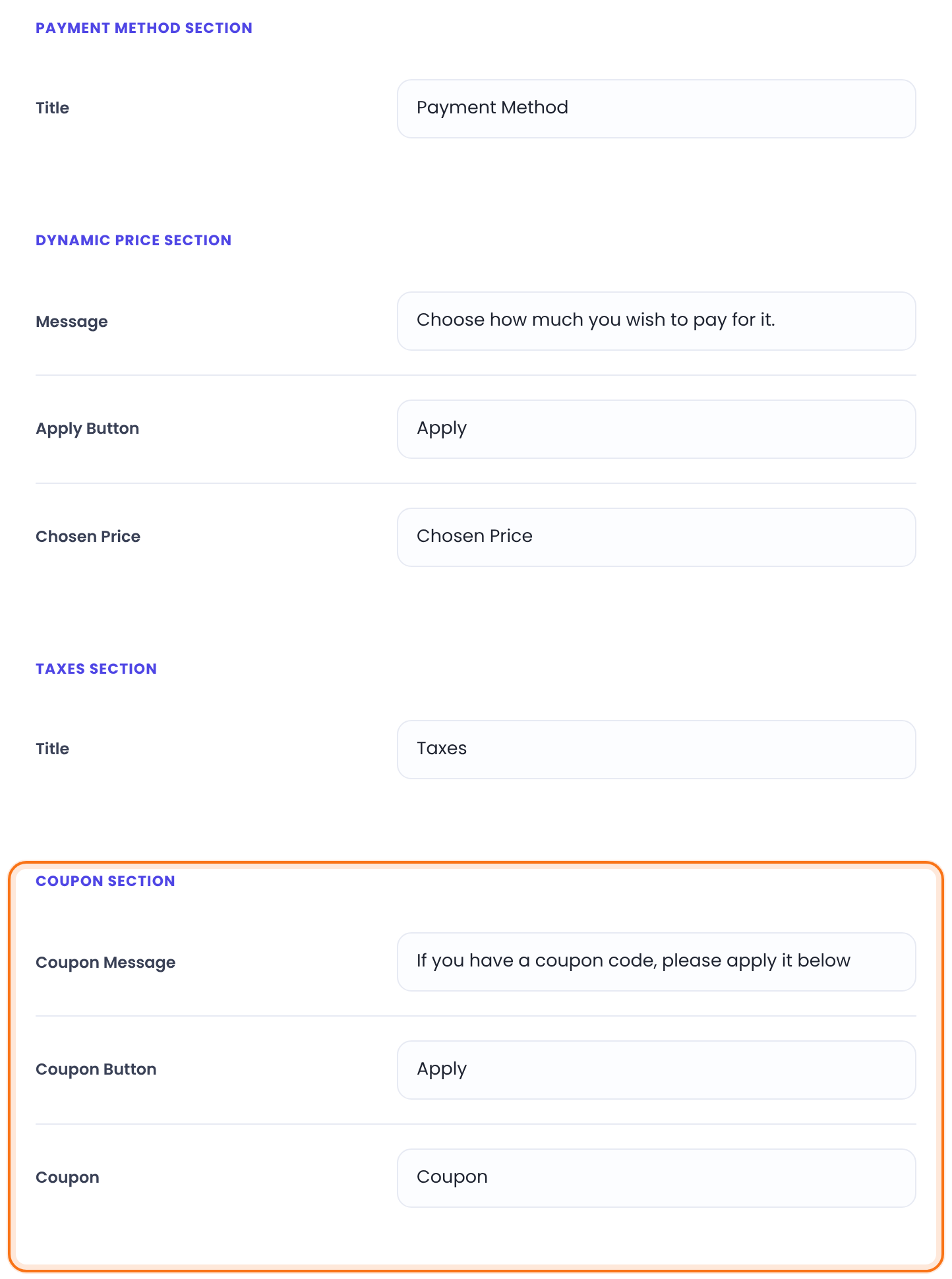
The heading of the payment method list.
Default: Payment Method
Message (default “Choose how much you wish to pay for it.”), Apply Button (Apply) and Chosen Price (Chosen Price), shown after the member sets a price.
The heading of the taxes box.
Default: Taxes
Coupon Message (default “If you have a coupon code, please apply it below”), Coupon Button (Apply) and Coupon, the label shown with the applied code.
The words of the price summary: Initial Payment, Then, Fee, Free, Discount, for, every, Subtotal and Remove (default [Remove], the link that removes a coupon or chosen price).
Complete Purchase, the button for a paid Membership, and Free Access, the button when there’s nothing to pay.
Click Save Changes. This saves only the messages.
Style the checkout with CSS
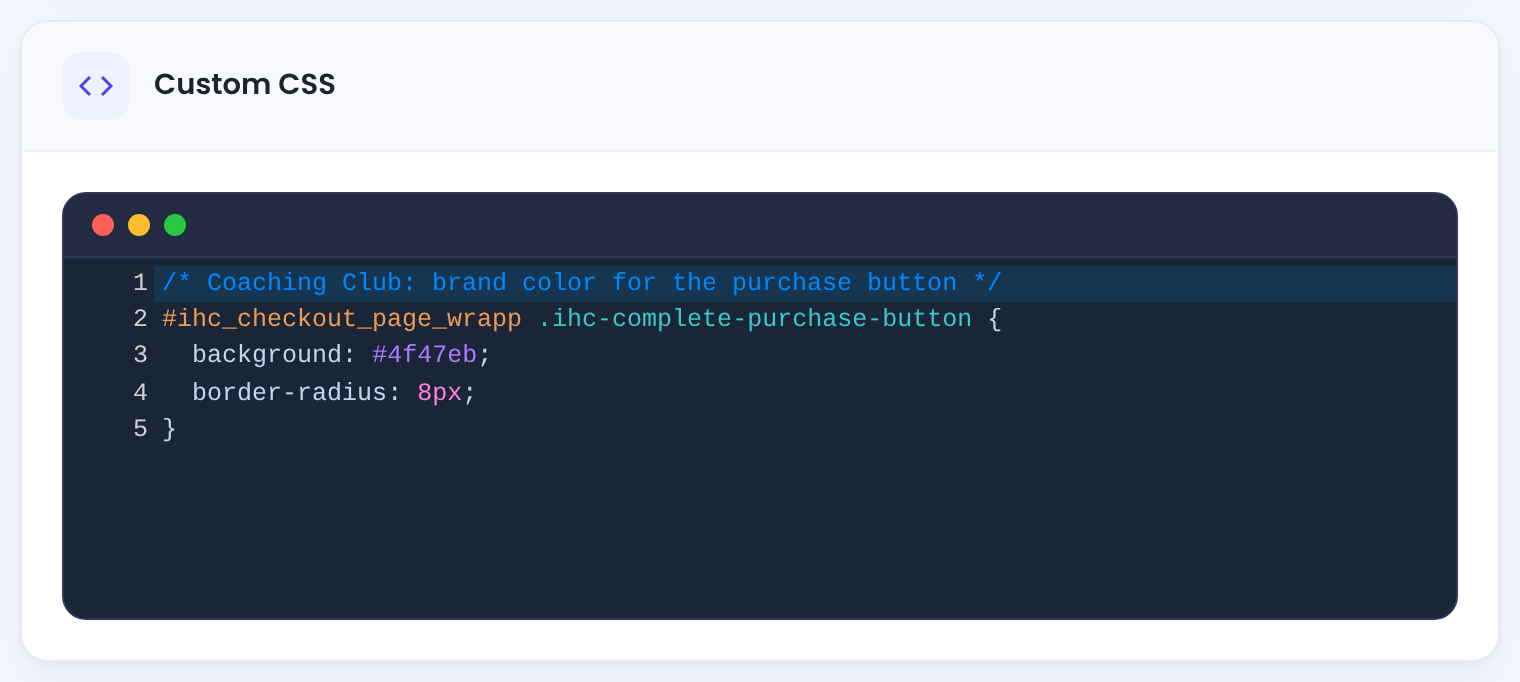
The Custom CSS card at the bottom of the Checkout Showcase tab adds your CSS to the checkout page and to the checkout sections of the registration form. The checkout’s main container has the ID ihc_checkout_page_wrapp. See Style forms and pages with CSS.
What members see
A logged-in member who opens the checkout for Pro Monthly sees these sections:
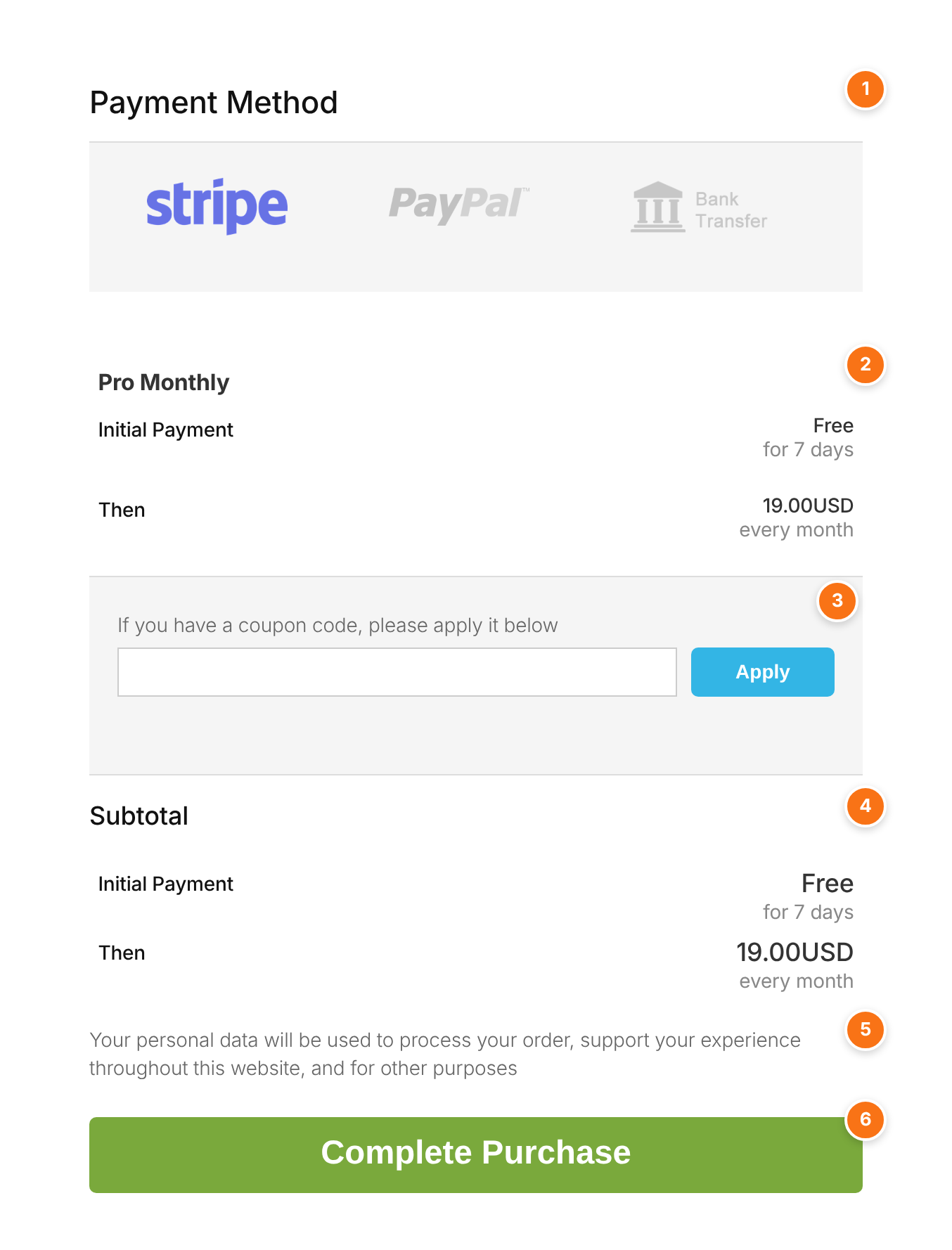
The active gateways. The default one is selected; card gateways such as Stripe Connect show their card fields below the list.
The Membership name and its price: here Initial Payment Free for 7 days, then 19.00USD every month.
The coupon field. A valid code shows “Discount successfully applied.” and a Discount line; a wrong one shows “This Discount Code is invalid.”
What the member pays now and later, after coupon and taxes.
Your Privacy Policy message, when it’s on.
Places the order. The member then goes to the gateway’s payment page or to your Thank You Page. See Customize the thank you page.
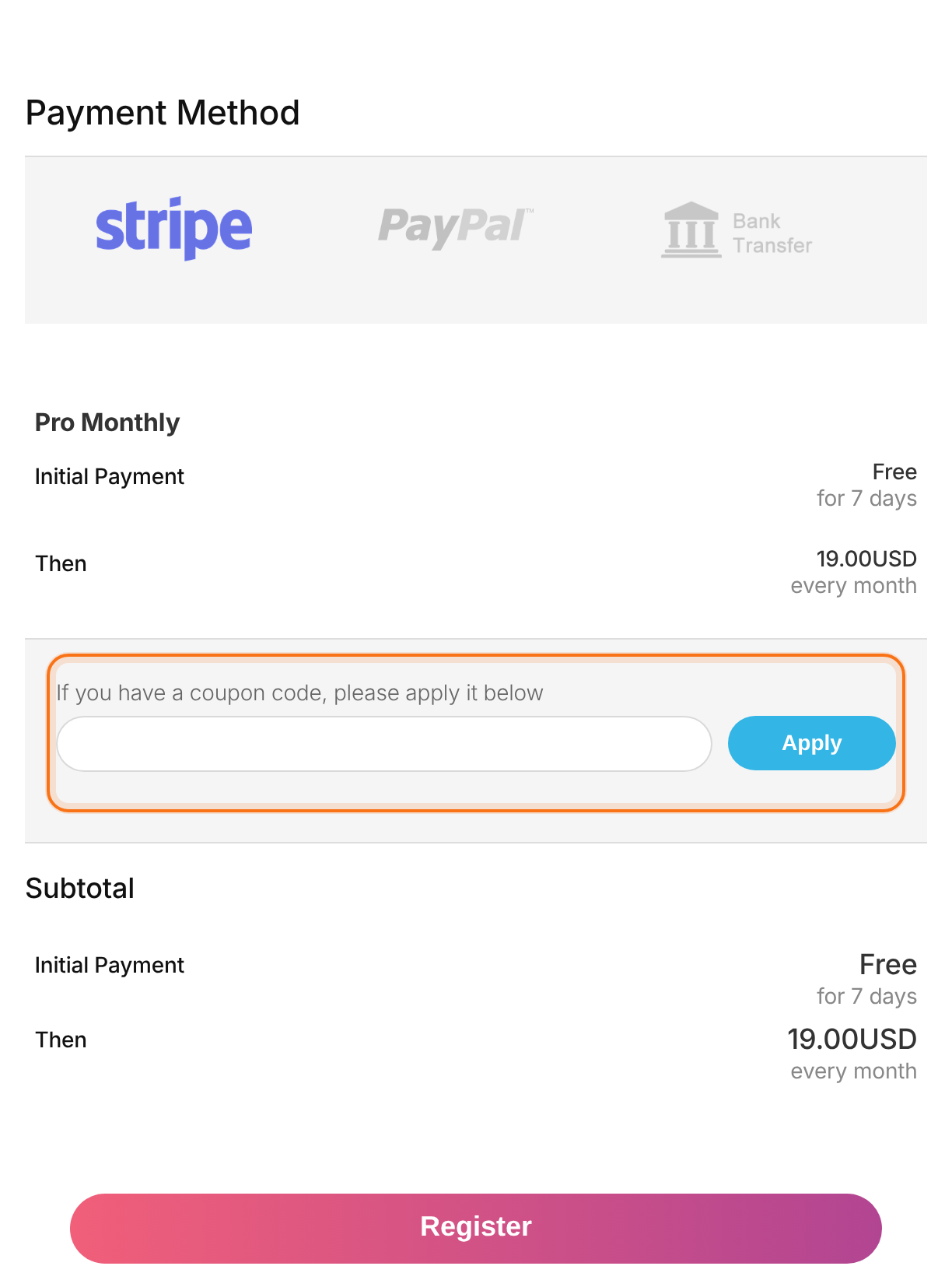
A visitor who isn’t logged in gets the same sections inside the registration form, above the Register button:
Limits
- The payment method list and the coupon field appear only when there is something to pay. For a free Membership the checkout shows only the Membership and a Free Access button.
- Dynamic Price box and Taxes display section need their module switched on.
- The checkout needs a Membership in the address (
?lid=).
Links that preselect a payment method
- Add
&py=and the gateway’s code to a checkout link to preselect it, for example?lid=2&py=stripe_connector?lid=2&py=paypal. - To build a page that always sells one Membership, add its ID to the shortcode:
[ihc-checkout-page lid="2"].
Shortcodes
[ihc-checkout-page]
[ihc-checkout-page lid="2"]
Example: the Coaching Club checkout
- Checkout Page
- Checkout Page, with [ihc-checkout-page]
- Payment Method
- On, Template Logos, Default Payment Gateway Credit Card (Stripe Connect)
- Discount Coupon box
- On
- Dynamic Price box
- Off
- Taxes display section
- Off
- Privacy Policy message
- On, with a link to the privacy policy
- Avoid Checkout section for free Memberships
- On
- Payment Method position
- Off
Troubleshooting
Where did the coupon field on the registration form go?
In Ultimate Membership Pro the coupon field is no longer a registration form field. It’s part of the checkout, which appears inside the registration form above the Register button. Turn it on with Showcases › Checkout Page › Discount Coupon box. It shows only when the visitor signs up for a paid Membership, so open the Register page with a paid Membership’s ?lid= link to see it.
Why is there no coupon field on my checkout?
Check that Discount Coupon box is on under Showcases › Checkout Page and saved. The field is hidden for free Memberships and whenever there’s nothing to pay.
My checkout page is blank. What’s wrong?
The checkout needs to know which Membership is bought. Open it from a Membership’s buy button or add ?lid= and the Membership ID to the address, for example ?lid=2. Also check that the page contains the [ihc-checkout-page] shortcode.
What does “Checkout Page is missing or is not properly setup” mean?
The page selected under Settings › Pages Setup › Checkout Page doesn’t exist any more or doesn’t contain the [ihc-checkout-page] shortcode. Select a page that has the shortcode, or add the shortcode to the selected page.
Why are visitors sent to the Register page instead of the checkout?
That’s by design: a visitor needs an account first. The Register page shows the same checkout sections above the Register button, so the visitor signs up and pays in one step.
Why doesn’t my free Membership show a payment method?
There’s nothing to pay, so Ultimate Membership Pro hides the payment method list and the coupon field and shows a Free Access button instead.
The Dynamic Price box or the taxes don’t appear although the switch is on. Why?
Both need their module. Switch on Membership Dynamic Pricing or Taxes under Modules and set it up. See Let members choose their price and Charge taxes.


