
In Ultimate Membership Pro, the Paystack add-on lets members pay for a Membership through Paystack, the payment platform for businesses in Nigeria, Ghana and South Africa. Members are sent to a secure Paystack payment page; when Paystack confirms the charge, the Membership is activated.
This guide explains the two Paystack add-ons, the settings screen, the webhook URL Paystack needs, and how to run a test payment.
Before you start
- You have a Paystack business account. Paystack is made for businesses based in Nigeria, Ghana or South Africa, with a bank account there in NGN, GHS or ZAR.
- You have a paid Membership, for example Pro Monthly. See Create your first Membership.
- Your site currency matches your Paystack account’s currency, set under Ultimate Membership Pro›Settings›Payment Settings. See Set your currency.
- The Ultimate Membership Pro – Paystack add-on is installed and active. For recurring plans, Ultimate Membership Pro – PayStack Pro is active too.
- Your site is reachable from the internet, so Paystack can send it payment notifications.
Paystack or PayStack Pro?
Paystack (Standard)
- Payments
- One-time only
- Good for
- LifeTime, Limited Time and Date Range Memberships
- Coupons
- Yes, on one-time payments
PayStack Pro
- Payments
- One-time and recurring subscriptions
- Needs
- The Standard add-on, active at the same time
- Coupons
- Yes, on one-time and recurring payments
PayStack Pro is an upgrade layer: it uses the Standard add-on’s settings screen and connection, so keep both add-ons active. When Pro is active, the screen title changes to “Paystack Pro Payment Service” and the capabilities list mentions recurring payments.
What Paystack supports
Redirect. The member is sent to a Paystack payment page and is sent back to your site after paying.
Yes, with both add-ons.
Yes. Ultimate Membership Pro creates the plan in Paystack for you the first time someone buys the Membership.
One unit at a time: every day, every week or every month. Set the Membership’s Subscription Cycle to 1 Days, 1 Weeks or 1 Months.
Limited: 2 to 52 payments. On Going plans have no set end.
Not supported.
Paystack charges in your Paystack account’s currency (NGN, GHS or ZAR), so use the same currency on your site.
Yes. On recurring payments, with PayStack Pro.
Switch on the Paystack gateway
- Go to Ultimate Membership Pro›Payment Gateways.
- On the Paystack card, click Complete setup (or Manage if it’s already set up).
- In the first box, turn on Activate Paystack Payment Service and click Save Changes.
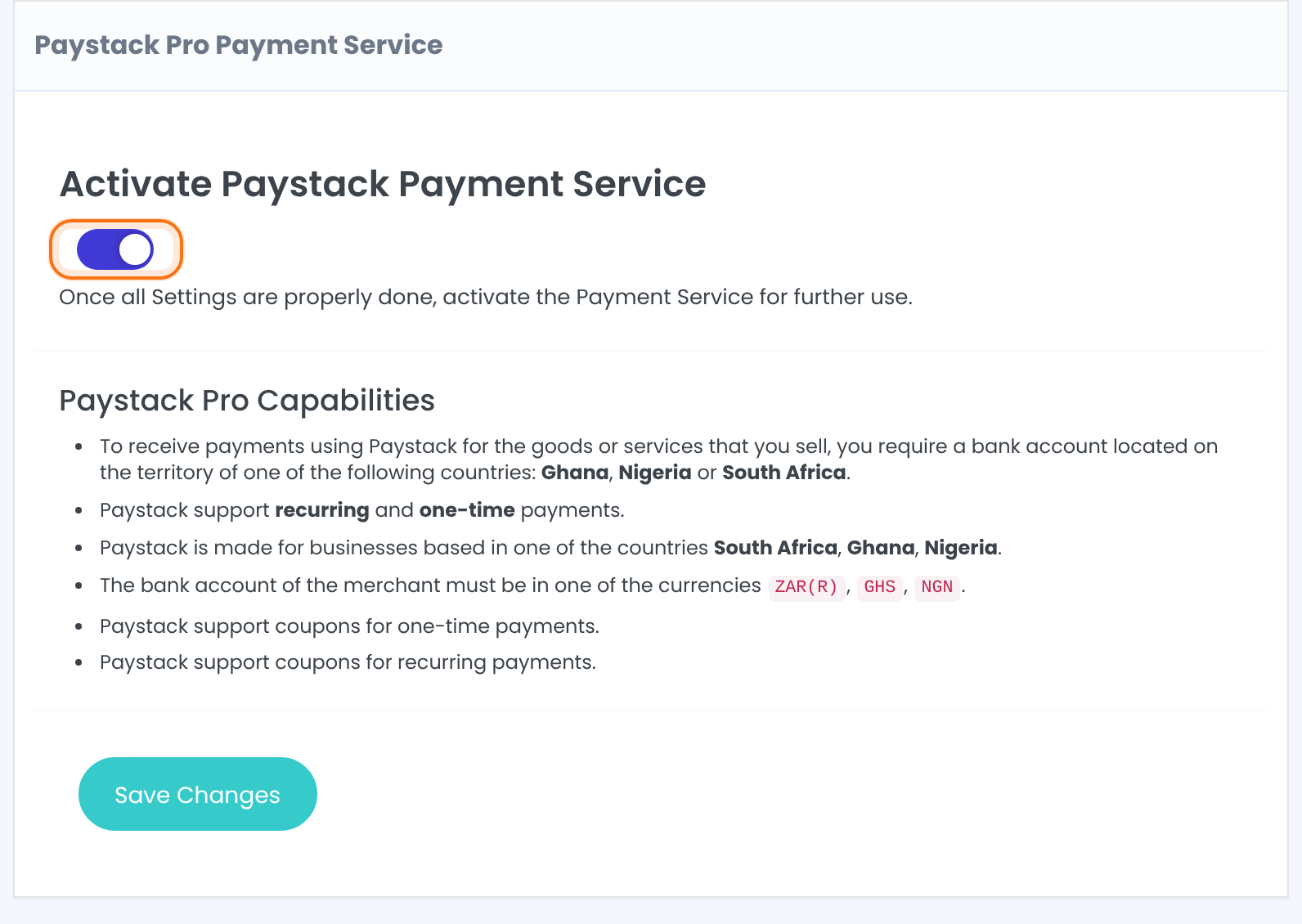
Turns the gateway on. Members see Paystack at checkout only when this is on and the Secret Key is filled in.
Default: Off
The capabilities list under the switch sums up the requirements: a bank account in Ghana, Nigeria or South Africa, in ZAR, GHS or NGN.
Add your Secret Key and webhook
- Log in to paystack.com.
- Go to Settings › API Keys & Webhooks.
- Copy the Secret Key into the Paystack Settings box: the Test Secret Key while you test, the Live Secret Key when your business is in Live Mode.
- On the same Paystack page, paste your webhook URL into Webhook URL and save it in Paystack.
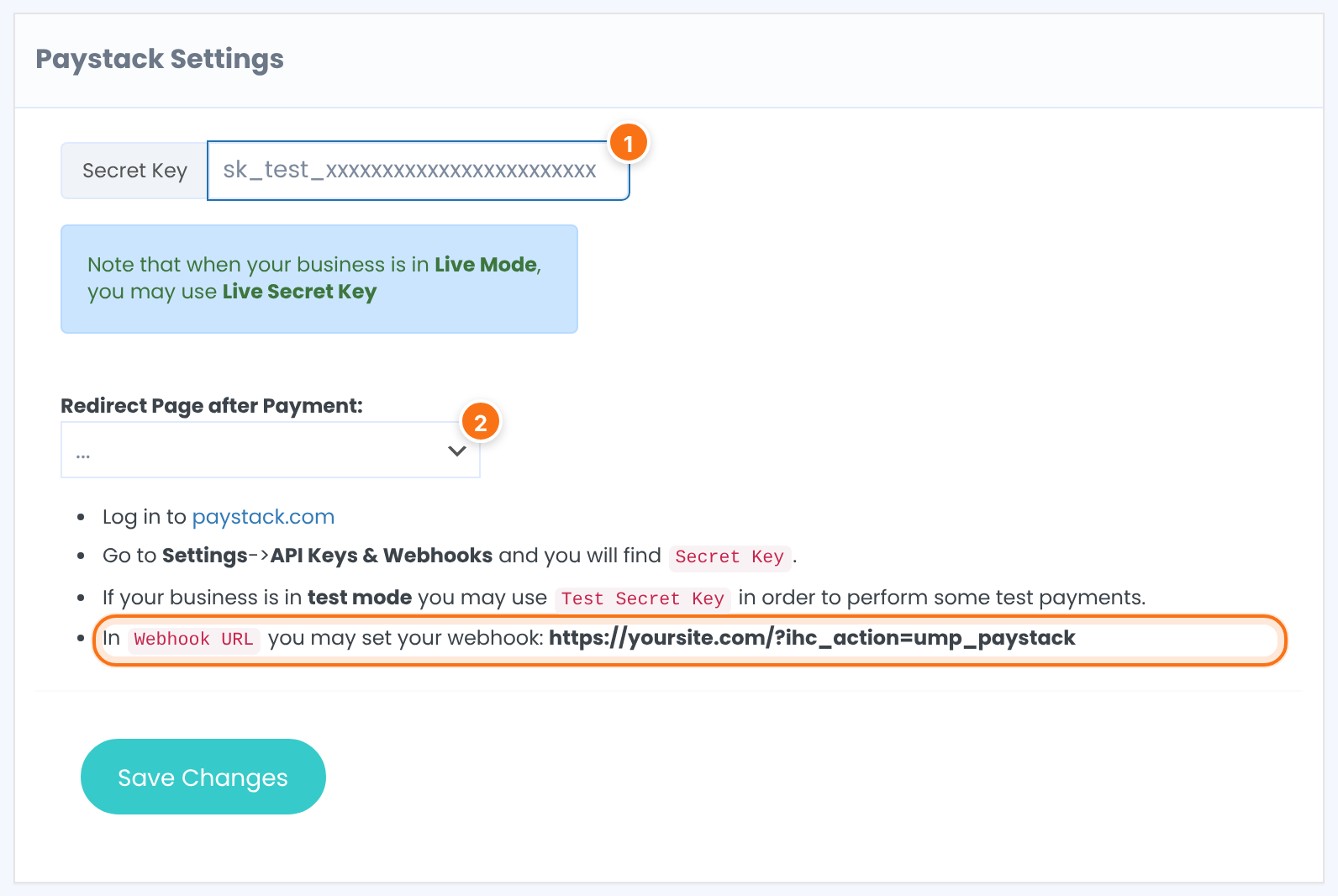
Your Paystack secret key. Test keys start with sk_test_, live keys with sk_live_. There’s no separate test switch: the key decides the mode.
The page members return to after paying. With … selected, they return to the Thank You Page set under Ultimate Membership Pro›Settings›Pages Setup, or to your home page if none is set.
Webhook URL
https://yoursite.com/?ihc_action=ump_paystackReplace yoursite.com with your domain. Paystack sends every event to this URL; the one that matters is charge.success, which marks the order Completed and activates the Membership. With PayStack Pro, each renewal charge adds a new order and extends the Membership.
Click Save Changes under the box.
Set how Paystack appears at checkout
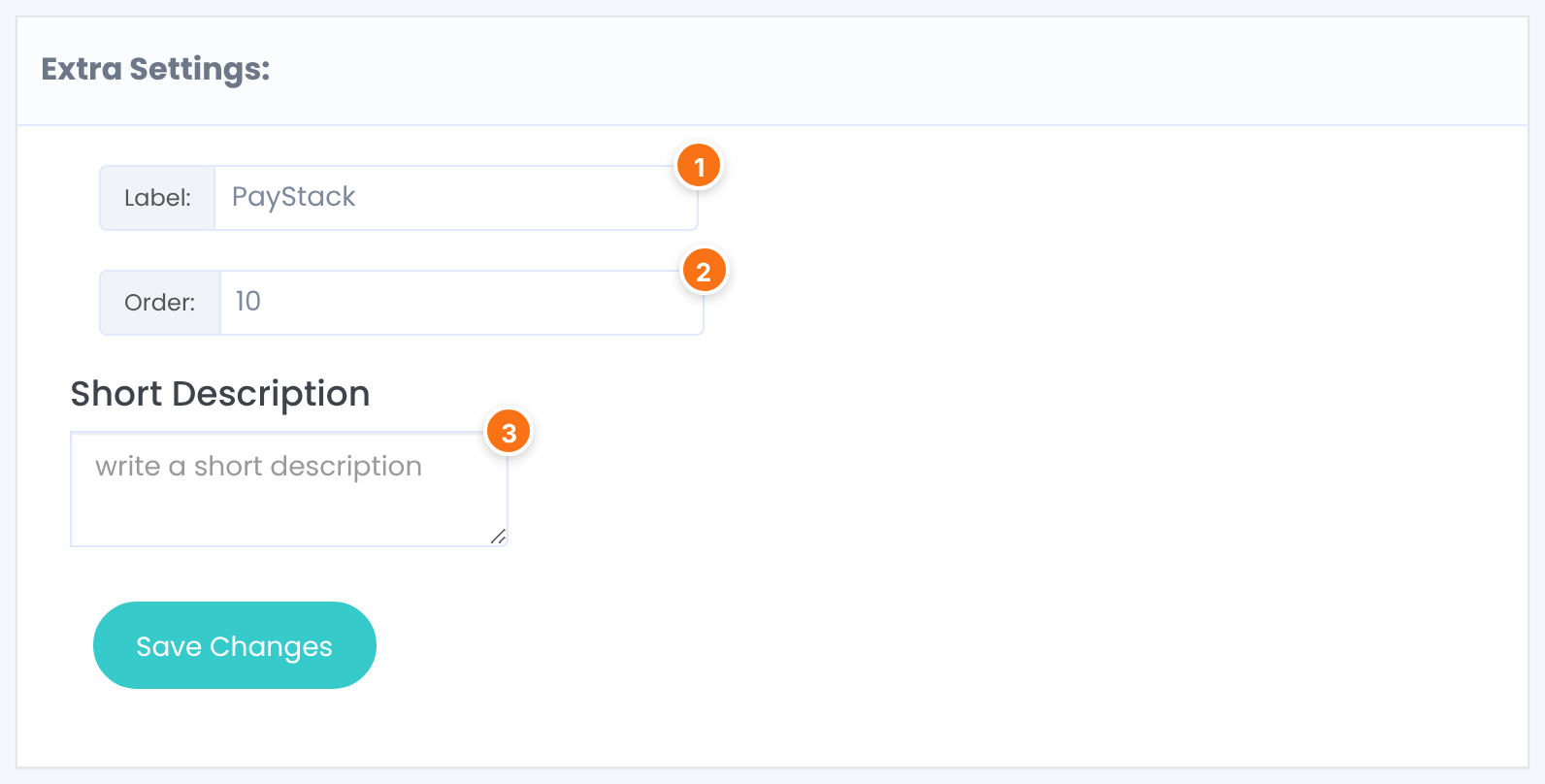
The gateway name members see when they choose how to pay.
Default: PayStack
The position of Paystack in the list of payment methods at checkout. Lower numbers come first.
Default: 10
Optional text about the gateway, saved with its settings.
Test a payment
- Put your Paystack business in test mode and paste the Test Secret Key. Save.
- Log out, or use a private browser window, and buy your Membership with Paystack as the payment method.
- Pay on the Paystack page with one of Paystack’s test cards.
- Check Ultimate Membership Pro›Payment History: the order should be Completed and the member’s Membership active.
- When it works, switch Paystack to Live Mode, paste the Live Secret Key and save.
Opening the webhook URL in a browser shows “No Payments details sent. Come later”. That means the URL is reachable.
Limits
- The Standard add-on takes one-time payments only. A Recurring Subscription Membership needs PayStack Pro.
- Free trials aren’t supported.
- Recurring cycles are one unit long: 1 Days, 1 Weeks or 1 Months. For quarterly or yearly plans, use another gateway.
- To stop the billing, cancel the subscription in your Paystack dashboard, then update the member’s Membership in Ultimate Membership Pro.
- Make refunds in your Paystack dashboard, and update the member’s Membership in Ultimate Membership Pro when needed.
Before you go live
- Check that your site currency is the same as your Paystack account’s currency, so members are charged the amount you expect.
- Offer a second gateway for members outside Paystack’s countries. See Let members choose a payment method.
Example: monthly plan in Nigeria
- Add-ons
- Paystack and PayStack Pro, both active
- Site currency
- NGN, the same as the Paystack account
- Activate Paystack Payment Service
- On
- Secret Key
- sk_live_… from Settings › API Keys & Webhooks
- Webhook URL in Paystack
- https://yoursite.com/?ihc_action=ump_paystack
- Redirect Page after Payment:
- … (members return to the Thank You Page)
- Membership
- Pro Monthly, Recurring Subscription, 1 Months, On Going, no trial
Troubleshooting
Why doesn’t Paystack show up at checkout?
Paystack appears only when Activate Paystack Payment Service is on and the Secret Key is filled in. Save the screen and check the Paystack card on Payment Gateways. If your Membership allows only some payment methods, check that too. See Allow only some payment methods for a Membership.
I clicked to pay but stayed on my site. What’s wrong?
Paystack didn’t accept the request. Check that the Secret Key is correct and from the right mode (test or live). For a Recurring Subscription Membership, PayStack Pro must be active.
The member paid but the Membership is still not active. Why?
Your site didn’t receive the payment notification. In Paystack, Settings › API Keys & Webhooks, check that the Webhook URL is https://yoursite.com/?ihc_action=ump_paystack with your domain, for the same mode (test or live) as your Secret Key.
Which currency does Paystack charge in?
Paystack charges in your Paystack account’s currency. Set the same currency under Ultimate Membership Pro › Settings › Payment Settings.
My Membership renews every 3 months. Can Paystack bill it?
Paystack recurring cycles are one day, one week or one month long, so use another gateway for a 3-month plan.


