
To sell paid Memberships you need an Ultimate Membership Pro payment gateway, the service that charges your members. For most sites the best choice is Stripe Connect: members pay by card right on your site, and it handles one-time payments, recurring plans and trials.
This guide explains why Stripe Connect is recommended, shows where the gateways are, and sets the default gateway. Each gateway has its own detailed setup guide.
Before you start
- You have a paid Membership, or you plan one. See Create your first Membership.
- Your currency is set under Ultimate Membership Pro›Settings›Payment Settings. See Change default currency.
- You have an account with the payment provider you want to use. For Stripe Connect you can also create one while you connect.
Recommended: Stripe Connect
- Members never leave your site. The card form sits on your own checkout page, so more visitors finish the purchase.
- Every kind of Membership. One-time payments, recurring plans, free or paid trials and coupons.
- Set up in minutes. Click Connect with Stripe and sign in; there are no API keys to copy.
- Secure by default. Card details go straight to Stripe, and 3D Secure checks open on the page when the bank asks.
- Less work for you. Returning members can pay with a saved card, and they cancel or change their card themselves in the Member Portal.
Ready to start? Follow Set up Stripe Connect. You can still add other gateways next to it, for example Wire Transfer for invoices.
All gateways
Card payments on your own checkout page, recurring plans, trials, saved cards and 3D Secure. Connected with one button.
A payment page hosted by Stripe, with Apple Pay, Google Pay and 3D Secure.
Sends buyers to PayPal to complete the payment.
A faster PayPal checkout that uses the buyer’s stored PayPal details.
Buyers pay by bank transfer; you confirm each payment yourself.
A European payment provider with local payment methods.
A PayPal-backed card payment platform.
A global platform for cross-border sales.
A payment solution for the Brazilian market.
A card gateway with fraud filters and recurring billing.
Paid add-ons. They appear in the list once the add-on is installed and active.
Open Payment Gateways
Go to Ultimate Membership Pro›Payment Gateways. Stripe Connect is at the top of the list, marked Recommended. Every gateway has a status badge:
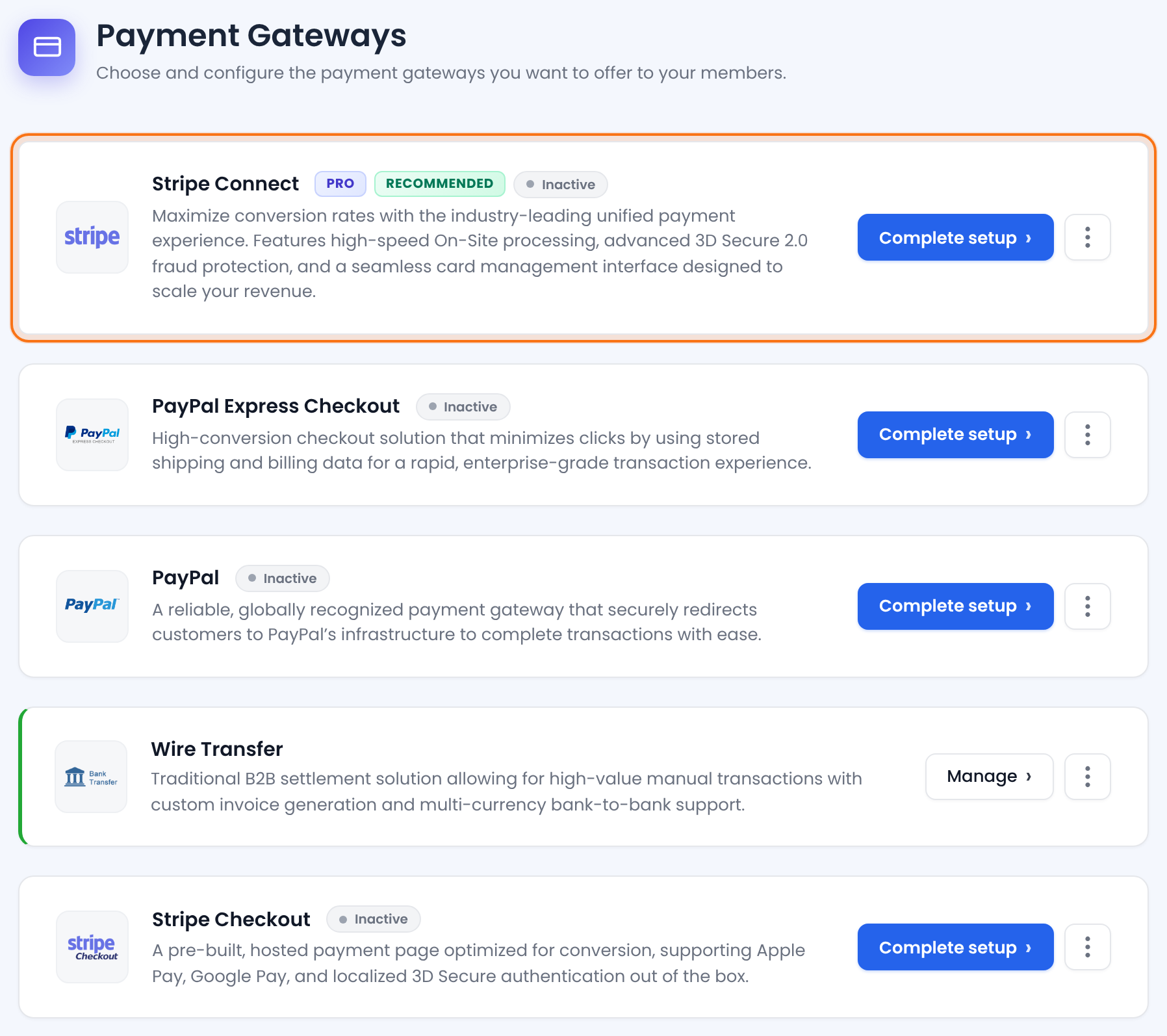
Not set up or switched off. Its button reads Complete setup.
Active, in live mode or in test mode. Its button reads Manage.
Links to the provider’s pricing, the documentation and terms, and Deactivate for an active gateway.
Set up the gateway
- Click Complete setup on Stripe Connect (or on another gateway).
- For Stripe Connect, click Connect with Stripe and sign in to your Stripe account. For other gateways, enter the details from your provider account.
- Switch the gateway on and save.
- Back on Payment Gateways, check that its badge shows Live or Sandbox.
Test first
Stripe Connect and most other gateways have a test mode (Sandbox). Run a test purchase there before you switch to Live.
Step-by-step guides: Set up Stripe Connect and How to use Bank Transfer.
Choose the default gateway
Go to Ultimate Membership Pro›Settings›Payment Settings and find Default Payment Gateway.
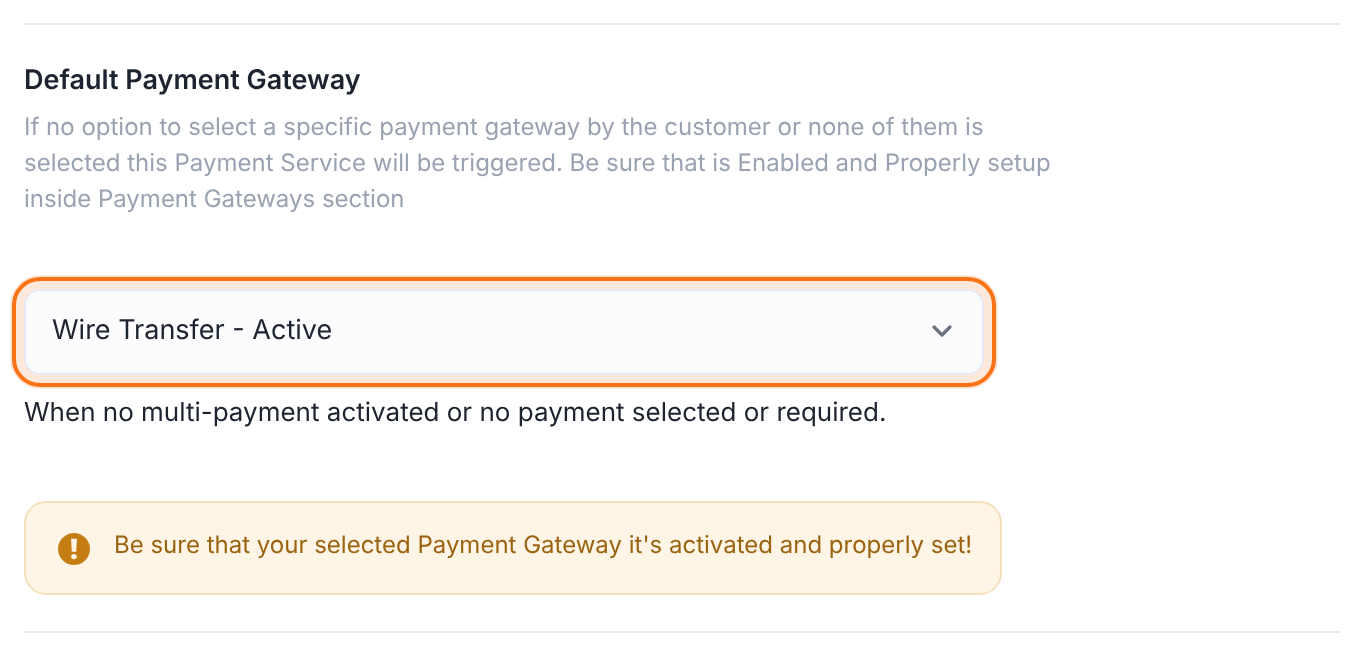
The gateway used when members can’t choose one, or don’t. Pick a gateway marked Active, then click Save Changes. When you save Stripe Connect switched on with a connected account, it becomes the default automatically.
Want members to choose between several gateways at checkout? See How to set a Multi Payments option.
Recurring plans and trials
- Some gateways limit billing cycles or trials, for example PayPal cycles of 12 months at most and Braintree only monthly cycles.
- Stripe Connect handles cycles from 1 day up to 1 year, and free or paid trials.
- Check the limits before you pick a gateway for a Recurring Subscription. See Create your first Membership.
Example: cards plus bank transfer
- Stripe Connect
- Live, set as Default Payment Gateway
- Wire Transfer
- Active, with the bank details in the instructions
- Other gateways
- Inactive
Troubleshooting
“Payment Service Warning: It looks like you haven’t configured any payment services for your membership site.”
No gateway is active yet. Set one up as described above; Stripe Connect is the quickest to connect.
“Be sure that your selected Payment Gateway it’s activated and properly set!”
Shown under Default Payment Gateway as a reminder. Check that the gateway you picked is marked Active.
Members aren’t asked to pay
Check that the Membership’s Payment Type is Payment and that at least one gateway is active.
A gateway doesn’t show in the list
PayFast, Paystack and Razorpay only appear when their add-on is installed and active.
Which payment gateway should I use with Ultimate Membership Pro?
Start with Stripe Connect. Members pay by card on your own site, it supports one-time and recurring Memberships with trials, and you connect it with one button. Add PayPal or Wire Transfer next to it if your members ask for them.


