
Restricting content is what makes a membership site: with Ultimate Membership Pro, you can restrict a page to members only. Every page, post and custom post type gets a Locker box in the editor where you decide who can see it and what everyone else gets instead.
This guide locks one page to two Memberships and shows the two things you can do with everyone else: redirect them, or show them a message.
Before you start
- You have at least one Membership. See Create your first Membership.
- You have a test member account, or you can open a private browser window to test as a visitor.
Show or block?
Show Page Only
- Who sees it
- Only the members you select
- Good for
- Members-only lessons, downloads, resources
Block Page Only
- Who sees it
- Everyone except the members you select
- Good for
- Offers for non-members, a sign-up page
Open the page in the editor
- Go to Pages›All Pages and edit the page you want to lock. Posts and custom post types work the same way.
- Find the Ultimate Membership Pro – Locker box. In the block editor it’s in the sidebar, under the page settings. In the classic editor it’s in the right column.
Choose who can see the page
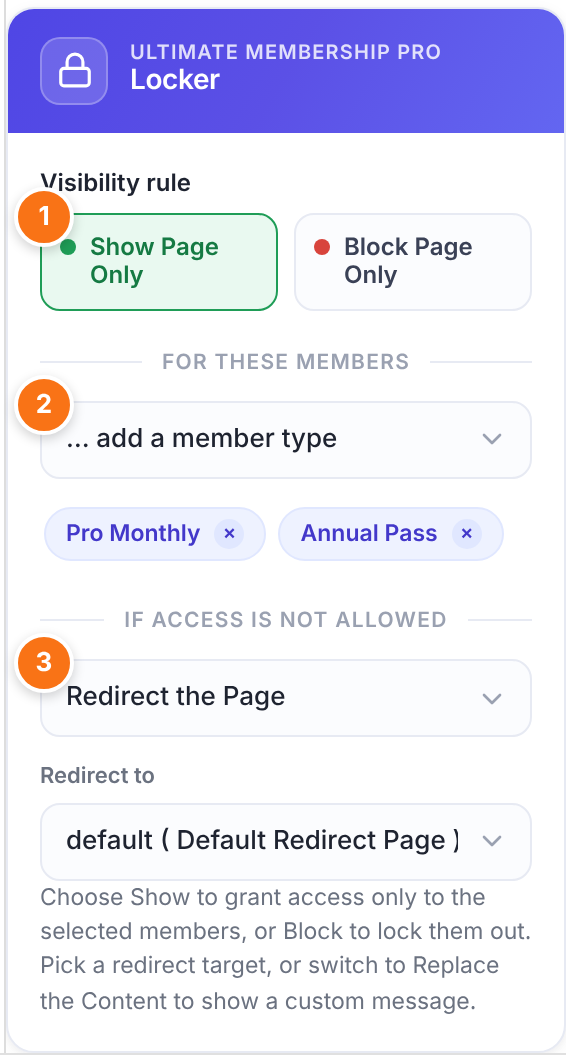
Show Page Only or Block Page Only. See the comparison above.
Default: Show Page Only
Pick from the drop-down to add a member type. Add as many as you need; click × on a tag to remove it.
- All: everyone.
- Registered Users: anyone who is logged in.
- Unregistered Users: visitors who aren’t logged in.
- A Membership, such as Pro Monthly: members who hold it and whose Membership is active.
What people who can’t see the page get. See the next step.
Default: Redirect the Page
No member type, no restriction
If you don’t add anyone under For these members, the page isn’t restricted.
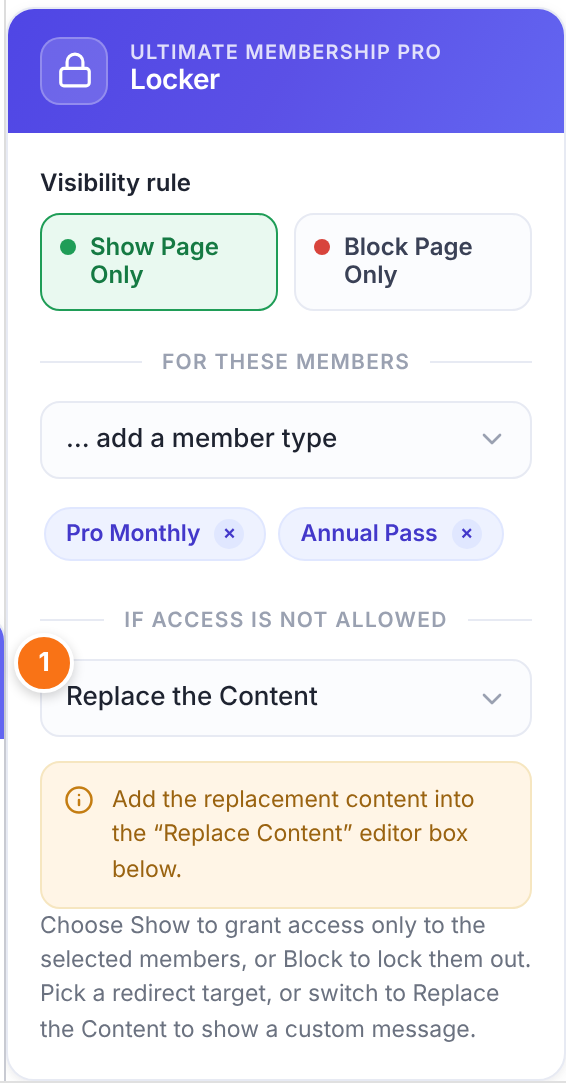
Decide what everyone else gets
Sends them to another page. Pick it in Redirect to. The default option uses the Default Redirect Page from Ultimate Membership Pro›Settings›Pages Setup.
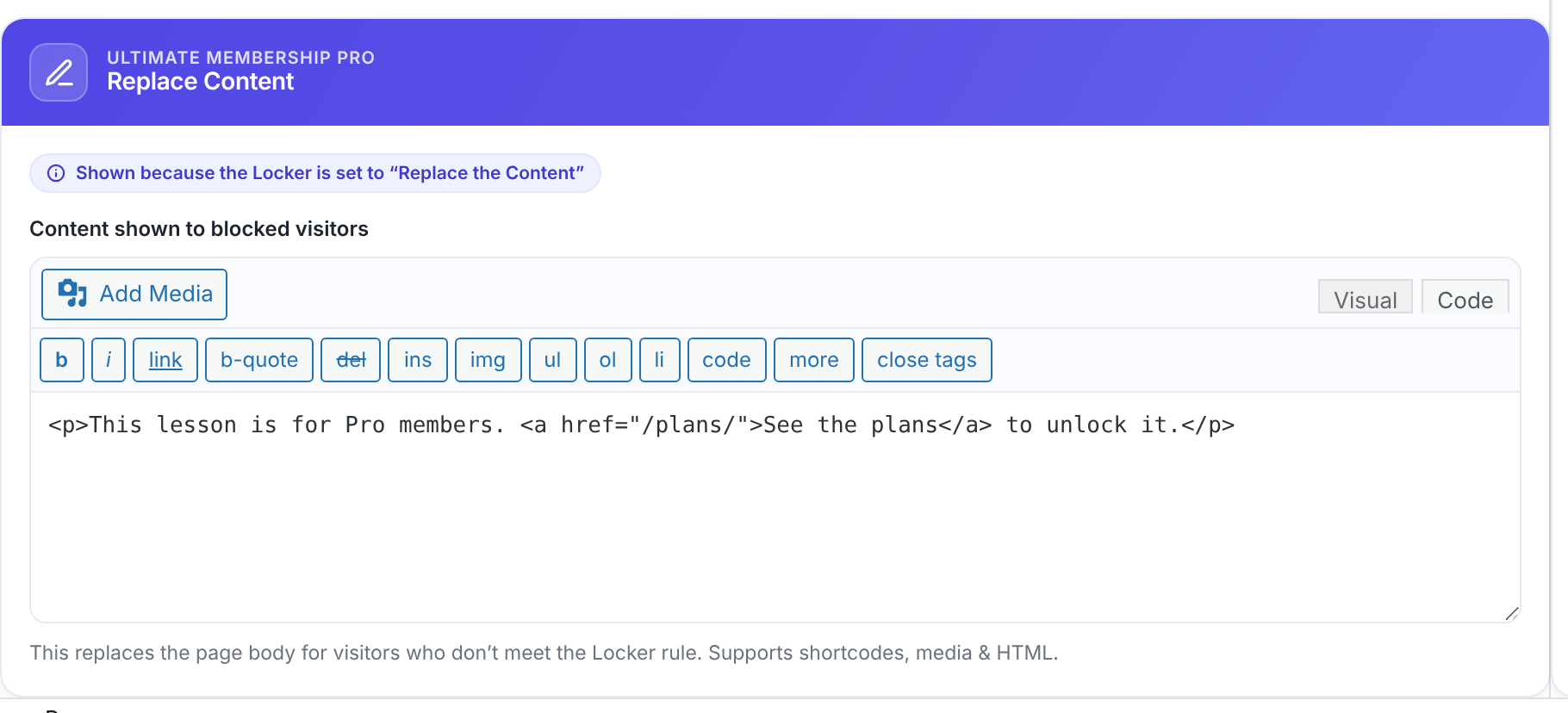
Keeps them on the page but shows other content instead, for example a short pitch with a link to your plans. You write it in the Replace Content box below the editor.
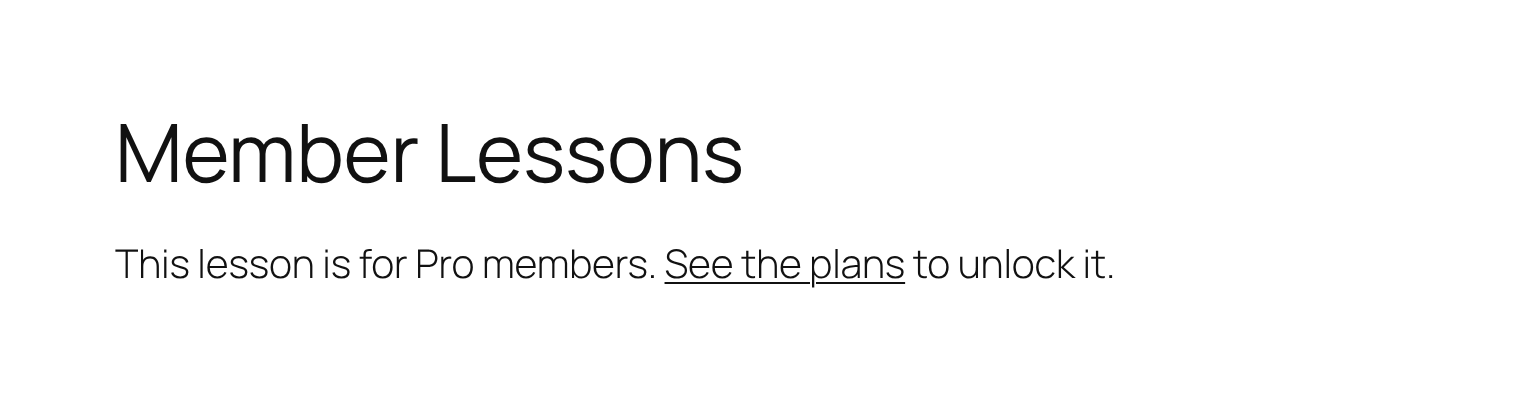
This is what a visitor who isn’t logged in sees on the example page:
Update the page and test it
Click Update (or Save). Then open the page in a private browser window, or log in with a test member, to check what each person sees.
How access is decided
Administrators always see the real page, so test while logged out or with a member account.
A Membership that expired, hasn’t started yet, or is outside its week days (WeekDays or WeekEnd) doesn’t give access.
This page is never redirected, to avoid loops. Its Locker always uses Replace the Content.
Other ways to restrict
- Hide only part of a page: How to set an Inside Locker.
- Lock many pages, a category or a URL pattern at once: How to restrict any page or group of pages.
Example: members-only lessons
- Visibility rule
- Show Page Only
- For these members
- Pro Monthly, Annual Pass
- If access is not allowed
- Replace the Content
- Replace Content
- This lesson is for Pro members. See the plans to unlock it.
Troubleshooting
I can still see the restricted page
You’re logged in as an administrator. Admins always see everything. Test in a private window.
A member with the right Membership is redirected
Check the member’s Membership in Members. It must be active: not expired, already started, and inside its week days.
Visitors land on the Default Redirect Page
That’s the default option of Redirect to. Pick another page in the Locker, or change the Default Redirect Page in Pages Setup.
I don’t see the Locker box
In the block editor, open the sidebar (the panel icon at the top right) and the Page tab, then scroll down.


