
Sometimes a page on your Ultimate Membership Pro site should stay public and only one part is for members: a worksheet, a video, the second half of an article. An Inside Locker hides that part and shows a locker box instead, with your message and, if you want, a login form.
This guide designs a locker box first, then locks one section of a page with it, using the block editor, the shortcode or Elementor.
Before you start
- You have at least one Membership. See Create your first Membership.
- To lock a whole page, use the Locker box instead: Restrict your first page.
Open Inside Lockers
Go to Ultimate Membership Pro›Inside Lockers. It’s in the menu bar at the top of the Ultimate Membership Pro screens. Each locker template is a design for the box people see in place of the hidden content.
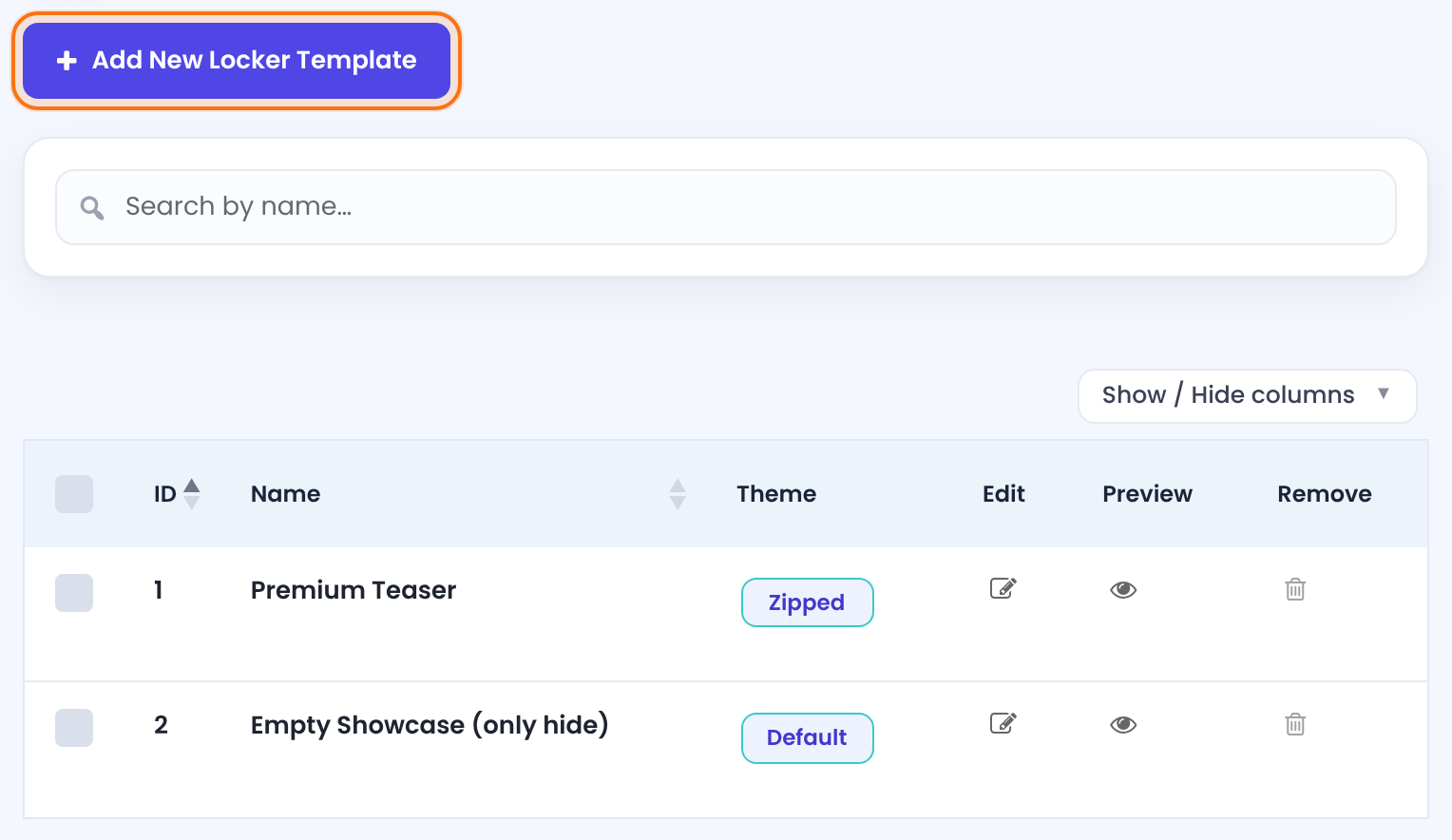
Shows a message and a login form with register and lost-password links. Rename it if you like.
Shows nothing. The section simply disappears for people who can’t see it.
Edit one of them, or click Add New Locker Template.
Design the locker box
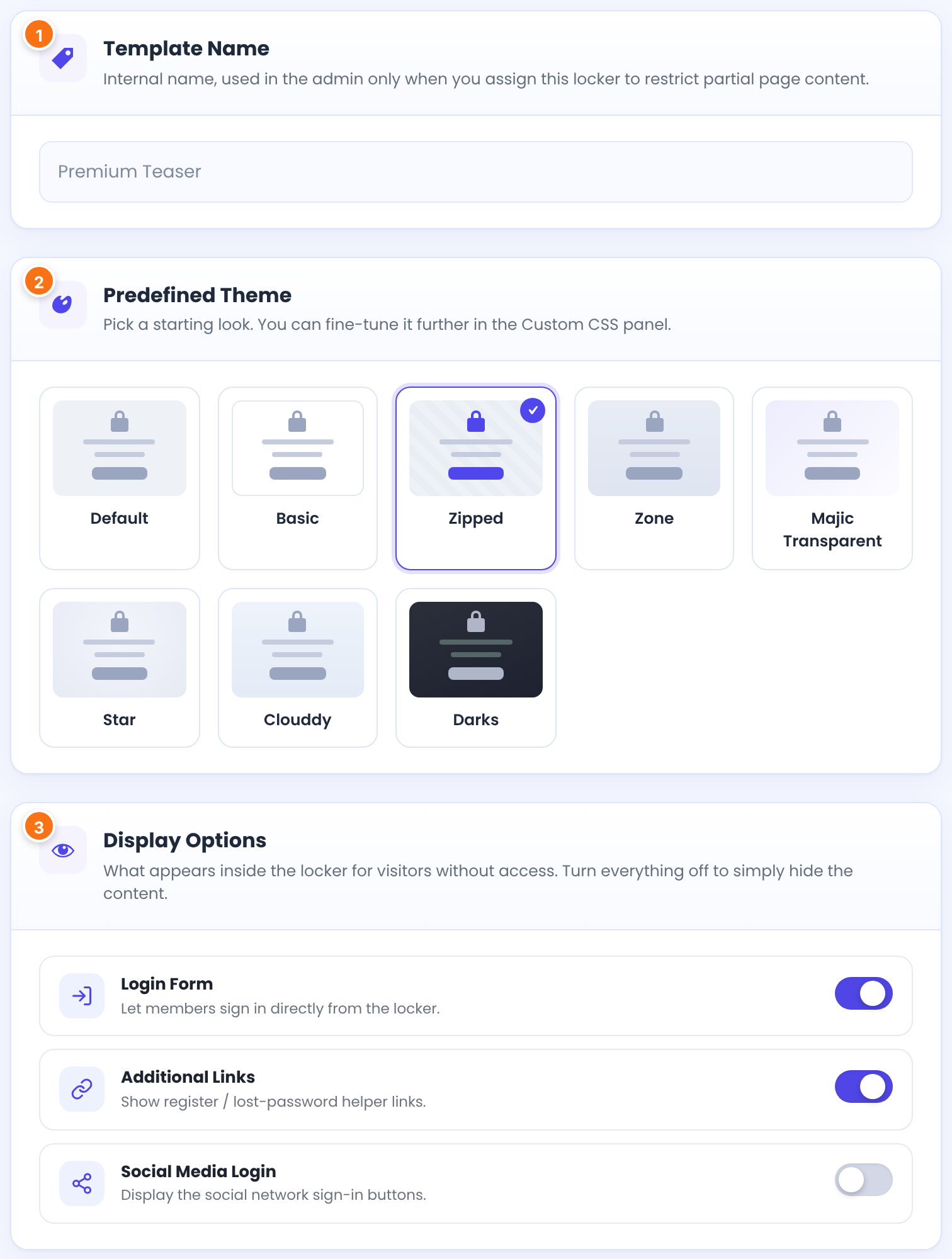
Only you see it, when you pick a locker in the editor.
Default, Basic, Zipped, Zone, Majic Transparent, Star, Clouddy or Darks. Fine-tune it in the Custom CSS panel.
What appears inside the box. Turn everything off to just hide the content.
- Login Form: members sign in right in the box.
- Additional Links: register and lost-password links under the form.
- Social Media Login: the social sign-in buttons, if Social Connect is set up.
Text at the top of the box: say why the content is locked and how to unlock it. You can add links and images.
Optional styles for this locker only.
The Live Preview on the right shows the box as you change it.
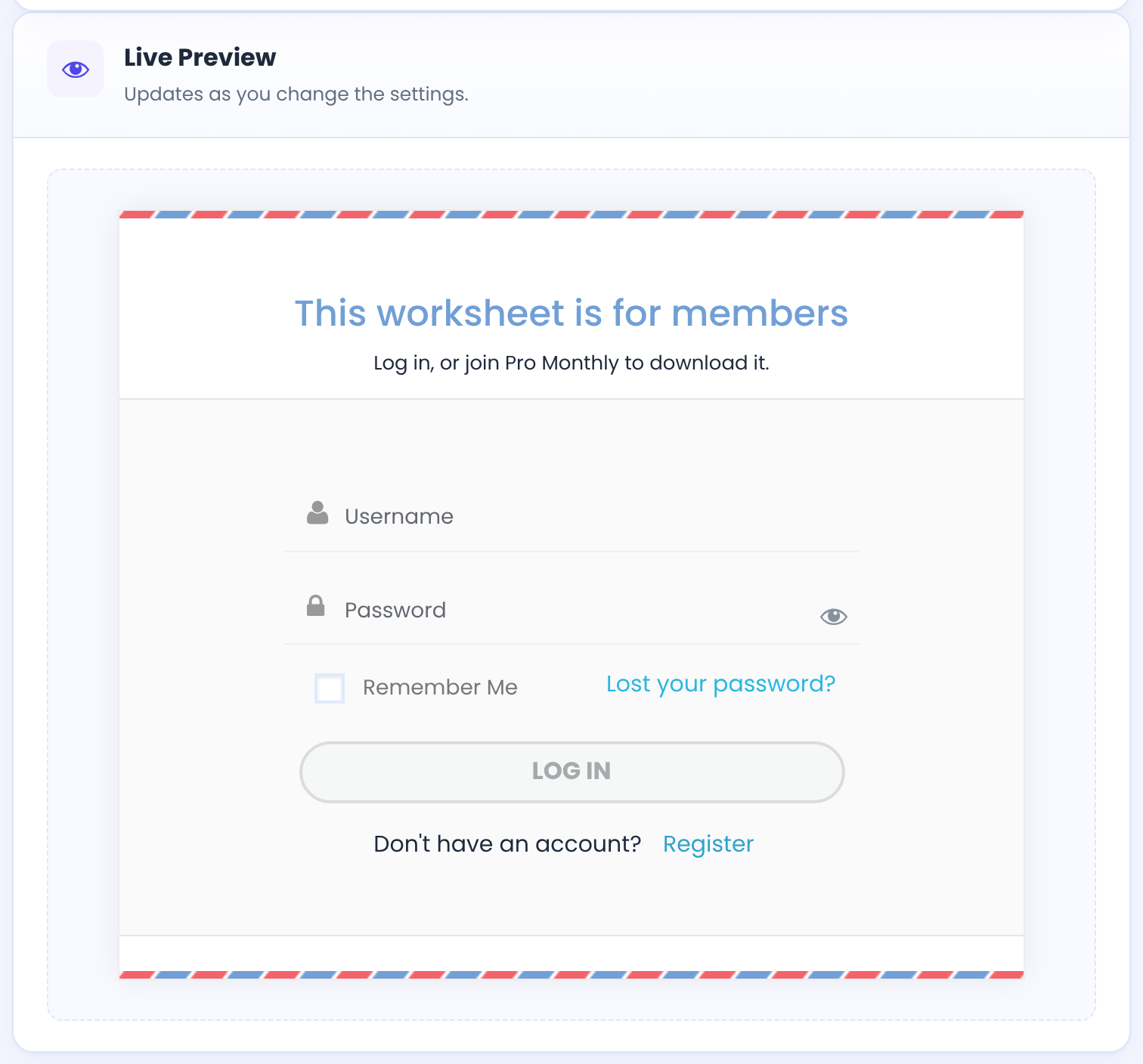
Click Save Locker Template. The list shows each template’s ID; you need it for the shortcode.
Lock a section of the page
Pick the way that matches your editor:
Block editor
- Add the Content Locker Shortcode block where the hidden part starts.
- Put the members-only blocks inside it.
- With the block selected, set Type, Target and Template in the sidebar.
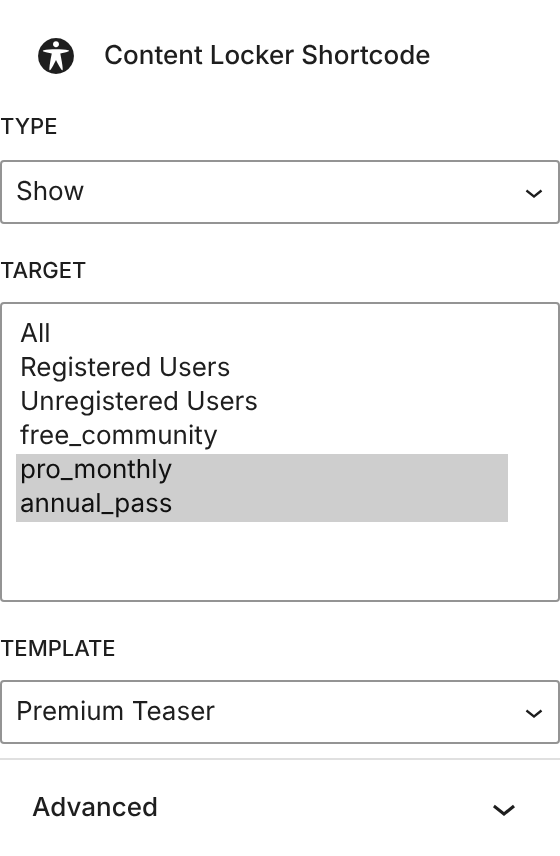
Show: only the targets see the section. Block: everyone except the targets sees it.
All, Registered Users, Unregistered Users or a Membership (listed by its slug). Only an active Membership counts.
The locker box people without access see.
Classic editor
- Select the text you want to hide.
- Click the Ultimate Membership Pro – Inside Locker button in the toolbar.
- In Insert Content Locker, choose the Visibility rule (Show Content Only For or Hide Content Only For), the Target users and the Locker template, then click Add.
The button wraps your selection in the shortcode, so the tags land in the right place.
Elementor
Add the UMP – Inside Locker widget, write the hidden content in its Content field, then set Show, Target and Template.
To lock whole widgets or sections instead of a block of text, use an add-on: Elementor Widget Lock for Elementor and Divi Content Locker for Divi sections, rows and columns.
Test it in the default editor first
If you use a page builder, build the locker in the block editor or the classic editor on a draft page first. Open the page in a private window as a visitor, then as a test member. When it works, copy the shortcode into your page builder, for example into a Shortcode element. If it works in the default editor but not in the builder, you know the locker settings are right and only the builder needs a look. Safe Mode can help you find the cause: Find plugin conflicts with Safe Mode.
Shortcode
All three ways above produce this shortcode. You can also type it yourself in any text area that runs shortcodes:
Show a section only to two Memberships, with locker template 1
[ihc-hide-content ihc_mb_type="show" ihc_mb_who="2,3" ihc_mb_template="1"]
The members-only content goes here.
[/ihc-hide-content]show or block.
Default: show
Who it applies to, separated by commas: all, reg (registered users), unreg (visitors) or Membership IDs.
The locker template ID. Leave it out to hide the content without showing a box.
Short form: [ihc-hide-content membership=2] shows the content only to Membership 2.
Several lockers on one page
- Every opening tag needs its own closing tag. Each
[ihc-hide-content …]ends with its own[/ihc-hide-content]. - Put the lockers one after another. Don’t place one
[ihc-hide-content]inside another one. WordPress can’t tell which closing tag belongs to which opening tag when both have the same name, so the sections can end up in the wrong place. - To show the same section to more than one Membership, list them in one locker:
ihc_mb_who="2,3". - A different shortcode can sit inside a locker. Close the inner shortcode before the closing tag of the locker.
Ultimate Membership Pro›Shortcodes lists a ready-made Direct Restriction shortcode for each Membership.
Check what visitors see
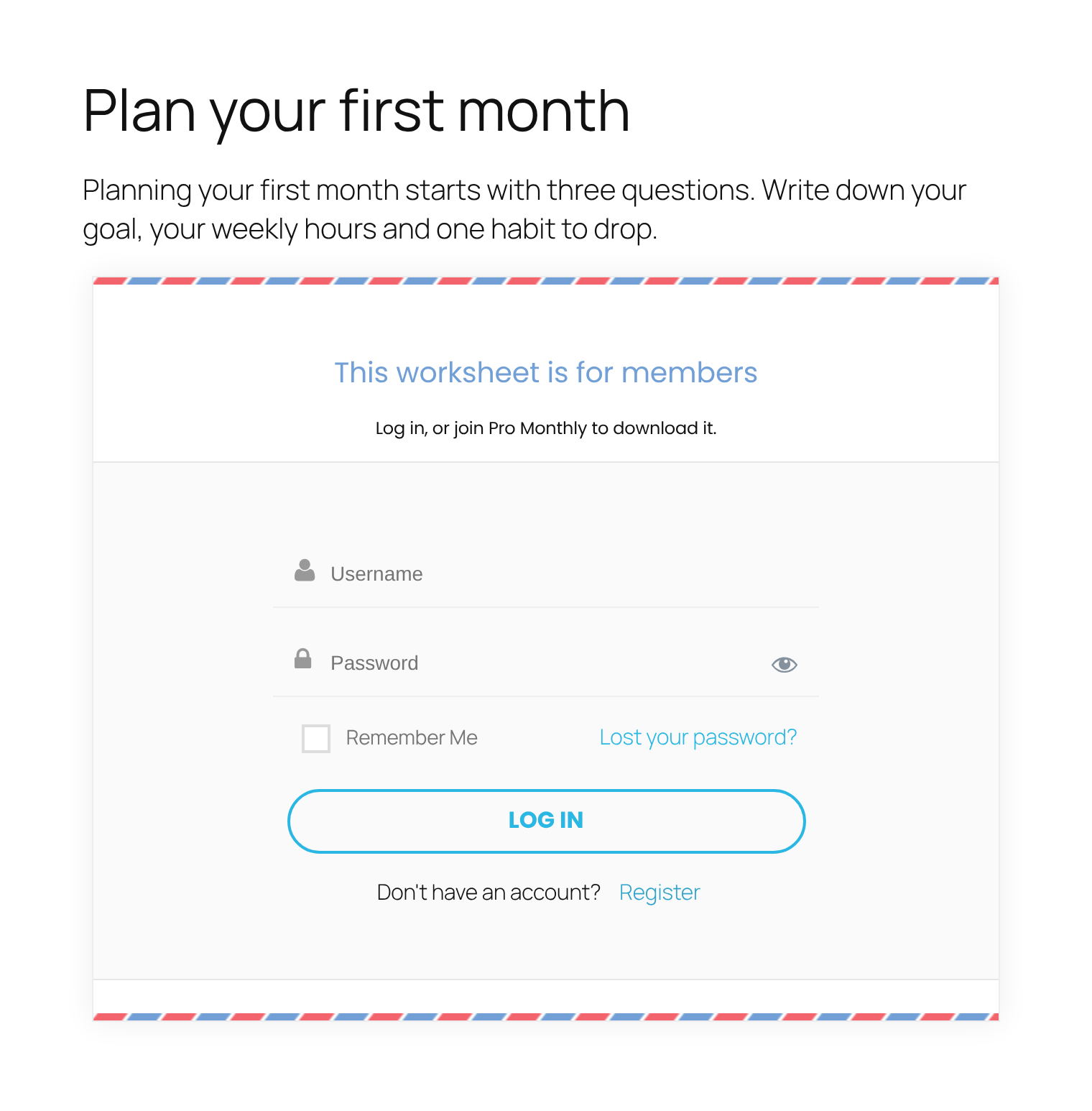
Good to know
- Administrators always see the hidden content. Test in a private window or with a test member.
- If you don’t pick any target, the section isn’t hidden from anyone.
- The hidden content must sit between the opening and the closing tag of the shortcode.
Example: a members-only worksheet
- Locker template
- Premium Teaser (Zipped, Login Form and Additional Links on)
- Locker Message
- This worksheet is for members. Log in, or join Pro Monthly to download it.
- Type
- Show
- Target
- Pro Monthly, Annual Pass
Different content for different Memberships
Use one locker for each Membership and put them one after another. In this example, Pro Monthly has ID 2 and Annual Pass has ID 3. Pro Monthly members get the checklist and Annual Pass members get the bonus video.
Two lockers, one after another
[ihc-hide-content ihc_mb_type="show" ihc_mb_who="2"]
The monthly checklist goes here.
[/ihc-hide-content]

[ihc-hide-content ihc_mb_type="show" ihc_mb_who="3"]
The bonus video for Annual Pass members goes here.
[/ihc-hide-content]
A member who has both Memberships sees both sections. Administrators see everything. Find each Membership ID in Ultimate Membership Pro›Memberships.
Locker boxes
Neither locker above has an ihc_mb_template, so people without access simply don’t see the section. If you add a template to a locker, everyone who doesn’t qualify for that locker sees its box, including members of the other Membership. To show one box only to people who have neither Membership, add a last locker with both IDs and the template, and leave it empty:
[ihc-hide-content ihc_mb_type="show" ihc_mb_who="2,3" ihc_mb_template="1"][/ihc-hide-content]Who sees the Locker box and the button
The Ultimate Membership Pro – Locker box and the Ultimate Membership Pro – Inside Locker button show up for the people who can use that editor. They follow the user’s WordPress role. There is no separate setting for them in Ultimate Membership Pro.
Appears in the editor of posts, pages and public custom post types. Anyone who can open that editor sees it.
Appears in the toolbar of the classic editor. The user needs permission to edit both posts and pages. With the default WordPress roles, that means Administrators and Editors. Authors and Contributors can’t edit pages, so they don’t get the button. The user’s profile must also keep the visual editor on: in Users › Profile, Disable the visual editor when writing stays unchecked.
Appears in the block editor for everyone who can use it. It has no role setting either.
Only Administrators can open the WordPress dashboard by default. Other logged-in users are sent back to your site. To let an Editor or another role into the editor, switch the role on in Ultimate Membership Pro›Settings›WP Dashboard Access, under Enable access for specific WordPress Roles. See Control access to the WordPress dashboard.
Troubleshooting
The locker box shows, but the content is still visible after it
The content is outside the shortcode, after the closing [/ihc-hide-content] tag. Move it between the opening tag and the closing tag. Select the content first and use the editor button, and the tags are placed for you.
I added a second locker and now the wrong content shows, or [/ihc-hide-content] appears on the page. Why?
The opening and closing tags don’t match up. Check that every [ihc-hide-content …] has its own [/ihc-hide-content], and that no locker sits inside another locker. WordPress can’t match tags of the same name when they are nested, so a stray closing tag can show as text. Put the lockers one after another instead. See “Several lockers on one page” above.
“No Lockers Available.” in the editor popup
There’s no locker template yet. Create one in Inside Lockers first.
I don’t see the Inside Locker button
It’s in the classic editor toolbar. In the block editor use the Content Locker Shortcode block; in Elementor use the UMP – Inside Locker widget.
The Locker box or the Inside Locker button is missing for an editor or author. What do I check?
Go through these three checks in order.
- The role. Open Users, find the person and note their role. Then open Ultimate Membership Pro › Settings › WP Dashboard Access and check that this role is switched on. If it isn’t, the user can’t reach the editor at all. For the button, the role must also be allowed to edit pages (see “Who sees the Locker box and the button” above).
- The editor. The button is only in the classic editor. In the block editor, use the Content Locker Shortcode block. If the Locker box is missing from the screen, it may be hidden: in the classic editor open Screen Options at the top and tick Ultimate Membership Pro – Locker; in the block editor open Options › Preferences › Panels.
- A plugin conflict. Turn on Safe Mode with no plugins kept active, then open the editor again as the same user. If the box or button comes back, turn plugins back on one at a time to find the one that hides it. The steps are in Find plugin conflicts with Safe Mode.
The content disappears but no box shows
The template is set to none, or it’s the Empty Showcase (only hide) template, which shows nothing by design.
A member with the right Membership sees the locker box
The Membership must be active. Check it in Members; see How to change Member Status.


