
WordPress membership drip content in Ultimate Membership Pro releases members-only pages one at a time instead of all on day one. A course can open week 2 a week after someone joins, and week 3 a week later. It keeps members coming back and stops new members from taking everything at once.
This guide schedules one lesson to open 7 days after a member’s Pro Monthly Membership starts.
Before you start
- The page is locked with Show Page Only for at least one member type in its Locker box. See Restrict your first page.
- The box is available on pages, posts and custom post types.
Find the Drip Content box
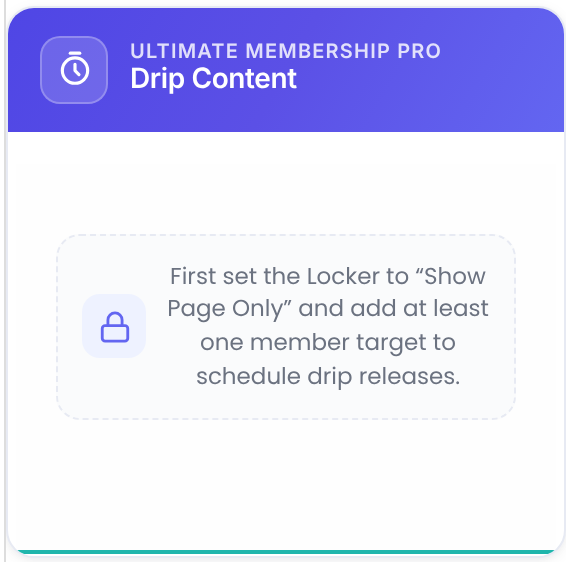
Edit the page. The Membership Pro – Drip Content box is in the editor sidebar, under the Locker box. Until the Locker is set, it only shows this message:
Set the schedule
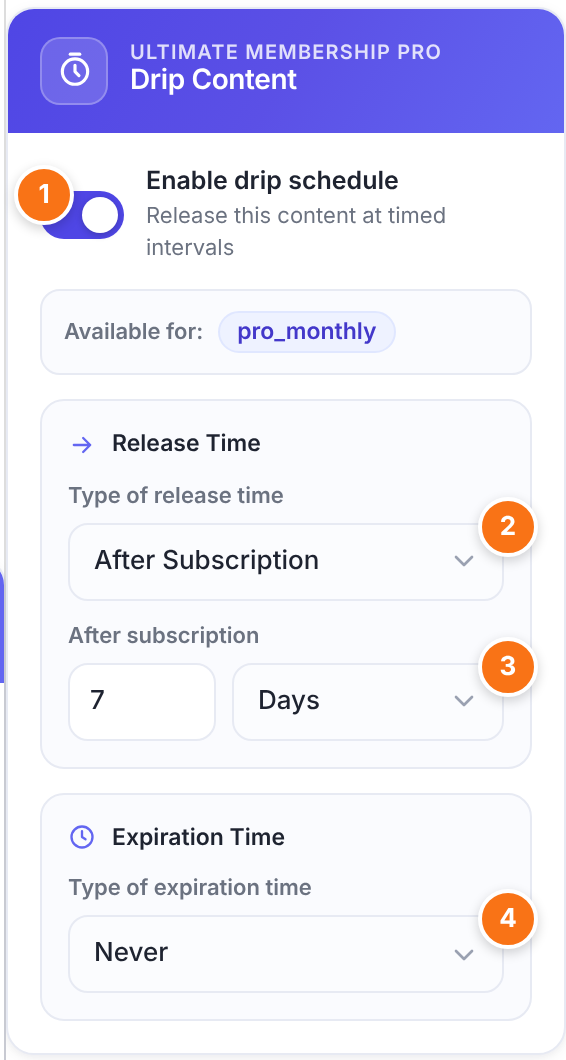
Turns the schedule on for this page. Available for below repeats the member types from the Locker.
Default: Off
When the page opens:
- Instantly on Subscription: as soon as the Membership starts.
- After Subscription: a number of Days, Weeks or Months after the Membership starts.
- On Specific Date: on the date you pick, for everyone.
Default: Instantly on Subscription
The delay. A month counts as 30 days.
When the page closes again:
- Never: once open, it stays open.
- After certain Period: a number of Days, Weeks or Months after it opened.
- On Specific Date: on the date you pick.
Default: Never
Click Update to save the page.
How the dates are counted
A Membership
- Counts from
- The start of that member’s Membership
- Example
- Joined on the 1st, 7 days: opens on the 8th
Registered Users
- Counts from
- The date the account was created
- Example
- Good for free member courses
Dates use your WordPress time zone. Before the release date, and after the expiration, the member gets what the Locker sets for people without access: a redirect or the replacement content.
Good to know
- Administrators always see the page. Test with a test member.
- For Unregistered Users, the schedule applies only when the expiration is On Specific Date: the page is open between the two dates.
Tell members when a lesson opens
The Drip Content Notifications module emails members when a dripped post becomes available.
Example: a weekly course
- Locker
- Show Page Only for Pro Monthly, Replace the Content
- Enable drip schedule
- On
- Type of release time
- After Subscription, 7 Days
- Type of expiration time
- Never
Week 3 uses 14 days, week 4 uses 21 days, and so on.
Troubleshooting
The box only shows “First set the Locker…”
The Locker must be set to Show Page Only with at least one member type. Block Page Only doesn’t support drip.
A new member sees the page right away
You’re testing as admin, or the release type is Instantly on Subscription. Check both.
The page opened a day early or late
Check the time zone in Settings › General in WordPress. The plugin uses it to compare dates.
A member can’t see a page that should be open
Their Membership must still be active, and the expiration must not have passed. Check the member in Members; see How to change Member Status.


