
The Locker in the editor restricts one page at a time. Ultimate Membership Pro Access Rules restrict many at once: every post of a type, every post in a category, media files, or any URL on your site. New content that matches a rule is locked automatically.
This guide explains the five rule types, then creates one rule that keeps a Premium category for paying members.
Before you start
- You have at least one Membership. See Create your first Membership.
- For a single page, the Locker is simpler: Restrict your first page.
Pick the rule type
Go to Ultimate Membership Pro›Access Rules. The screen has one tab per rule type:
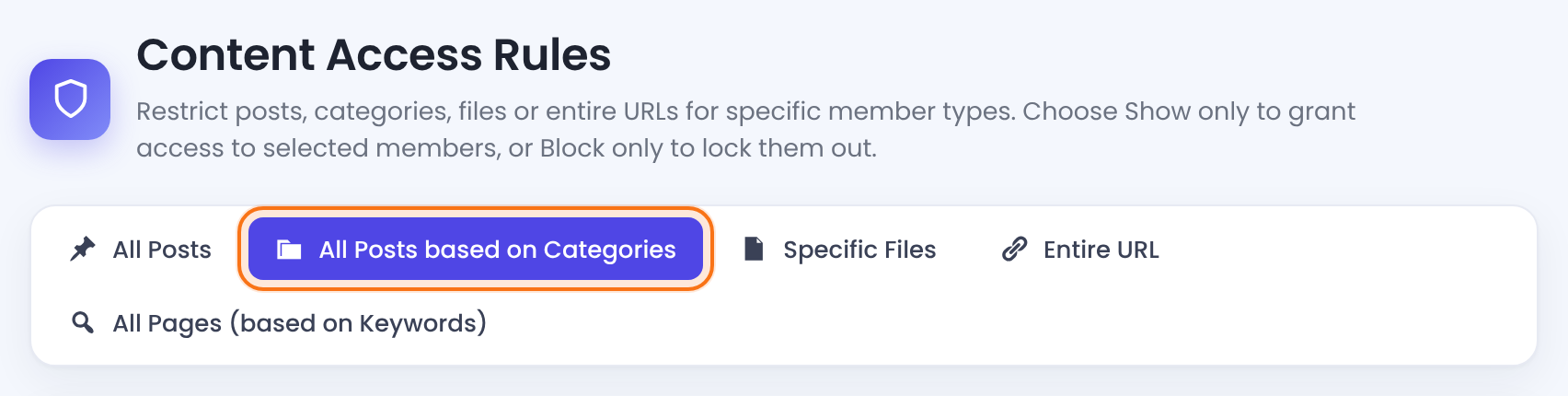
All Posts
- Locks
- Every item of one post type
- Good for
- Courses, lessons, products
All Posts based on Categories
- Locks
- Every post in one category
- Good for
- A Premium or Members category
Specific Files
- Locks
- One media file, by its link
- Good for
- PDFs, videos, ZIP downloads
Entire URL
- Locks
- One exact URL
- Good for
- Archive pages, pages built by other plugins
All Pages (based on Keywords)
- Locks
- Every URL that contains a word
- Good for
- A whole section, such as /academy/
Fill in the rule
Open the tab you need. The form is on the left. Every rule type has the same three settings at the bottom; only the first field changes.
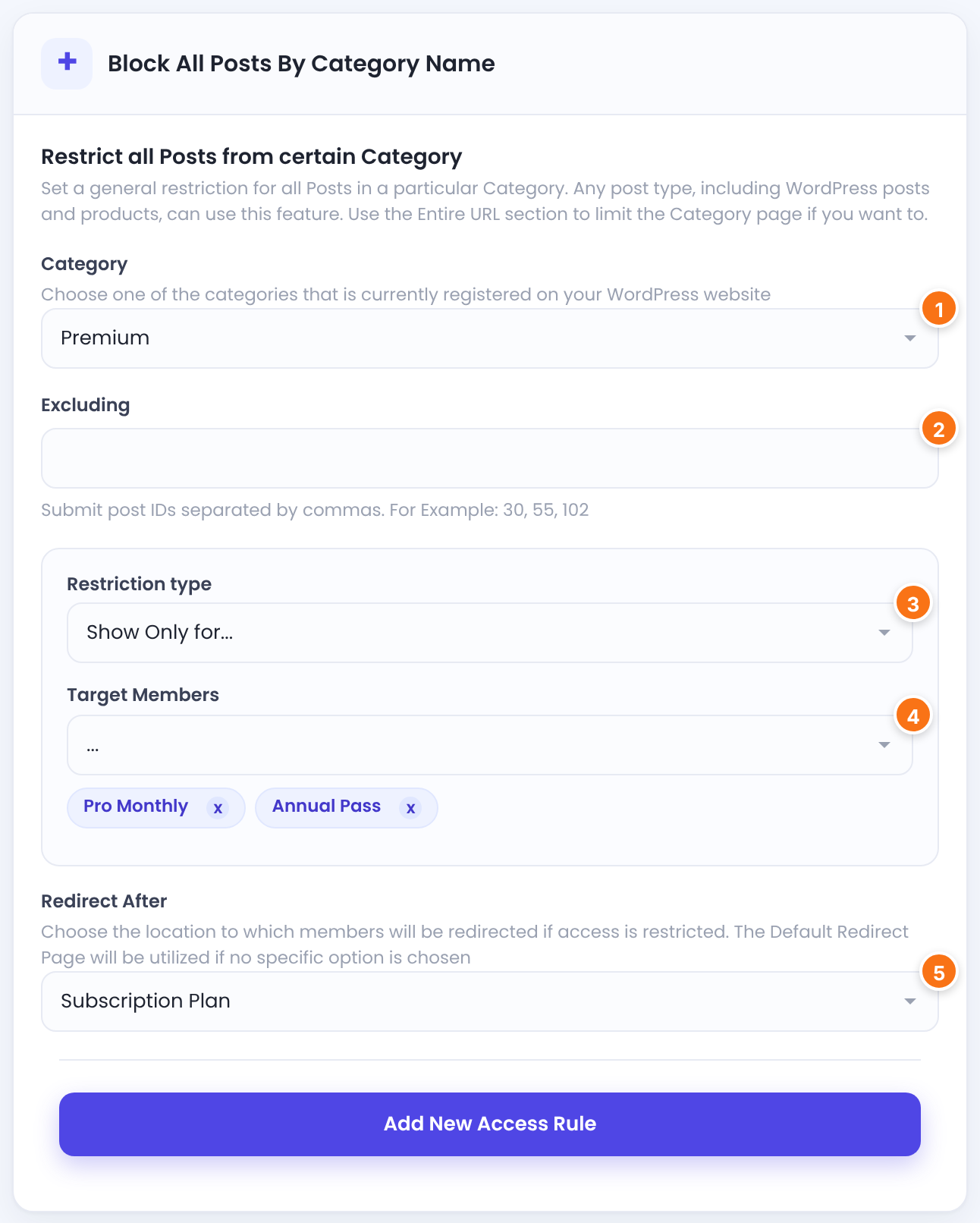
Depends on the tab:
- All Posts: Custom Post Type, any post type registered on your site.
- All Posts based on Categories: Category. Works for any post type that uses that category, including products.
- Specific Files: Full File Link, the full link of a file in your Media Library.
- Entire URL: the full link, copied from your browser.
- All Pages (based on Keywords): Keyword, a word that appears in the links you want to lock.
Post IDs that the rule skips, separated by commas, for example 30, 55, 102.
Show Only for… lets only the Target Members in. Block Only for… keeps only the Target Members out.
Default: Show Only for…
Pick from the drop-down to add a tag; add as many as you need. Choose All, Registered Users, Unregistered Users or a Membership. Only members whose Membership is active count.
Where people who can’t see the content are sent. Pick a page (custom links from the Redirect Links module are listed too). If you leave it on …, they’re sent to your homepage.
Add the rule
Click Add New Access Rule. The rule shows up in the list on the right of the same tab, and the counter at the top counts it.
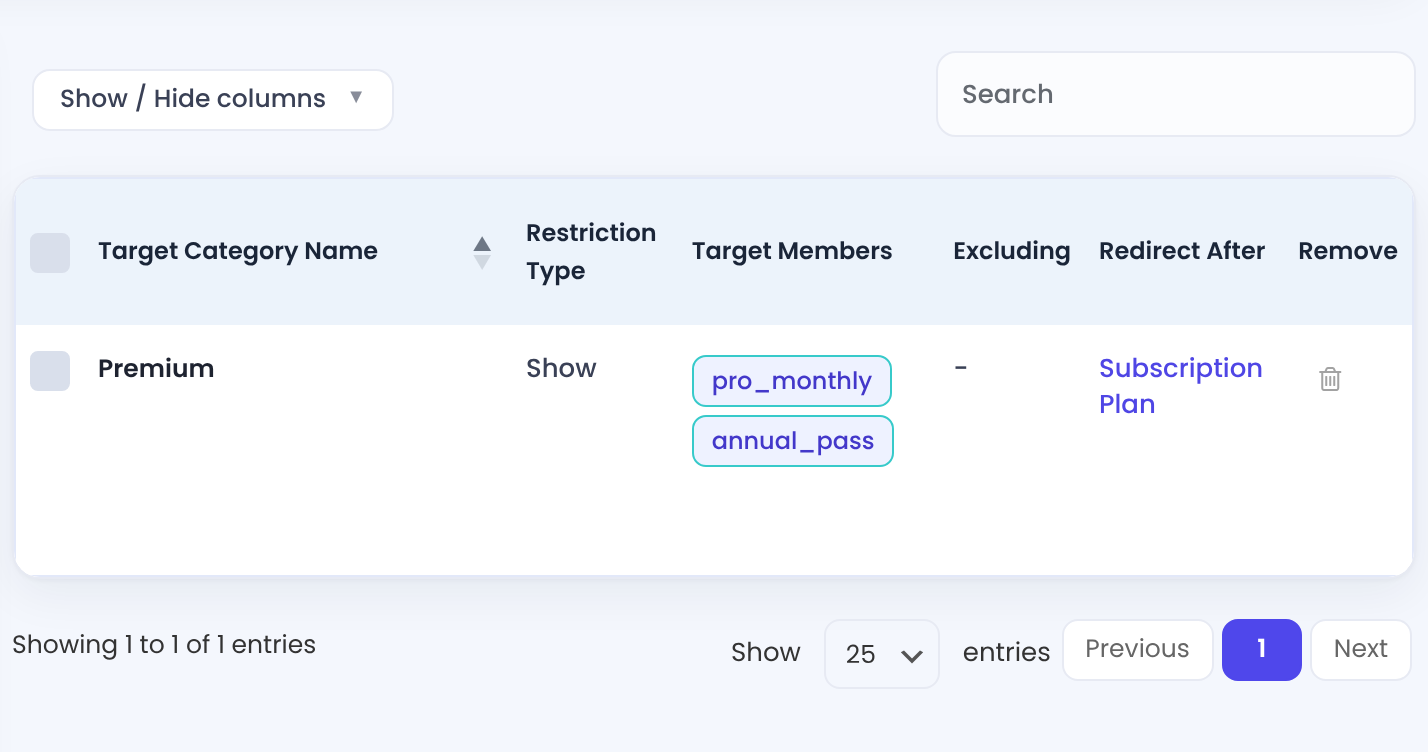
- To change a rule, remove it and add it again with the new settings.
- To remove rules, click the trash icon, or tick several and use Bulk Actions › Remove.
Test it
Open a matching post in a private browser window, then log in as a test member who has one of the Target Memberships. Administrators always see everything, so don’t test while logged in as admin.
Good to know
- Entire URL matches the exact link, including
https://,wwwand the trailing slash. Copy it from the address bar. - Adding an Entire URL or Keyword rule for a link that already has a rule replaces the old rule.
- Specific Files works by writing a rewrite rule into your site’s
.htaccessfile, for mp3, mp4, avi, pdf, zip, rar, doc, docx, gz, tar, xls and xlsx files. The server must use Apache with mod_rewrite and the file must be writable. On Nginx the rule has no effect. - A category rule locks the posts, not the category archive page. To lock the archive, add an Entire URL rule for it.
- Links that contain ultimate-membership-pro are never restricted, so the plugin’s own pages always work.
Lock the whole site
To keep every page behind a login, go to Ultimate Membership Pro›Settings›Security and switch on Restrict access over entire Website. All pages except the homepage and the plugin’s pages (Login, Register and so on) are restricted, and visitors are sent to the Login page. List pages that stay open in Exclude other pages from current Restriction, as IDs separated by commas.
Example: a Premium category
- Tab
- All Posts based on Categories
- Category
- Premium
- Excluding
- Empty
- Restriction type
- Show Only for…
- Target Members
- Pro Monthly, Annual Pass
- Redirect After
- Subscription Plan
Troubleshooting
“Please complete this field” under Target Members
A rule needs at least one member type. Pick one from the Target Members drop-down.
The rule doesn’t do anything
You’re probably logged in as an administrator. Test in a private window or with a test member.
An Entire URL rule doesn’t match
Compare the saved link with the address bar character by character: http or https, www, trailing slash, query string.
Files can still be downloaded
Check that your server is Apache, that .htaccess is writable and contains the Ultimate Membership Pro Rules block, and that the extension is in the supported list.
Blocked visitors land on the homepage
Redirect After is empty. Edit the rule (remove and add it again) and pick a page.


