
An Ultimate Membership Pro teaser shows visitors that members-only content exists, so they see a reason to sign up instead of an empty site. You keep the titles of restricted posts in your blog and archive lists, and you decide what a visitor gets after a click: a short pitch, or the first part of the post.
This guide turns on the setting that keeps restricted posts in lists, shows what happens on a click, and builds two kinds of teaser for the Coaching Club site: a replacement message, and a public intro in front of a locked section.
Before you start
- You have at least one paid Membership, such as Pro Monthly at $19/month. See Create your first Membership.
- Some posts are restricted with the Locker or with Access Rules. See Restrict your first page and Restrict content with Access Rules.
- A Subscription Plan page is set under Ultimate Membership Pro›Settings›Pages Setup. See Set up the membership pages.
- You have a private browser window to test as a visitor. Administrators always see everything.
Choose your Ultimate Membership Pro teaser
Pick the teaser that matches how much of the post you want to give away.
The whole post is locked
- In lists
- The title stays in your blog and archive lists
- On a click
- A sign-up message (Replace the Content) or another page (Redirect the Page)
- Setup
- A setting, plus the Locker on each post
Only part of the post is locked
- In lists
- The post is public, so it shows as usual
- On the post
- The intro is public and a locker box or a message replaces the rest
- Setup
- An Inside Locker around the paid part
Keep restricted posts in your lists
By default, Ultimate Membership Pro removes the posts a visitor can’t open from your blog page, archives and search results. One setting keeps them in.
- Go to Ultimate Membership Pro›Settings›Public Workflow.
- Under Listing Pages/Posts, switch on Show hidden Pages/Posts Titles in listing.
- Click Save Changes.
Keeps restricted posts in the lists of posts, even when the visitor can’t open them. Off removes them from the lists for everyone who has no access.
Default: Off
The setting works on WordPress’s own post queries. That covers the blog page, category and tag archives and the search results, for posts restricted with the Locker and for posts in a category that an Access Rule blocks. Administrators always see every post in lists, so test as a visitor.
Lists built another way
A list that your theme or another plugin builds with its own database query is not part of this setting. If a restricted post shows or hides in such a list in a way you did not expect, check how that list is built.
If a restricted post shows up in a list and you did not want that, see Restricted content is visible to everyone.
Decide what a click on the title does
What a visitor gets after clicking depends on the If access is not allowed option in the Locker box of that post. When the rule lists only Memberships, logged-in users without an active one of those Memberships get the same result as visitors.
The default. The visitor is sent to another page. Choose it in Redirect to. The default option sends them to your Default Redirect Page. If you set no page there, they land on your home page. To send clicks straight to your pricing page, pick your Subscription Plan page in Redirect to.
The visitor stays on the post and sees the text you wrote in the Replace Content box instead of the post content. This is the best base for a teaser, because you can pitch the Membership right there.
Both options are explained in Restrict your first page.
Write a teaser with Replace the Content
- Edit the restricted post. In the Ultimate Membership Pro – Locker box, set Visibility rule to Show Page Only, add Pro Monthly and Annual Pass under For these members, and set If access is not allowed to Replace the Content.
- In the Replace Content box under the editor, write what visitors see. Add a sign-up link.
- Add a short Excerpt to the post if your theme shows excerpts in lists. This is your teaser text in the list.
- Click Update.
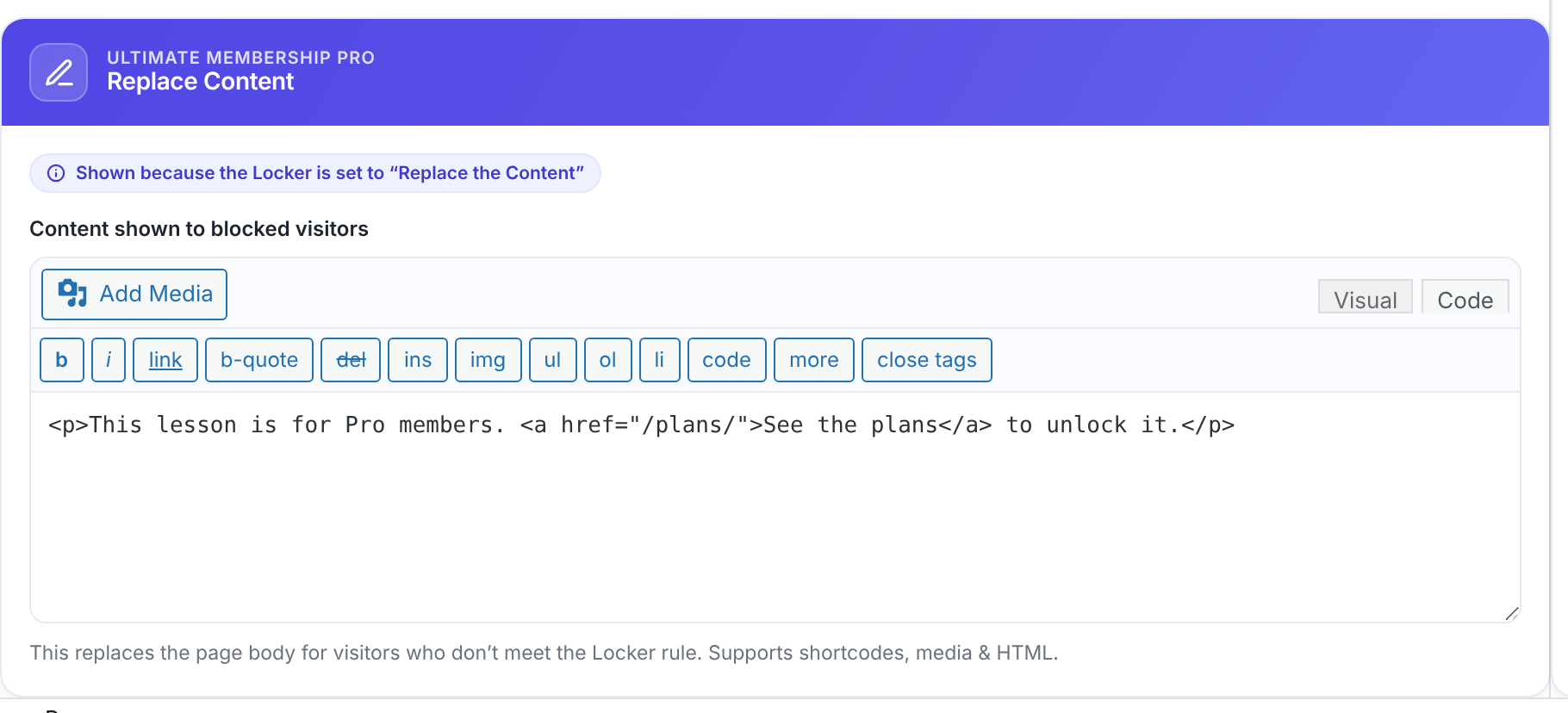
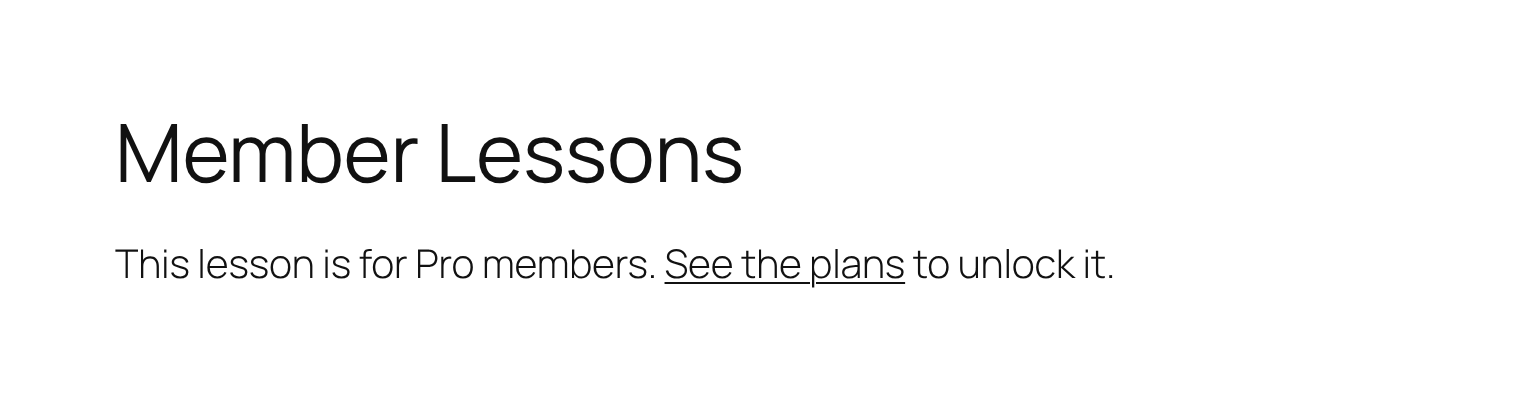
The box accepts text, images and shortcodes. For a sign-up link, use [ihc-purchase-link]:
A teaser with two sign-up links
This lesson is for Pro members.
[ihc-purchase-link id=2]Join Pro Monthly for $19/month[/ihc-purchase-link]
or [ihc-purchase-link id=3]get the Annual Pass for $190/year[/ihc-purchase-link].The Membership ID. Find it in Ultimate Membership Pro›Memberships.
A visitor goes to the Register page with that Membership selected. A logged-in user goes to the checkout page. See Shortcodes reference.
To show all your plans instead, put [ihc-select-level] in the box, or link to your Subscription Plan page. See Build your pricing page.
Good to know
- Write shortcodes with straight quotes. Some editors turn them into curly quotes, and the shortcode then shows as plain text.
Keep the intro public with an Inside Locker
Use this when the post itself can stay public. The intro is the teaser, and only the paid part is hidden. The setup is the same as in Hide part of a page (Inside Locker).
- Write the intro as normal text at the top of the post. Leave it outside the locker.
- Wrap the paid part in an Inside Locker. In the block editor, use the Content Locker Shortcode block (block editor blocks); in the classic editor, use the Ultimate Membership Pro – Inside Locker button.
- Set Type to Show, choose Pro Monthly and Annual Pass as the targets, and pick a locker template with a message that invites people to join.
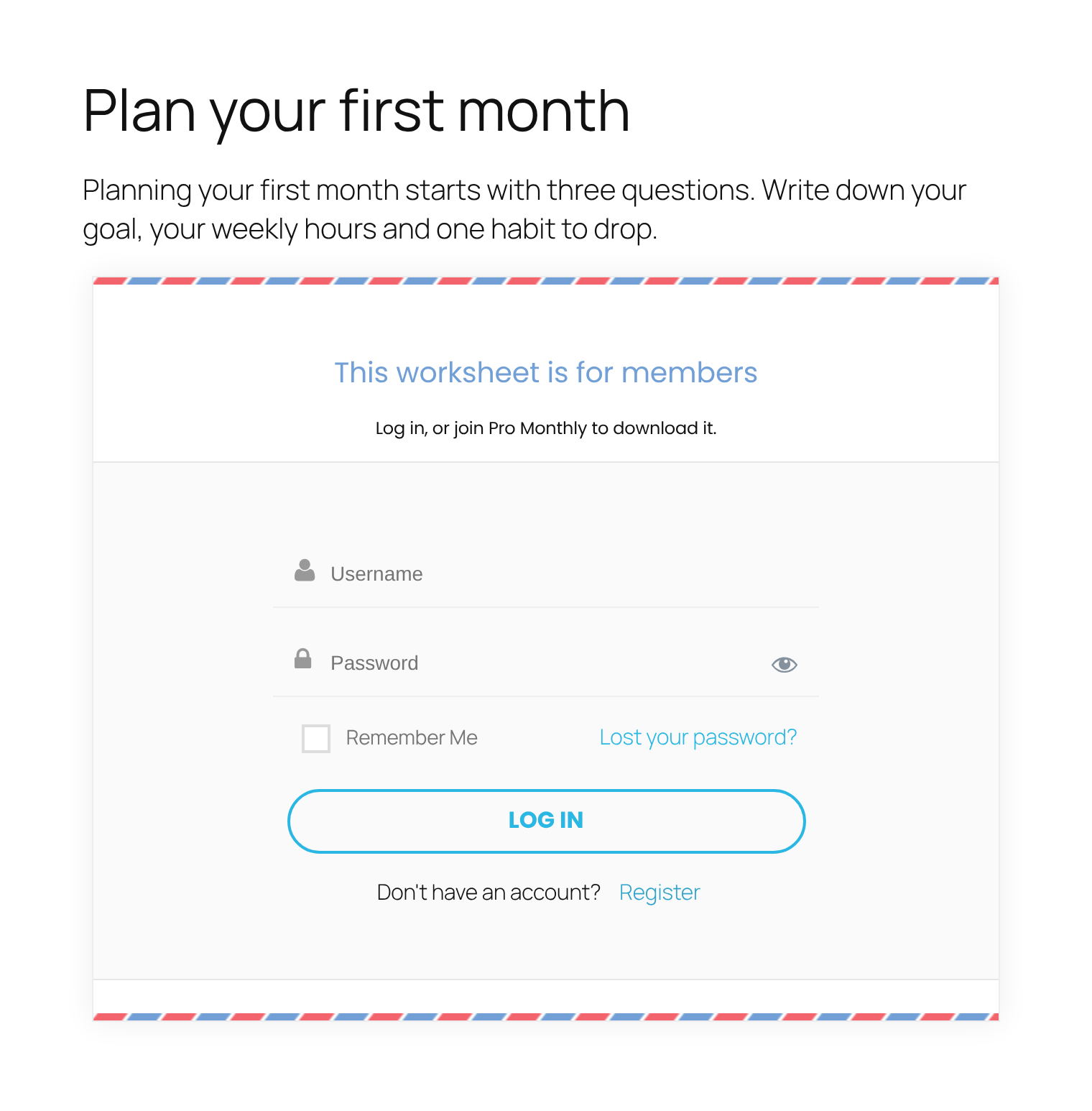
The locker box comes from a locker template in Ultimate Membership Pro›Inside Lockers. Put your pitch in its Locker Message, with a link to your Subscription Plan page.
Show different text to visitors and to logged-in users without the Membership
A locker template shows one message to everyone who can’t see the section. To say something different to each group, leave the locker template empty and write one [ihc-hide-content] shortcode per message. Without a template, the section simply disappears for people who can’t see it, so each message only shows to its group.
show shows the text only to the people in ihc_mb_who. block shows it to everyone except them.
Default: show
Who the shortcode applies to, separated by commas: all, reg (logged-in users, with or without a Membership), unreg (visitors who are not logged in), or Membership IDs.
The locker template ID. Leave it out for no box.
11. The paid part, for Pro Monthly (ID 2) and Annual Pass (ID 3)
[ihc-hide-content ihc_mb_type="show" ihc_mb_who="2,3"]
The worksheet and the video go here.
[/ihc-hide-content]22. A message for visitors who are not logged in
[ihc-hide-content ihc_mb_type="show" ihc_mb_who="unreg"]
Create a free account or log in to read the rest of this lesson.
[/ihc-hide-content]33. A message for logged-in users without those Memberships
[ihc-hide-content ihc_mb_type="block" ihc_mb_who="unreg,2,3"]
You are logged in, but the rest of this lesson is for Pro members.
[ihc-purchase-link id=2]Join Pro Monthly[/ihc-purchase-link]
[/ihc-hide-content]
In the third shortcode, block with unreg,2,3 hides the message from visitors and from members of Pro Monthly or Annual Pass. Everyone else sees it: logged-in users with no Membership, or with only Free Community. Only an active Membership counts, so a member whose Pro Monthly expired sees the message too. Check a member’s status in Manage your members.
Related
- A visitor can also log in from a popup. See Login and registration popups.
- To keep new members out of posts published before they registered, see Hide old content from new members (Restrict Past Content).
Test it as a visitor and as a member
- Open your blog page in a private window. The restricted titles should be in the list.
- Click a title. You should see the teaser or the page you chose.
- Log in as a test user with no Membership and check the same post.
- Log in as a test member with Pro Monthly. The full post opens. A Membership that is expired or not started does not count; see Membership statuses explained.
Example: lessons for Coaching Club
- Public Workflow
- Show hidden Pages/Posts Titles in listing: on
- Locker on each lesson
- Show Page Only for Pro Monthly and Annual Pass
- If access is not allowed
- Replace the Content
- Excerpt
- A one-sentence summary of the lesson
- Replace Content
- This lesson is for Pro members, with links to join Pro Monthly ($19/month) or get the Annual Pass ($190/year)
- Visitor
- Sees the title in the blog list, clicks it and reads the pitch
- Pro member
- Sees the same list and opens the full lesson
Learn more about teasers and restricted content
- Content restriction in Ultimate Membership Pro: what you can lock and for whom.
- Ultimate Membership Pro plans.
- Restrict Past Content: an add-on that hides posts published before a member registered.
- Page and post settings in WordPress: where to write an Excerpt.
- The WordPress Shortcode block.
Troubleshooting
Why don’t my restricted posts show in the blog list?
Show hidden Pages/Posts Titles in listing is off. Switch it on in Settings › Public Workflow and save. Also check that you are not logged in as an administrator, who sees every post in lists anyway.
Why does a click on a title send visitors to another page?
The post uses Redirect the Page. Set If access is not allowed to Replace the Content to keep visitors on the post with your teaser, or pick the page you want in Redirect to. With no page chosen, visitors go to the Default Redirect Page, or to the home page if none is set.
Do logged-in users without a Membership see the same teaser as visitors?
Yes, when the Locker rule is Show Page Only for Memberships. Both groups can’t open the post, so both get the Replace Content text. To write different text for each group, use the Inside Locker shortcodes in this guide.
Why does my shortcode show as plain text in the teaser?
Check the spelling and use straight quotes. See the Shortcodes reference for every shortcode and its attributes.
Can I show the first part of a post and hide the rest?
Yes. Keep the post public and wrap the paid part in an Inside Locker. See Hide part of a page (Inside Locker).


