
In Ultimate Membership Pro, the Restrict Past Content add-on makes restricted posts available only if they were published after the member registered. Posts older than the member’s registration date are closed to that member and are left out of post lists. It suits sites that sell a stream of new content, such as a weekly lesson, where new members should not get the whole archive for the price of a new membership.
This guide switches the add-on on, shows the two ways to let some older content through, and explains what members see.
Before you start
- The Restrict Past Content add-on is installed and active. It’s a Pro add-on, included in the Full Package and Agency plans. See Install a Pro add-on.
- Your license is active. See Find and activate your license key.
- Some posts or pages are restricted to Memberships. See Restrict content with Access Rules.
Switch on the add-on
- Go to Ultimate Membership Pro›Modules and open Restrict Past Content (in the Content Protection group).
- Switch on Activate/Hold Restrict Past Content Integration and click Save Changes.
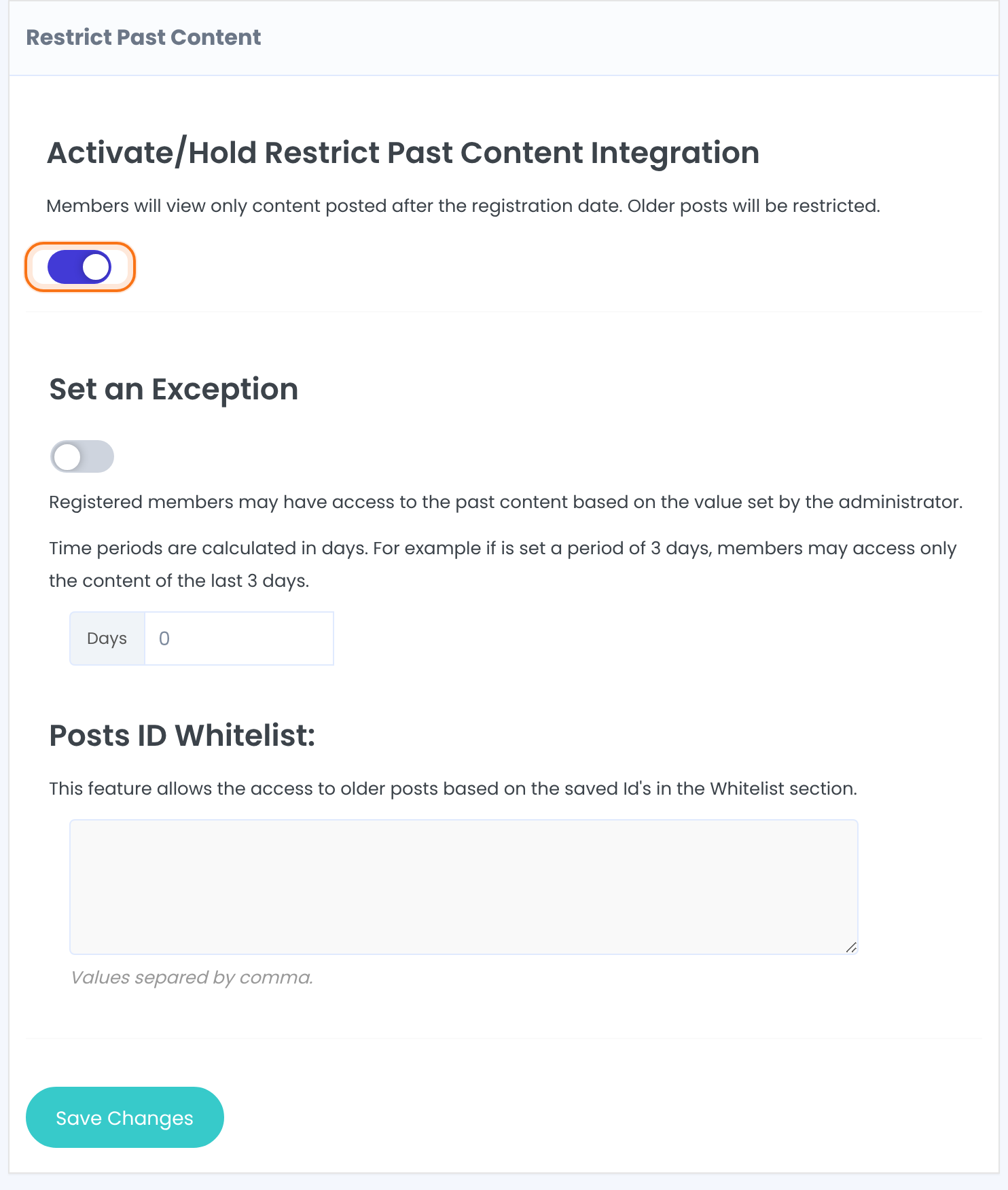
From now on, a member can open a restricted post only if it was published after the member’s registration date. The date that counts is when the member’s account was created on your site, not when they bought a Membership.
Let some older content through (optional)
You have two ways to open part of the past to everyone. You can use one or both.
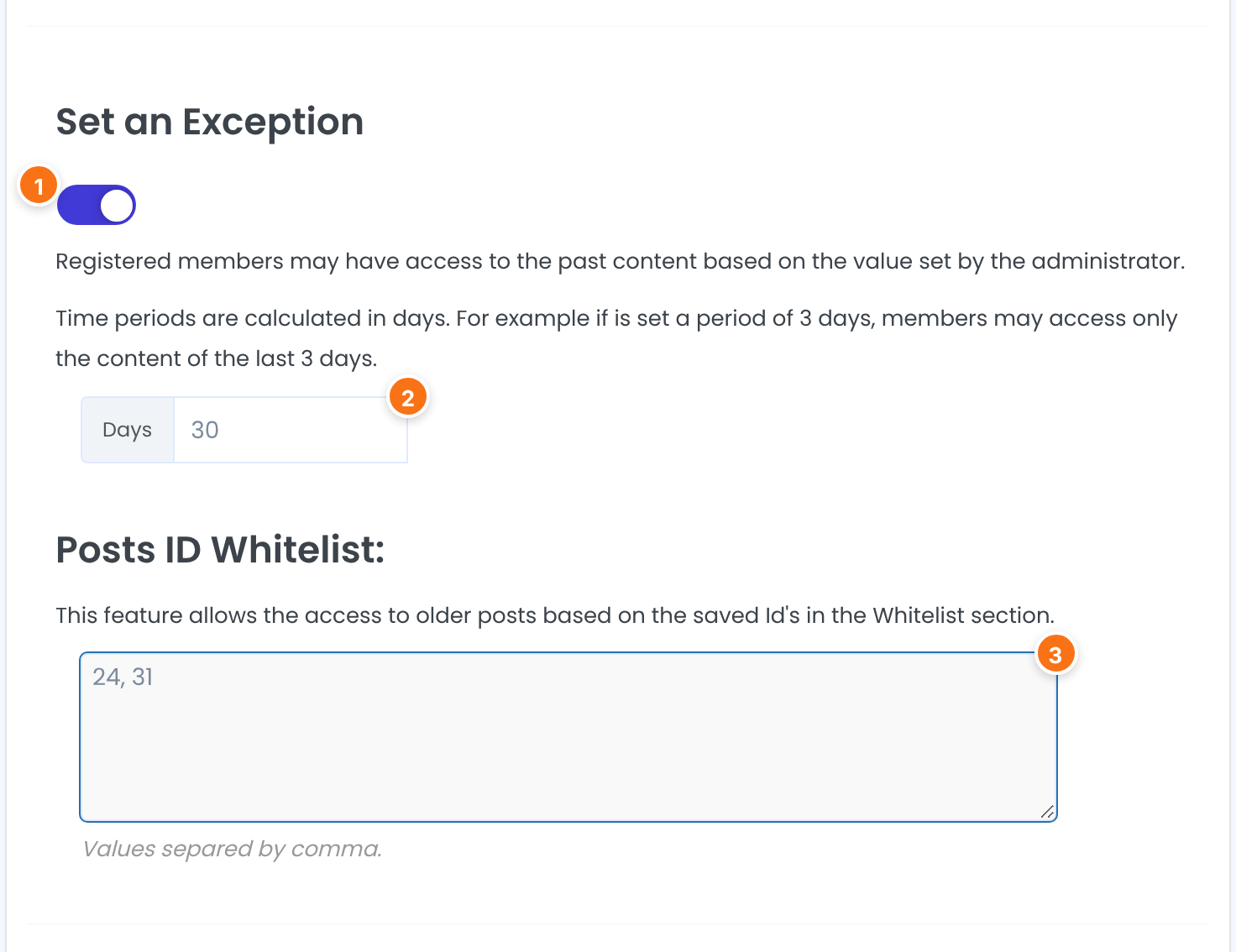
Turns on the Days field below.
Default: Off
How far before the registration date a member can still see. With 30, a member who registers on November 10 can also open restricted posts published from October 11.
Default: 0
IDs of posts that stay open to every member whatever their date, for example a welcome lesson. Separate IDs with commas: 24, 31. You see a post’s ID in the address bar of its edit screen, after post=
Default: Empty
Click Save Changes after any change.
What members see
The member is sent to your Default Redirect Page, or to the home page if none is set. You choose that page under Ultimate Membership Pro›Settings›Pages Setup. See Set up the membership pages. The add-on looks at restrictions set in the Locker box and by Access Rules for a URL, a post type or a category.
Blog pages, archives and search results leave out posts published before the member registered, except whitelisted ones. This applies to every logged-in member except administrators. To show those titles anyway, switch on Show hidden Pages/Posts Titles in listing under Ultimate Membership Pro›Settings›Public Workflow.
It can still be opened with its link, by anyone. It only disappears from the lists.
Visitors who aren’t logged in don’t get a registration date, so they are restricted as usual. Administrators see everything in lists.
Combine it with Memberships
- The add-on checks the date. Who may open the post is still decided by your access rules, so a member without the right Membership is turned away as before.
Example: only new lessons for new members
- Posts
- Weekly lessons, restricted to Pro Monthly ($19/month) and Annual Pass
- Set an Exception
- On, 30 days
- Posts ID Whitelist
- 24 (the Welcome lesson)
- Result
- A member who joins on November 10 opens the Welcome lesson, every lesson from October 11 on, and all new lessons
Learn more about Restrict Past Content
- Restrict Past Content add-on page: what it does, at a glance.
- All Pro add-ons for Ultimate Membership Pro.
- Ultimate Membership Pro plans: Pro add-ons come with the Full Package and Agency plans.
- What a paywall is (Wikipedia).
Troubleshooting
Why can’t a new member open an older lesson in Ultimate Membership Pro?
With Restrict Past Content on, a restricted post is closed to members who registered after it was published. Add its ID to the Posts ID Whitelist, or turn on Set an Exception and enter enough Days to reach back to the post’s date.
Why have older posts vanished from my blog page for members?
Post lists leave out posts published before the member’s registration date. Add the post IDs to the Posts ID Whitelist, or switch on Show hidden Pages/Posts Titles in listing under Settings › Public Workflow.
Do administrators see the old content?
Yes. Administrators are not restricted and see every post in lists.
Where do members land when a post is closed to them?
They go to your Default Redirect Page, or to the home page when no page is set.
How do I find a post’s ID?
Open the post for editing and look at the address bar: the number after post= is its ID.


