
In Ultimate Membership Pro, the Member RSS add-on gives every member a private feed link in the Member Portal. The link returns a list of the posts and pages that the member’s active Memberships unlock, with title, content, date and author. It lets members pull their content into other tools, and it keeps the link personal to them.
This guide switches the add-on on, shows the Member Portal tab with the link and explains what the feed contains.
Before you start
- The Member RSS add-on is installed and active. It’s a Pro add-on, included in the Full Package and Agency plans. See Install a Pro add-on.
- Your license is active. See Find and activate your license key.
- The Member Portal is set up. See Set up the Member Portal.
- Your members-only posts are locked in their Locker box with Show Page Only for a Membership. See Restrict your first page.
Switch on the add-on
- Go to Ultimate Membership Pro›Modules and open Member RSS (in the Content Protection group).
- Switch on Activate/Hold Member RSS Integration and click Save Changes.
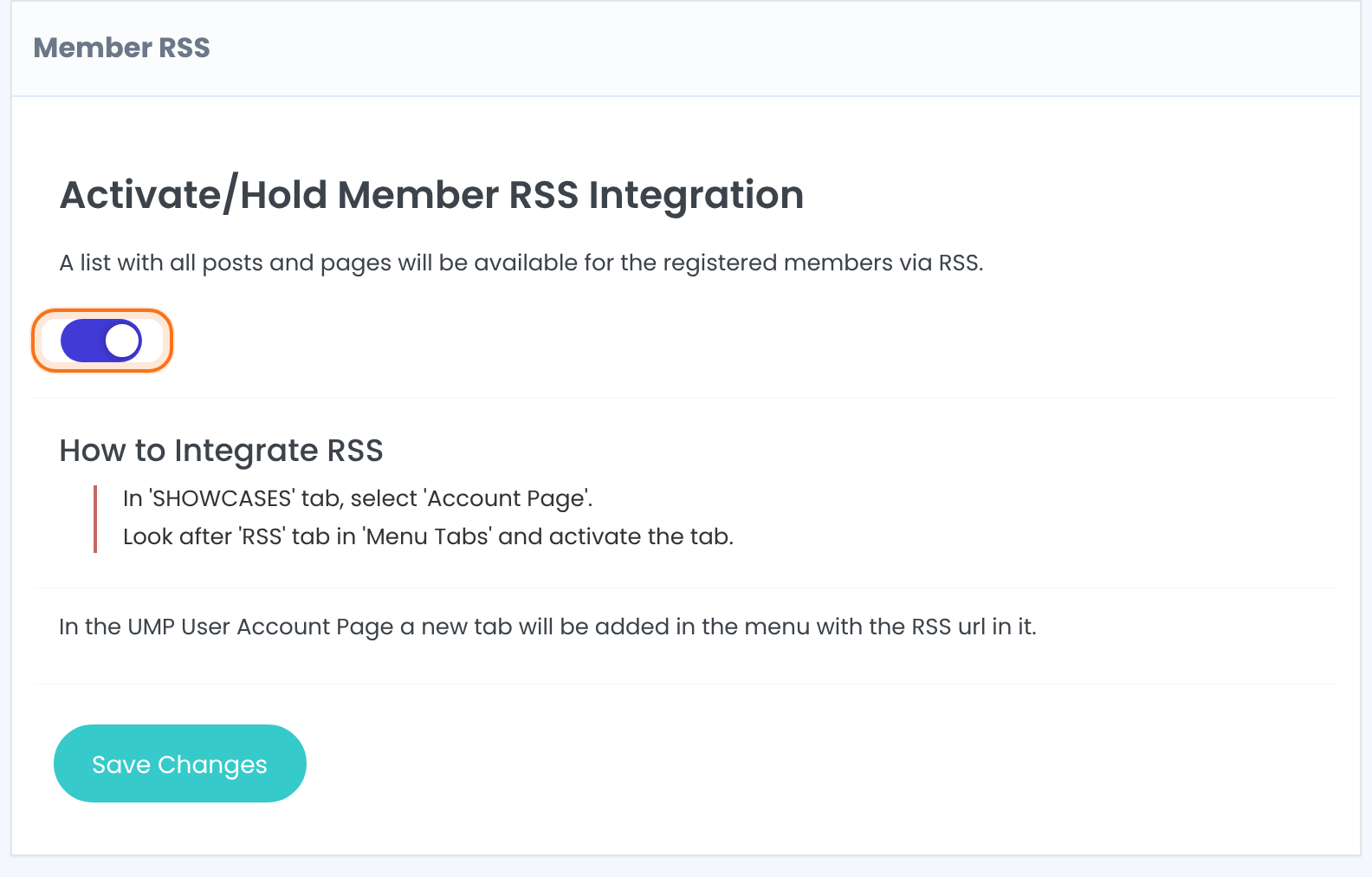
Saving adds a tab to the Member Portal menu, named RSS, and shows it. If you don’t find the tab, see the first question under Troubleshooting.
Check the RSS tab in the Member Portal
- Go to Ultimate Membership Pro›Showcases›Member Portal, scroll to Content Section and click the tab in the menu list.
- Check that Show in Portal is on. Change the label and add your own title and text if you like.
- Click Save Changes.
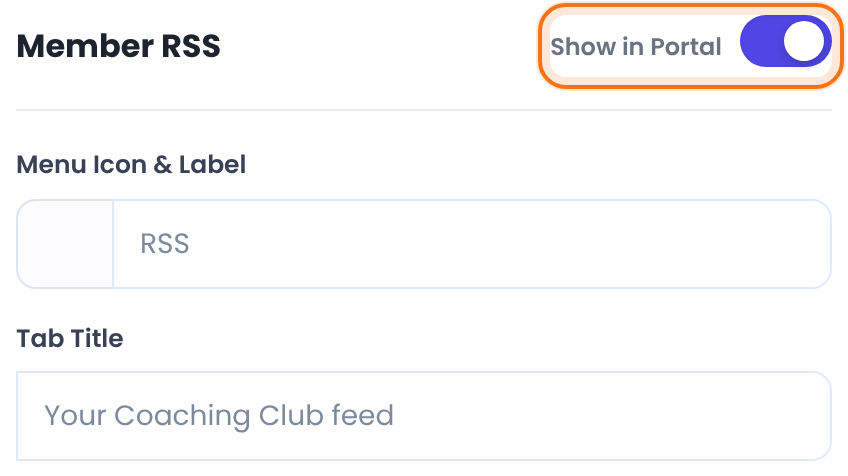
Shows the tab in the members’ menu.
What the menu item looks like.
Default: An RSS icon and the label RSS
A heading above the link.
Default: Empty
Text above the link. Shortcodes work here.
Default: Empty
See what members get
Members open the tab in their Member Portal. It shows a link under Your RSS feed Link, and a Reset Link button.
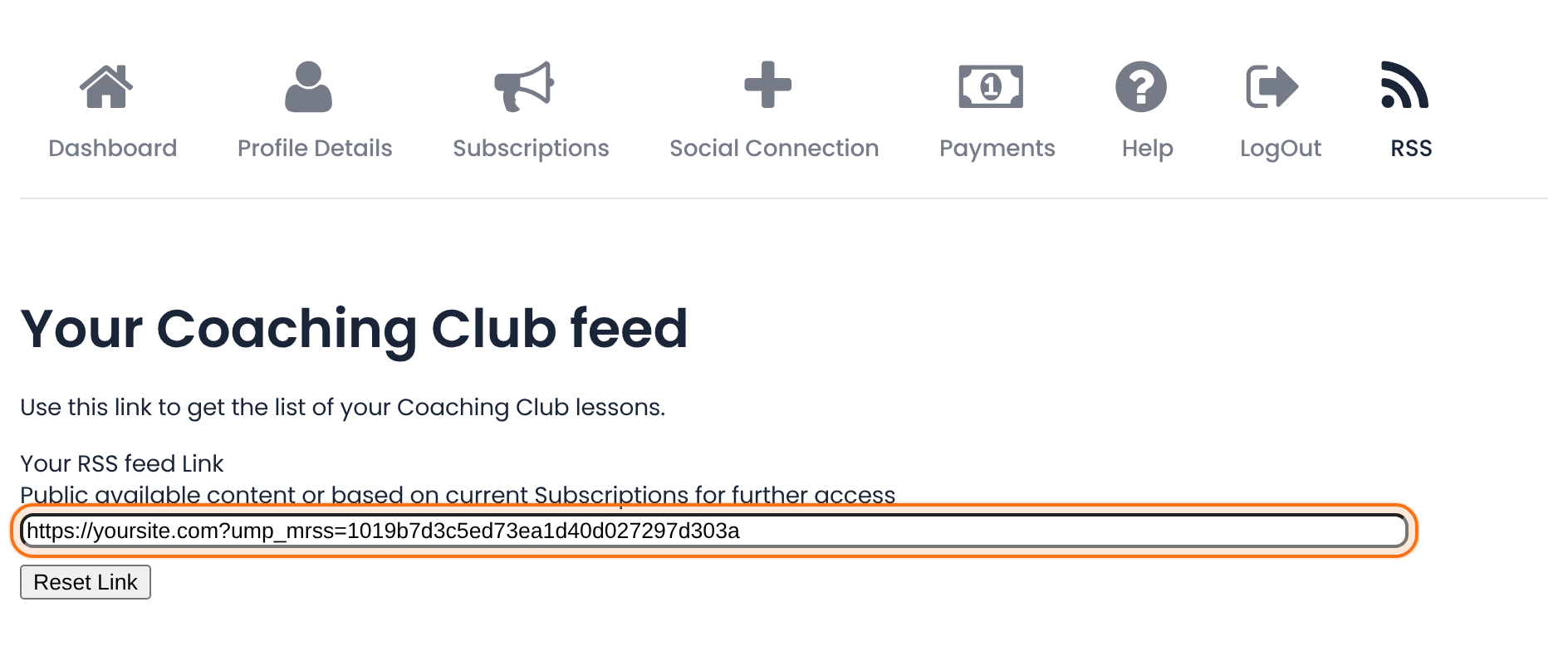
Your home page address followed by ?ump_mrss= and a long code that belongs to this member. The code is created the first time the member opens the tab.
Creates a new code and a new link for the member. Use it if the link has been shared by mistake; the previous link is replaced.
Treat the link like a password
- Anyone who has the link can open the feed. It needs no login.
- The feed shows the full text of the posts, so a member who shares the link shares their content.
What is in the feed
Opening the link returns an XML document with one entry per post or page:
Feed for a Pro Monthly member
<data>
  <post>
    <ID>21</ID>
    <title>Coaching Club - Week 1 lesson</title>
    <content>Week one: set your goal for the month.</content>
    <featureImage></featureImage>
    <date>October 19, 2026</date>
    <author>admin</author>
  </post>
</data>The posts and pages whose Locker is set to Show Page Only for one of the member’s active Memberships, and posts set to Block Page Only for other member types. It follows the same rules as the List the posts a member can access module.
ID, title, content, featured image, date and author. The whole list comes in one document.
Example: a feed for Pro Monthly members
- Lessons
- Locked with Show Page Only for Pro Monthly ($19/month)
- Portal tab
- RSS, title Your Coaching Club feed
- A Pro Monthly member
- Sees the lessons in the feed
- A Free Community member
- Gets a link, with only the posts that Membership unlocks
Learn more about Member RSS
- Member RSS add-on page: what it does, at a glance.
- All Pro add-ons for Ultimate Membership Pro.
- Ultimate Membership Pro plans: Pro add-ons come with the Full Package and Agency plans.
- WordPress feeds (RSS and Atom).
- RSS 2.0 specification.
Troubleshooting
I don’t see an RSS tab in the Member Portal. What do I do?
Add the tab yourself. Go to Ultimate Membership Pro›Modules, open Member Portal Tabs and under Add new Menu Item enter the Slug ump_mrss and the Label Member RSS, then click Save Changes. Then open Ultimate Membership Pro›Showcases›Member Portal, click the tab in the Content Section list, switch on Show in Portal and save. See Add custom tabs to the Member Portal.
Why is a post missing from a member’s feed?
The feed lists posts whose Locker gives access to one of the member’s active Memberships. A post locked only with Access Rules, or whose Membership has expired for that member, isn’t listed.
A member’s link was shared. How do I stop others using it?
Ask the member to open the RSS tab and click Reset Link. They get a new link.
Can a member get a feed without logging in?
The link itself needs no login, but members find it in the Member Portal, so they log in once to copy it.
How do I give members a feed of their content in Ultimate Membership Pro?
Switch on the Member RSS add-on and show its RSS tab in the Member Portal. Each member copies a personal link from that tab.


