
In Ultimate Membership Pro, the Prevent Subscription Cancellations add-on lets you decide, Membership by Membership, when members can cancel a recurring subscription. While a limit applies, the Cancel and Remove buttons are hidden in the member’s Subscriptions table. It suits plans with a minimum commitment, such as three monthly payments.
This guide switches the add-on on, sets a limit on a Membership and explains the two types of limit.
Before you start
- The Prevent Subscription Cancellations add-on is installed and active. It’s a Pro add-on, included in the Full Package and Agency plans. See Install a Pro add-on.
- Your license is active. See Find and activate your license key.
- A Membership with Access Type set to Recurring Subscription. The limit isn’t available for other access types. See Create your first Membership.
Switch on the add-on
- Go to Ultimate Membership Pro›Modules and open Prevent Subscription Cancellations (in Memberships & Subscriptions).
- Switch on Activate/Hold Prevent Subscription Cancellations Integration and click Save Changes.
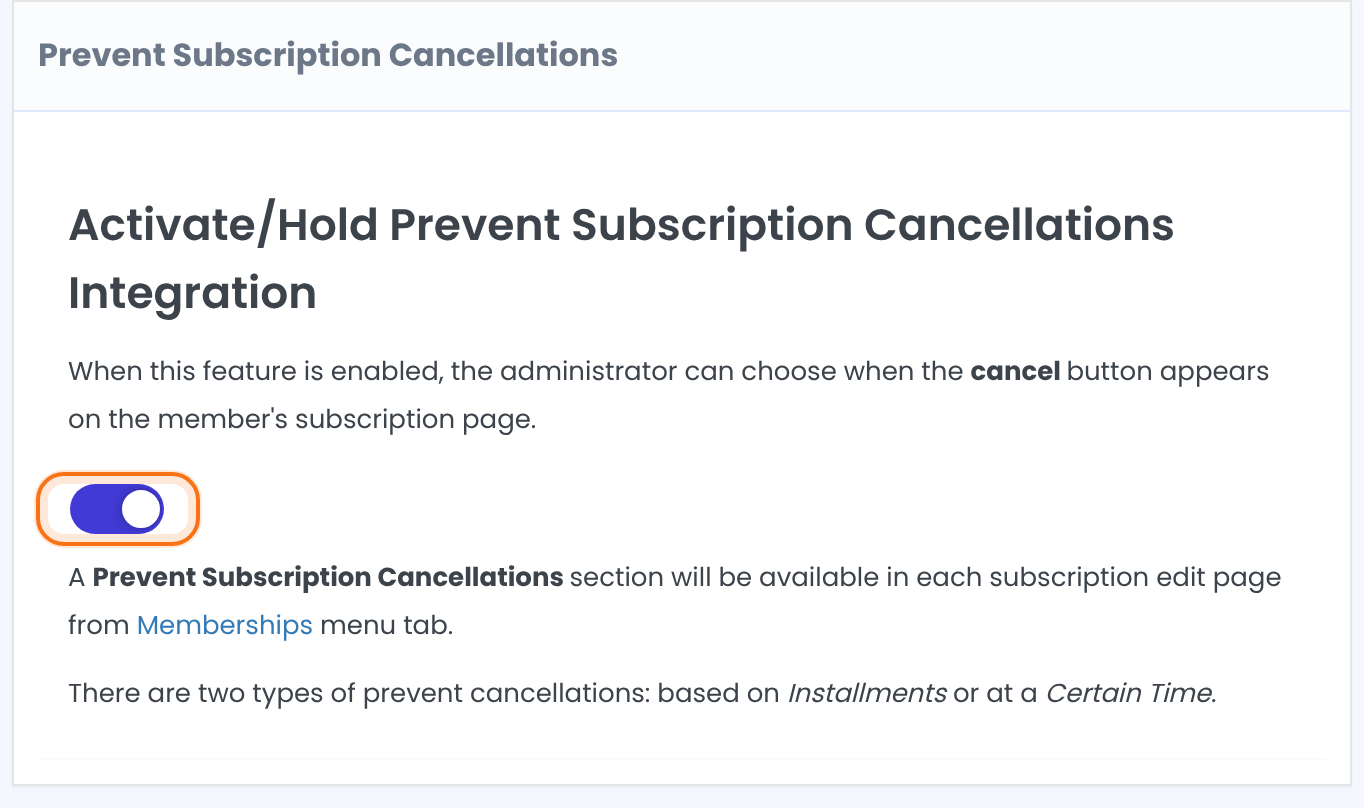
Switching the add-on on adds a Prevent Subscription Cancellations section to the edit screen of every Membership.
Set the limit on a Membership
- Go to Ultimate Membership Pro›Memberships and click the recurring Membership to edit it.
- Find Prevent Subscription Cancellations in the Expiration & Lifecycle card and switch it on.
- Choose the Type of limit and fill in its value.
- Save the Membership.
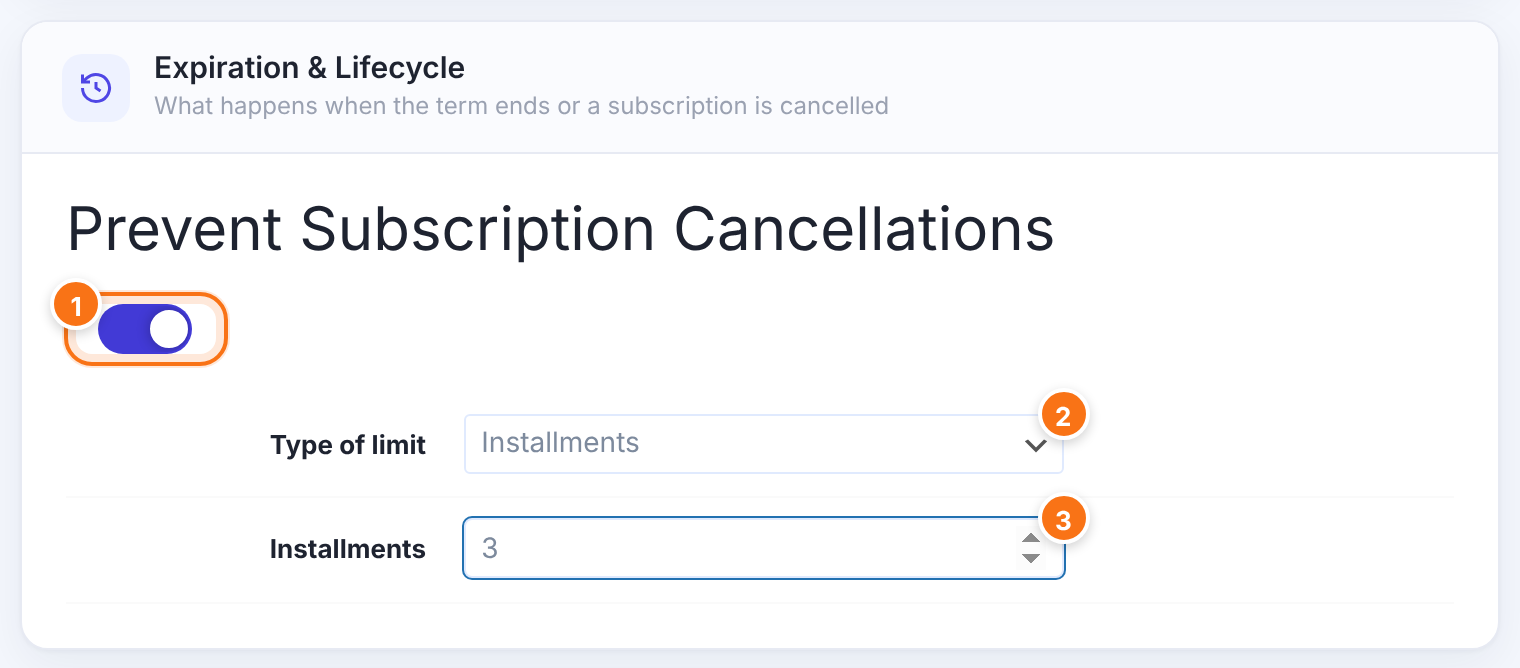
Turns the limit on for this Membership. Memberships without it keep their normal Cancel button.
Default: Off
How the limit is measured.
- Installments: the number of payments.
- Certain Time: a period of time.
Default: Installments
The number of payments after which the member can cancel. Enter 1 or more. For example, 3 on a monthly Membership means the Cancel button appears after the third payment.
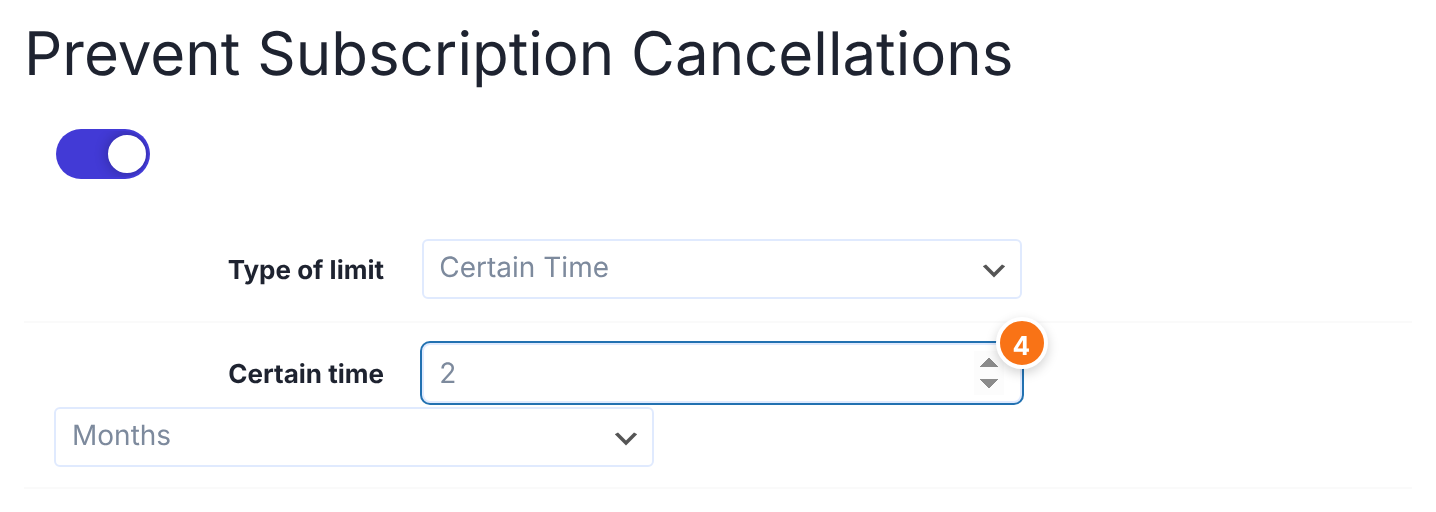
A number and a unit: Days, Weeks, Months or Years. Use it when you prefer to think in time instead of payments.
What the member sees
- The Cancel button of the Subscriptions table in the Member Portal is hidden while the limit applies. The Remove button is hidden too.
- The table itself is set up under Ultimate Membership Pro›Showcases›Member Portal. See Customize the Subscriptions and Payments tables.
- The limit applies per subscription, so a member’s other Memberships keep their own rules.
Tip
- Show the limit on your pricing page and in the Membership description, for example “Minimum 3 monthly payments”, so members know before they buy.
- Members who ask to leave early can still contact you. Manage their Membership from the Members list. See Manage your members.
Example: a three-month minimum
- Membership
- Pro Monthly, Access Type Recurring Subscription
- Prevent Subscription Cancellations
- On
- Type of limit
- Installments
- Installments
- 3
- Member sees
- No Cancel button until the third payment is made
Learn more about Prevent Subscription Cancellations
- Prevent Subscription Cancellations add-on page: what it does, at a glance.
- All Pro add-ons for Ultimate Membership Pro.
- Ultimate Membership Pro plans: Pro add-ons come with the Full Package and Agency plans.
- Subscription business model (Wikipedia).
Troubleshooting
How do I stop members from canceling a subscription right after they join in Ultimate Membership Pro?
Switch on the Prevent Subscription Cancellations add-on, edit the recurring Membership, switch on Prevent Subscription Cancellations in its Expiration & Lifecycle card and set the limit, for example Installments 3. The Cancel button is then hidden in the Member Portal while the limit applies.
Why is there no Prevent Subscription Cancellations section on my Membership?
The section appears only when the add-on’s switch is on and saved, and only for a Membership whose Access Type is Recurring Subscription.
Why do members still see a Cancel button?
Check that the switch in the Membership’s Prevent Subscription Cancellations section is on and that you saved the Membership. Memberships without the switch on keep their Cancel button.
Why don’t members see a Cancel button at all?
The Cancel button also depends on the Show Cancel Subscription option of the Subscriptions table and on the payment gateway. See Customize the Subscriptions and Payments tables.


