
In Ultimate Membership Pro, the Pay Per Post add-on lets you put a price on a single post or page, so people pay once for that content without buying a Membership plan. It is useful for a one-off guide, a workshop recording or an article you want to sell alongside your Memberships.
This guide switches the add-on on, prices a post in the editor, chooses what visitors see before they pay, and lists the posts you sell.
Before you start
- The Pay Per Post add-on is installed and active. It’s a Pro add-on, included in the Full Package and Agency plans. See Install a Pro add-on.
- Your license is active. See Find and activate your license key.
- A payment gateway and a Checkout page, because buyers pay at checkout. See Connect a payment gateway and Configure the checkout page.
- A post or page with the content you want to sell.
Turn on Pay Per Post
- Go to Ultimate Membership Pro›Modules and open the Pay Per Post card.
- Switch on Activate/Hold Pay Per Post Integration and click Save Changes.
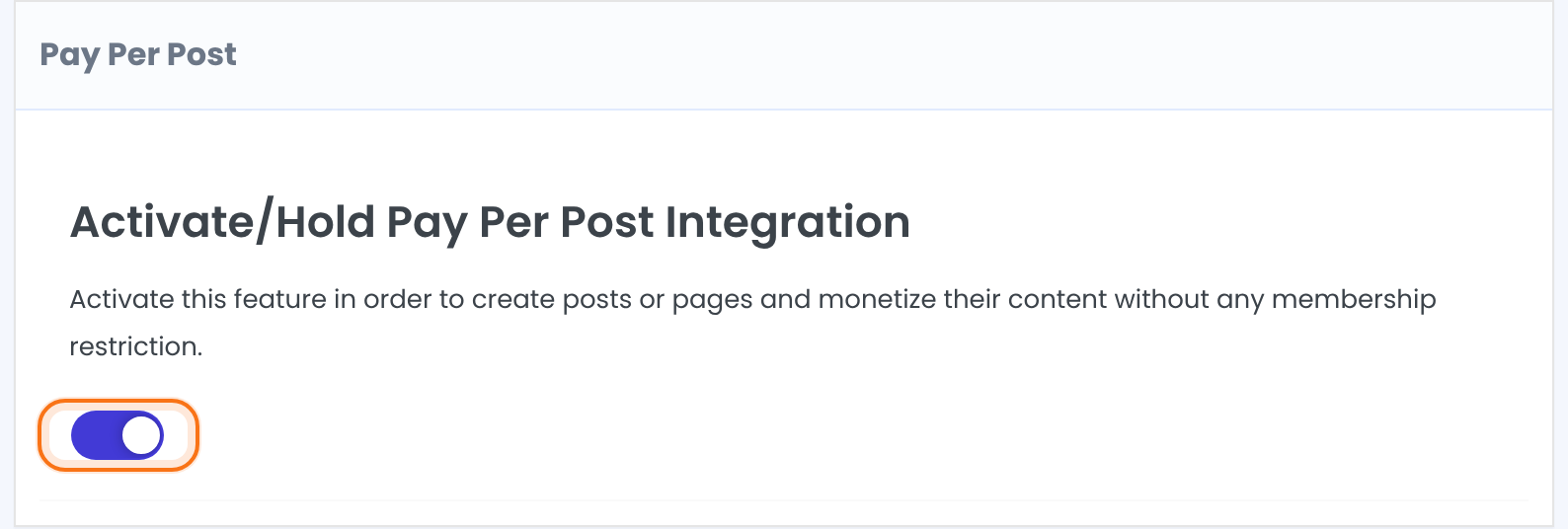
Under the switch, a Restricted Posts table lists every post you sell, with its Price and an Action column. It appears once you have priced your first post.
Set a price in the post editor
Open the post or page you want to sell. Below the content, the Ultimate Membership Pro – Pay per Post box appears on posts, pages and other post types. Enter a price and choose what visitors see, then update the post.
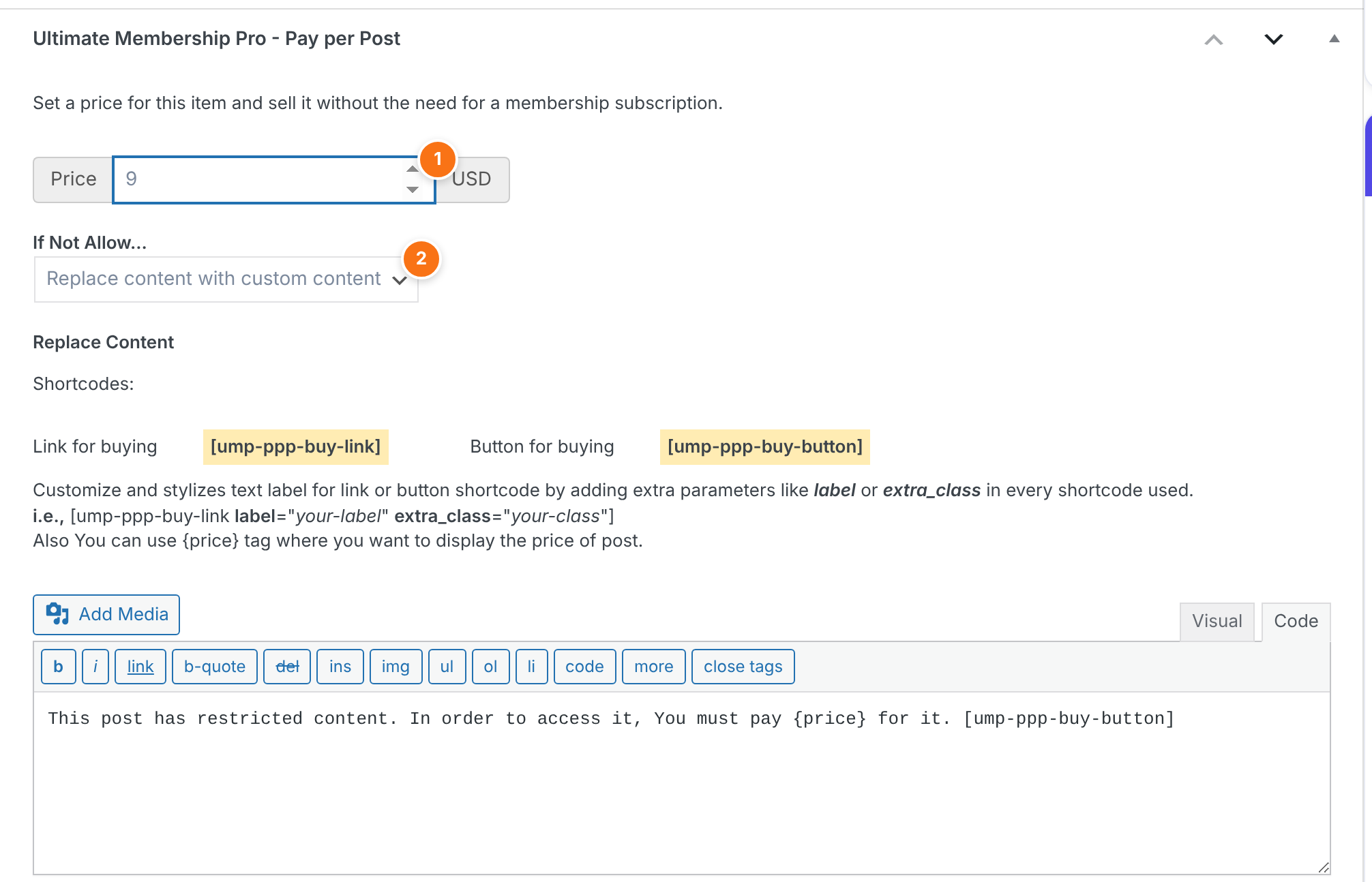
The amount buyers pay once, in your site currency, which is shown next to the field. A post with no price is not sold.
Default: Empty (post is not sold)
What a visitor sees when they haven’t bought the post.
- Replace content with custom content: the post shows your own text instead of the content, with a buy link or button.
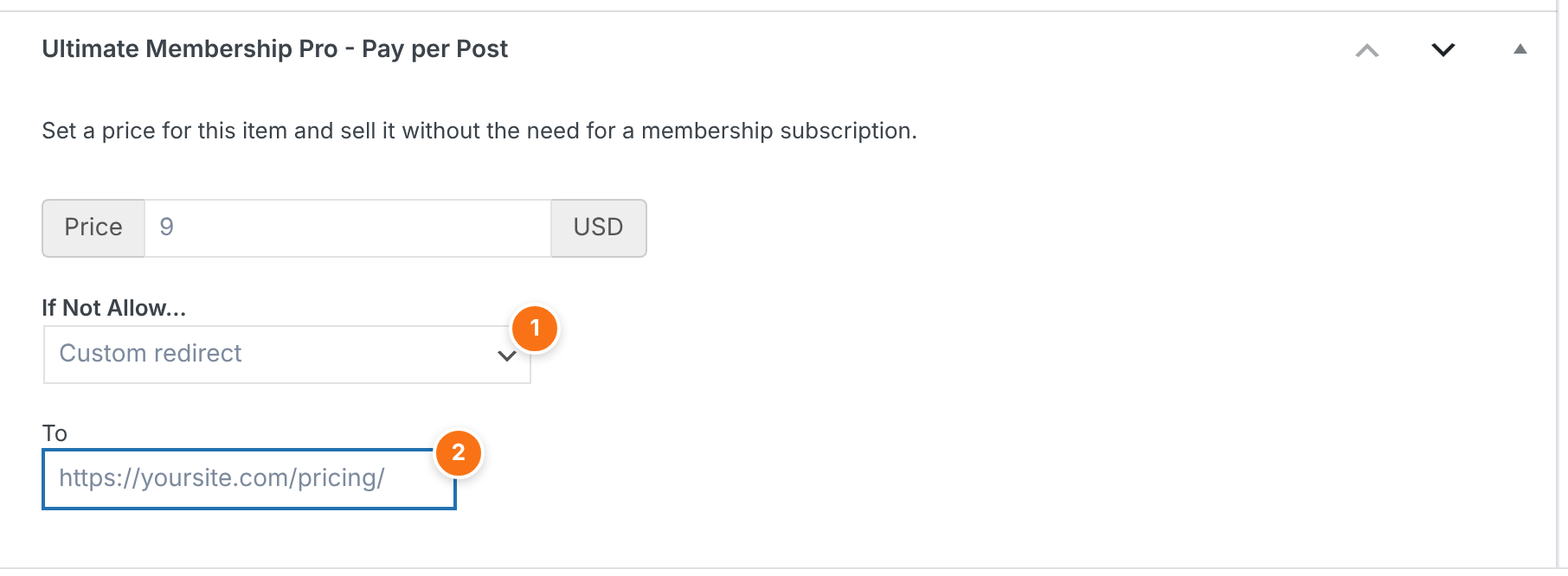
- Custom redirect: the visitor is sent to a page you choose in the To field.
- Redirect to Checkout page: a logged-in member goes straight to your Checkout page with the post’s Membership selected; a visitor who is not logged in goes to your registration page with it.
Default: Replace content with custom content
The address of the page visitors are sent to, for example your pricing page.
The text shown in place of the post. Use the tags below.
Default: This post has restricted content. In order to access it, You must pay {price} for it. [ump-ppp-buy-button]
Tags for Replace Content:
The price of the post, with the currency.
A button to buy the post. Its label is Get Access Now unless you add label="…". Add extra_class="…" to style it.
A link to buy the post. Add label="…" to set the link text, which is the address when you leave it out.
Example
Get the Goal-setting guide for {price}. [ump-ppp-buy-button label="Buy the guide"]What saving does
- When you update the post with a price, the add-on creates a one-time Membership for it, named “Access for:” followed by the post title, and sets the post to show only to it. You do not manage that Membership by hand.
- Memberships you had already allowed on the post keep their access. The box itself reminds you that the restrictions set here may change the Locker restrictions of the post.
- The buy link and button need a Checkout page. See Configure the checkout page.
What buyers see and get
A visitor who has not bought the post sees your replacement text, with the price and the buy button:
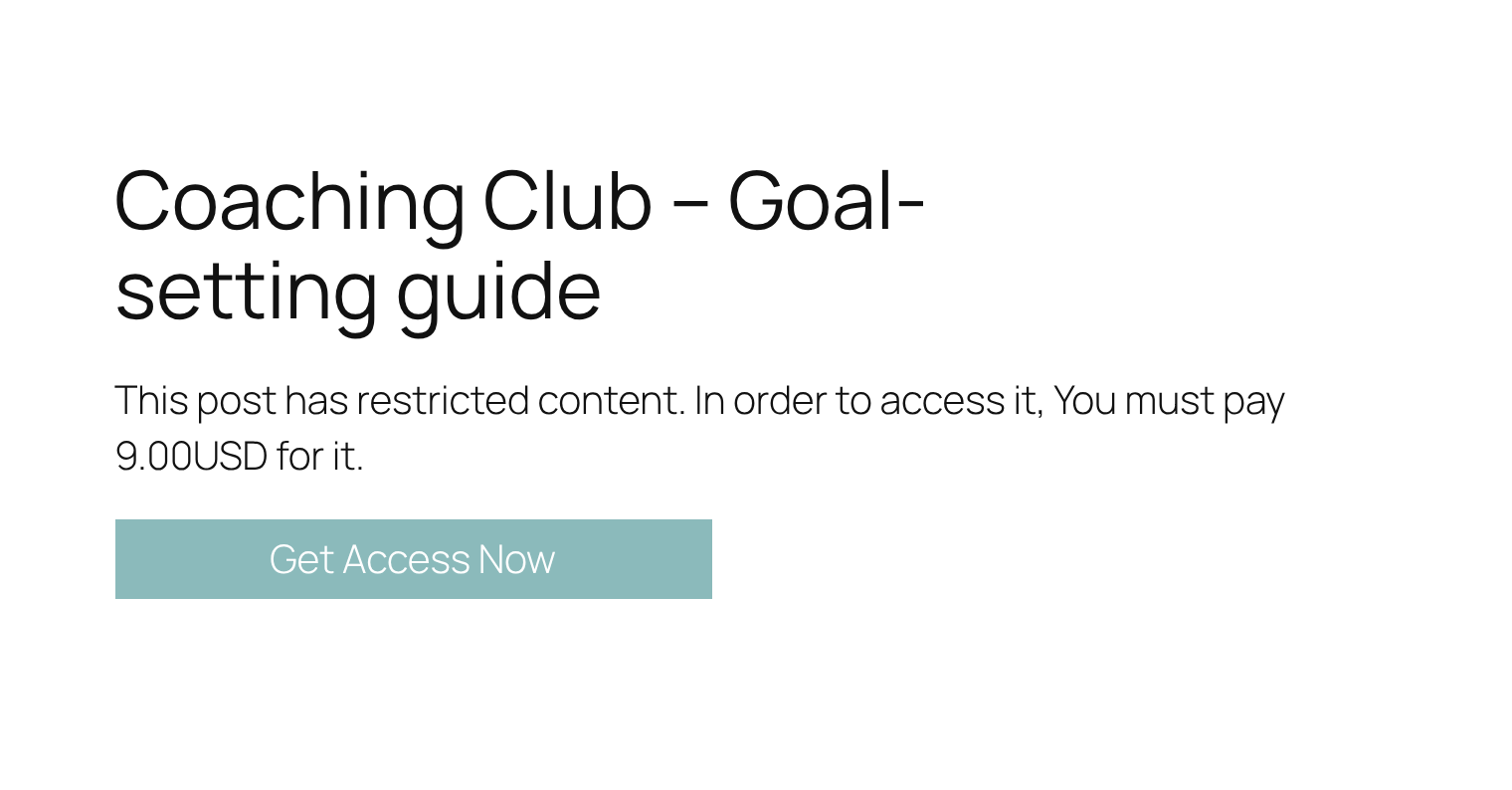
The button opens your Checkout page for the post. After the payment, the buyer holds the post’s Membership, which is a one-time payment with access that doesn’t expire, and the post opens in full.
Change or stop selling a post
Go back to Ultimate Membership Pro›Modules and open Pay Per Post. In the Restricted Posts table, Edit opens the post in the editor and Delete removes the price and the Membership that was created for the post. Deleting is permanent.
Example: sell one guide for $9
- Activate/Hold Pay Per Post Integration
- On
- Page
- Coaching Club – Goal-setting guide
- Price
- 9
- If Not Allow…
- Replace content with custom content
- Replace Content
- Get the Goal-setting guide for {price}. [ump-ppp-buy-button label=”Buy the guide”]
- Result
- Visitors see the price and a Buy the guide button. After paying $9, the buyer opens the guide.
Learn more about Pay Per Post
- Pay Per Post add-on page: what it does, at a glance.
- All Pro add-ons for Ultimate Membership Pro.
- Ultimate Membership Pro plans: Pro add-ons come with the Full Package and Agency plans.
- WordPress posts versus pages explained.
Troubleshooting
I don’t see the Pay per Post box in the editor. Why?
The box appears only while the add-on switch is on and saved.
The buy button or link doesn’t show. Why?
The link needs a Checkout page, and both need a post whose price has been saved at least once. Check Ultimate Membership Pro›Settings›Pages Setup, then update the post again.
Does a buyer need a Membership to buy a post?
No. The buyer pays once for the post, and no recurring plan is involved.
How do I sell one post or page in Ultimate Membership Pro without a Membership plan?
Turn on the Pay Per Post add-on, enter a Price in the Ultimate Membership Pro – Pay per Post box of the post, choose what visitors see under If Not Allow…, and update the post.
How do I stop selling a post?
Use Delete in the Restricted Posts table of the Pay Per Post screen. This removes the price and the Membership created for the post.


