
In Ultimate Membership Pro, the Limited Subscriptions Level add-on lets you set a maximum number of subscriptions for a Membership. When that number is reached, the Membership is removed from your Subscription Plan page, so no one else is offered it. It is the way to run founding-member deals, small cohorts or any plan with a fixed number of places.
This guide switches the add-on on, sets a limit for a Membership and shows what visitors see when the Membership is full.
Before you start
- The Limited Subscriptions Level add-on is installed and active. It’s a Pro add-on, included in the Full Package and Agency plans. See Install a Pro add-on.
- Your license is active. See Find and activate your license key.
- A Subscription Plan page that lists your Memberships. See Build your pricing page.
Turn it on and set the limits
- Go to Ultimate Membership Pro›Modules and open the Limited Subscriptions Level card.
- Switch on Activate/Hold Limited Subscriptions Level Integration.
- Under Levels Limits, type a number next to each Membership you want to limit, then click Save Changes.
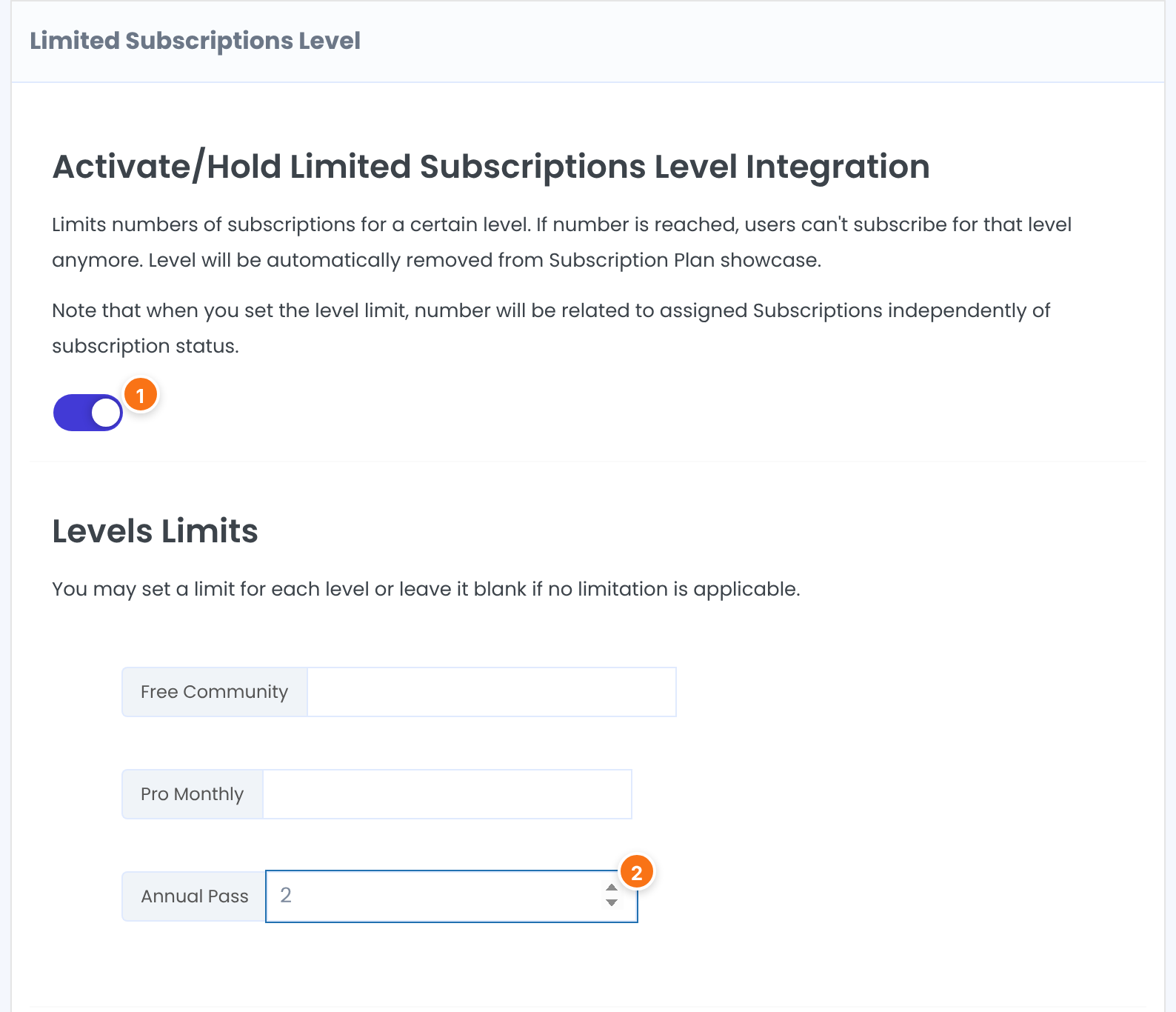
Turns the add-on on. When a Membership reaches its limit, it is removed from the Subscription Plan showcase.
Default: Off
One number field for each Membership, labeled with its name. Leave a field blank for a Membership with no limit.
Default: Empty (no limit)
What counts toward the limit
The limit counts the subscriptions assigned to the Membership, whatever their status. A subscription that has expired or is on hold still uses one place.
See what visitors get
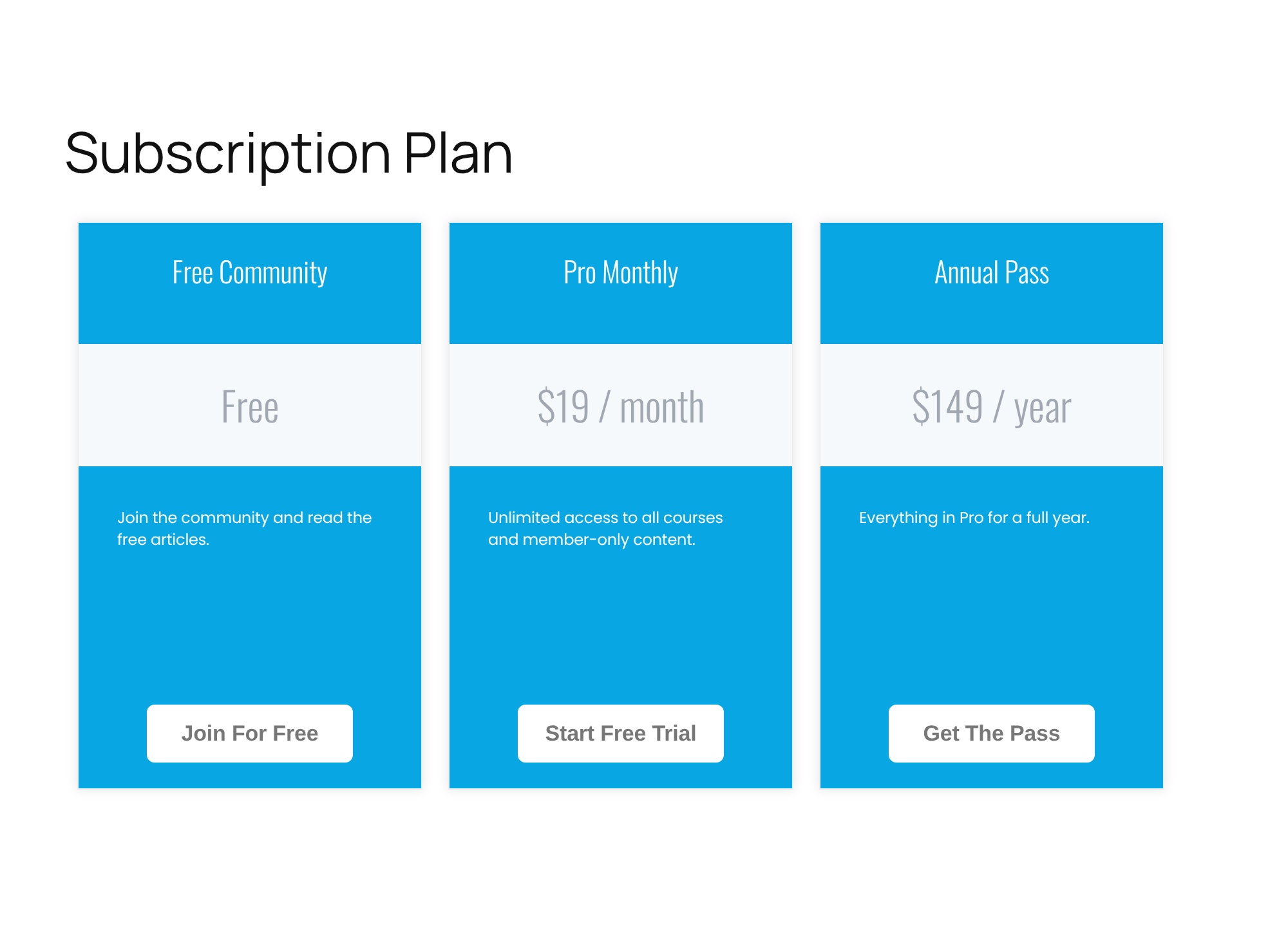
Below the limit, the Membership shows on the Subscription Plan page as usual:
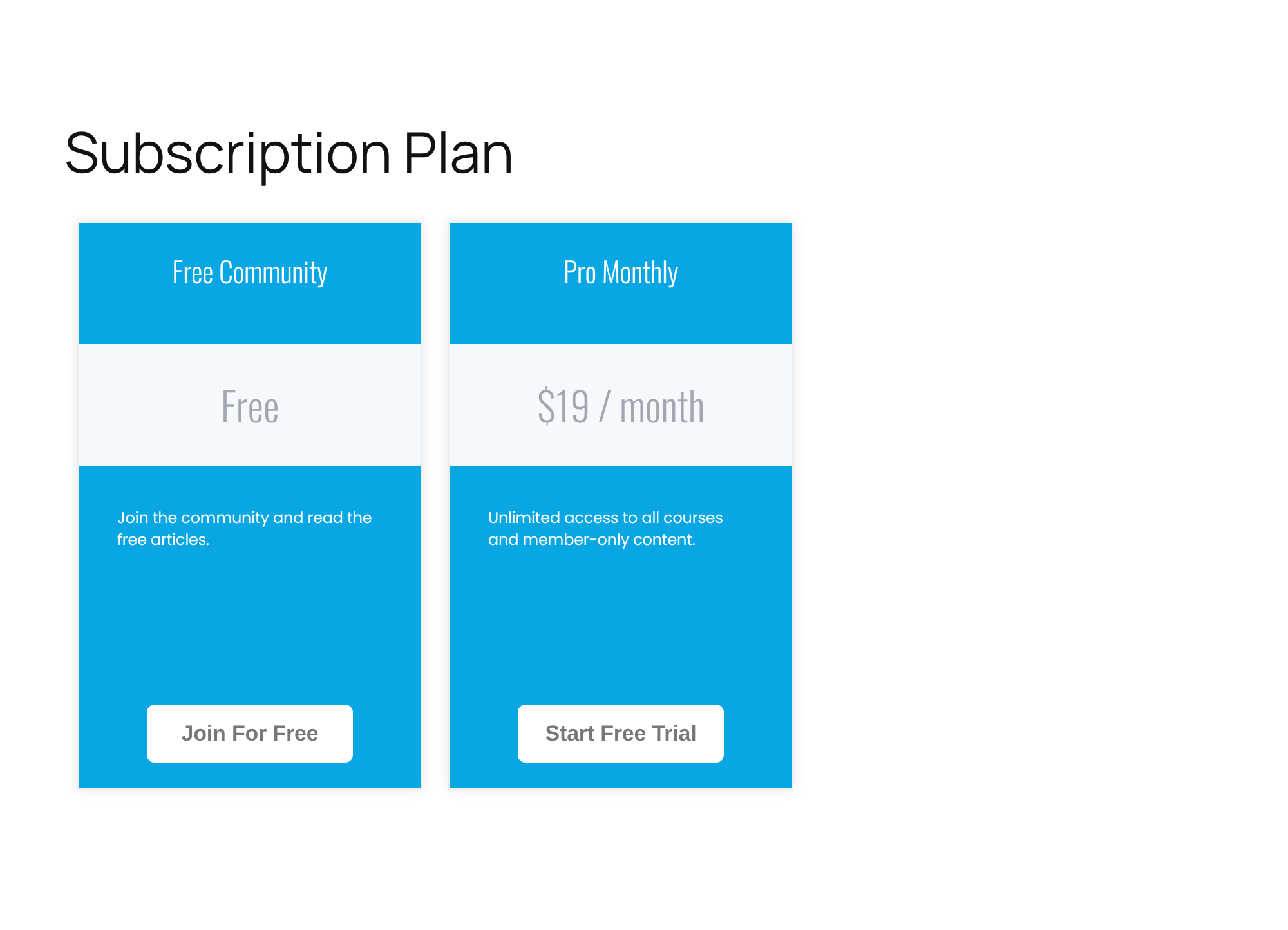
Once the number of subscriptions reaches the limit, the Membership is gone from the page:
Make room again
To open places again, raise the number under Levels Limits, or leave the field blank to remove the limit. The Membership comes back to the page at once.
Example: 100 founding places
- Activate/Hold Limited Subscriptions Level Integration
- On
- Free Community
- Blank, no limit
- Pro Monthly
- Blank, no limit
- Annual Pass
- 100
- Result
- After the 100th subscription, Annual Pass disappears from the Subscription Plan page. Free Community and Pro Monthly stay.
Learn more about Limited Subscriptions Level
- Limited Subscriptions Level add-on page: what it does, at a glance.
- All Pro add-ons for Ultimate Membership Pro.
- Ultimate Membership Pro plans: Pro add-ons come with the Full Package and Agency plans.
- Subscription business model (Wikipedia).
Troubleshooting
The Membership is still on my Subscription Plan page after reaching the limit. Why?
Check that the switch is on and saved, and that the number is filled in for that Membership. Then count the subscriptions: the add-on counts every subscription assigned to the Membership, whatever its status, and hides the Membership when the count equals or passes the limit. Clear your page cache if you use one.
The Membership disappeared before I expected. Why?
The count includes expired and on-hold subscriptions, and subscriptions you assigned by hand. Raise the limit or leave the field blank.
Where does the limit show for the visitor?
It doesn’t show as a message. The Membership is simply no longer listed on the Subscription Plan page.
How do I stop selling a Membership after a set number of sign-ups in Ultimate Membership Pro?
Turn on the Limited Subscriptions Level add-on and type the maximum number next to the Membership under Levels Limits. When the number is reached, the Membership is removed from the Subscription Plan page.


