
In Ultimate Membership Pro, the Manage Reset Password add-on lets members choose their own new password on a page of your site, from the link in the reset email. Without it, that link makes the site generate a random password and email it to the member. With it, nobody has to receive a password in plain text, and members pick one they can remember.
This guide creates the reset form page, switches the add-on on and shows what members go through, from the email link to the new password.
Before you start
- The Manage Reset Password add-on is installed and active. It’s a Pro add-on, included in the Full Package and Agency plans. See Install a Pro add-on.
- Your license is active. See Find and activate your license key.
- Members can already ask for a reset email from your lost-password page. See How password reset works.
- Your site sends email. See Emails are not sent.
Create the reset form page
- Go to Pages›Add New and give the page a title, for example “Reset password”.
- Add the shortcode below to the page content and publish it.
Shortcode
[ump-mrp-form]The shortcode shows the password form only when the page is opened from a reset link. Opened on its own, the page stays empty.
Switch on Manage Reset Password
- Go to Ultimate Membership Pro›Modules and open Manage Reset Password (in Members & Registration).
- Switch on Activate/Hold Manage Reset Password Integration.
- Choose your page in Reset Password form page and click Save Changes.
![Manage Reset Password box with the activation switch (1) and the Reset Password form page select showing Coaching Club – Reset password (2), above the shortcode [ump-mrp-form]](https://ultimatemembershippro.com/wp-content/uploads/2026/10/ump-ao-manage-reset-01-settings.png)
Turns the add-on on. The link in the reset email then opens your form page.
Default: Off
The page that contains the [ump-mrp-form] shortcode. The list shows your published pages. While no page is chosen, the reset email keeps its standard link.
Default: …
What members see
- The member asks for a reset on your lost-password page, as usual.
- The email they receive links to your reset form page. The link carries a one-time code and is valid for one hour.
- On your page they type the new password twice and click Submit.
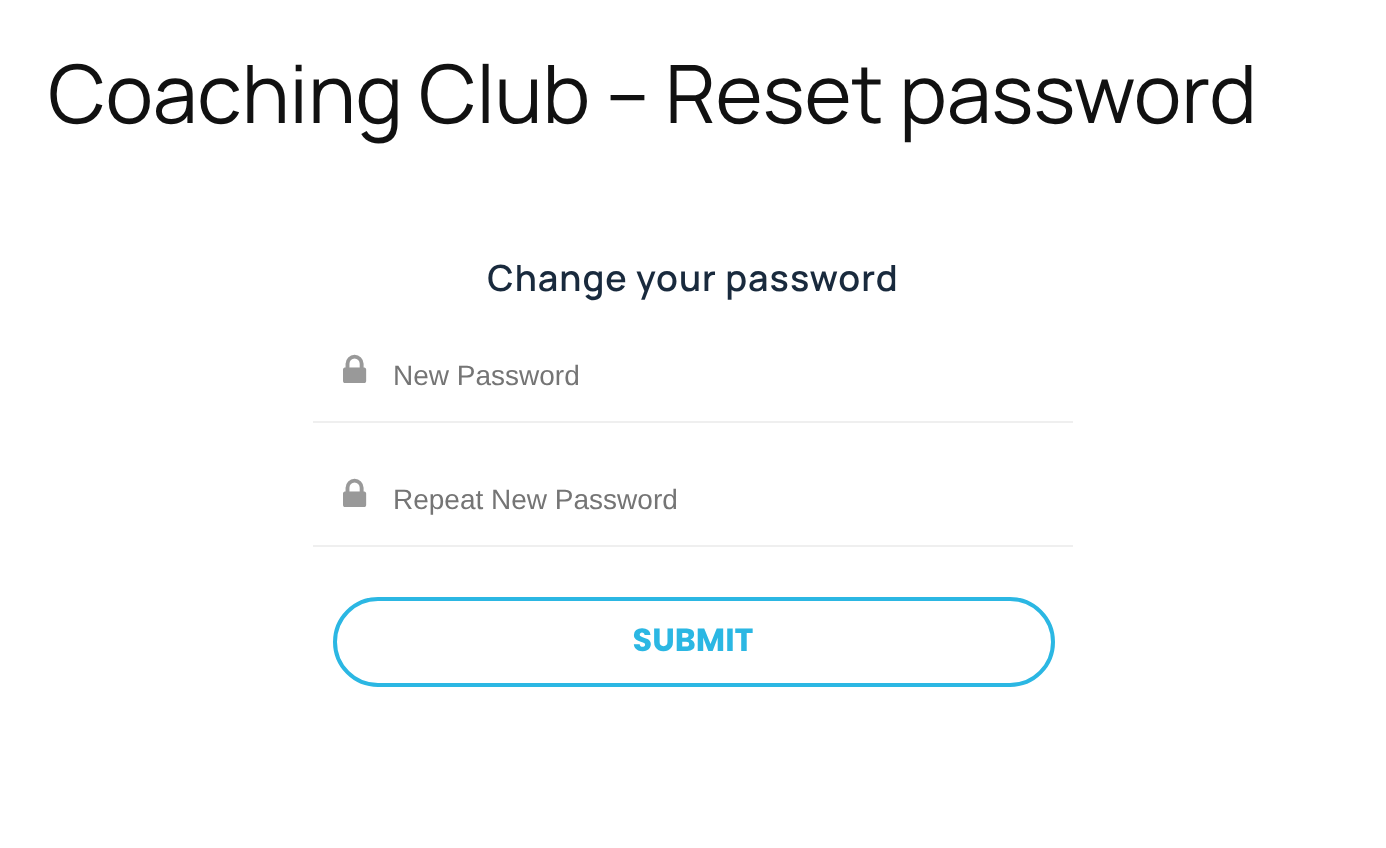
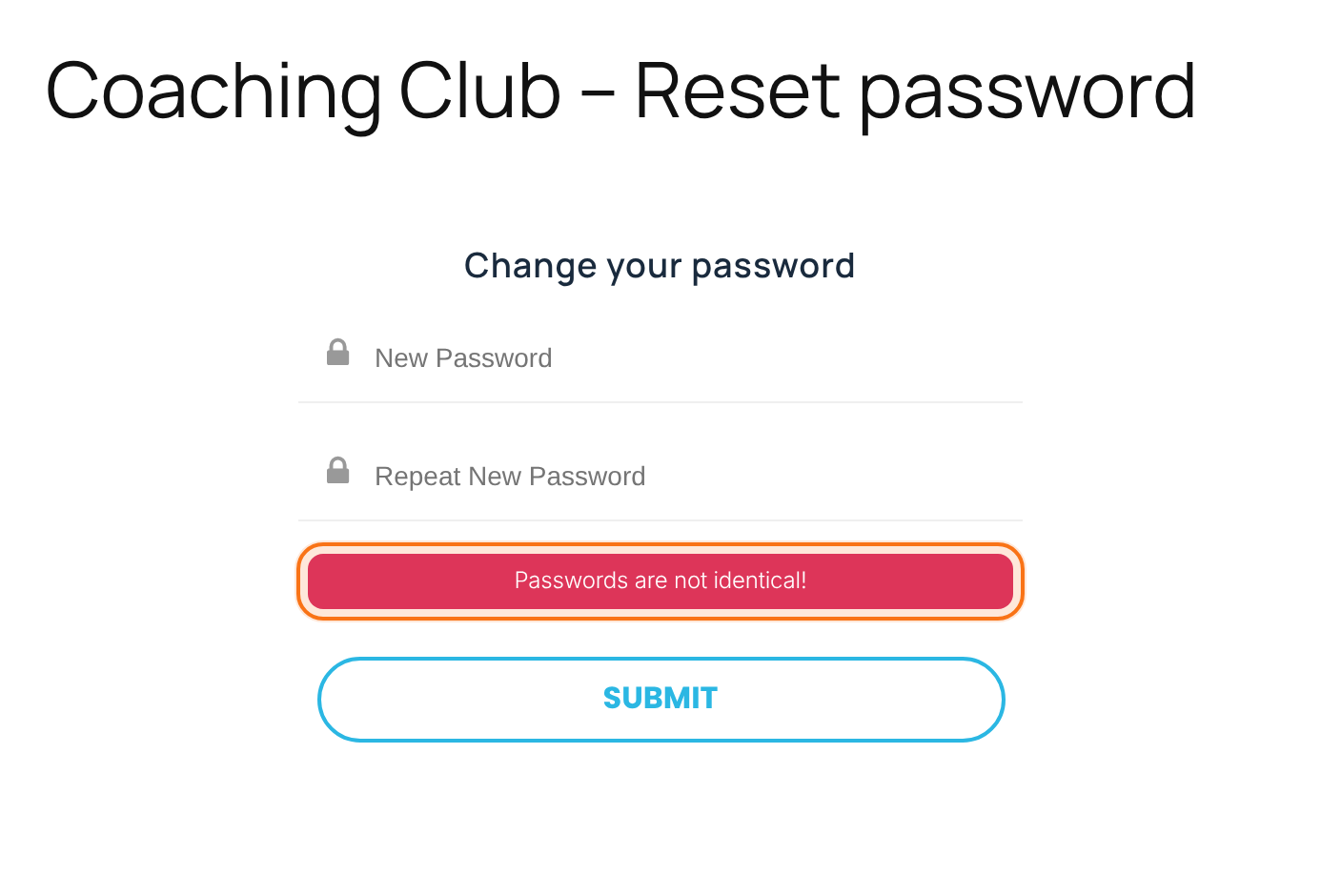
The form checks the entries before it changes anything:
Shown when one of the two fields is empty.
Shown when New Password and Repeat New Password differ.
When the entries are valid, the password is changed and the member receives the “change password” email. They are then sent to the page chosen as After Password Reset under Ultimate Membership Pro›Settings›Pages Setup, or to your home page when none is set.
Update the message on the lost-password page
After a member asks for a reset, the lost-password form shows the Successfully Message of the Reset Password Messages box in the Login Form showcase. Its default says “A new password has been sent to your email address”. With this add-on the email holds a link instead, so reword it, for example “We’ve sent you a link to choose a new password”. See Set up the login form.
Example: members choose their own password
- Page
- Reset password, containing [ump-mrp-form]
- Activate/Hold Manage Reset Password Integration
- On
- Reset Password form page
- Reset password
- Successfully Message
- We’ve sent you a link to choose a new password.
- After Password Reset
- Member Login
Learn more about Manage Reset Password
- Manage Reset Password add-on page: what it does, at a glance.
- All Pro add-ons for Ultimate Membership Pro.
- Ultimate Membership Pro plans: Pro add-ons come with the Full Package and Agency plans.
- Resetting your WordPress password.
Troubleshooting
The email still gives members a generated password. Why?
The switch is off or not saved, or no page is chosen in Reset Password form page. Choose your page, click Save Changes and ask for a new reset email: emails sent earlier keep their old link.
Why is my reset form page empty?
The form appears only when the page is opened from the link in a reset email, because the link carries the member and the code. Opened directly, the page shows nothing.
The password didn’t change after the member submitted the form. What happened?
The link can be used for one hour and only the newest link works. A member who asks for a second reset email can’t use the first one. Ask them to request a new link on the lost-password page.
Where are members sent after they change their password?
To the page set as After Password Reset under Ultimate Membership Pro › Settings › Pages Setup, or to your home page if none is set.
How do I let members choose their own password after a reset in Ultimate Membership Pro?
Install the Manage Reset Password add-on, add the [ump-mrp-form] shortcode to a page, then switch on Activate/Hold Manage Reset Password Integration and choose that page in Reset Password form page. The reset email then links to the form.


