
In Ultimate Membership Pro, the Two Factor Authentication add-on adds a second step to the member login: after a member enters the right username and password, the site sends a one-time code by email or SMS, and the member must type it to get in. A stolen or guessed password is then not enough to open an account.
This guide switches the add-on on, chooses how codes are sent, sets the resend limit and the code expiry, covers the optional SMS providers and messages, and shows what members see when they log in.
Before you start
- The Two Factor Authentication add-on is installed and active. It’s a Pro add-on, included in the Full Package and Agency plans. See Install a Pro add-on.
- Your license is active. See Find and activate your license key.
- Your site sends email reliably, because the code is sent by email by default. See Emails are not sent.
- Your members log in through the Ultimate Membership Pro login form. See Set up the login form.
- For SMS codes: an account with one of the supported SMS services, and a Phone field in your registration form.
Test with a member account first
- Two Factor Authentication applies to everyone who logs in through the Ultimate Membership Pro login form, administrators included.
- If codes don’t arrive, nobody can finish a login. Keep a second admin session open in another browser while you test, and try a test member account before you tell members about it.
- The code step belongs to the Ultimate Membership Pro login form. To send people who open the standard WordPress login page to that form, add Hide the WordPress login page (Hidden WP Login).
Switch on Two Factor Authentication
- Go to Ultimate Membership Pro›Modules and open Two Factor Authentication (in Security & Login).
- Switch on Activate/Hold Two Factor Authentication Integration, choose the options below and click Save Changes.
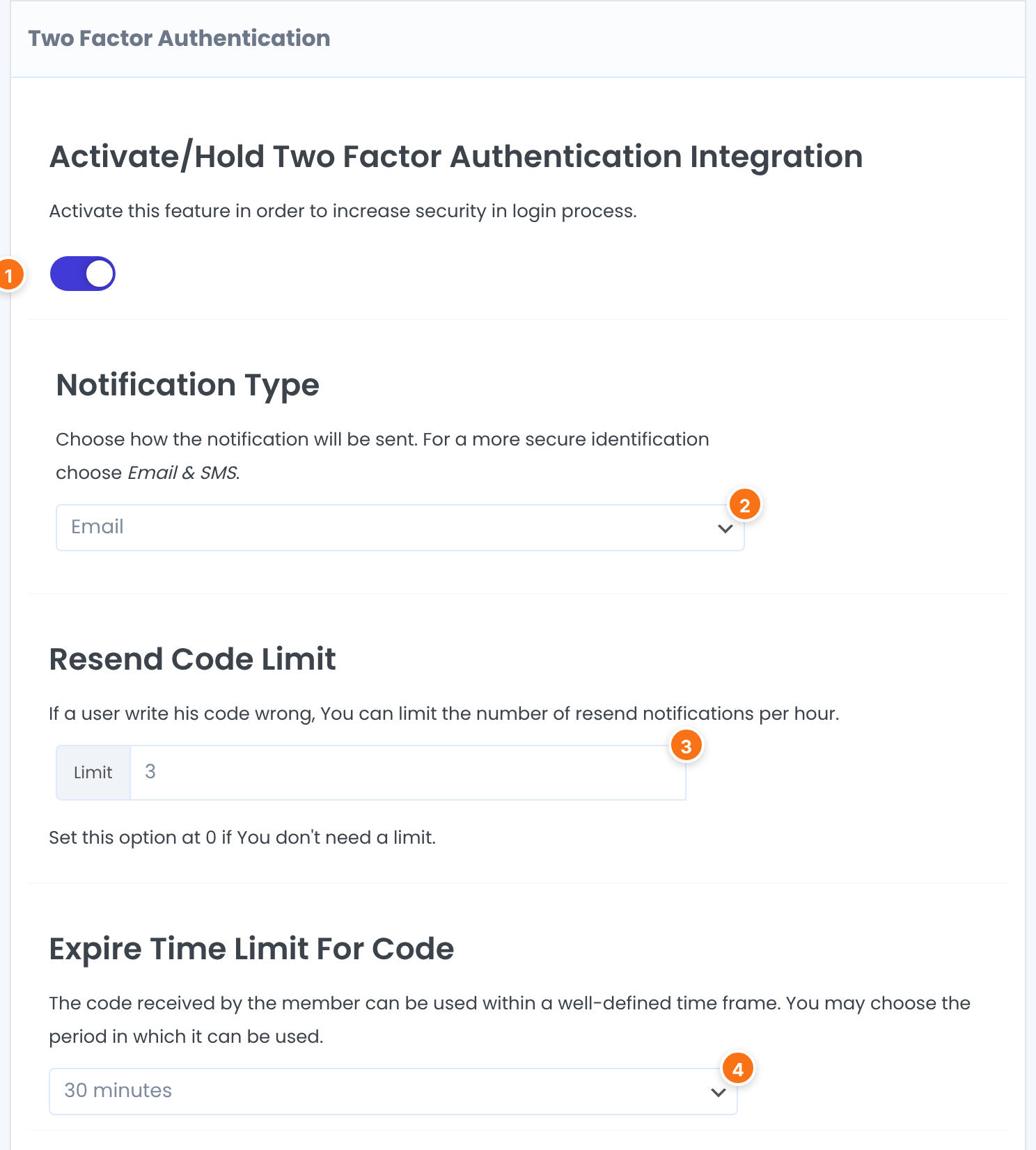
Turns the add-on on. From then on the login form asks for a code.
Default: Off
How the one-time code reaches the member.
- Email: the code is sent in an email.
- SMS: the code is sent as a text message. If the SMS can’t be sent, for example because the member has no phone number, the code is sent by email instead.
- Email & SMS: the code is sent both ways. The screen recommends this option for a more secure identification.
Default: Email
The Limit field sets how many codes a member can request per hour. Every code counts, including the first one sent at login. Enter 0 for no limit.
Default: 3
The time frame in which a code can be used.
- 10 minutes
- 30 minutes
- 45 minutes
- 60 minutes
Default: 30 minutes
Send codes by SMS
When Notification Type is SMS or Email & SMS, the SMS settings appear under the settings above. The code goes to the member’s Phone field, so your registration form needs that field. If it doesn’t have one, the screen shows a notice with a link to the custom fields. When the member has a Country field and their number doesn’t start with the country prefix, the prefix is added for them.
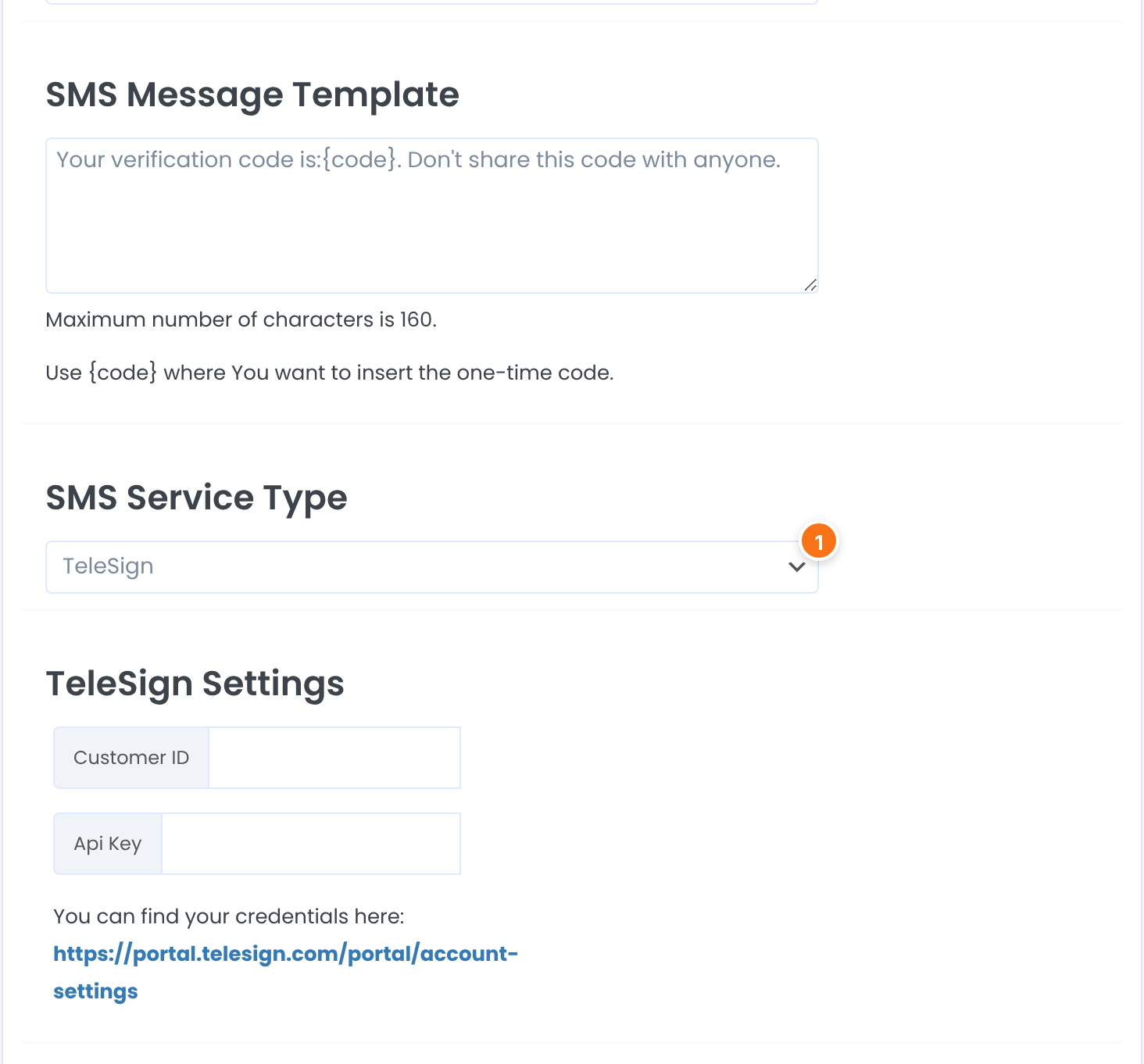
The text of the SMS. {code} stands for the one-time code. The maximum is 160 characters.
Default: Your verification code is:{code}. Don’t share this code with anyone.
The service that sends the SMS. Each one shows its own settings and a link to where you find your credentials.
- TeleSign: Customer ID, Api Key.
- BulkSMS: Username, Password.
- Messente: API Username, API Password.
- InfoBip: API Key, API Base Url Prefix, ‘From’ name.
- ClickSend: API Key, Username.
Default: …
A separate box under the settings. Enter a Phone Number and a Test Message, then click Send Test SMS to check your credentials.
Change the messages members see
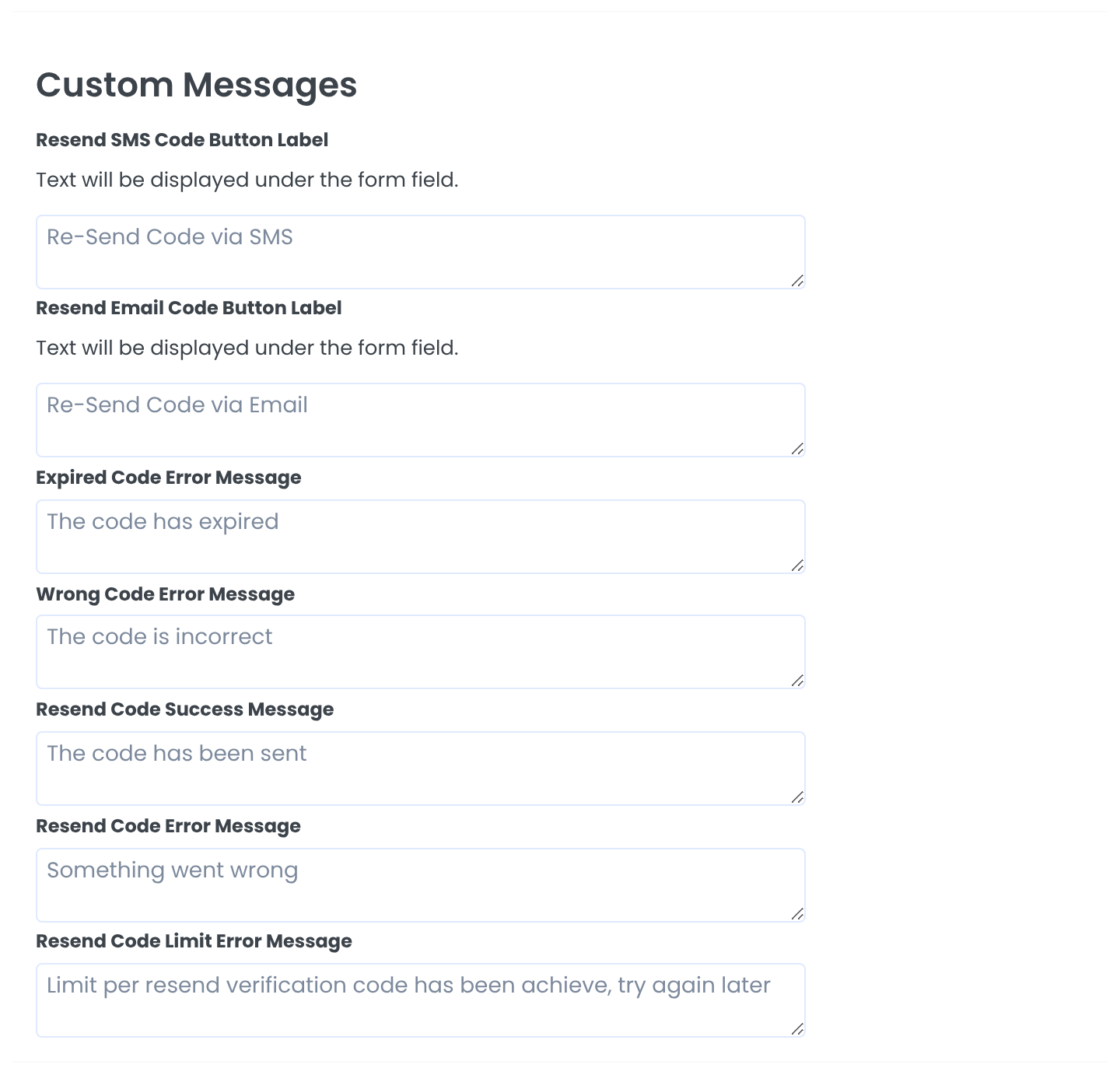
The link under the code field when Notification Type is SMS.
Default: Re-Send Code via SMS
The link under the code field for the other Notification Types.
Default: Re-Send Code via Email
The message for a code that is past its Expire Time Limit For Code.
Default: The code has expired
The message when the typed code doesn’t match.
Default: The code is incorrect
The message after a member clicks the resend link and a new code goes out.
Default: The code has been sent
The message when a new code can’t be sent.
Default: Something went wrong
The message when the member has reached the Resend Code Limit.
Default: Limit per resend verification code has been achieve, try again later
Edit the email that carries the code
Open Two Factor Authentication once and the add-on creates the notification 2fa – Send Code for Login for you. It’s sent instantly, with the subject {blogname}: You try to login on {blogurl}. Its body uses {code} for the one-time code, next to the usual placeholders such as {first_name}.
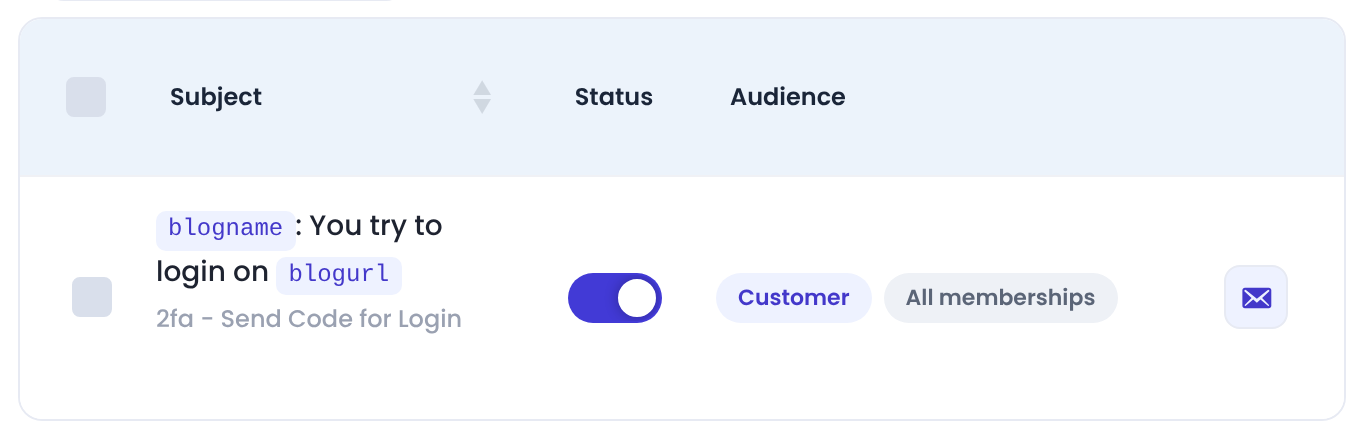
Edit its subject and text under Ultimate Membership Pro›Email Notifications. See Set up email notifications.
What members see
Members enter their username and password as always and click Log In. If those are right, the login form is replaced by a form with one field:
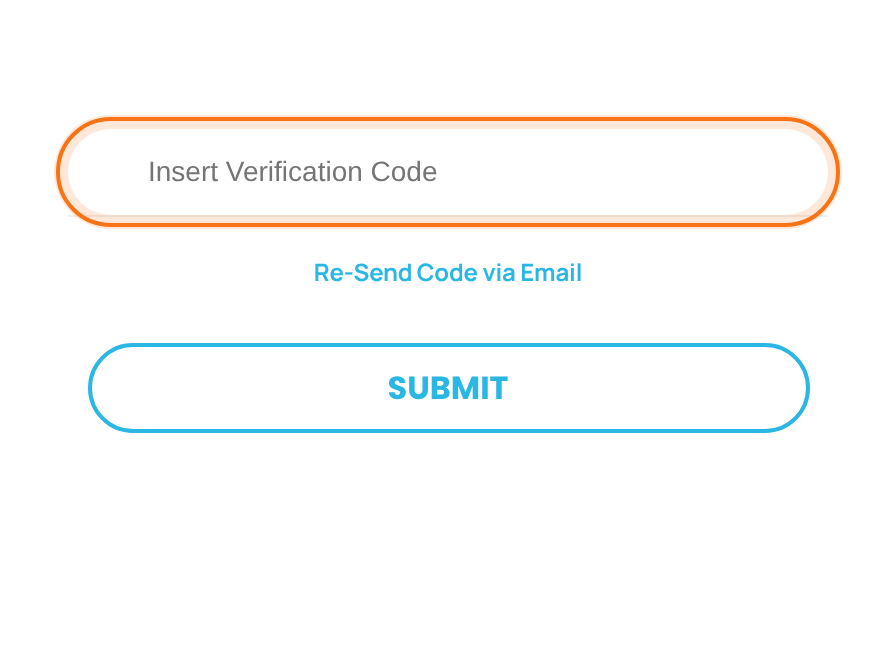
They type the code from the email and click Submit. The login then completes as usual, including any redirect you set for logins. A member who didn’t get the code clicks Re-Send Code via Email; a new code replaces the old one.
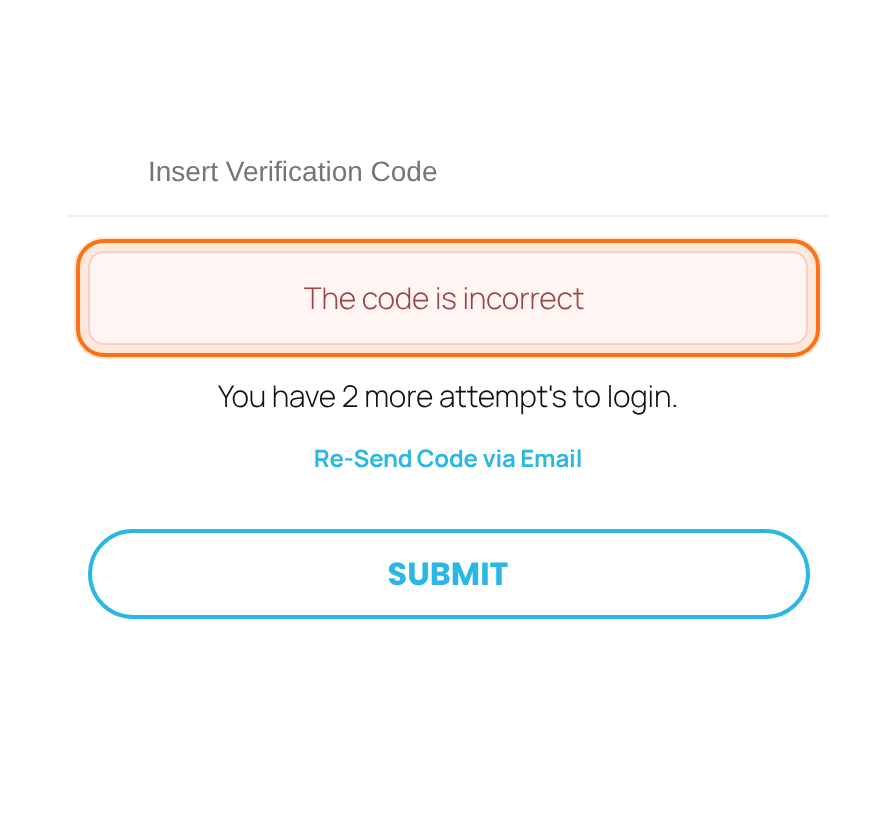
When the Resend Code Limit is above 0, a wrong code also shows how many attempts are left: “You have 2 more attempt’s to login.” If the password is wrong, the normal login error appears and no code is sent.
Example: protect Coaching Club logins
- Activate/Hold Two Factor Authentication Integration
- On
- Notification Type
- Resend Code Limit
- 3
- Expire Time Limit For Code
- 30 minutes
- 2fa – Send Code for Login, default text
- Memberships
- Free Community, Pro Monthly and Annual Pass members all use it
Learn more about Two Factor Authentication
- Two Factor Authentication add-on page: what it does, at a glance.
- All Pro add-ons for Ultimate Membership Pro.
- Ultimate Membership Pro plans: Pro add-ons come with the Full Package and Agency plans.
- Multi-factor authentication explained (Wikipedia).
- Infobip SMS documentation.
- ClickSend API documentation.
Troubleshooting
Members don’t receive the code. What should I check?
First check that your site sends email at all. See Emails are not sent. Then check that the notification 2fa – Send Code for Login is switched on under Email Notifications, and ask the member to look in their spam folder. They can click Re-Send Code via Email for a new code.
Why do members see “The code is incorrect”?
The code they typed doesn’t match the latest one. Each new code replaces the previous one, so after using the resend link only the newest email works. Codes are case sensitive.
Why do members see a message about the resend limit?
They asked for more codes than the Resend Code Limit allows in one hour; the first code sent at login counts too. The message is the Resend Code Limit Error Message. They can try again about an hour after their last request, or you can raise the Limit or set it to 0 for no limit.
Can I turn Two Factor Authentication on for only some members?
No. The add-on has no per-member setting. Once it’s on, every member who logs in through the Ultimate Membership Pro login form is asked for a code.
I locked myself out as an administrator. How do I get back in?
Use the standard WordPress login page, wp-login.php, which doesn’t ask for a code, unless Hidden WP Login is on. Then switch off Activate/Hold Two Factor Authentication Integration, fix your email delivery and switch it on again.
How do I add two-factor authentication to the Ultimate Membership Pro login?
Install the Two Factor Authentication add-on, then switch on Activate/Hold Two Factor Authentication Integration under Ultimate Membership Pro › Modules › Two Factor Authentication and save. Members then get a one-time code by email, SMS or both after entering their password.


