
In Ultimate Membership Pro, the IP Registration add-on hides the registration form from visitors whose IP address is on a list you keep. It is useful when the same person or network keeps creating fake or abusive accounts and you want to shut that door without affecting anyone else.
This guide switches the add-on on, shows how to write the list of addresses and explains what a blocked visitor sees. It is one of several protections; see Stop spam registrations for the others.
Before you start
- The IP Registration add-on is installed and active. It’s a Pro add-on, included in the Full Package and Agency plans. See Install a Pro add-on.
- Your license is active. See Find and activate your license key.
- Your registration form is set up. See Set up the registration form.
- You know the IP addresses you want to block, for example from the details of a spam account in your hosting or security logs.
Switch on the add-on and add the addresses
- Go to Ultimate Membership Pro›Modules and open IP Registration, in the Security & Login group.
- Switch on Activate/Hold IP Registration Integration.
- Type the addresses in Restricted IPs:, then click Save Changes.
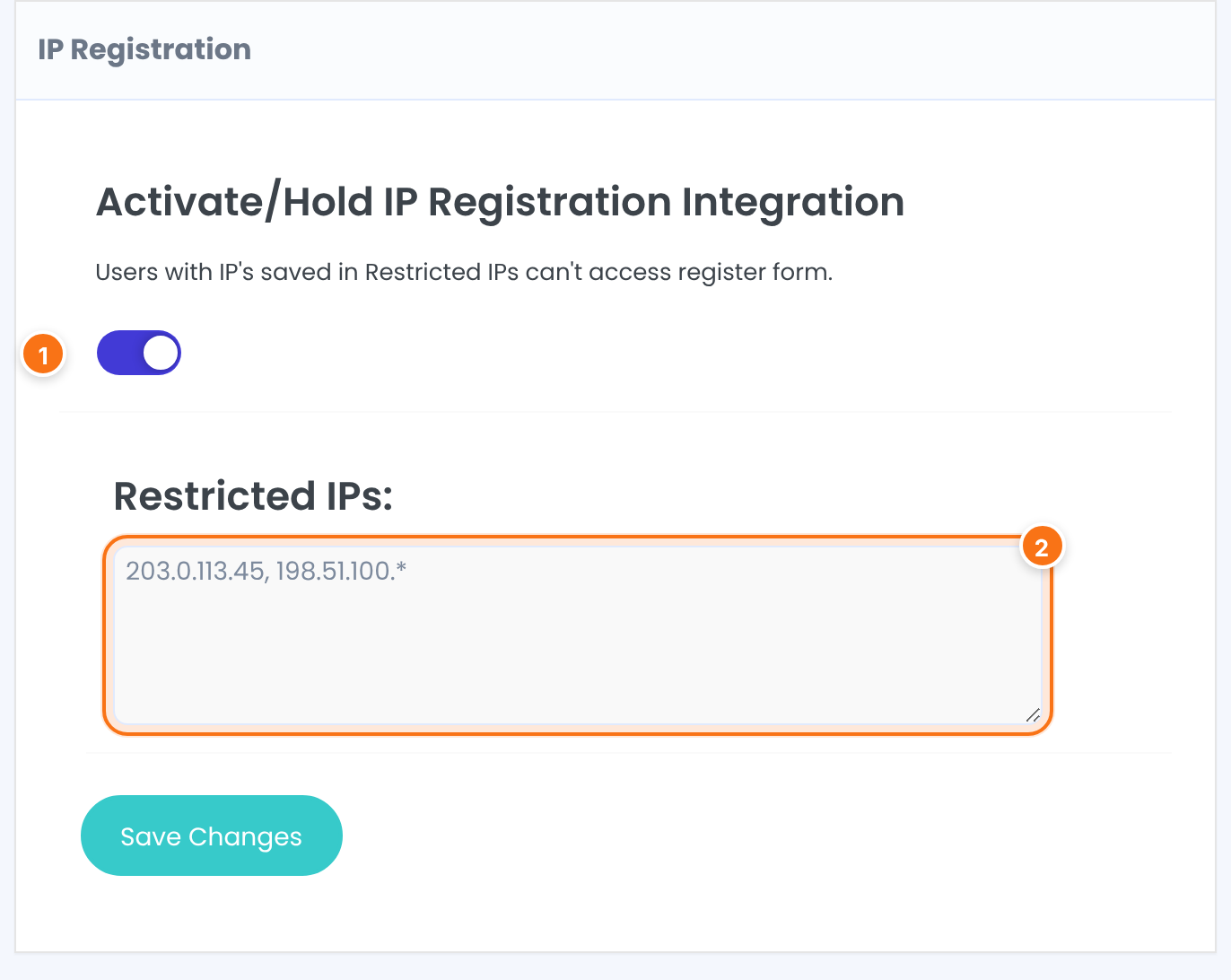
Turns the check on or off. The screen explains it this way: users with IPs saved in Restricted IPs can’t access the register form.
Default: Off
The addresses to block, separated by commas. Write a full address such as 203.0.113.45 to block one visitor, or end an address with * to block a whole range: 198.51.100.* blocks every address that starts with 198.51.100.. With an empty list nobody is blocked.
Default: Empty
Blocking a range
The * works as “anything that starts with”. Put it after a complete group of digits, for example 198.51.*, so you don’t block more addresses than you mean to.
What a blocked visitor sees
When a visitor’s IP address matches the list, the registration form doesn’t appear. The rest of the page, including its title and any text you wrote, shows as usual. This applies wherever the registration form is shown, including the registration popup. Visitors from other addresses see the form as normal.
To test it, add your own address, open your registration page in a private window while logged out, then remove the address again. Administrators who are logged in see the usual Administrator Info message instead of the form, so they can’t test while logged in.
Example: stop a spam source
- IP Registration
- On
- Restricted IPs:
- 203.0.113.45, 198.51.100.*
- Result
- Visitors from those addresses see the Register page without the form; everyone else registers as before
Learn more about IP Registration
- IP Registration add-on page: what it does, at a glance.
- All Pro add-ons for Ultimate Membership Pro.
- Ultimate Membership Pro plans: Pro add-ons come with the Full Package and Agency plans.
- X-Forwarded-For header and client IP (MDN).
Troubleshooting
Why does a blocked visitor still see the registration form?
Check that the switch is on and saved, that the address is in Restricted IPs exactly as the visitor’s address is, separated from the others by commas, and that the visitor isn’t using a different address, for example on mobile data or through a VPN. Use a range ending in * to cover addresses that change within the same network.
How do I find a spam account’s IP address?
Look in your hosting access logs or in a security plugin’s activity log for the sign-up request; it lists the address it came from.
How do I block IP addresses from registering in Ultimate Membership Pro?
Switch on the IP Registration add-on and list the addresses, or ranges ending in *, in Restricted IPs. The registration form is then hidden from visitors who use those addresses.
Does this block the login form too?
No. IP Registration only hides the registration form. To limit failed logins, see Block brute-force login attempts.


