
In Ultimate Membership Pro, Pro add-ons are separate plugins that add one feature each, such as group accounts, two-factor login or a Mailchimp sync. You install the ones you need, so your site only runs the features you use.
This guide shows how to install an add-on and turn it on, and lists every add-on with its own setup guide.
Before you start
- You have the Full Package or Agency plan. Pro add-ons are included in both plans; they aren’t part of the Pro plan.
- Ultimate Membership Pro is installed and your license is active. See Find and activate your license key.
- You’re logged in to WordPress as an administrator.
Download the add-on
Log in to your account on ultimatemembershippro.com and download the .zip file of the add-on you want. Don’t unzip it.
Install and activate it
- In your WordPress dashboard, go to Plugins›Add New Plugin and click Upload Plugin.
- Choose the add-on’s .zip file and click Install Now.
- Click Activate Plugin. The plugin is listed under its full name, for example Ultimate Membership Pro Addon – My Group Accounts, under Plugins›Installed Plugins.
Installing an add-on works like installing the main plugin. See Install Ultimate Membership Pro for the FTP method and upload errors.
Turn it on in Modules
- Go to Ultimate Membership Pro›Modules.
- Type the add-on’s name in the Search modules… box and click its card.
- On the add-on’s screen, switch on Activate/Hold and click Save Changes.
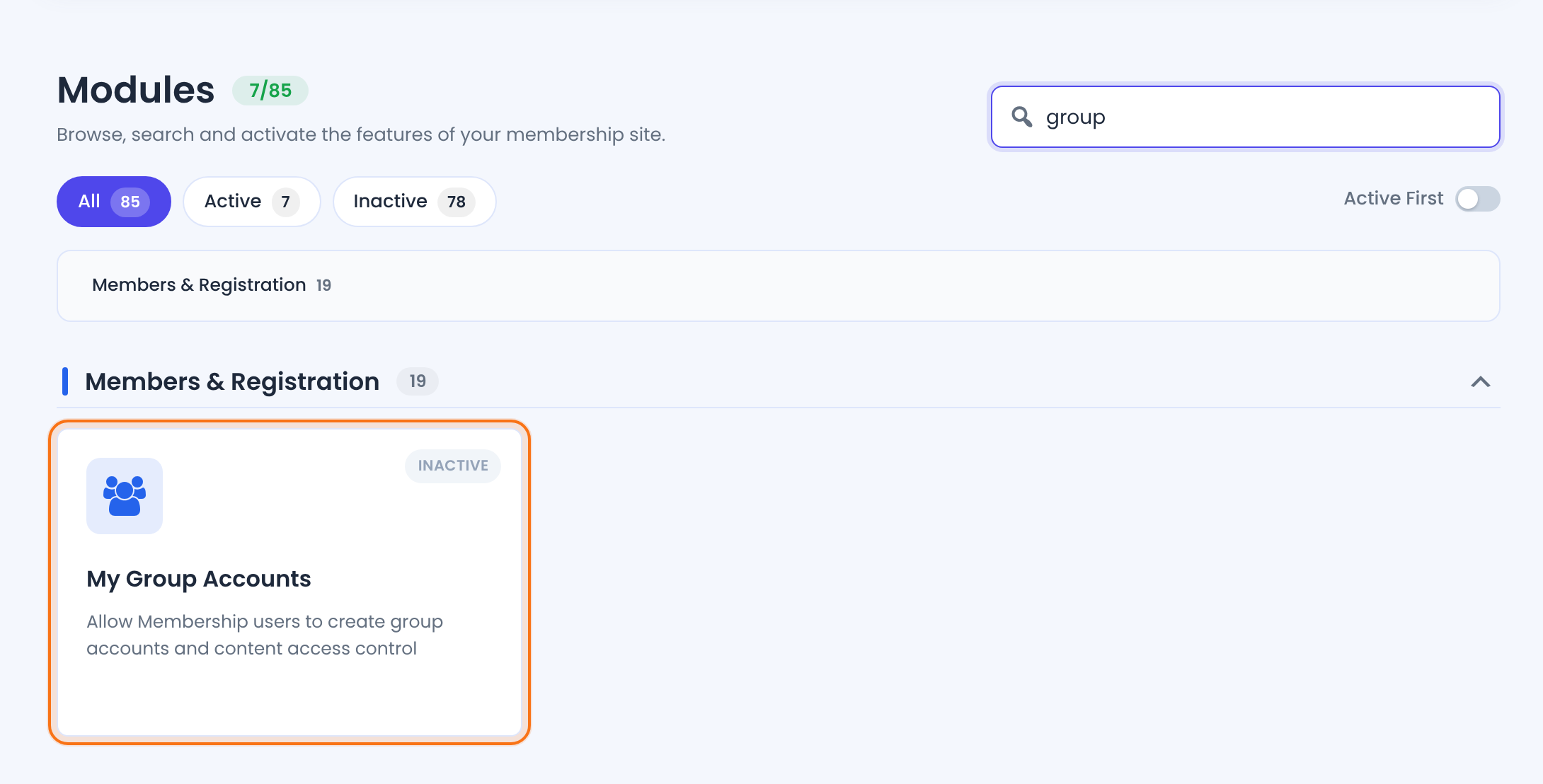
The badge on the card shows whether the add-on is switched on. An installed add-on stays inactive until you switch it on and save.
A card with an Unlock button is an add-on that isn’t installed on your site. Its View add-on link opens the add-on’s page on ultimatemembershippro.com.
Cards show this when your license isn’t active. Activate it under Ultimate Membership Pro›Licensing and the cards open.
Every Pro add-on and its guide
Groups and access
Let a member share their Membership with a set number of people, such as a team.
Give members an extra WordPress role while they hold a Membership.
Let a team member work in chosen Ultimate Membership Pro screens.
Make one Membership open every restricted page and post.
Open restricted content to visitors from IP addresses you trust.
Set a maximum number of people who can buy a Membership.
Sell access to a single post or page.
Content restriction
Show or hide Elementor widgets and sections by Membership.
Show or hide Divi sections, rows and columns by Membership.
Hide any element of your pages by CSS class or ID.
Show a different menu to each Membership.
Show sidebar widgets only to some members.
Keep new members out of content published before they joined.
Keep a post open until a date, then restrict it.
Make a restricted post free for everyone on a date.
Show the JivoChat live chat only to some visitors or members.
Give each member a private feed of the content they can access.
Registration and login
Split the registration form into personal details and checkout.
Ask members for a one-time code by email or SMS when they log in.
Send visitors from the WordPress login page to your membership login page.
Let members pick a new password on a page of your site.
Return members to the page they wanted after they log in or register.
Send members to your After Login page when they log in through WooCommerce.
Hide the registration form from IP addresses you list.
Stop registrations with disposable email addresses.
Let members email invitations to their friends.
Member Portal
Let members delete their own account from the Member Portal.
Show Member Portal tabs only to some Memberships.
Show the Cancel button only after a number of payments or a period.
See when each member was last active on your site.
Email and marketing
Add members to a Mailchimp audience for each Membership.
Add members to a Mailster list for each Membership.
Add members to a MailPoet list for each Membership.
Add members to ConvertKit with a form and tags for each Membership.
Get a Slack message when someone gets a Membership.
Email members whose order is still pending.
Store and data
Download your orders as a CSV file.
Restart invoice numbering from 1 or from a number you choose.
Show content or links to visitors, logged-in users or Membership holders.
Delete test data before your site goes live.
Payment gateways
Accept Razorpay payments; Pro adds recurring subscriptions.
Accept Paystack payments; Pro adds recurring subscriptions.
Accept PayFast payments; Pro adds recurring subscriptions.
Learn more
- All Pro add-ons for Ultimate Membership Pro.
- Ultimate Membership Pro plans: Pro add-ons come with the Full Package and Agency plans.
- Installing and managing WordPress plugins.
Troubleshooting
I installed an add-on but I can’t find its card in Modules
Check that the add-on’s plugin is active under Plugins›Installed Plugins, then search for its name on the Modules screen. Each guide above names the card.
Which plans include the Ultimate Membership Pro Pro add-ons?
Pro add-ons are included in the Full Package and Agency plans. Download them from your account on ultimatemembershippro.com.
Do I have to deactivate an add-on to stop using it?
No. Switch it off on its own screen and save; the plugin can stay installed. Deactivate and delete the plugin if you don’t need it any more.


